
Entwodiksyon
The Roku Hiro 32-inch 720p HD Smart TV offers an integrated Roku streaming experience. This television features an HD display for clear picture quality and speakers with enhanced audio. It supports Bluetooth for private listening with headphones and includes Wi-Fi for internet connectivity. The Roku operating system provides a customizable home screen, access to numerous streaming channels, and automatic updates, making it suitable for various living spaces.
Ki sa ki nan bwat la
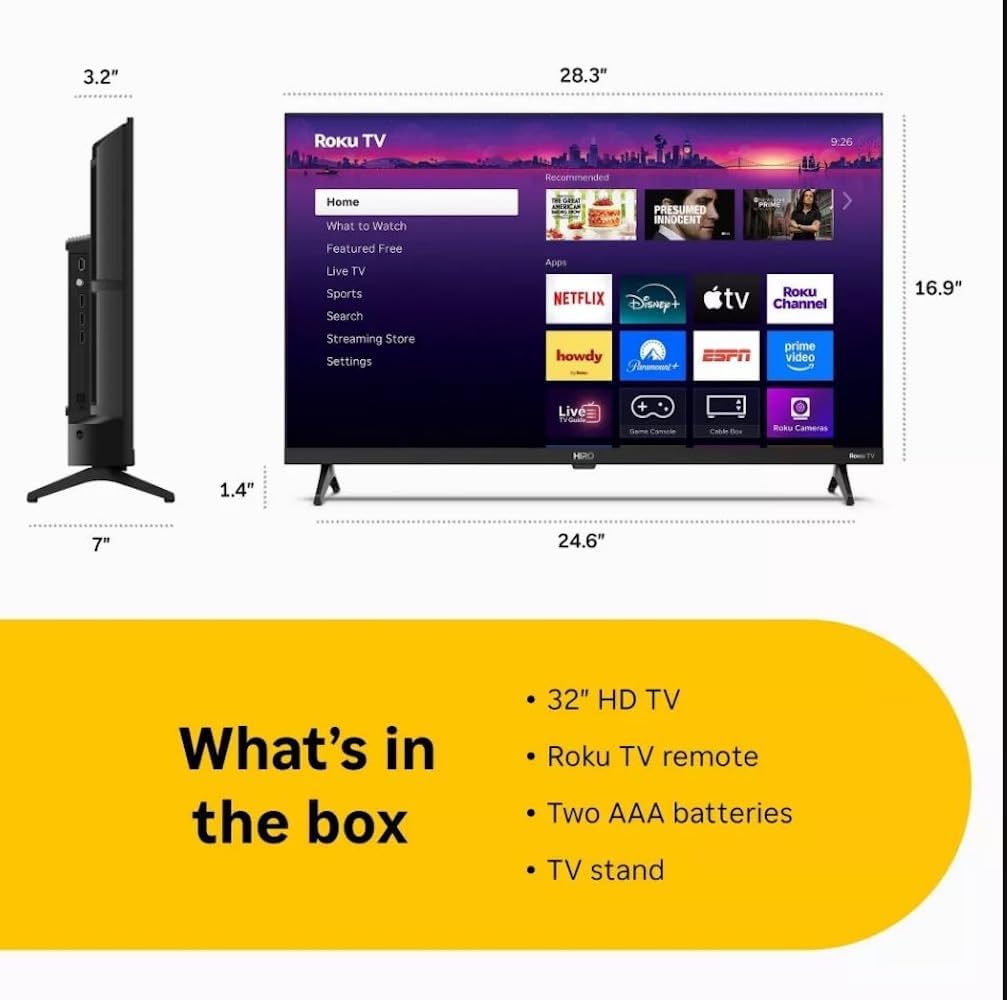
Diagram showing the dimensions of the Roku Hiro 32-inch TV and a list of included accessories: 32-inch HD TV, Roku TV remote, two AAA batteries, and TV stand.
- Hiro 32" 720p HD Smart TV Flat Screen LED Television with Roku TV
- Kontwòl Remote
- Kanpe televizyon
- Pouvwa kab
- Gid itilizatè
Enstalasyon
1. Enstalasyon kanpe
Carefully place the TV screen-down on a soft, clean surface to prevent damage. Align the TV stand with the designated slots on the bottom of the TV. Secure the stand using the provided screws. Ensure the stand is firmly attached before proceeding.
2. Konekte Aparèy

Dèyè view of the Roku Hiro TV, showing the input/output ports including USB, HDMI, and antenna connections.
- Pouvwa: Konekte kab kouran an nan antre kouran televizyon an epi answit nan yon priz miray.
- HDMI: Connect external devices such as Blu-ray players, game consoles, or cable boxes to the HDMI ports. This TV features 3 HDMI ports.
- USB: Sèvi ak pò USB a pou li medya ki soti nan yon kle USB.
- Odyo optik: Connect an external sound system using an optical audio cable for enhanced sound.
- Antèn/Kab: Connect an antenna or cable TV feed to the RF input for over-the-air or cable channels.
3. Inisyal Enstalasyon
After connecting all necessary cables, power on the TV. Follow the on-screen instructions to:
- Chwazi lang ou.
- Konekte ak rezo Wi-Fi ou.
- Activate your Roku account (or create a new one).
- Scan for available channels if an antenna is connected.
Enstriksyon Operasyon
Fonksyon kontwòl Remote

Close-up of the Roku TV remote control, highlighting buttons for TV power, volume, mute, sleep timer, instant replay, options, and app shortcuts.
- Bouton pouvwa: Limen oswa etenn televizyon an.
- Pad direksyonèl (D-Pad): Navige nan meni yo epi chwazi atik yo.
- OK bouton: Konfime seleksyon yo.
- Bouton Kay: Retounen nan ekran prensipal Roku a.
- Bouton tounen: Retounen nan ekran anvan an.
- Volim monte/desann: Ajiste volim televizyon an.
- Bouton bèbè: Aktive oubyen dezaktive son televizyon an.
- Bouton rakoursi aplikasyon yo: Direct access to popular streaming services (e.g., Netflix, Disney+, Apple TV+, Prime Video).
- Revèy dòmi: Sets a timer for the TV to turn off automatically.
- Lektur enstantane: Jumps back a few seconds in supported content.
- Opsyon: Accesses additional settings or information for the current content.
Navigating the Roku OS

The Roku TV home screen interface, showing recommended content and various streaming applications.
The Roku home screen provides access to all your streaming channels, inputs, and settings. Use the D-Pad on your remote to navigate through the menu options on the left and the app grid on the right. You can customize the order of your channels by highlighting an app, pressing the * (Options) button, and selecting 'Move channel'.
Kontni Streaming
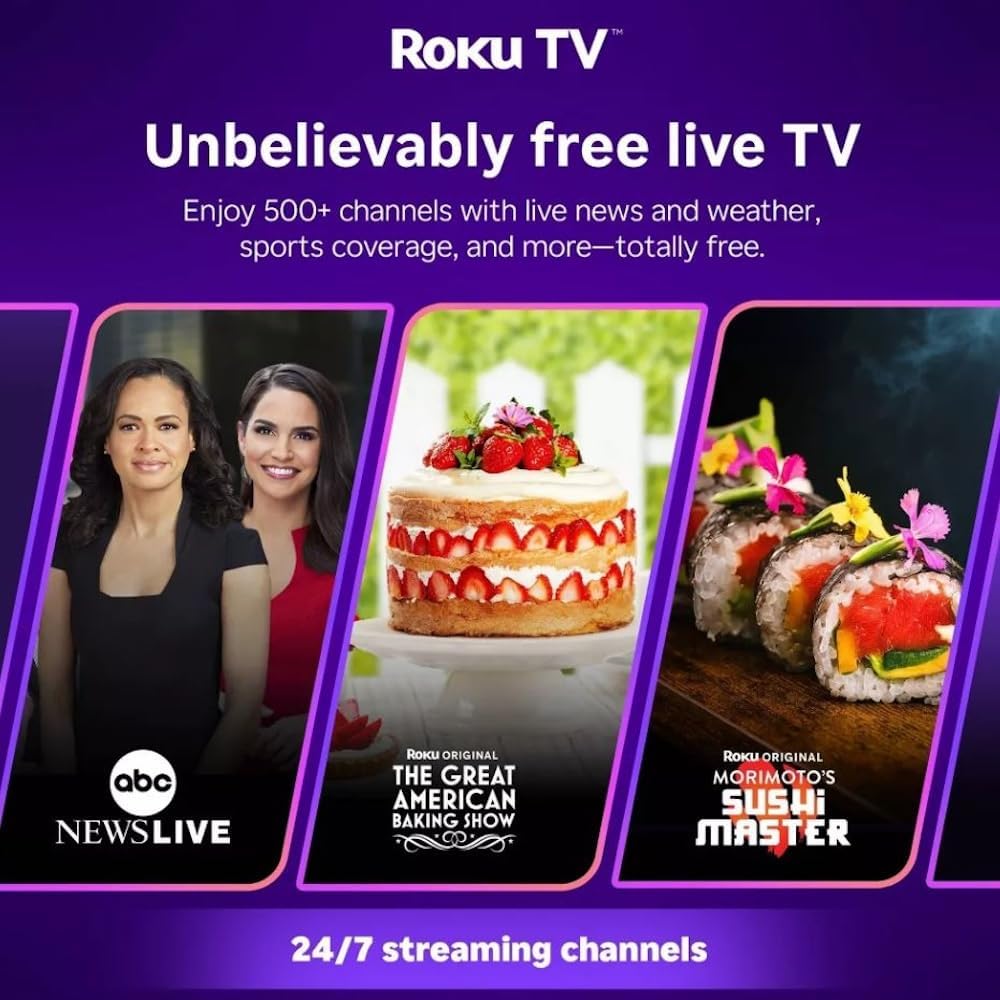
Roku TV interface promoting free live TV channels, featuring examples like ABC News Live, The Great American Baking Show, and Morimoto's Sushi Master.
Access a wide range of streaming services and free content through the Roku Channel Store. The Roku platform offers over 500 free channels, including live television, movies, and news. Use the 'Search' function on the home screen to find specific titles or channels.
Karakteristik odyo

Roku Hiro TV displaying the home screen with various streaming apps, emphasizing enhanced audio quality.
The TV features enhanced audio quality. For private listening, you can pair Bluetooth headphones directly with the TV. Navigate to Settings > Remotes & devices > Bluetooth devices > Pair new device to connect your headphones.
Antretyen
Netwaye televizyon an
- Toujou debranche televizyon an anvan ou netwaye li.
- Sèvi ak yon twal mou ki pa gen pousyè pou siye ekran an ak kabinè a dousman.
- Pou mak ki difisil pou retire, pase yon ti krasampRense twal la avèk dlo oswa yon pwodui netwayaj ekran ki pa abrazif. Pa flite pwodui netwayaj la dirèkteman sou ekran an.
- Evite itilize pwodui chimik ki fò, kousen abrazif, oswa solvan.
Mizajou lojisyèl
The Roku TV automatically checks for and installs software updates when connected to the internet. To manually check for updates, go to Anviwònman > Sistèm > Mizajou lojisyèl.
Depanaj
| Pwoblèm | Solisyon |
|---|---|
| Pa gen pouvwa | Asire w kab kouran an byen konekte ak televizyon an ak yon priz elektrik ki fonksyone. Eseye yon lòt priz. |
| Pa gen imaj, men gen son | Tcheke sous opinyon an. Peze bouton an Lakay button on the remote and select the correct input. Ensure all HDMI cables are securely connected. |
| Pa gen son, men imaj la la | Tcheke nivo volim nan epi asire w ke televizyon an pa sou silans. Si w ap itilize odyo ekstèn, verifye koneksyon yo ak paramèt yo. |
| Pa ka konekte ak Wi-Fi | Verify your Wi-Fi password. Restart your router and modem. Go to Anviwònman > Rezo > Konfigire koneksyon to reconfigure. |
| Remote kontwòl pa travay | Ranplase pil yo nan telekòmand lan. Asire w pa gen okenn obstak ant telekòmand lan ak detèktè IR televizyon an. |
Espesifikasyon
| Non modèl | H32C2C4 |
| Gwosè ekran | 32 pous |
| Teknoloji ekspozisyon | dirije |
| Rezolisyon | 720p |
| Rafrechisman pousantaj | 60 Hz |
| Sistèm operasyon | Roku OS |
| Koneksyon Teknoloji | Bluetooth, HDMI, Optical Audio, USB, Wi-Fi |
| Total Number of HDMI Ports | 3 |
| Total pò USB | 1 |
| Dimansyon pwodwi (D x W x H) | 3.2"D x 28.3"W x 16.9"H |
| Pwa atik | 7.5 liv |
| Voltage | 120 Vòlt (AC) |
| Kalite aliye | Mòn tab la |
| Koulè | Nwa |
Enfòmasyon sou Garanti
This Roku Hiro TV is covered by a 90-day Replacement Warranty. Please retain your proof of purchase for any warranty claims. For detailed terms and conditions, refer to the warranty documentation included with your product or visit the official Roku support websit.
Sipò
For further assistance, troubleshooting guides, or to contact customer support, please visit the official Roku support website. You can find comprehensive FAQs and contact information there.