
Entwodiksyon
IFOO aTAGE Shark Nano II 860 is a motorized camera slider designed for professional filmmakers and videographers. It offers precise multi-axis motion control, compatibility with DJI gimbals, and a range of advanced features including AI-powered tracking and multiple shooting modes. This manual provides detailed instructions for setting up, operating, maintaining, and troubleshooting your Shark Nano II 860 to ensure optimal performance and longevity.
Ki sa ki nan bwat la
Carefully unpack your IFOOTAGE Shark Nano II 860 and verify that all components are present:
- 1x Nano II 860 Slider
- 1x Quick Release Plate
- 1x detantè telefòn
- 1x Custom RS Adapter
- 1x PD 60W Charger
- 1x USB-C kab
- 1x Custom Magnetic Cable
- 6x Shutter Cables
- 1x Egzagòn kle
- 1x pote sak
- 1x manyèl itilizatè
Enstalasyon
Follow these steps to set up your Shark Nano II 860 slider:
- Debalaj ak enspeksyon: Remove all components from the carrying bag. Inspect for any signs of damage.
- Mounting the Slider: Place the slider on a stable surface, such as a tripod or light stands. Ensure it is level for optimal performance. The slider features 1/4" and 3/8" screw threads for versatile mounting.
- Tache Pwodwi pou Telefòn:
- Plak degaje rapid: Attach the quick release plate to your camera or fluid head.
- Detantè telefòn: If using a smartphone, attach the phone holder to the quick release plate.
- Custom RS Adapter: For seamless integration with DJI RS gimbals, attach the custom RS adapter to the slider carriage.
- Mounting Camera/Gimbal: Secure your camera, gimbal, or phone holder onto the slider carriage using the quick release plate. Ensure it is firmly locked in place.
- Limen: Connect the PD 60W charger to the USB-C port on the slider. Alternatively, use a compatible PD 3.0 power bank or the optional PD140H battery grip (ASIN: B0DN5ZCDXD). The slider will power on automatically or by pressing the power button.
- Kalibrasyon inisyal: The slider may perform an initial calibration upon startup. Allow it to complete this process before operation.

Image: The Shark Nano II slider demonstrating its wide compatibility with cameras, gimbals, and smartphones using various adapters.

Image: The Shark Nano II slider with a camera and gimbal, highlighting the smart motor calibration feature for easy setup.
Enstriksyon Operasyon
The Shark Nano II 860 can be controlled via its integrated IPS touchscreen or the iFootage Moco app.
1. Independent Control with IPS Touchscreen
The built-in high-brightness IPS touchscreen allows for complete, standalone control of the slider. Navigate through menus and adjust parameters directly on the screen for quick and intuitive operation, especially useful for fast-paced on-location shoots.

Image: The Shark Nano II slider demonstrating control via its IPS touchscreen and the iFootage Moco app on a smartphone.
2. Seamless Multi-Axis Motion Control
When paired with DJI gimbals via the custom RS Adapter, the Nano II enables synchronized multi-axis movement. This allows for complex tracking shots, panoramic sweeps, and vertical tilts with zero delay.

Image: Diagram illustrating the five-axis linkage capabilities of the Shark Nano II, including slide, 360-degree pan, roll, tilt, and focus motor.
3. Customizable Multi-Point Path
Set up to 8 customizable motion points using the IPS touchscreen or the iFootage Moco app. Each point can be fine-tuned with unique parameters to create intricate time-lapses, precise product shots, or dynamic tracking sequences. The slider features a memory function that restores settings after a power interruption.

Image: The Shark Nano II slider configured for multi-target tracking, with four distinct target points managed through the smartphone application.

Image: The Shark Nano II slider showcasing manual marking and angle adjustment for quick positioning and customizable keyframes.

Image: The Shark Nano II slider's display showing a prompt to resume a previous operation, highlighting its memory function that retains original settings.
4. AI-Powered Target Tracking
Utilize advanced AI recognition algorithms for face and object tracking. Select your subject on the Moco APP, and the Nano II will keep it centered and in focus, ideal for dynamic action, interviews, or product demonstrations.

Image: The Shark Nano II slider in action, demonstrating dynamic tracking with AI face recognition to keep a subject perfectly in focus.

Image: The Shark Nano II slider highlighting its smart tracking features, including face and object recognition, integrated with a DJI stabilizer.
5. Advanced Stabilization
The Nano II incorporates next-generation stabilization algorithms to detect and cancel micro-vibrations in real-time. This ensures stable and flawless footage, even for time-lapse photography or macro close-ups.

Image: The Shark Nano II slider illustrating its smart stabilization system, which combines software and hardware for smooth, shake-free operation.
6. Ultra-Quiet Brushless Motor
The high-performance brushless motor operates quietly, making the Nano II suitable for environments where ambient noise must be minimized, such as interviews or documentaries.

Imaj: Yon entèn view of the Shark Nano II slider, highlighting its silent operation mechanism.
7. Mòd tire versatile
The Nano II offers five distinct shooting modes to expand your creative possibilities:
- Time-Lapse: Capture sequences over extended periods.
- Stop-Motion: Create animated scenes with precise movements.
- Anrejistreman videyo: Standard video capture with smooth motion.
- Mòd makro: Achieve extreme close-ups with stable, controlled movement.
- Mòd Panorama: Capture expansive landscapes or wide scenes.

Image: The Shark Nano II slider demonstrating its versatile shooting modes, including Panorama, Time-Lapse, Macro, Stop-Motion, and Video.

Image: A stop-motion scene with character figurines, demonstrating the stop-motion capabilities of the Shark Nano II slider.
Image: A detailed close-up of a bee on a flower, showcasing the macro mode of the Shark Nano II slider.

Image: A wide panoramic shot of a city and coastline, demonstrating the panorama mode of the Shark Nano II slider.
Image: A night time-lapse scene featuring star trails and an old car, captured using the time-lapse mode of the Shark Nano II slider.
8. Efficient USB-C Charging Port
The Nano II is equipped with a 60W USB-C charger supporting PD 3.0, allowing direct power without extra batteries for extended shooting sessions. For additional flexibility, it can be paired with the PD140H battery grip (ASIN: B0DN5ZCDXD).
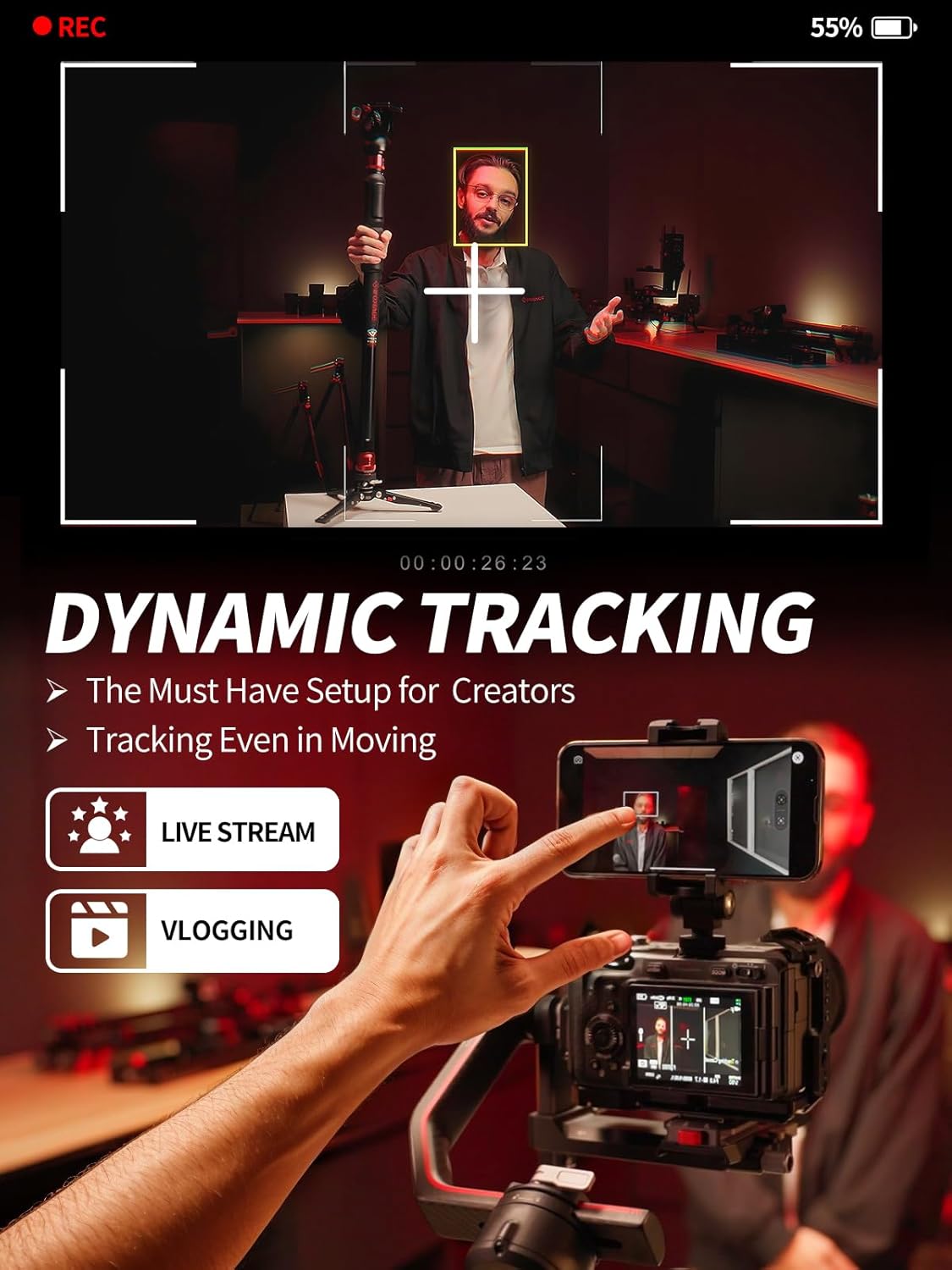
Image: The Shark Nano II slider displaying various power options, including the PD140 battery grip, 970 battery, power bank, and PD 65W charger.

Image: The Shark Nano II slider demonstrating its versatile power solutions for various shooting modes like video, stop motion, macro, time-lapse, and panorama.
Antretyen
Proper maintenance ensures the longevity and optimal performance of your Shark Nano II 860:
- Netwayaj: Regularly wipe the slider rails and carriage with a soft, dry, lint-free cloth to remove dust and debris. Avoid using harsh chemicals or abrasive materials.
- Depo: When not in use, store the slider in its carrying bag in a cool, dry place, away from direct sunlight and extreme temperatures.
- Swen batri: If using external batteries, follow the manufacturer's guidelines for charging and storage.
- Enspeksyon: Periodically check all screws and connections to ensure they are secure. Do not overtighten.
Depanaj
If you encounter issues with your Shark Nano II 860, refer to the following common problems and solutions:
| Pwoblèm | Kòz posib | Solisyon |
|---|---|---|
| Kurseur a pa limen. | No power, loose connection, or faulty power source. | Ensure the USB-C cable is securely connected. Try a different power source (PD 60W charger, power bank, or battery grip). |
| Movement is not smooth or stops unexpectedly. | Obstruction on rails, excessive payload, or incorrect settings. | Clean the slider rails. Reduce the payload to within specified limits (11lb / 5kg horizontal, 5.5lb / 2.5kg vertical). Check motion path settings in the app or touchscreen. |
| Gimbal synchronization issues. | RS Adapter not properly connected or gimbal not calibrated. | Ensure the Custom RS Adapter is correctly installed and connected. Calibrate your DJI gimbal according to its manual. |
| Pwoblèm koneksyon aplikasyon yo. | Bluetooth/Wi-Fi issues, outdated app version. | Ensure Bluetooth/Wi-Fi is enabled on your device. Restart the app and the slider. Check for app updates. |
| Bri pandan operasyon an. | Debris on rails or motor issue. | Clean the slider rails thoroughly. If the noise persists, contact customer support. |
Espesifikasyon
Key technical specifications for the IFOOTAGE Shark Nano II 860 Motorized Camera Slider:
- Non modèl: Shark Nano II 860
- Nimewo Pati Manifakti: DS-NANO2-860
- Aparèy konpatib: Camcorder, Camera, Cellphone, Gimbal, iPhone
- Maximum Horizontal Payload: 5 kilogram (11 liv)
- Maximum Vertical Payload: 2.5 kilogram (5.5 liv)
- Antre pouvwa: PD60W (USB-C)
- Battery Input Power: NPF Battery 60W+ (via optional battery grip)
- Distans vwayaj: 633mm
- Track Dimensions: 863mm x 133mm x 99mm
- Pwa: 3.47 KG
- Estabilizasyon imaj: Yes (via advanced algorithms)
- Anrejistreman odyo: Non
- Mòd Fiziyad: Time-lapse, Stop-motion, Video recording, Macro mode, Panorama mode
- Kontwòl: IPS Touchscreen, iFootage Moco App

Image: A comparison table outlining the specifications of the Shark Nano II 660 and 860 models, including dimensions, power, travel, and payload capacities.

Image: The Shark Nano II slider highlighting its strong motor and load-bearing capabilities, supporting 5KG horizontal and 2.5KG vertical payloads.

Imaj: Yon lòt view of the Shark Nano II slider emphasizing its robust motor and load-bearing capacity for both horizontal (5KG) and vertical (2.5KG) setups.
Garanti
IFOO aTAGE Shark Nano II 860 Motorized Camera Slider comes with a Garanti manifakti 3 zan. This warranty covers defects in materials and workmanship under normal use. Please retain your proof of purchase for warranty claims. For specific terms and conditions, refer to the warranty card included in your product packaging or contact IFOOTAGE customer support.
Sipò
For further assistance, technical support, or service inquiries, please contact IFOOTAGE customer support. You can find contact information on the official IFOOTAGE website or through the retailer where you purchased the product. Our team is ready to assist you promptly with any issues or questions you may have.