
1. Plis paseview
The Zebra TC52 is a wireless Android handheld device designed for efficient 1D, 2D, and QR code barcode scanning. This device offers a familiar Android operating system experience with access to various applications, making it suitable for diverse business environments. It is built for durability and ease of use, providing a reliable solution for data capture tasks.
Karakteristik kle:
- Budget-Friendly & Durable: Designed to balance durability with cost-effectiveness for business applications.
- Versatile Scanning Capabilities: Supports scanning of 2D, 1D, and QR codes, accommodating a broad range of barcode formats.
- Android 14 with Play Store Access: Provides a user-friendly Android experience with access to a wide variety of applications for enhanced functionality.
- Charger enkli: Comes with a charger to ensure the device remains powered for continuous operation.
2. Pwodwi konpozan
The Zebra TC52 package includes the following main components:
- Zebra TC52 Handheld Barcode Scanner
- Chaje kab
- Adaptè pouvwa
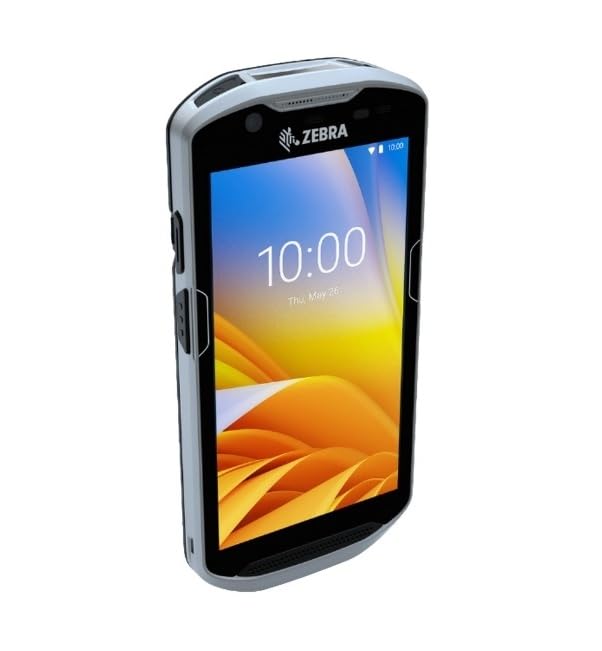
Figi 2.1: Devan view of the Zebra TC52 handheld barcode scanner, showing the screen and an active scanning beam.

Figi 2.2: Anba view of the Zebra TC52, highlighting the integrated barcode scanner module.
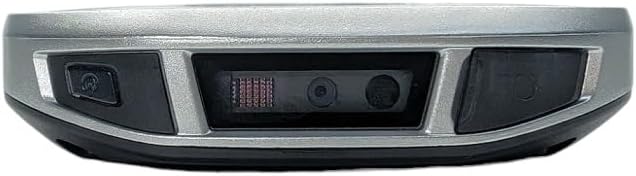
Figure 2.3: The Zebra TC52 handheld barcode scanner shown alongside its charging cable and power adapter.
3. Enstalasyon
3.1. Premye Chajman
- Connect the charging cable to the USB-C port on the bottom of the TC52 device.
- Ploge adaptè pouvwa a nan yon priz elektrik estanda.
- Allow the device to charge completely before first use. The charging indicator light will typically change color or turn off when fully charged.
3.2. Powering On / Off
- Pou limen: Press and hold the Power button (usually located on the side) until the Zebra logo appears on the screen.
- Pou etenn: Peze epi kenbe bouton Power la jiskaske yon meni pou etenn parèt. Chwazi "Power off" epi konfime.
3.3. Koneksyon rezo
- Sou ekran prensipal la, glise anba soti anwo pou jwenn aksè nan panèl Paramèt rapid yo.
- Tape ikòn Wi-Fi a pou aktive Wi-Fi a.
- Tape epi kenbe ikòn Wi-Fi a pou ouvri paramèt Wi-Fi yo.
- Chwazi rezo ou vle a epi antre modpas la si yo mande w.
4. Operasyon Enstriksyon
4.1. Navigasyon debaz
- Ekran Kay: Access applications and widgets.
- Tiwa aplikasyon: Glise moute anba nan fon an nan ekran an view tout aplikasyon enstale.
- Notifikasyon ak Paramèt Rapid: Glise anba soti anwo ekran an pou jwenn aksè a notifikasyon yo ak aktive/dezaktive paramèt rapid yo.
4.2. Eskane kòd bar
- Open the scanning application on your device.
- Point the scanner window (located at the top of the device) towards the barcode.
- Press and hold one of the scan buttons (typically on the sides of the device) to activate the scanning beam.
- Ensure the scanning beam covers the entire barcode. A successful scan is usually indicated by an audible beep and/or a visual confirmation on the screen.
- Lage bouton eskanè a.
Video 4.1: This video demonstrates the basic operation of the Zebra TC52 handheld scanner, including powering on, navigating the Android interface, and using the scanning function.
Videyo 4.2: Videyo sa a bay yon ti apèsi souview of the Zebra TC52's rugged design and scanning capabilities, showing it in a typical operational environment.
5. Antretyen
5.1. Netwaye Aparèy la
- Sèvi ak yon twal mou, ki san pèl dampened with water or a mild cleaning solution to wipe the exterior of the device.
- For the display, use a screen-specific cleaner and a microfiber cloth to avoid scratches.
- Do not use abrasive cleaners, solvents, or aerosol sprays directly on the device.
5.2. Swen batri
- Charge the device regularly to maintain optimal battery health.
- Evite dechaje batri a nèt souvan.
- Sere aparèy la nan yon kote ki fre epi sèk lè w pa itilize li pou yon bon bout tan.
5.3. Mizajou lojisyèl
Regularly check for and install software updates to ensure optimal performance, security, and access to the latest features. Updates can typically be found in the device's settings under "System" or "About phone."
NAN. Depanaj
6.1. Aparèy la pa limen
- Ensure the battery is sufficiently charged. Connect the device to the charger and wait a few minutes before attempting to power on again.
- Perform a soft reset by holding down the Power button for 10-15 seconds.
6.2. Barcode Scanner Not Working
- Verify that the scanning application is open and active.
- Check for any obstructions on the scanner window and clean if necessary.
- Ensure the barcode is not damaged or poorly printed.
- Rekòmanse aparèy la.
6.3. Connectivity Issues (Wi-Fi)
- Toggle Wi-Fi off and on in the Quick Settings.
- Forget the network and reconnect, ensuring the correct password is entered.
- Restart your Wi-Fi router if other devices are also experiencing connectivity issues.
7. Espesifikasyon
| Karakteristik | Detay |
|---|---|
| Mak | Zebra (Manufacturer: Symbol) |
| Modèl | TC52 |
| Kapasite eskanè | 2D/1D/QR Code Barcode Scanner |
| Sistèm operasyon | Android (Version not specified, but implies modern Android with Play Store access) |
| Koneksyon | San fil |
| Pwodwi pou Telefòn enkli | Charger |
| GTIN | 611393754717 |
| ASIN | B0GKB5YQ3F |
8. Garanti ak sipò
8.1. Garanti Renouvle Amazon
This product is part of the Amazon Renewed program and is backed by the Amazon Renewed Guarantee. This typically includes a 90-day return policy for refund or replacement if the product does not work as expected.
8.2. Sipò teknik
For technical assistance or further inquiries regarding your Zebra TC52 device, please refer to the official Zebra support resources or contact the seller, Tekswamp LLC, for specific support related to your renewed product.