
Entwodiksyon
This manual provides essential information for setting up, operating, and maintaining your Fusion5 A7 N6 23.8-inch All-in-One PC. Please read these instructions carefully before use and retain them for future reference.
The Fusion5 A7 N6 is a 23.8-inch Full HD All-in-One PC designed for home offices, students, and everyday users. It features a 1920x1080 FHD IPS display, an Intel N150 processor, 16GB DDR4 RAM, and a 512GB SATA SSD, running on Windows 11 Home.
Ki sa ki nan bwat la
- Fusion5 A7 N6 23.8" All-in-One PC
- Wireless klavye
- Sourit san fil
- Certified Power Adapter (12V/5A)
- Manyèl Itilizatè (dokiman sa a)
Enstalasyon
- Debake: Retire tout konpozan yo nan anbalaj la avèk prekosyon. Asire w ke tout atik ki nan lis "Sa ki nan bwat la" yo la.
- Plasman: Place the All-in-One PC on a stable, flat surface. Ensure adequate ventilation around the device.
- Koneksyon pouvwa: Connect the certified power adapter to the DC-in port on the back of the PC, then plug the adapter into a power outlet.
- Wireless Keyboard and Mouse Setup:
- Insert batteries (not included) into the wireless keyboard and mouse.
- Locate the USB receiver for the wireless keyboard and mouse. Plug it into an available USB port on the PC.
- The keyboard and mouse should automatically connect.
- Premye pouvwa sou: Peze bouton pouvwa a, ki anjeneral sitiye sou bò oswa dèyè ekran an.
- Enstalasyon Windows 11: Follow the on-screen instructions to complete the initial Windows 11 Home setup, including language, region, network connection, and user account creation.
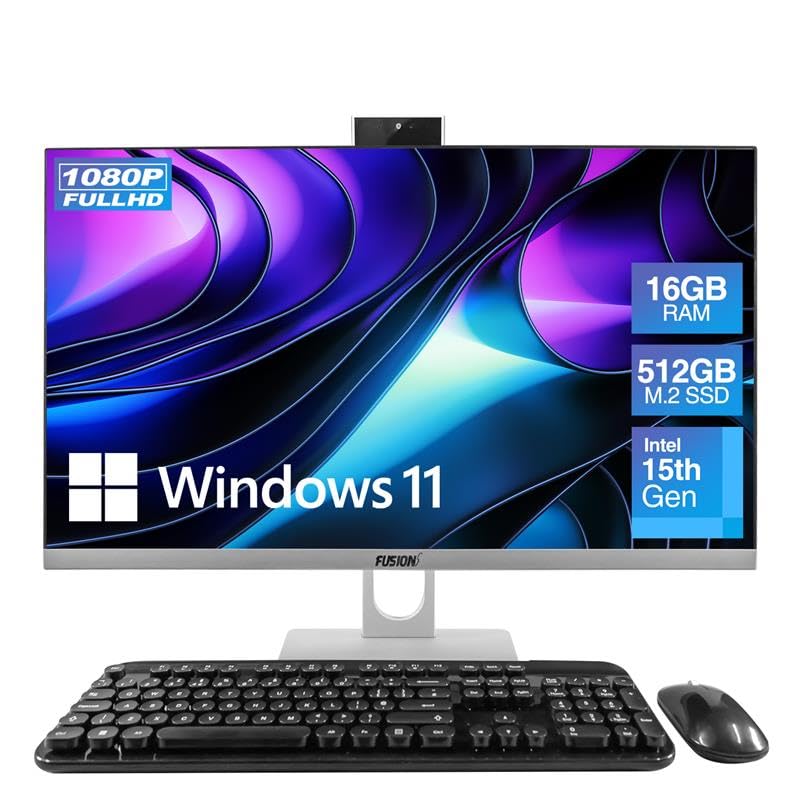
Image: The Fusion5 A7 N6 All-in-One PC with its included wireless keyboard and mouse, ready for setup.
Operating Your PC
Ekspozisyon Karakteristik
The 23.8-inch Full HD (1920x1080) IPS display offers crisp visuals and wide viewing angles. The screen is designed with a micro-edge display for an immersive viewing experience and can be tilted for optimal viewing konfò.
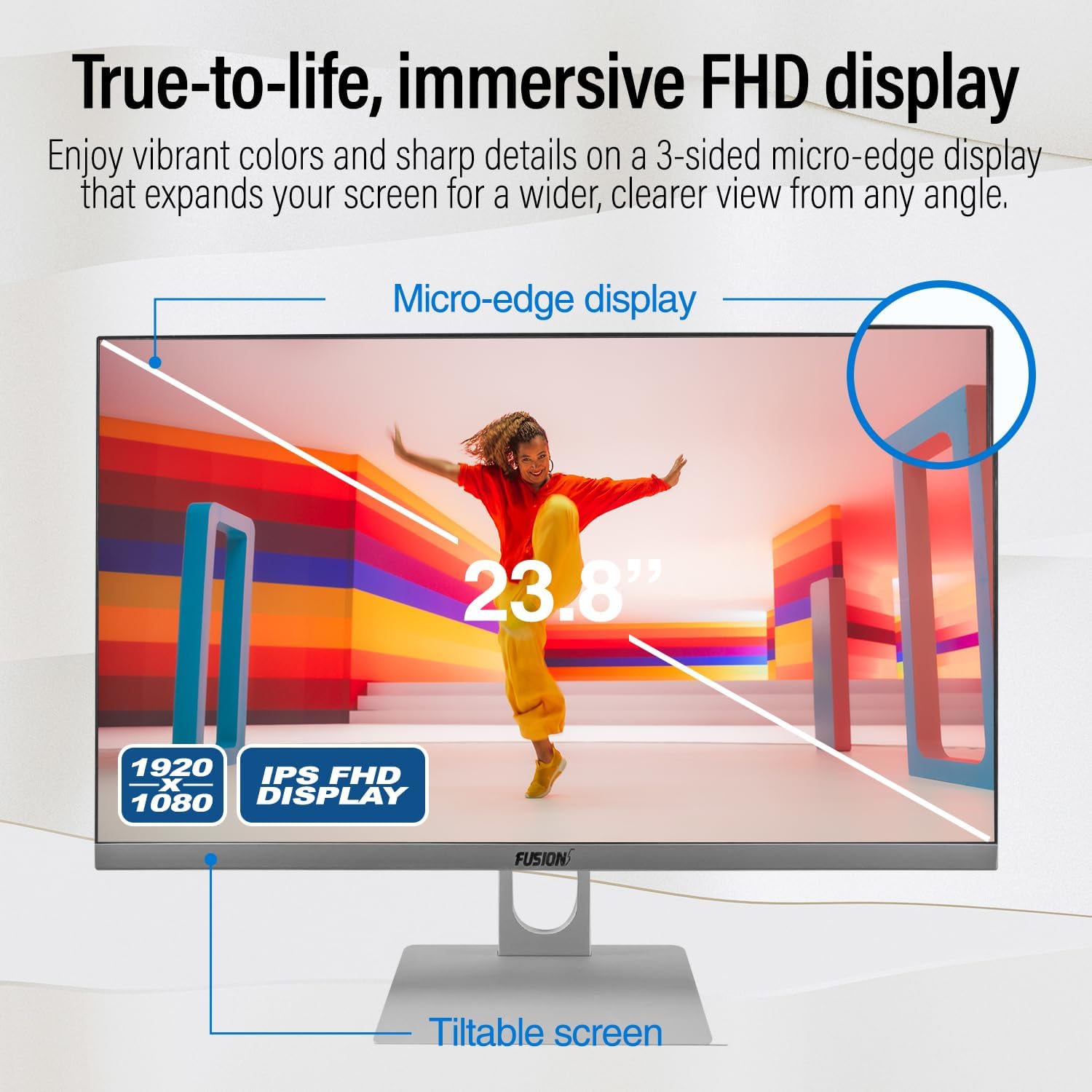
Image: Diagram highlighting the 23.8-inch FHD IPS display, micro-edge design, and tiltable screen functionality.
Pèfòmans
Your PC is equipped with an Intel N150 processor (up to 3.60 GHz), 16GB LPDDR4 RAM, and a 512GB SATA SSD. This configuration ensures fast boot-ups, responsive multitasking, and efficient handling of daily tasks and applications.
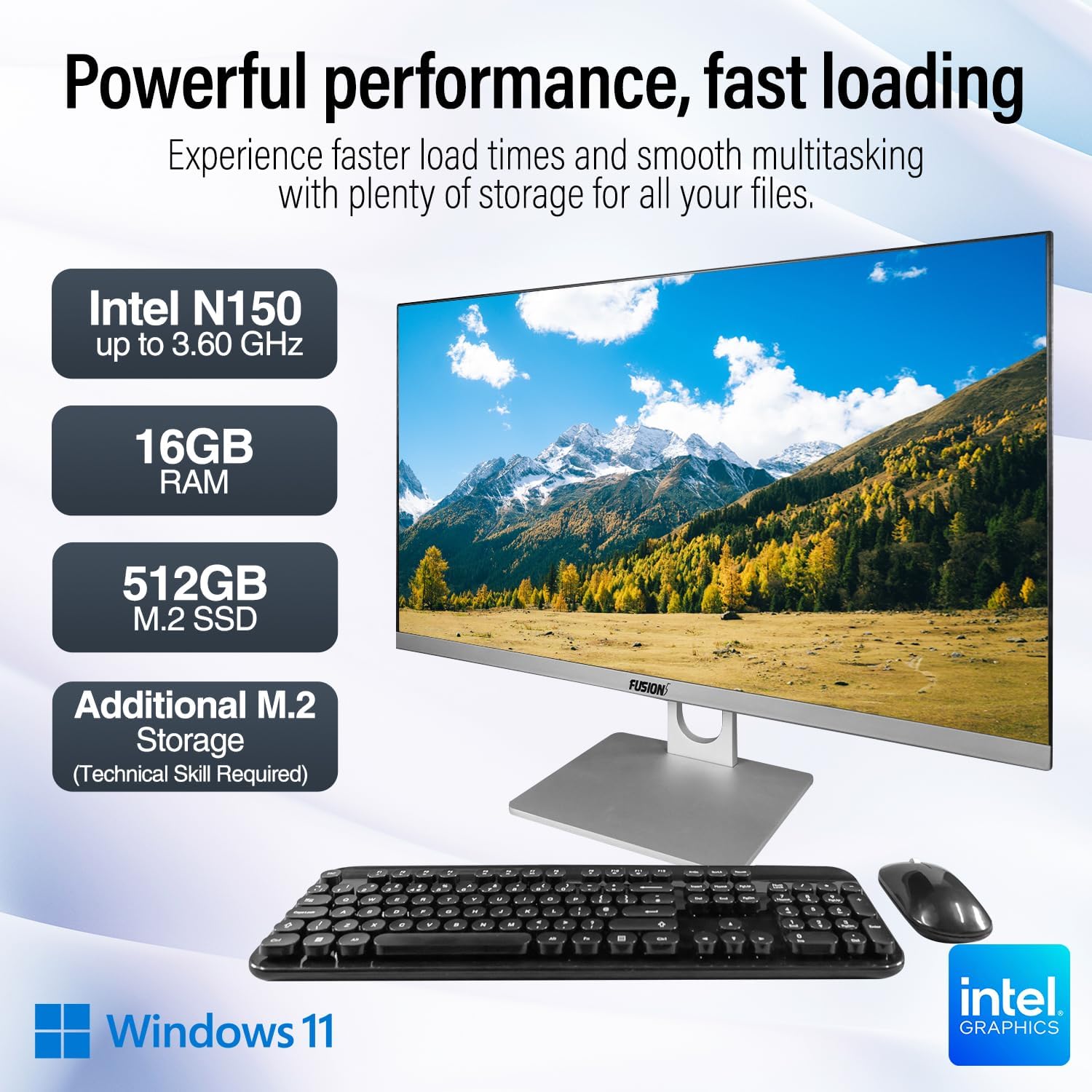
Image: Visual representation of the PC's core components: Intel N150 processor, 16GB RAM, 512GB M.2 SSD, and Windows 11 operating system.
Koneksyon
The PC offers various ports for connecting peripherals and external displays, along with wireless connectivity options. The rear view of the PC illustrates the physical layout of these ports.

Imaj: Dèyè view of the Fusion5 A7 N6 All-in-One PC, displaying the arrangement of its various ports.
- Pò USB: 2x USB 3.0, 4x USB 2.0 for connecting external devices like flash drives, printers, and other peripherals.
- HDMI Port: 1x HDMI for connecting an external monitor or TV.
- Pò VGA: 1x VGA for connecting older external monitors.
- Ethernet Port: Pou koneksyon rezo filaire.
- Headphone + Microphone Combo Jack: Pou antre/soti odyo.
- San fil: Built-in AC Wi-Fi for internet access and Bluetooth 5.0 for connecting wireless accessories.
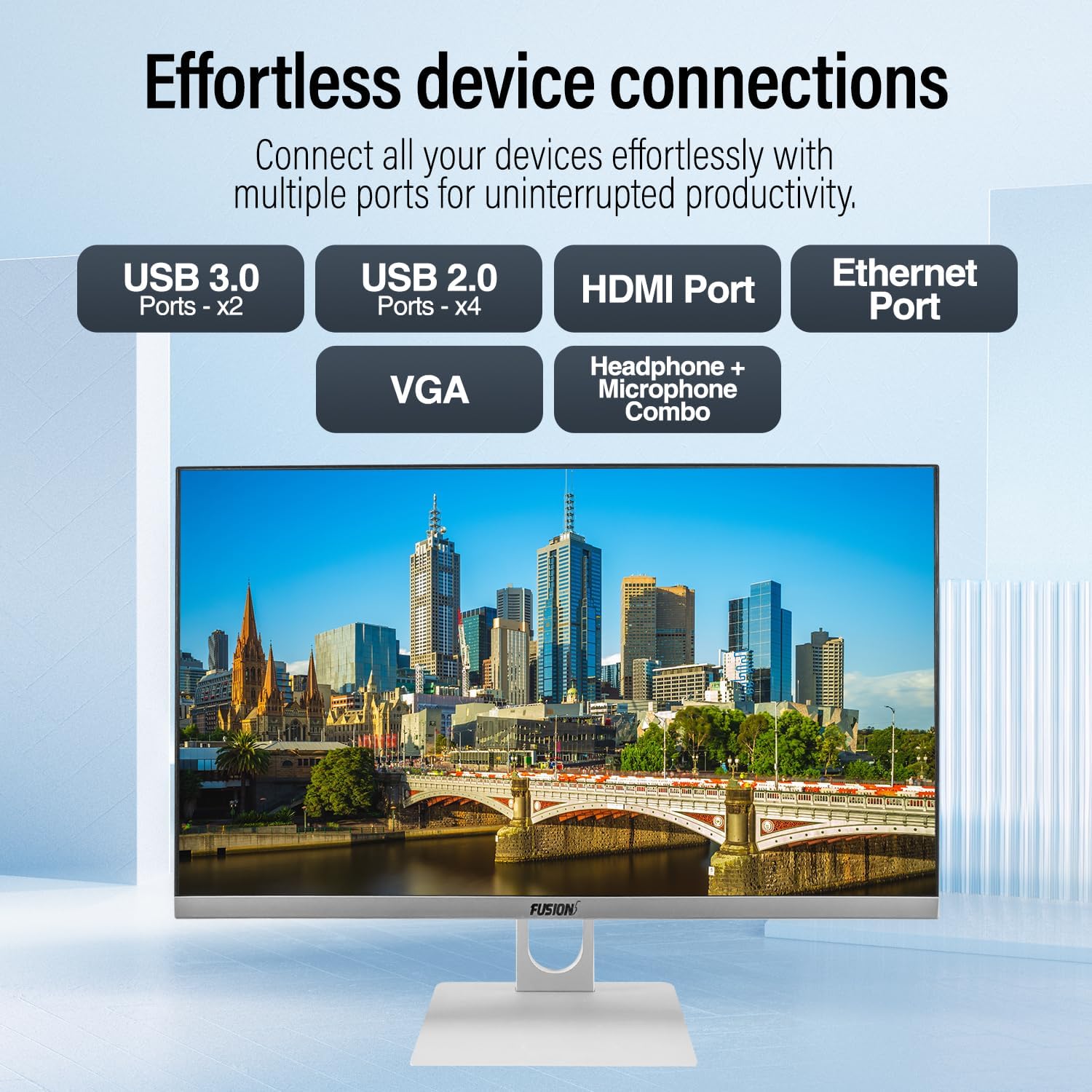
Imaj: Gwo plan view of the PC's rear ports, including USB 3.0, USB 2.0, HDMI, Ethernet, VGA, and the audio combo jack.
Webkamera ak odyo
The PC includes an integrated 3MP pop-up webcam, built-in microphones, and speakers, making it suitable for video conferencing and online communication.

Image: Illustration of the PC's integrated 3MP pop-up webcam, built-in microphones, and speakers, demonstrating its use for video calls.
Sekirite
A Kensington Security Slot is provided for physical security, allowing you to secure your PC with a compatible lock (sold separately).
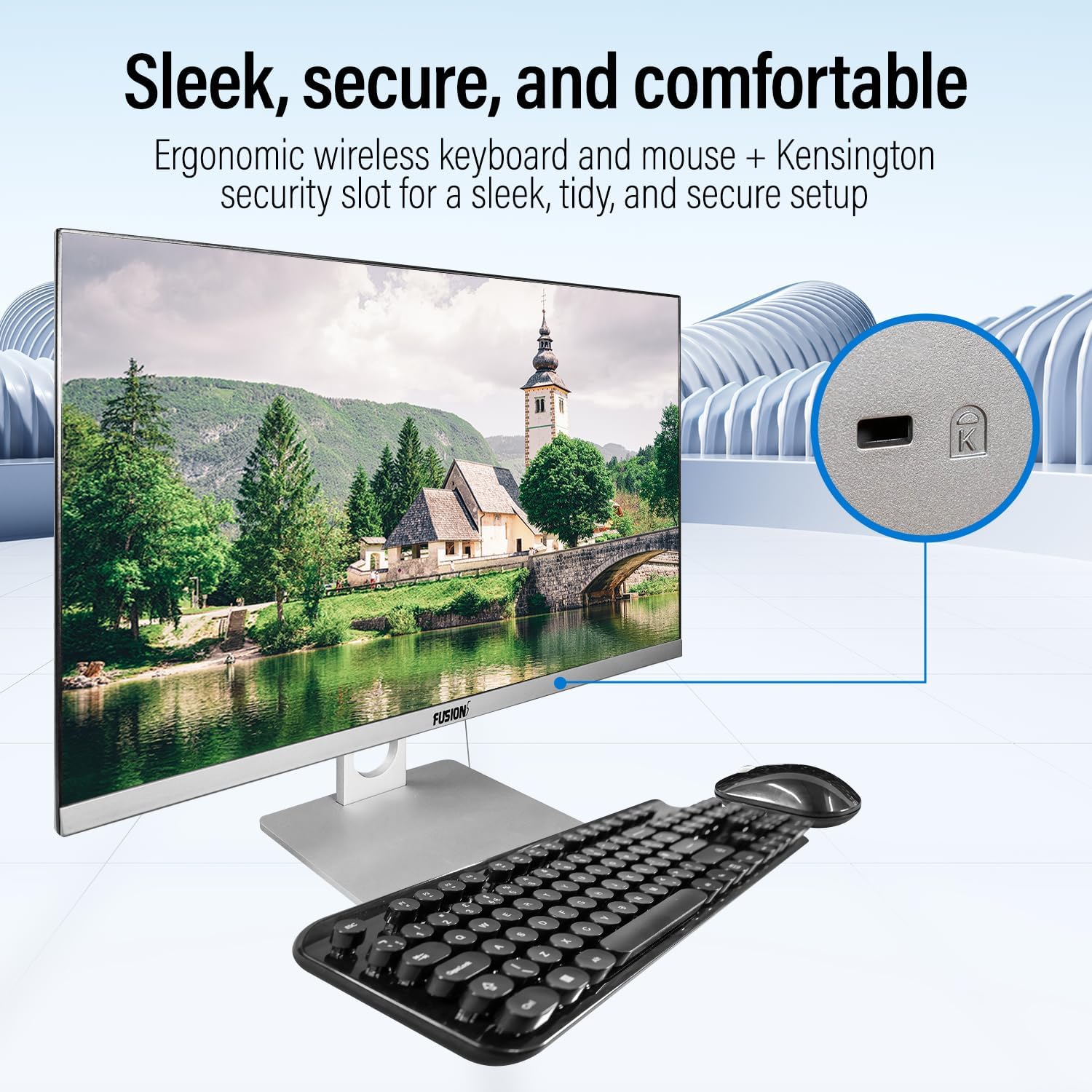
Image: Detail of the Kensington Security Slot located on the PC, designed for physical security.
Antretyen
- Netwaye ekran an: Sèvi ak yon twal mou ki pa gen pousyè, espesyalman fèt pou aparèy elektwonik.ampen the cloth slightly with water or a screen cleaner solution (do not spray directly onto the screen).
- Netwayaj chasi a: Siye sifas ekstèn yo ak yon twal mou epi sèk. Evite pwodui netwayaj abrazif oswa solvan.
- Vantilasyon: Asire w ouvèti vantilasyon yo pa gen pousyè ak obstak pou anpeche yo chofe twòp.
- Mizajou lojisyèl: Mete sistèm operasyon Windows ou ajou regilyèman ak chofè yo pou asire pèfòmans ak sekirite optimal.
Depo Upgrade
The Fusion5 A7 N6 supports M.2 SSD upgrades and the addition of a 2.5-inch SATA SSD/HDD. This procedure requires technical skill. If you are not comfortable performing this, seek professional assistance.
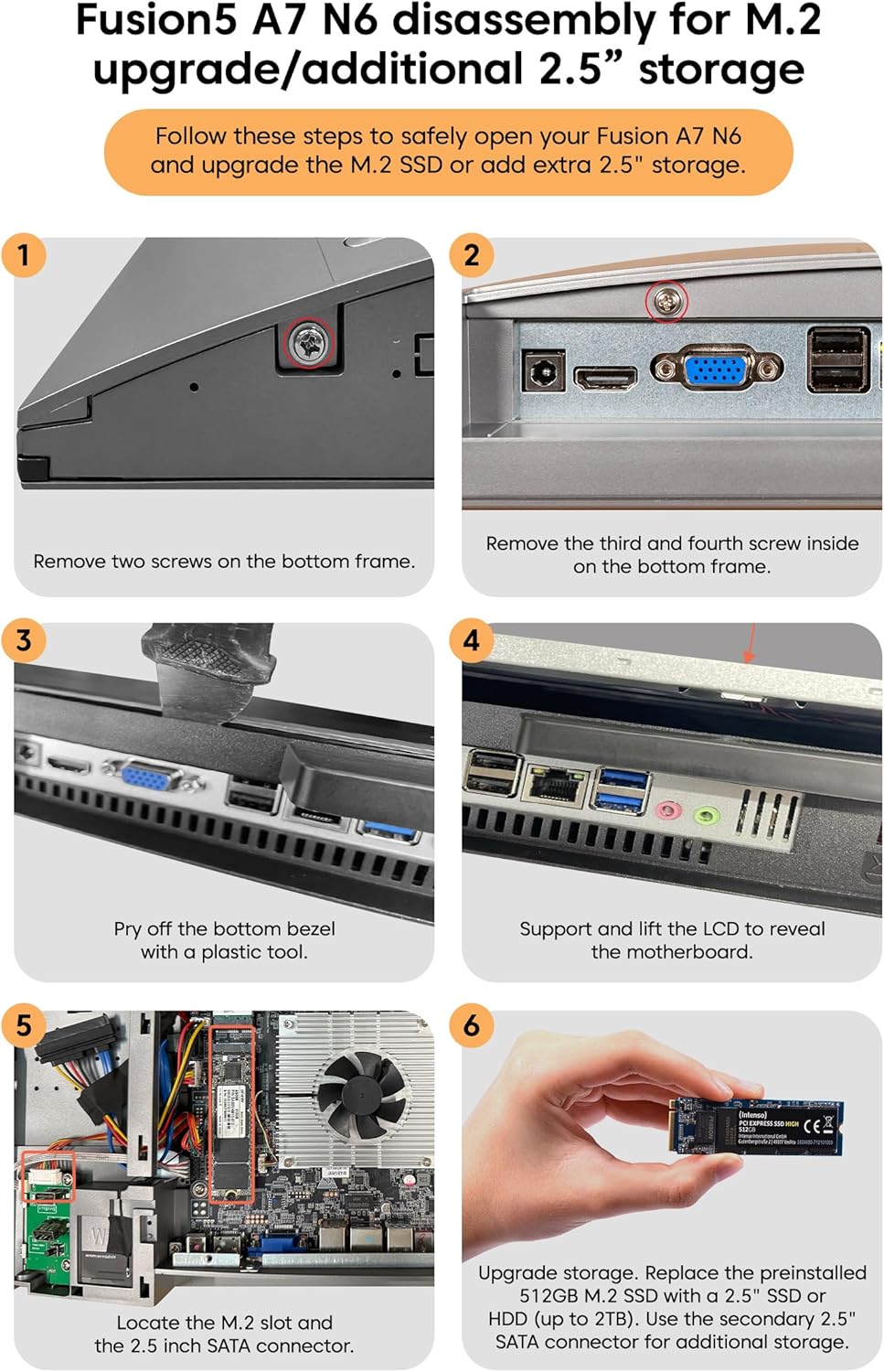
Image: Detailed visual instructions for disassembling the Fusion5 A7 N6 to upgrade the M.2 SSD or add a 2.5-inch storage drive.
- Kouran koupe ak dekonekte: Ensure the PC is completely powered off and disconnected from the power adapter and all peripherals.
- Retire vis: Remove the two screws on the bottom frame of the PC.
- Remove Additional Screws: Remove the third and fourth screws located inside the bottom frame.
- Pry Off Bezel: Carefully pry off the bottom bezel using a plastic tool to avoid scratching the casing.
- Lift LCD: Gently support and lift the LCD panel to reveal the motherboard and internal components.
- Locate Slots: Identify the M.2 slot for SSD upgrades and the 2.5-inch SATA connector for additional storage.
- Install/Replace Storage:
- For M.2 SSD: Replace the preinstalled 512GB M.2 SSD with a new one if desired.
- For 2.5" Storage: Connect a 2.5-inch SSD or HDD (up to 2TB) to the SATA connector.
- Reyasanblaj: Carefully reverse the steps to reassemble the PC, ensuring all connections are secure and screws are tightened.
Depanaj
| Pwoblèm | Kòz posib | Solisyon |
|---|---|---|
| Odinatè a pa limen. | Power cable not connected; power adapter faulty; power outlet issue. | Ensure power cable is securely connected. Test power adapter with another device or try a different outlet. |
| Pa gen okenn ekspozisyon sou ekran an. | PC is off; display settings issue; hardware fault. | Ensure PC is powered on. Try connecting an external monitor to check if the PC is functioning. Restart the PC. |
| Wireless keyboard/mouse not working. | Low batteries; USB receiver disconnected; driver issue. | Replace batteries. Ensure USB receiver is plugged into a working USB port. Reinstall drivers if necessary. |
| No internet connection (Wi-Fi). | Wi-Fi disabled; incorrect password; router issue. | Check Wi-Fi settings in Windows. Verify password. Restart your router. |
| Pèfòmans ralanti. | Too many applications running; low storage space; outdated drivers. | Fèmen aplikasyon ki pa nesesè yo. Libere espas sou disk la. Mete Windows ak chofè yo ajou. |
Espesifikasyon
| Karakteristik | Detay |
|---|---|
| Mak | Fusion5 |
| Nimewo Modèl | A7 N6 16GB 512GB |
| Gwosè ekspozisyon | 23.8 pous |
| Rezolisyon ekspozisyon | 1920 x 1080 (Full HD) |
| Processeur | Intel N150 (up to 3.6 GHz) |
| RAM | 16 GB DDR4 SDRAM |
| Depo | 512 GB SSD (SATA) |
| Grafik | Grafik Intel UHD entegre |
| Sistèm operasyon | Windows 11 Kay |
| Pò USB 3.0 | 2 |
| Pò USB 2.0 | 4 |
| Pò HDMI | 1 |
| Koneksyon san fil | Wi-Fi (AC), Bluetooth 5.0 |
| Webkam | 3MP Pop-up Web Kamera |
| Odyo | Built-in Microphones, Built-in Speakers |
| Plas sekirite | Plas sekirite Kensington |
| Dimansyon (Pake) | 61 x 46.5 x 20.5 cm |
| Pwa (Pakè) | 4.2 kg |
Garanti ak sipò
Your Fusion5 A7 N6 All-in-One PC comes with a standard manufacturer's warranty. Please refer to the warranty card included with your product for specific terms and conditions.
For technical support, troubleshooting assistance, or warranty claims, please contact Fusion5 customer service through their official website or the contact information provided in your product documentation. When contacting support, please have your model number (A7 N6 16GB 512GB) and purchase details ready.