
1. Entwodiksyon
The Strong 4G LTE N300 WiFi Router provides high-speed internet access using a 4G SIM card, offering reliable Cat4 LTE speeds up to 150 Mbps and stable N300 Mbps Wi-Fi coverage. This device is designed for easy setup and use, supporting up to 32 devices simultaneously, making it suitable for both home and small office environments where wired broadband may not be available.
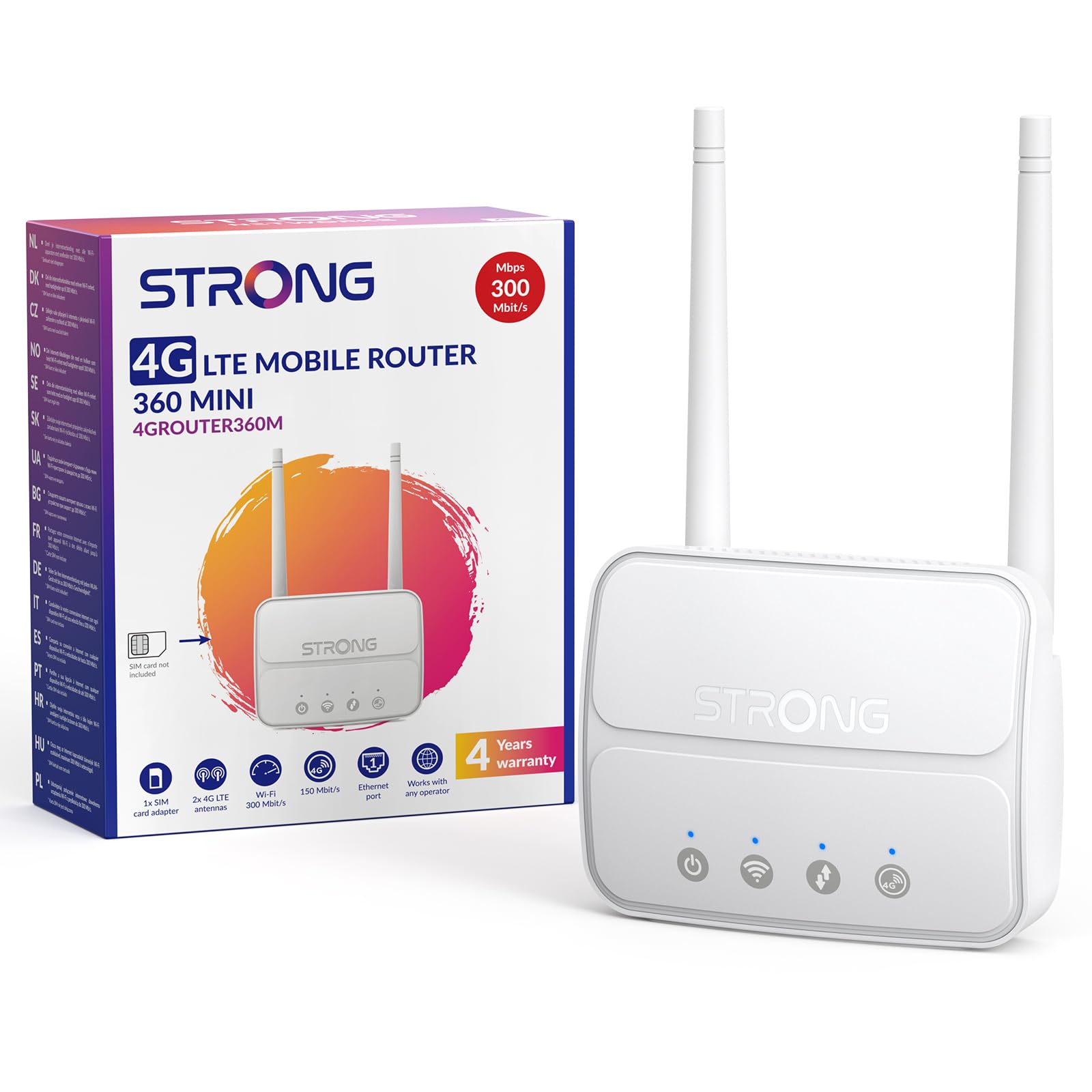
Image 1: The Strong 4G LTE N300 WiFi Router, a compact device with two external antennas for enhanced signal reception.
2. Ki sa ki nan bwat la
Tanpri verifye sa ki nan pake a ak anpil atansyon. Si gen nenpòt atik ki manke oswa ki domaje, kontakte sèvis kliyan.
- Strong 4G LTE N300 WiFi Router
- External Antennas (2 units)
- RJ45 Ethernet kab
- Ekstèn Power Supply
- Nano to Micro SIM Card Adapter
- Gid Enstalasyon Rapid
- Kat Sekirite ak Garanti
3. Gid Enstalasyon
Follow these steps for a quick and easy setup of your Strong 4G LTE N300 WiFi Router.
3.1. Prepare Your SIM Card
Before inserting your SIM card, ensure that any PIN protection is disabled. You can do this by inserting the SIM card into a smartphone and disabling the PIN request through the phone's settings.
3.2. Insert the SIM Card
- Jwenn fant kat SIM lan sou routeur la.
- If you have a Nano SIM, use the provided Nano to Micro SIM adapter to fit it into the standard SIM slot.
- Gently insert the prepared SIM card into the slot until it clicks into place.
3.3. Attach External Antennas
Screw the two external 4G antennas onto the designated connectors at the back of the router. Adjust their orientation for optimal signal reception.
3.4. Power On the Router
Connect the external power supply to the router's DC-in port and then plug it into a power outlet. The router will automatically power on and begin the startup sequence.
3.5. Connect to the Network (Plug & Play)
The router is designed for Plug & Play operation. Once powered on and with a valid SIM card, it will automatically connect to the 4G LTE network. You can then connect your devices via Wi-Fi or Ethernet.

Image 2: Visual guide for SIM card insertion and powering on the router for instant connection. The image also shows the SIM card slot supporting standard, micro, and nano SIMs with an adapter.
3.6. Aksè a Web Entèfas
Pou paramèt avanse ak jesyon rezo a, jwenn aksè nan routeur la web koòdone pa tape 192.168.188.1 nan ou web browser's address bar. Refer to the Quick Installation Guide for default login credentials.
4. Operasyon Enstriksyon
This section details how to use your Strong 4G LTE N300 WiFi Router for optimal performance.
4.1. Konekte Aparèy
The router supports connections for up to 32 devices simultaneously.
- Koneksyon Wi-Fi: Locate the Wi-Fi network name (SSID) and password printed on the label at the bottom of the router. Select this network on your device and enter the password to connect.
- Koneksyon Ethernet: Use an RJ45 Ethernet cable to connect devices such as PCs, game consoles, or Smart TVs to the router's 100 Mbps LAN port for a stable wired connection.
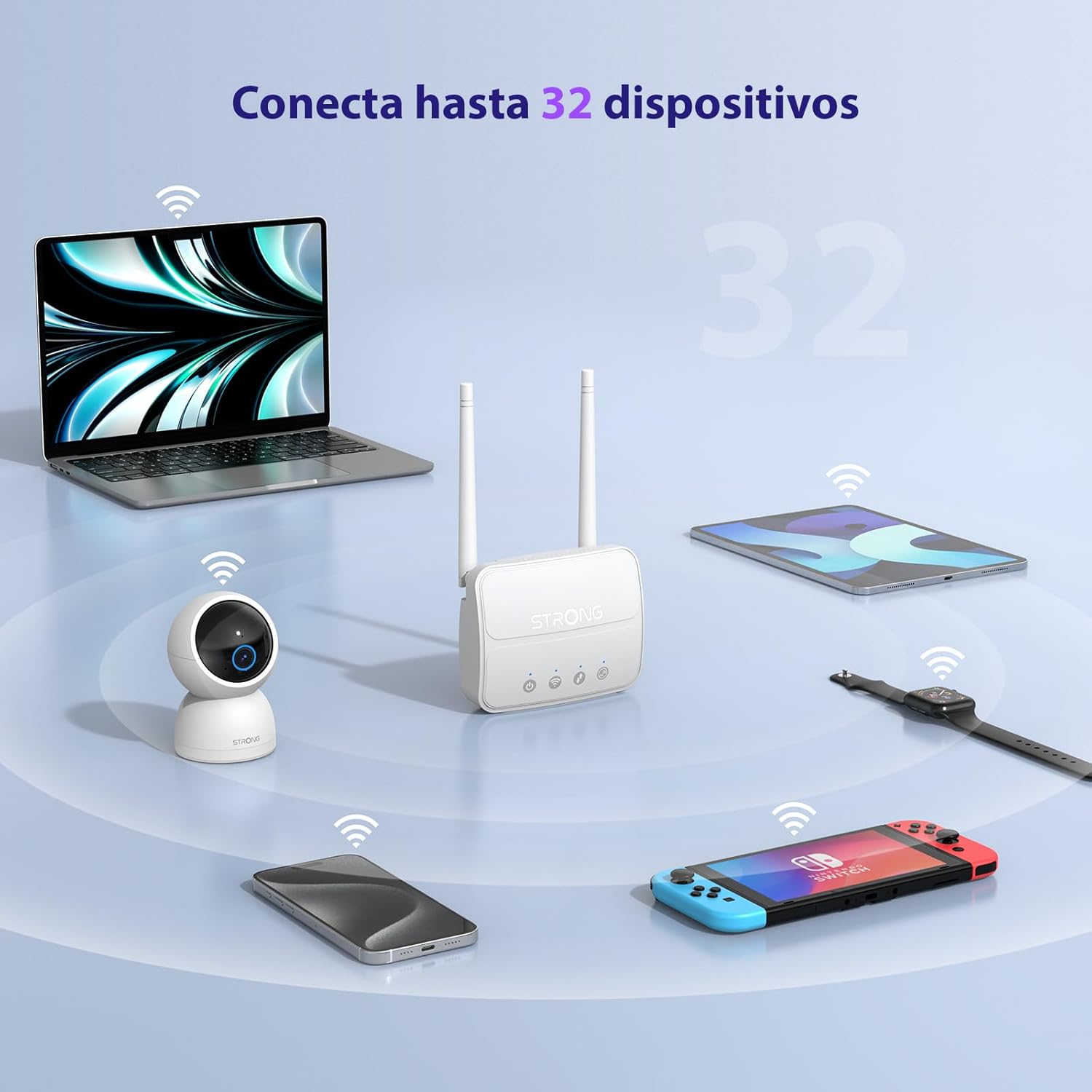
Image 3: The router connecting various devices including laptops, tablets, smartphones, and gaming consoles, demonstrating its capacity for up to 32 simultaneous connections.
4.2. Network Management and Security
The router offers robust security features to protect your network:
- WPA/WPA2 chifreman: Ensures secure wireless communication.
- PIN Control: Manage SIM card PIN settings.
- Filtraj MAC: Kontwole ki aparèy ki ka konekte sou rezo w la dapre adrès MAC yo.
- Advanced Firewall Settings: Customize firewall rules for enhanced protection.
All these settings can be managed through the easy-to-use web koòdone (192.168.188.1).

Image 4: A user managing network settings on a laptop, illustrating the router's WPA/WPA2 encryption and PIN control features for secure network management.
5. Antretyen
Bon antretyen asire lonjevite ak pèfòmans optimal routeur ou a.
- Netwayaj: Sèvi ak yon twal mou epi sèk pou netwaye deyò routeur la. Pa sèvi ak pwodui netwayaj likid oswa ayewosòl.
- Plasman: Place the router in a well-ventilated area, away from direct sunlight, heat sources, and strong electromagnetic fields.
- Mizajou mikrolojisyèl: The router features a USB port specifically for firmware updates. Regularly check the Strong official website for the latest firmware versions to ensure improved performance and security. Follow the instructions provided with the firmware update package carefully.
NAN. Depanaj
Si ou rankontre pwoblèm ak routeur ou a, gade etap depanaj komen sa yo:
- Pa gen koneksyon entènèt:
- Ensure the SIM card is correctly inserted and has an active data plan.
- Verify that the SIM card's PIN protection is disabled.
- Check the signal strength indicators on the router. If the signal is weak, try adjusting the external antennas or relocating the router.
- Rekòmanse routeur la lè w debranche epi rebranche adaptè kouran an.
- Wi-Fi Not Visible or Connecting:
- Ensure the Wi-Fi function is enabled (check the router's LED indicators).
- Verifye ou ap antre modpas Wi-Fi ki kòrèk la (SSID ak modpas yo sou etikèt routeur la).
- Try connecting a device via Ethernet to confirm the router has internet access.
- Vitès dousman:
- Check the 4G signal strength. Weak signal can lead to slower speeds.
- Ensure no other applications or devices are consuming excessive bandwidth.
- Consider the number of connected devices; the router supports up to 32, but performance may vary with heavy usage.
- Pa Ka Aksè Web Entèfas:
- Asire w aparèy ou an konekte ak rezo routeur la (Wi-Fi oswa Ethernet).
- Confirm you are typing the correct IP address: 192.168.188.1.
- Eseye yon diferan web navigatè.
If these steps do not resolve the issue, please contact Strong customer support.
7. Espesifikasyon
Detailed technical specifications for the Strong 4G LTE N300 WiFi Router (Model 4GROUTER360M).
| Karakteristik | Spesifikasyon |
|---|---|
| Mak | Fò |
| Non modèl | 4GROUTER360M |
| Koneksyon Teknoloji | 4G, Ethernet, LTE, Wi-Fi |
| Wireless Creole | 802.11n (N300 Mbps) |
| Vitès 4G LTE | Up to 150 Mbps (Cat4) |
| Pò Ethernet | 1 x 100 Mbps LAN Port |
| Fant kat SIM | Standard (2FF), includes Nano to Micro adapter |
| Kalite antèn | 2 x External, Detachable 4G Antennas; 2 x Internal Wi-Fi Antennas |
| Max Konekte Aparèy | Jiska 32 |
| Karakteristik sekirite | WPA/WPA2 Encryption, PIN Control, MAC Filtering, Firewall |
| Sistèm operasyon | StrongOS |
| Dimansyon (Pake) | 18.1 x 15.6 x 7.3 cm |
| Pwa pwodwi | 204 g |
| Pwovizyon pou pouvwa | Ekstèn pouvwa adaptè |
| Karakteristik espesyal | Secure Network Management, Plug & Play, Connect up to 32 devices, USB port for firmware updates |
8. Garanti ak sipò
Strong is committed to providing reliable products and excellent customer service.
8.1. Enfòmasyon sou Garanti
Your Strong 4G LTE N300 WiFi Router comes with a 4-year protection plan, ensuring long-term peace of mind. Please refer to the included Safety and Warranty Card for detailed terms and conditions.
8.2. Sipò pou Kliyan
For any technical assistance, troubleshooting, or warranty inquiries, please contact our expert support team:
- Imèl: support_at@strong-eu.com
Our support team offers solid service and extended coverage to assist you.

Image 5: Visual representation of Strong's reliable support, highlighting the 4-year protection and contact email for assistance.