
1. Entwodiksyon
Thank you for choosing the ELECROW 5-inch IPS Touch Screen Monitor. This compact display offers a high-definition visual experience with responsive touch functionality, designed for a wide range of applications including single-board computers and mini PCs. This manual provides essential information for the proper installation, operation, and care of your device.

The ELECROW 5-inch IPS Touch Screen Monitor, a versatile display solution.
Karakteristik kle yo enkli:
- HD Display Experience: 5-inch IPS capacitive touchscreen with a 1024 x 600 resolution, 178° viewing angle, and support for up to 1080P signal input.
- Manyen Reponsif: Supports 5-point multi-touch on Windows and single-touch on Raspberry Pi/Jetson Nano.
- Ploge-and-Play fasil: No additional drivers required for most compatible systems.
- Fonksyon pwofesyonèl: Features a headphone jack for audio output and a built-in OSD menu for display adjustments.
2. Ki sa ki nan bwat la
Tanpri verifye ke tout atik ki nan lis anba a yo enkli nan pakè ou a:
- 1x 5-inch Touch Screen Monitor
- 1x HD Cable (1m)
- 1x USB-A to USB-C Cable (1m)
- 1x Micro-HD Adapter (for Raspberry Pi 4B & 5)
- 4x Hexagonal Copper Standoff Kit (M2.5)
- 2x Pro Stand
- 1x tournevis
- 1x Manyèl Itilizatè (Gid Demaraj Rapid)
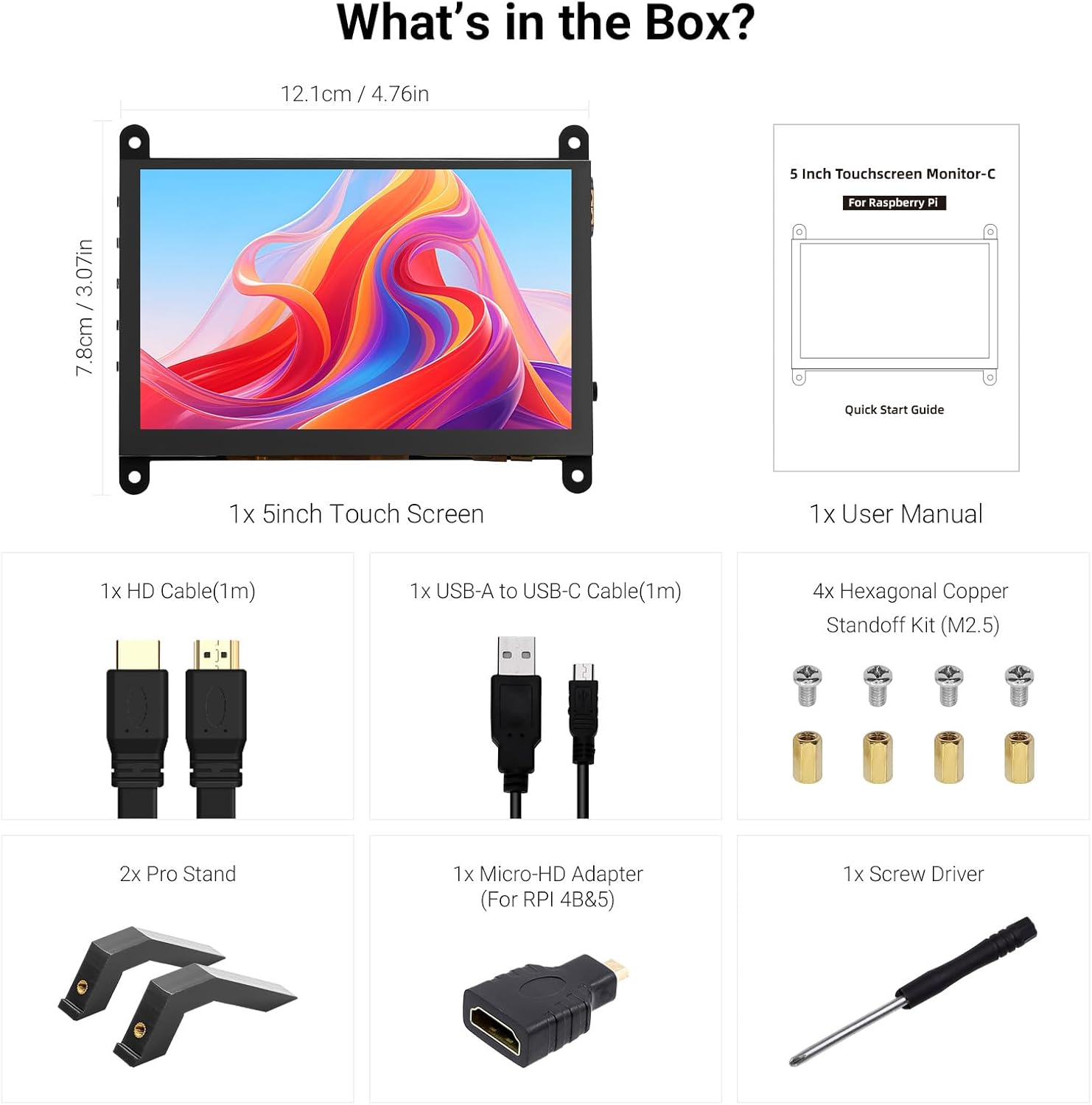
Tout konpozan ki enkli nan pake pwodwi a.
3. Pwodwi souview
Familiarize yourself with the ports and buttons on your ELECROW 5-inch Touch Screen Monitor:

Detaye view of the monitor's ports and control buttons.
- HD Input Port: Pou antre siyal videyo.
- USB-C pò: For power supply and touch signal transmission.
- Jack ekoutè 3.5mm: Pou pwodiksyon odyo.
- Bouton meni: Aksè meni Afichaj sou ekran (OSD) la.
- Left/Up Button: Navigates left or up in the OSD menu.
- Right/Down Button: Navigates right or down in the OSD menu.
- Bouton Retounen: Exits a menu or returns to the previous option.
- Bouton pouvwa: Vire oswa etenn ekspozisyon an.
- 20P-FPC-0.5mm Display Port: For flexible cable expansion in embedded systems.
4. Enstriksyon Enstalasyon
Follow these steps to connect your ELECROW 5-inch Touch Screen Monitor to a compatible device:
4.1 Konekte ak Raspberry Pi
- Connect HD Cable: Use the provided HD cable to connect the monitor's HD Input Port to the HDMI port on your Raspberry Pi. If using Raspberry Pi 4B or 5, use the included Micro-HD adapter.
- Konekte kab USB: Connect the USB-C port on the monitor to a USB-A port on your Raspberry Pi using the provided USB-A to USB-C cable. This supplies power to the monitor and enables touch functionality.
- Pouvwa sou: Power up your Raspberry Pi. The display should automatically detect the signal and power on.
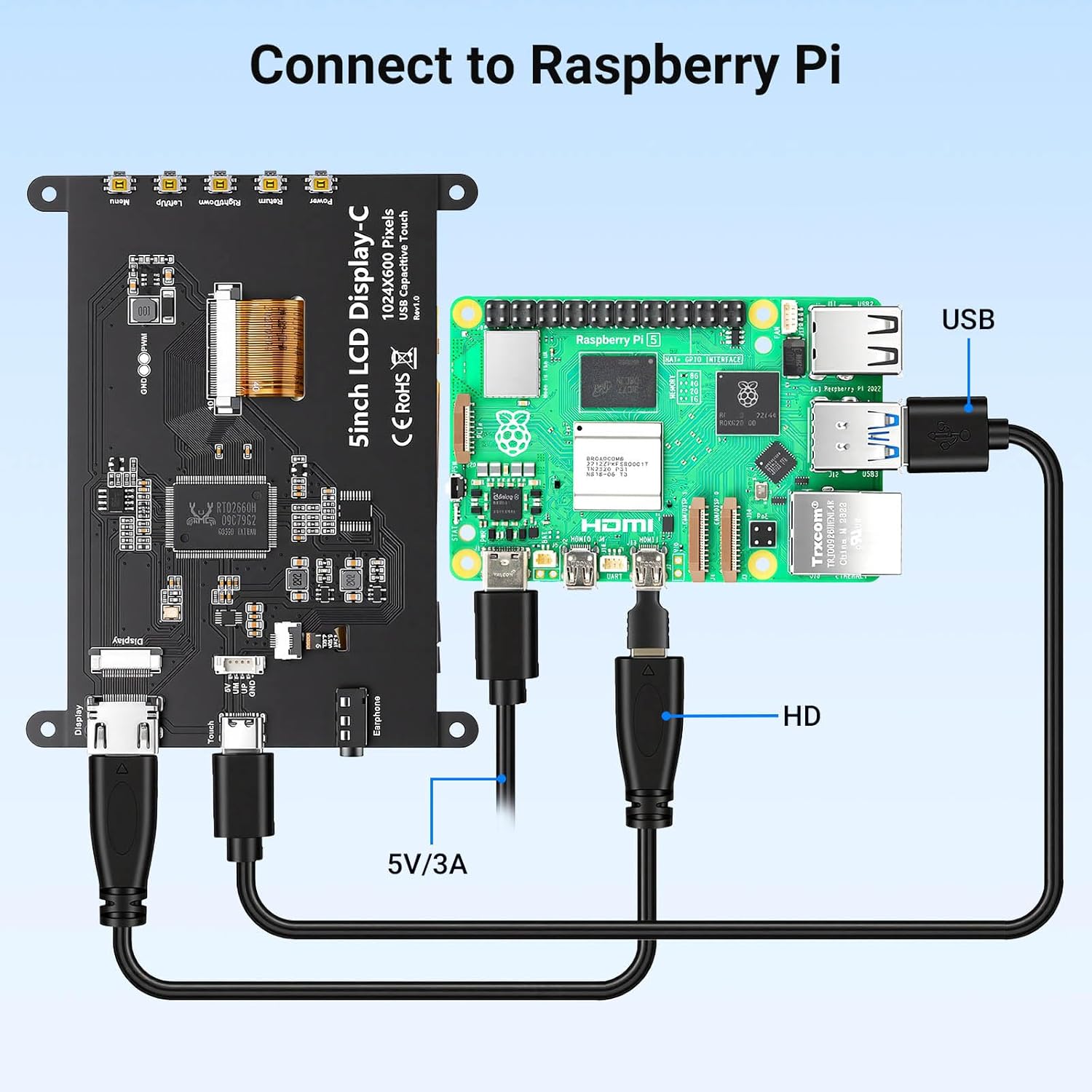
Connection diagram for Raspberry Pi.
4.2 Connecting to Windows PC/Laptop
- Connect HD Cable: Use the provided HD cable to connect the monitor's HD Input Port to the HDMI port on your PC/laptop.
- Konekte kab USB: Connect the USB-C port on the monitor to a USB-A port on your PC/laptop using the provided USB-A to USB-C cable. This provides power and enables touch functionality.
- Pouvwa sou: Power on your PC/laptop. The display should be recognized automatically. No additional drivers are typically required for Windows 7/8/10/11.
5. Operasyon Enstriksyon
5.1 Operasyon debaz
- Limen/Etenyen: Press the Power Button (8) to turn the display on or off.
- Fonksyonalite manyen: The monitor features a capacitive touchscreen. On Windows systems, it supports 5-point multi-touch. On Raspberry Pi (Raspbian, Ubuntu, Kali, Retropie) and Jetson Nano, it supports single-touch operation.

Responsive touch experience for various devices.
5.2 Navigasyon meni OSD
The On-Screen Display (OSD) menu allows you to adjust various display settings:
- Peze a Menu Button (4) pou ouvri meni OSD la.
- Sèvi ak la Left/Up Button (5) epi Right/Down Button (6) pou navige nan opsyon meni yo.
- Peze a Menu Button (4) ankò pou chwazi yon opsyon oswa konfime yon paramèt.
- Peze a Bouton Retounen (7) to exit the current menu or return to the previous level.
Common adjustable settings include Brightness, Contrast, and other display parameters.
5.3 Sòti odyo
Connect headphones or external speakers to the 3.5mm Headphone Jack (3) for audio output from the connected device.
6. Konpatibilite
The ELECROW 5-inch Touch Screen Monitor offers broad compatibility with various operating systems and hardware platforms:
- Sistèm operasyon: Raspbian, Ubuntu, Kali, Retropie, Windows 7/8/10/11, Windows 10 IoT.
- Aparèy konpatib: Raspberry Pi 5, Raspberry Pi 4, Raspberry Pi 3 B+, BB Black, Banana Pi, Jetson Nano, PS4, Xbox.

Broad compatibility with popular operating systems and devices.
7. Espesifikasyon
| Karakteristik | Detay |
|---|---|
| Mak | ELECROW |
| Nimewo Modèl | DLH04950B |
| Gwosè ekran | 5 pous |
| Rezolisyon | 1024 x 600 piksèl |
| Kalite ekspozisyon | IPS |
| Viewing Ang | 178 Degre |
| Klète | 410 cd/m² |
| Rafrechisman pousantaj | 60 Hz |
| Tan repons | 2 Milisegond |
| Koneksyon | HDMI, USB Kalite C |
| Voltage | 5 Volts |
| Dimansyon (W x H) | 12.1 cm x 7.8 cm (4.76 pous x 3.07 pous) |
| Karakteristik adisyonèl | Portable, Touchscreen, Headphone Jack, OSD Menu |

Visual representation of key display specifications.
8. Antretyen
Proper care and maintenance will ensure the longevity and optimal performance of your monitor:
- Netwaye ekran an: Sèvi ak yon ti moso twal mou, ki san pèl dampened with water or a screen-cleaning solution. Avoid harsh chemicals, abrasive materials, or excessive moisture.
- Netwayaj jeneral: Wipe the exterior of the monitor with a dry, soft cloth.
- Depo: Lè w pa itilize monitè a pou yon bon bout tan, sere l nan yon kote ki fre epi sèk, lwen limyè solèy dirèk ak tanperati ekstrèm.
- Manyen: Avoid dropping the monitor or subjecting it to strong impacts. Do not apply excessive pressure to the screen.
- Vantilasyon: Ensure the monitor has adequate ventilation to prevent overheating. Do not block any vents.
NAN. Depanaj
If you encounter issues with your ELECROW 5-inch Touch Screen Monitor, refer to the following common problems and solutions:
9.1 Pa gen ekspozisyon / Ekran nwa
- Tcheke Koneksyon: Ensure the HD cable is securely connected to both the monitor and the source device.
- Pwovizyon pou pouvwa: Verify that the USB-C cable is properly connected and providing sufficient power (5V). Try a different USB port or power adapter if available.
- Aparèy Sous: Confirm that your source device (e.g., Raspberry Pi, PC) is powered on and outputting a video signal.
- Anviwònman Rezolisyon: Ensure the output resolution of your source device is compatible with the monitor (1024x600 or a resolution that can be scaled).
9.2 Touch Function Not Working
- Koneksyon USB: The USB-C cable is essential for touch functionality. Ensure it is connected to both the monitor and the source device.
- Sipò sistèm operasyon: Verify that your operating system supports touch input and that necessary drivers (if any, though usually plug-and-play) are installed. For Raspberry Pi, ensure the OS is configured for touch.
- Rekalibrasyon: Some operating systems may require touch screen calibration. Refer to your OS documentation for instructions.
9.3 Pwoblèm Kalite Imaj (Tranbleman, Koulè Defòme)
- Entegrite kab: Try a different HD cable to rule out a faulty cable.
- Source Signal: Test the monitor with a different source device to determine if the issue is with the monitor or the source.
- Anviwònman OSD: Adjust brightness, contrast, and other color settings via the OSD menu.
10. Garanti & Sipò
10.1 Enfòmasyon sou Garanti
This ELECROW 5-inch Touch Screen Monitor comes with a 1 Ane Manifakti Garanti. This warranty covers defects in materials and workmanship under normal use. It does not cover damage caused by misuse, accident, modification, or unauthorized repair.
10.2 Sipò teknik
For technical assistance, troubleshooting beyond this manual, or warranty claims, please contact ELECROW customer support through their official website or the platform where you purchased the product. Please have your model number (DLH04950B) and purchase details ready when contacting support.