
1. Entwodiksyon
This manual provides essential information for setting up, operating, and maintaining your Prechen 15.6 Inch Portable Touchscreen Monitor. Featuring a 10-point multi-touch IPS FHD 1080P display with a 60Hz refresh rate, this monitor is designed for versatility and clear visuals. It includes built-in stereo speakers and supports various connectivity options, making it suitable for diverse environments and applications.
2. Ki sa ki nan bwat la
Verifye ke tout atik sa yo enkli nan pakè ou a:
- Prechen 15.6 Inch Portable Touchscreen Monitor
- HDMI HDMI kab
- USB-A pou USB-C kab
- USB-C pou USB-C kab
- Adaptè pouvwa
- Protective Carry Sleeve
- Manyèl Itilizatè & Quick Start Gid

3. Pwodwi souview
3.1 Pò ak Kontwòl
The monitor features various ports and control buttons for connectivity and settings adjustment:
- Antre pouvwa DC: Pou ekipman pou pouvwa ekstèn.
- Antre VGA: For connecting to devices with VGA output.
- Antre HDMI: For high-definition video and audio input.
- Antre AV: For analog video and audio input.
- Mik Antre: For microphone connection.
- Ekouteur Jack: Pou konekte kas ekoutè oswa oratè ekstèn.
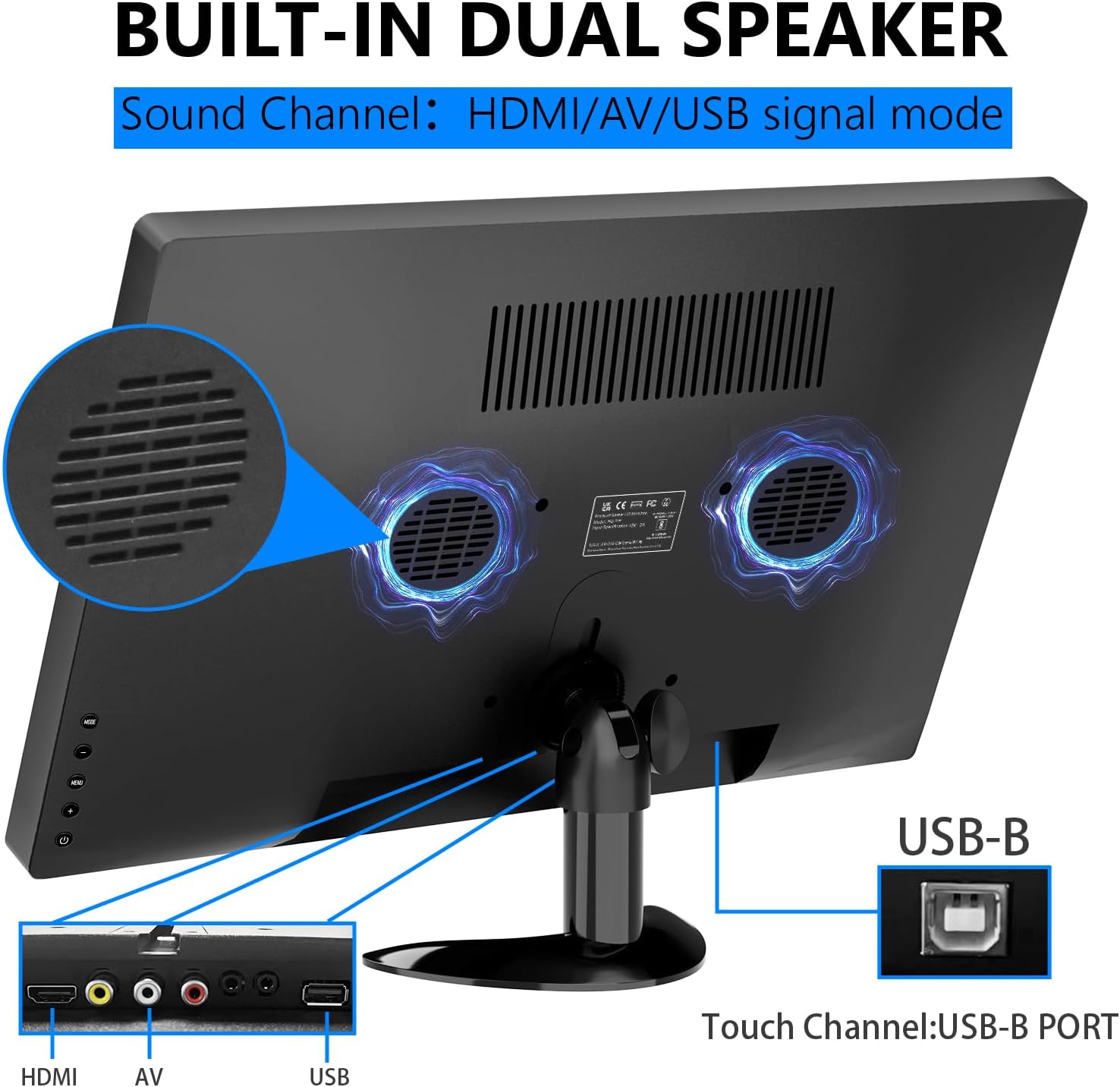
- Pò USB: Pou konekte aparèy USB yo.
- USB-B pò: Essential for enabling touch functionality when connected to a compatible device.
- Bouton kontwòl: For navigating the On-Screen Display (OSD) menu, adjusting brightness, volume, and other settings.

3.2 Reglabl kanpe
The monitor features an integrated adjustable stand that allows for up to 180° rotation, providing versatile viewing angles for various uses.

4. Enstalasyon
4.1 Koneksyon pouvwa
Connect the power adapter to the DC power input on the monitor and plug it into a power outlet. Alternatively, if using a USB-C connection that supports power delivery, the monitor can draw power directly from the connected device.
4.2 Video and Touch Connection
The monitor supports multiple connection methods. For touch functionality, a USB-B connection is required in addition to the video input.
- Koneksyon HDMI: Connect one end of the HDMI cable to your device and the other end to the HDMI input on the monitor. For touch functionality, also connect the USB-B cable from your device to the USB-B port on the monitor.
- Koneksyon USB-C: If your device has a full-featured USB-C port (supporting video, audio, and power delivery), connect the USB-C to USB-C cable directly from your device to one of the USB-C ports on the monitor. This single cable can provide video, audio, power, and touch functionality.
- VGA/AV Connection: Connect the appropriate VGA or AV cable from your device to the monitor. For touch functionality, a separate USB-B connection from your device to the monitor is required.

4.3 Compatibility Notes for Touch Function
The touch function is compatible with Windows and Chromebook systems. However, it is enkonpatib avèk aparèy sa yo:
- PS3/4/5
- Nintendo switch
- Xbox consoles
- Deck vapè
- Flash televizyon dife
- Kib televizyon dife
- Some Apple products

5. Opere ki monitè kè bebe a
5.1 Power On/Off
Peze bouton pouvwa ki sitiye sou kote monitè a pou limen oswa etenn li. Limyè endikatè pouvwa a ap limen lè monitè a aktif.
5.2 Meni OSD (On-Screen Display).
Use the control buttons to navigate the OSD menu. Here you can adjust various settings:
- Klate ak kontras: Adjust display luminosity and contrast levels.
- Volim: Control the output level of the built-in stereo speakers.
- Sous Antre: Select between HDMI, USB-C, VGA, or AV inputs.
- Efè koulè: Choose from various color modes to optimize your vieweksperyans nan.
- Lang: Select your preferred language for the OSD menu.
- Anviwònman sistèm: Access advanced display and power management options.
5.3 Jès ekran taktil
The 10-point multi-touch display supports intuitive gestures for navigation and interaction:
- Tape: Single tap to select items or activate functions.
- Double Tap: Double tap to open files oswa aplikasyon yo.
- Trennen: Touch and drag to move items or scroll through content.
- Zoom an / soti: Use a two-finger pinch gesture to zoom in or out.
- Vire: Use a two-finger twist gesture to rotate images or objects.
- Glise: Swipe across the screen to navigate between pages or applications.

5.4 Oratè Entegre
The monitor is equipped with integrated dual stereo speakers, providing audio output without the need for external devices. Volume can be adjusted via the control buttons or the OSD menu.
6. Montaj Opsyon
In addition to the adjustable stand, the monitor supports VESA 75x75mm wall mounting for fixed installations in offices, homes, or kiosks.

7. Espesifikasyon
| Karakteristik | Detay |
|---|---|
| Dimansyon pwodwi | 14.17 x 1.18 x 9.05 pous |
| Pwa atik | 4.2 liv |
| Gwosè ekran | 15.6 pous |
| Rezolisyon | 1920 x 1080 piksèl (FHD 1080p) |
| Aspè rapò | 16:9 |
| Imaj klète | 300 Candela |
| Deskripsyon Sifas Ekran an | Briyan |
| Total pò USB | 1 (USB-B for touch) |
| Manifakti | Shenzhen Kenowa Electronics Co., LTD |
NAN. Depanaj
- Pa gen ekspozisyon: Ensure the monitor is powered on and all video cables (HDMI, USB-C, VGA, AV) are securely connected to both the monitor and your source device. Try different cables or ports if available.
- Fonksyon manyen an pa fonksyone: Verify that the USB-B cable is correctly connected from your device to the monitor. Confirm your device's operating system (Windows/Chromebook) is compatible with the touch function. Note that gaming consoles and some Apple products do not support touch.
- Pa gen son: Check the monitor's volume settings via the OSD menu. Ensure your audio source is correctly selected and that any external headphones/speakers are properly connected to the earphone jack.
- Touch Screen Effect Displayed on Main Screen (Windows): If the touch effect is incorrectly displayed on your main laptop screen instead of the portable monitor, you may need to calibrate the touch screen. Access the 'Control Panel' -> 'Hardware and Sound' -> 'Tablet PC Settings'. In the 'Display Options', select 'InnoView' (or the corresponding name for your portable monitor) and then click 'Setup'. Follow the on-screen prompts to tap the portable monitor to identify it as the touchscreen.
9. Antretyen
- Netwaye ekran an: Sèvi ak yon twal mou ki pa gen pousyè pou siye ekran an dousman. Pou tach ki difisil pou retire, siye l yon ti kras.ampen the cloth with water or a screen-cleaning solution. Avoid using harsh chemicals, abrasive cleaners, or alcohol-based solutions.
- Netwayaj jeneral: Wipe the exterior of the monitor with a soft, dry cloth. Keep vents clear of dust and debris to ensure proper airflow.
- Depo: When not in use or during travel, store the monitor in its protective carry sleeve to prevent scratches and damage.
10. Garanti & Sipò
For warranty information, technical support, or service inquiries, please refer to the documentation included in your product package or contact Prechen customer service directly. Keep your purchase receipt for warranty claims.