
1. Entwodiksyon
Thank you for choosing the tenlamp G10-P15B-NB25 Podcast Equipment. This comprehensive kit is designed to provide studio-quality audio for podcasters, gamers, streamers, and content creators. It includes a 3.5mm condenser microphone with an articulated suspension arm and an advanced audio mixer. This manual will guide you through the setup, operation, and maintenance of your new equipment, ensuring a smooth and convenient audio experience.
2. Pake kontni
Tanpri tcheke kare a pou atik sa yo:
- G10 Audio Mixer
- Mikwofòn kondansateur
- Microphone Suspension Arm
- Pop Filter
- 3.5mm TRS Headphone Cable
- USB OTG kab
- 3.5mm TRRS Audio Kab
- USB AC kab
- Manyèl Itilizatè (dokiman sa a)

Imaj: Plis paseview of the tenlamp G10 Podcast Equipment and its included accessories.
3. Pwodwi souview
The tenlamp G10 audio mixer features an intuitive interface with various controls for sound customization and live streaming. The condenser microphone captures clear audio, and the suspension arm provides flexible positioning.
3.1 Konpozan ak Kontwòl Kle yo
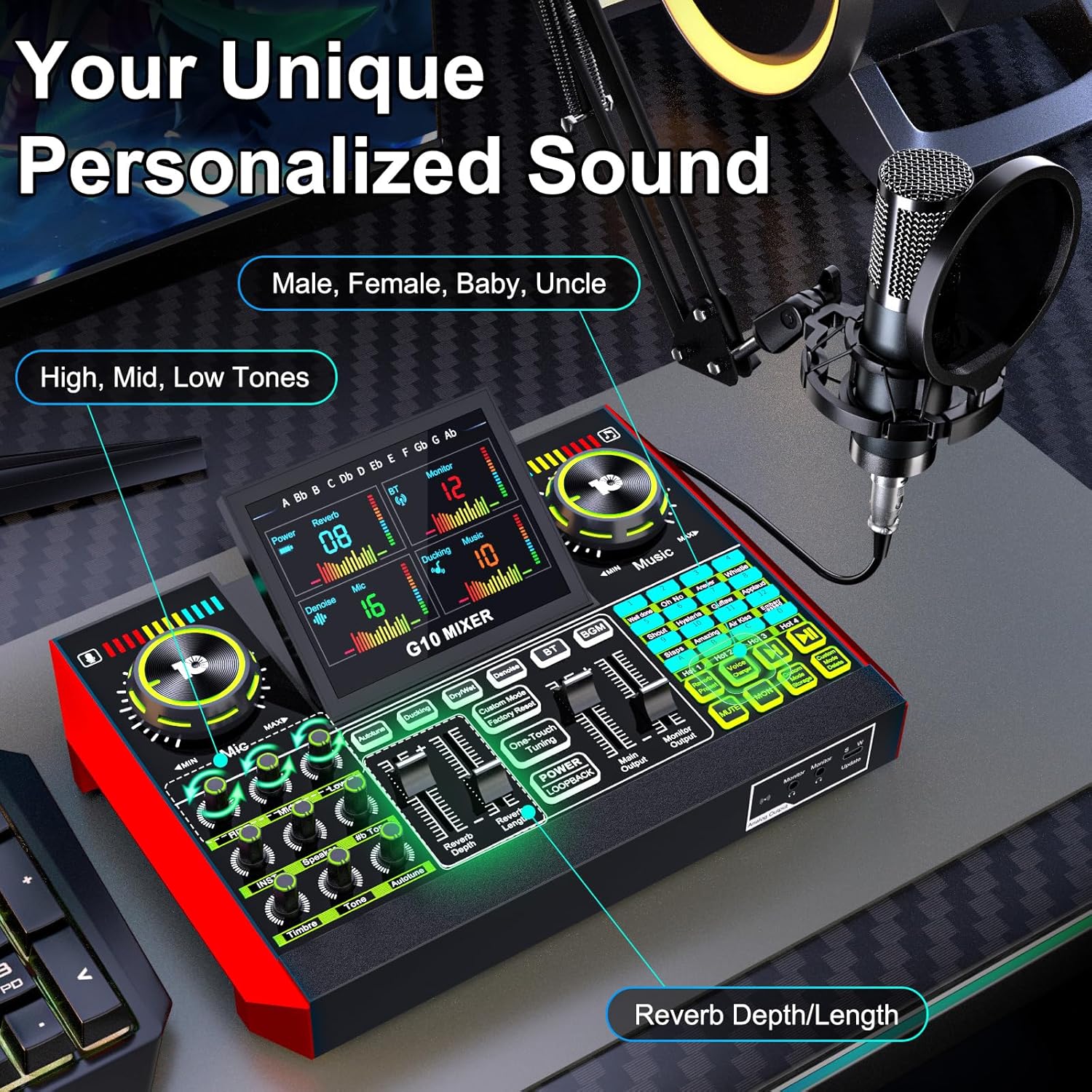
Imaj: Detaye view of the G10 mixer's control panel, highlighting voice and music adjustments.
- Antre mikwofòn: Connect the condenser microphone.
- Kontwòl Volim: Independent knobs for microphone, music, and monitor levels.
- Tone Adjustments: Bass, Mid, and Treble controls for microphone.
- Kontwòl Reverb: Adjust reverb depth and length.
- Sound Effect Pads: Trigger various built-in sound effects.
- Chanje vwa: Buttons for different voice modes (Male, Female, Baby, Uncle, etc.).
- Rediksyon bri: Dedicated button to activate noise reduction.
- Fonksyon bèbè: Mute microphone input.
- Pò koneksyon: USB-C, 3.5mm TRRS, XLR, Bluetooth.

Image: Detailed connection diagram of the G10 mixer's ports.
4. Enstalasyon
Follow these steps to set up your tenlamp G10 Podcast Equipment:
- Assemble the Microphone Arm: Securely attach the suspension arm to your desk using the clamp. Mount the condenser microphone onto the arm and attach the pop filter.
- Konekte mikwofòn la: Plug the microphone cable into the designated XLR or 3.5mm microphone input on the G10 mixer. Ensure a secure connection.
- Pouvwa sou: Connect the G10 mixer to a power source using the provided USB-C cable. The mixer is battery-powered and can be charged via USB-C.
- Konekte ak aparèy:
- PC/Laptop: Use the USB-C cable to connect the mixer to your computer. The mixer will be recognized as an audio device.
- Smartphone/Tablet: Use the 3.5mm TRRS audio cable or USB OTG cable to connect to your mobile device.
- Bluetooth: Activate Bluetooth on your mobile device and pair with the G10 mixer for wireless music input.
- Connect Monitoring Headphones: Plug your headphones into the 'Monitor' output for real-time audio monitoring.
- Konekte Oratè yo (Si ou vle): If desired, connect external speakers to the 'Speaker' output.
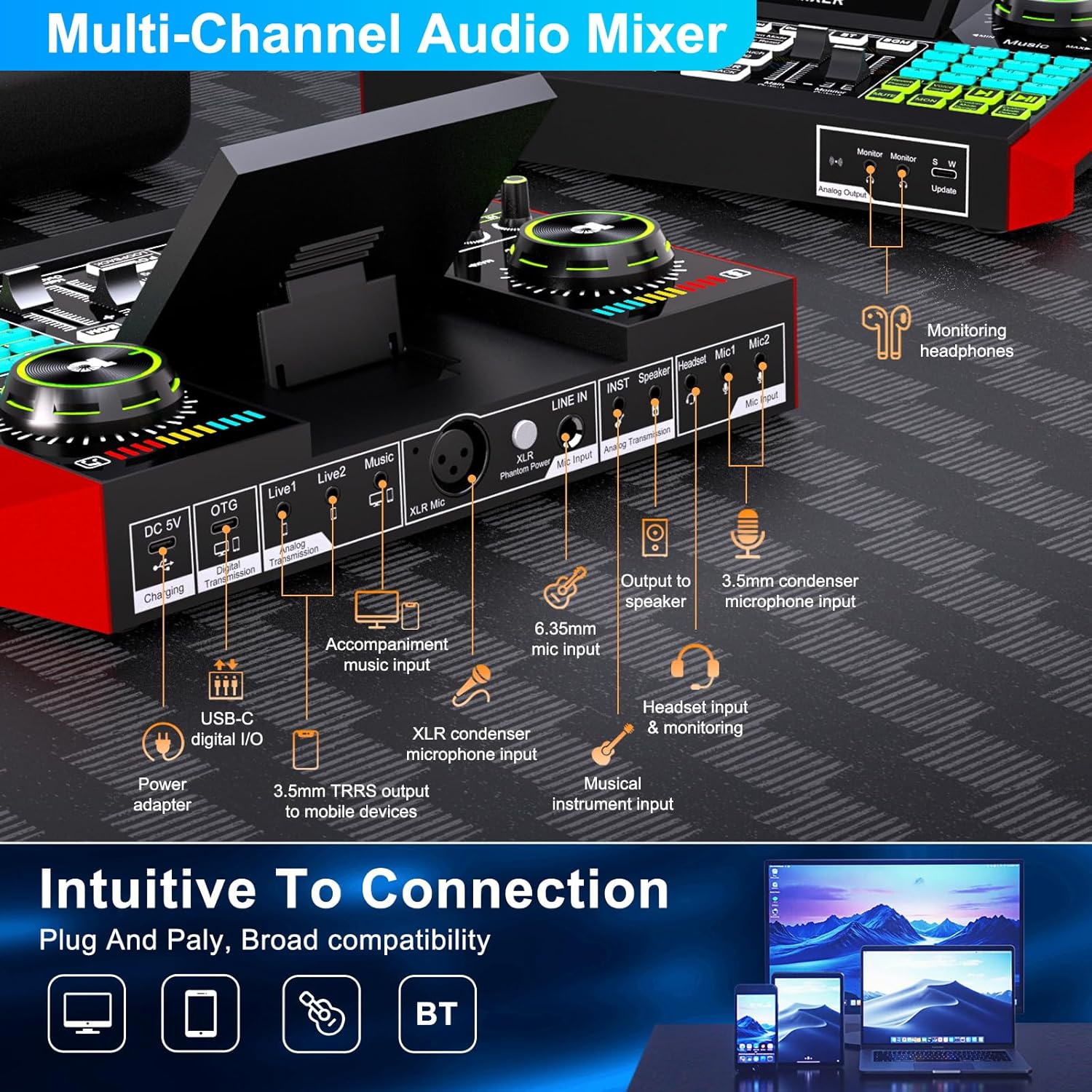
Image: Intuitive connection options for the G10 mixer.

Image: Demonstrating the Bluetooth connectivity feature.
5. Operasyon Enstriksyon
5.1 Kontwòl Odyo Debaz
- Volim Mikwofòn: Adjust the 'Mic' knob to control your microphone input level.
- Volim Mizik: Adjust the 'Music' knob to control the background music level.
- Siveye Volim: Adjust the 'Monitor' knob to control the headphone output volume.
- Ajisteman Ton: Use the 'Bass', 'Mid', and 'Treble' sliders to fine-tune your vocal sound.
- Reverb: Use the 'Reverb Depth' and 'Reverb Length' controls to add echo effects to your voice.

Image: Customizing your sound and scene with the G10 mixer.
5.2 Karakteristik espesyal
Chanje vwa
The G10 mixer includes a built-in voice changer. Press the dedicated buttons to instantly transform your voice into various modes such as Male, Female, Baby, or Uncle. You can further customize these voices using the bass and reverb settings.
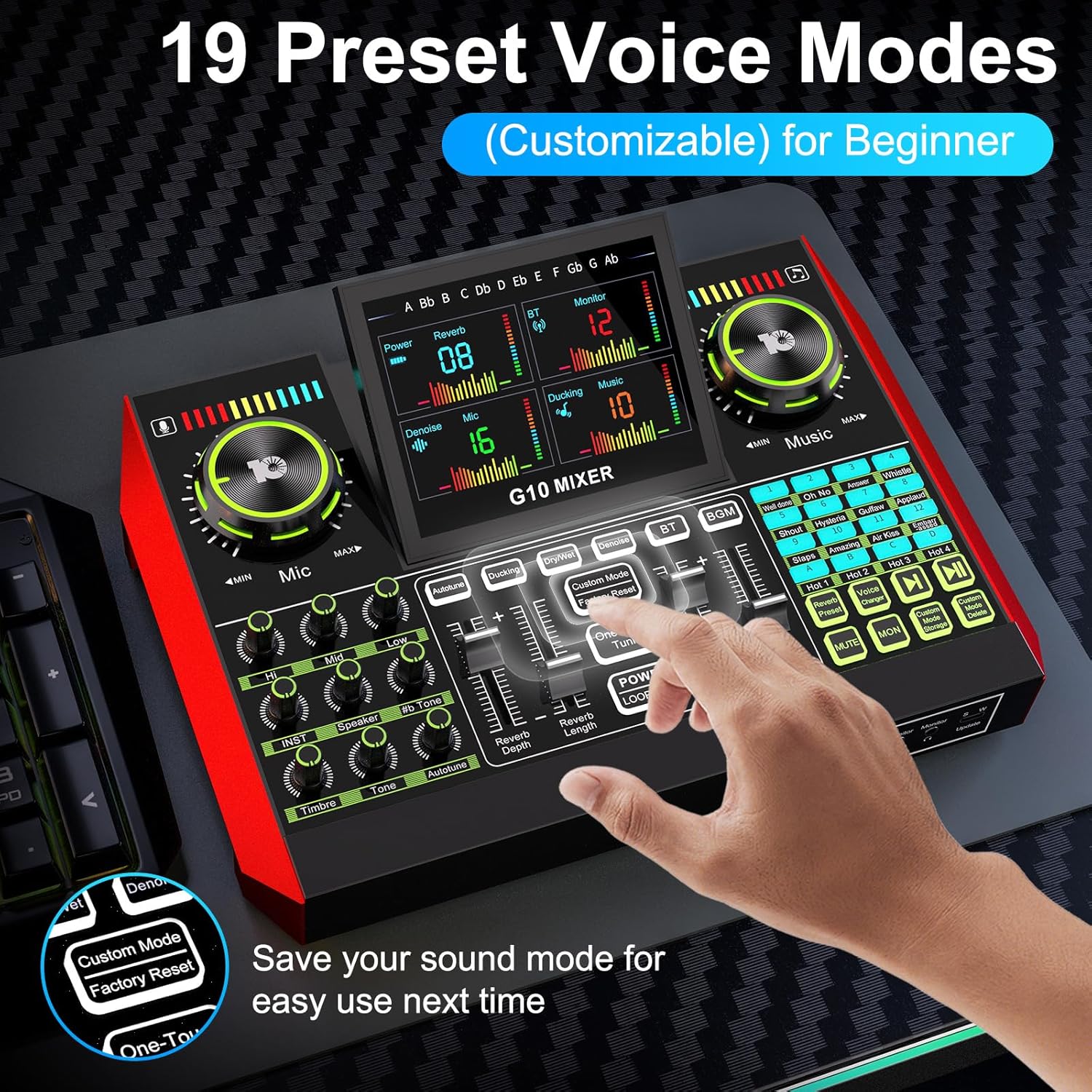
Image: Exploring the 19 preset voice modes for beginners.
Efè son
The sound effects panel offers 12 built-in effects, including applause, laughter, and more, to enhance your live broadcasts and make them more interactive. Simply press the corresponding pad to trigger an effect.
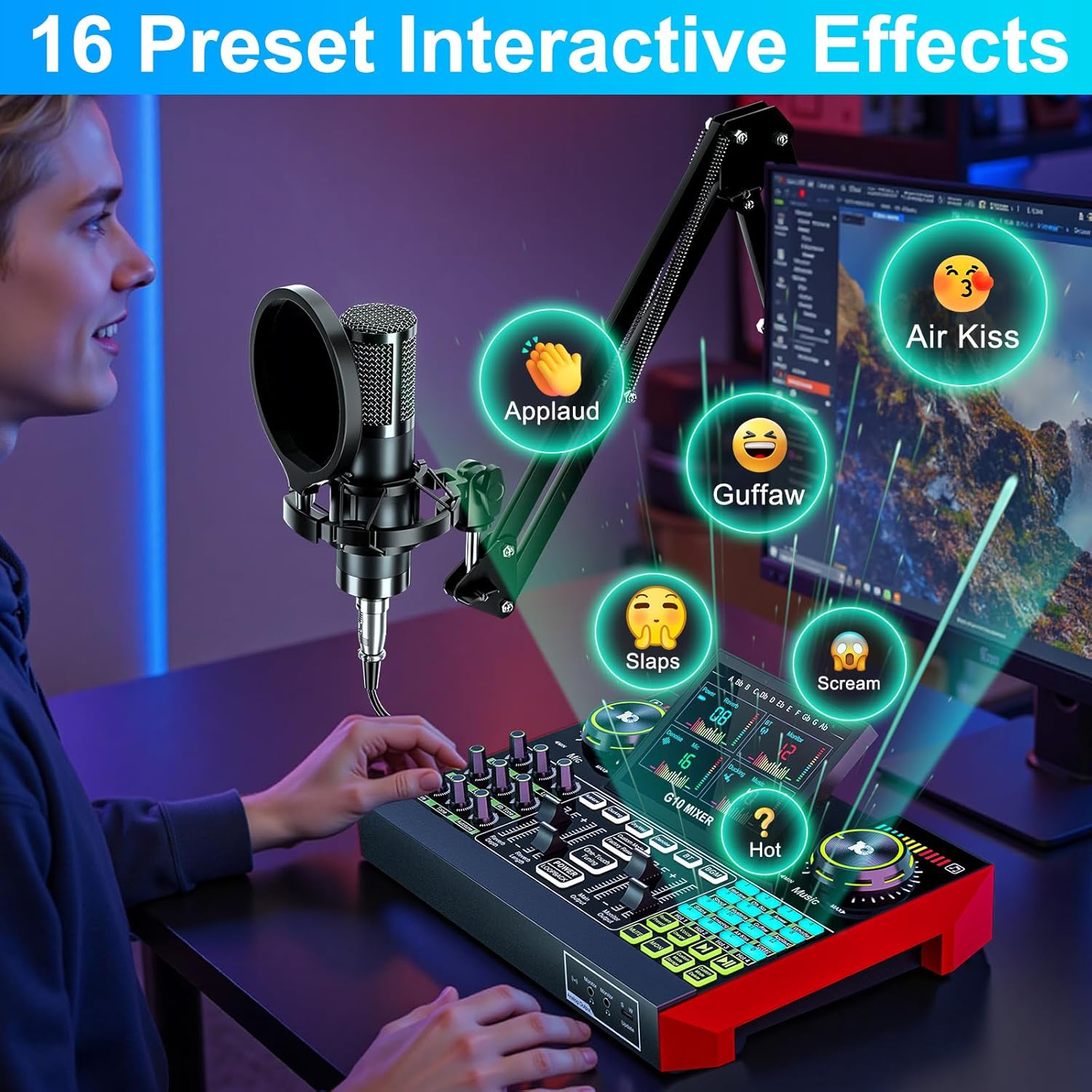
Image: Activating 16 preset interactive effects on the G10 mixer.
Rediksyon bri
The G10 audio mixing console is equipped with a noise reduction system. Activate this feature to ensure crystal-clear voice by minimizing background noise, ideal for podcasts, voice-overs, and live streaming.
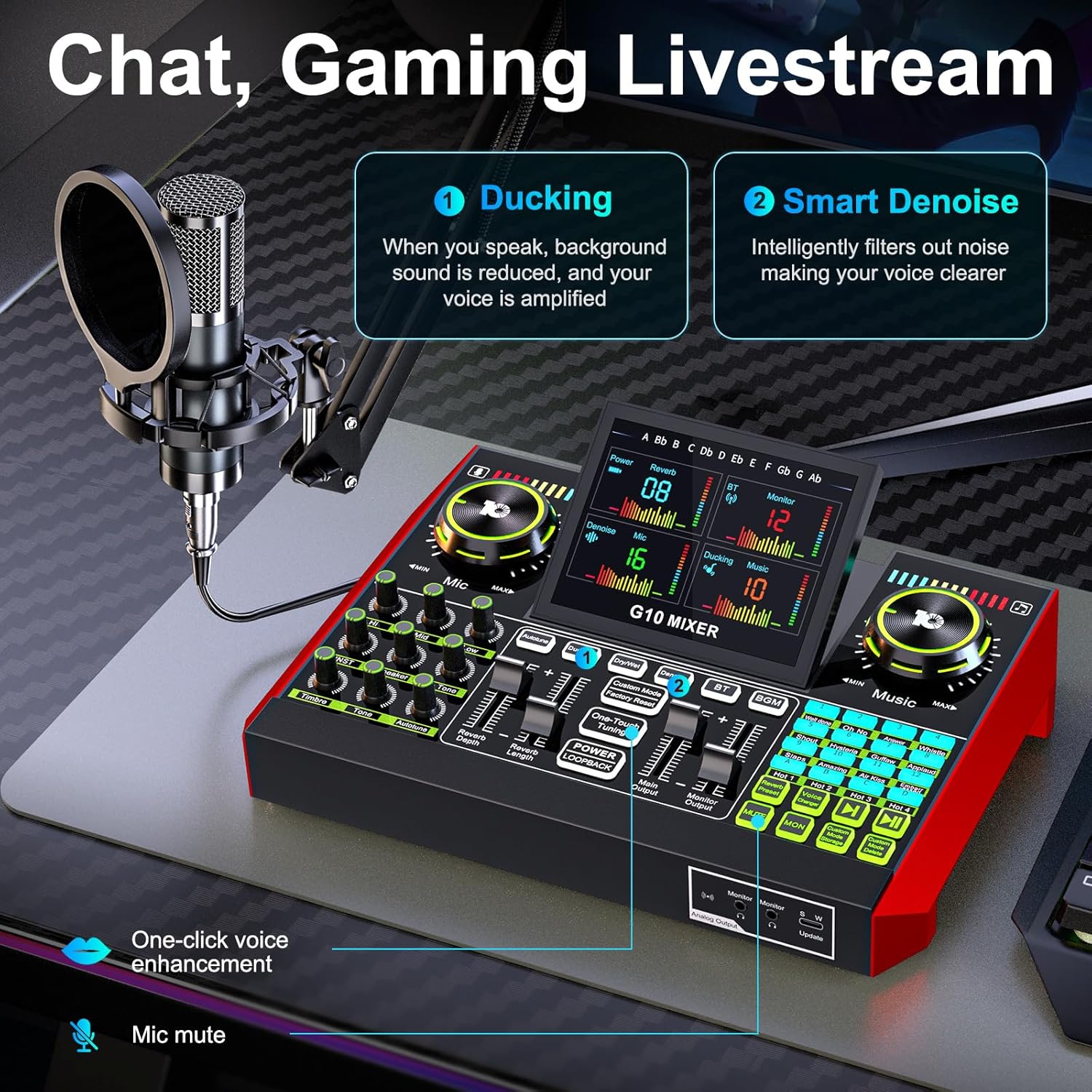
Image: Chat and Gaming Livestream features: Ducking and Smart Denoise.
Mòd Reverb
The mixer offers 5 preset reverb modes: Original, KTV, Chat, Livestream, and MC. Select the mode that best suits your content type for optimal audio ambiance.
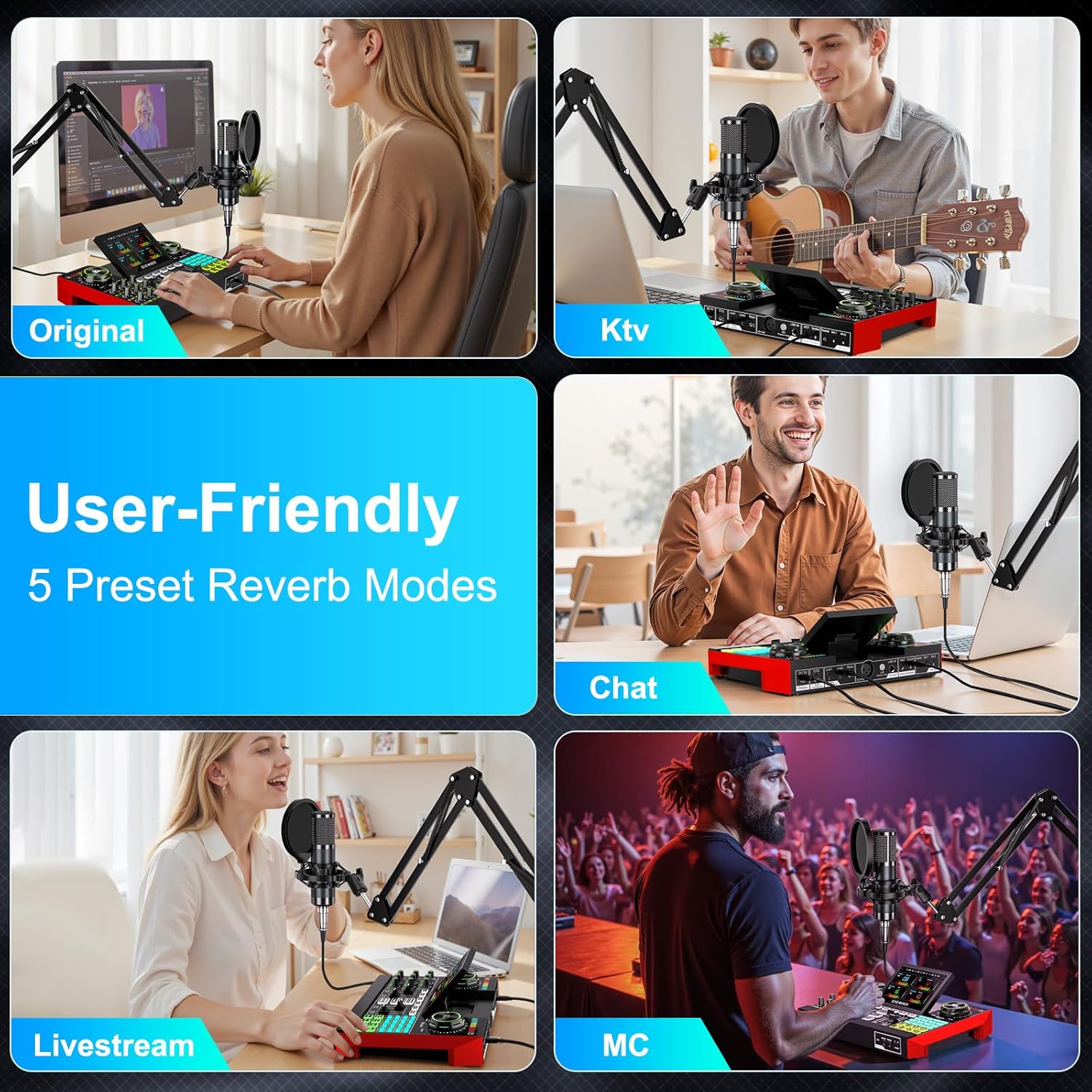
Image: User-friendly 5 preset reverb modes.
5.3 Live Streaming and Recording
The G10 mixer supports various applications for live streaming and recording:
- Chat/Gaming Livestream: Utilize the 'Ducking' feature where background sound is reduced when you speak, and your voice is amplified. The 'Smart Denoise' intelligently filters out noise for clearer voice.
- Singing Livestream: Features like 'Follow Singing' allow you to continuously hear original vocals, while 'Remove Vocal' can eliminate original vocals from a song, letting the audience hear only your voice and the accompaniment.
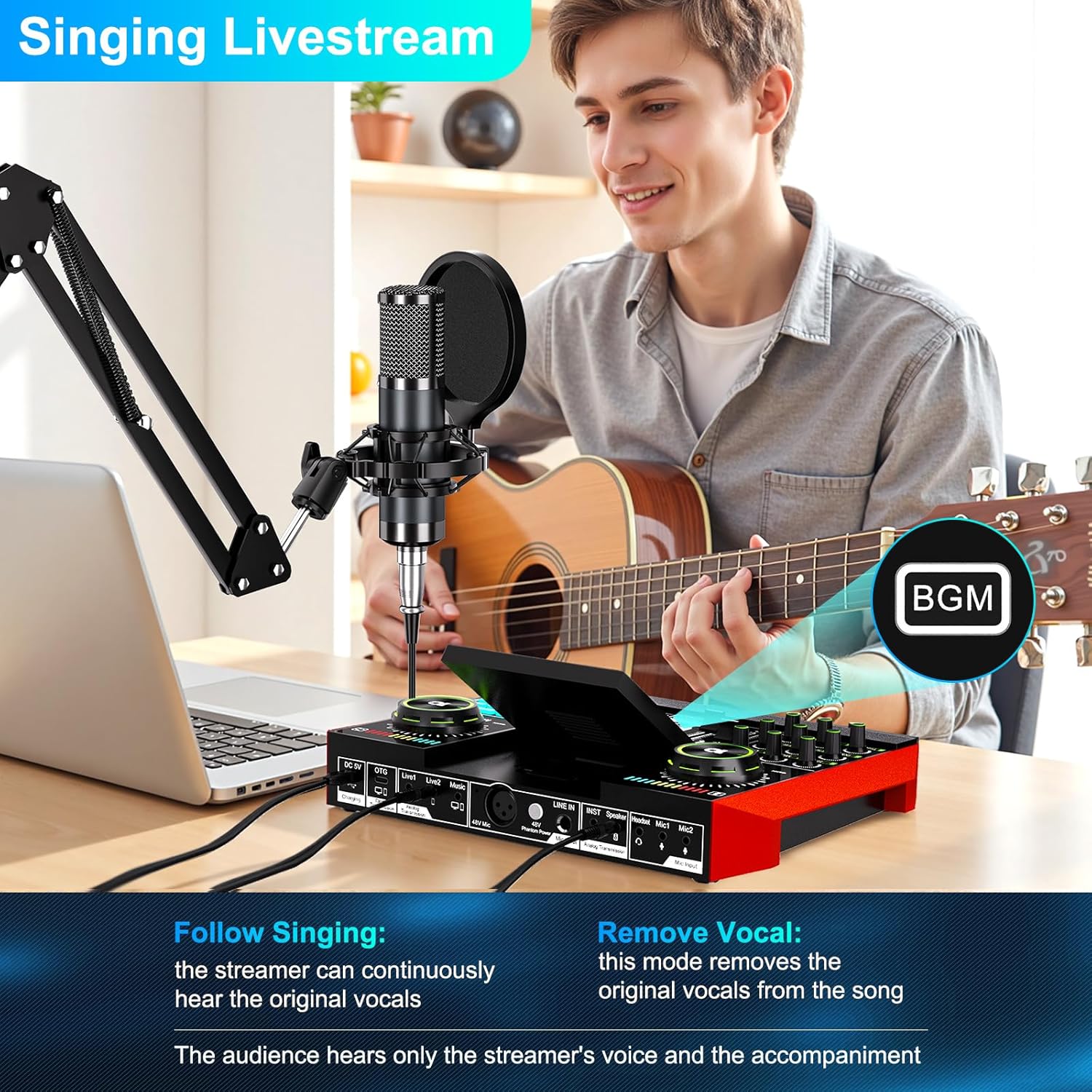
Image: Singing Livestream features: Follow Singing and Remove Vocal.

Image: Multi-channel audio mixer supporting 1-3 people for live streaming.
6. Antretyen
To ensure the longevity and optimal performance of your tenlamp G10 Podcast Equipment, follow these maintenance guidelines:
- Netwayaj: Use a soft, dry cloth to wipe down the mixer and microphone. Avoid using liquid cleaners or abrasive materials.
- Depo: Sere ekipman an nan yon kote ki fre epi sèk, lwen limyè solèy dirèk ak tanperati ekstrèm.
- Swen kab: Avoid bending or twisting cables excessively. Disconnect cables by pulling the plug, not the wire.
- Batri: The mixer is powered by an internal battery. Charge it regularly to maintain battery health. The mixer offers up to 12 hours of usage on a full charge.

Image: The G10 mixer is built for creators with up to 12 hours of live streaming usage.
NAN. Depanaj
If you encounter issues with your tenlamp G10 Podcast Equipment, refer to the following common problems and solutions:
- Pa gen Sòti Son:
- Check all cable connections (microphone, headphones, speakers, device).
- Ensure volume knobs (Mic, Music, Monitor) are turned up.
- Verify the mixer is powered on and charged.
- Confirm the G10 mixer is selected as the input/output device in your computer's sound settings or mobile app.
- Move Kalite Son/Bri:
- Activate the 'Noise Reduction' feature on the mixer.
- Adjust microphone gain and tone settings (Bass, Mid, Treble).
- Ensure the microphone is positioned correctly and the pop filter is used.
- Tcheke pou entèferans nan lòt aparèy elektwonik.
- Voice Changer Not Working:
- Ensure the microphone is properly connected and receiving input.
- Press the voice changer buttons firmly.
- Pwoblèm koneksyon Bluetooth:
- Ensure Bluetooth is enabled on both the mixer and your device.
- Unpair and re-pair the devices.
- Move devices closer to each other to reduce interference.
8. Espesifikasyon
| Mak | tenlamp |
| Non modèl | G10-P15B-NB25 |
| Koneksyon Teknoloji | Auxiliary, Bluetooth, USB, XLR |
| Kalite Connector | 3.5mm Jack, USB Type-C |
| Karakteristik espesyal | Volume control, Echo control, Mute function, Noise reduction |
| Aparèy konpatib | Headphones, Personal computer, Laptop, Smartphone, Tablet |
| Eleman enkli | Microphone, Audio Mixer |
| Pwa atik | 1200 gram |
| Mikwofòn Fòm Faktè | Kondansateur estidyo |
| Sous pouvwa | Mache ak pil (1 pil A enkli) |
| Platfòm pyès ki nan konpitè | Odinatè, Laptop, Telefòn entelijan |
| Kantite Chanèl | 4 |
| Repons Frekans | 20 KHz |
| Materyèl Entèn | Plastik |
9. Garanti ak sipò
The tenlamp G10-P15B-NB25 Podcast Equipment comes with a 1-ane garanti for spare parts availability. For technical support, troubleshooting assistance, or warranty claims, please contact tenlamp customer service through your purchase platform or the official tenlamp websit.