
1. Entwodiksyon
Thank you for choosing the Pisichen 27-inch 4K UHD Touchscreen Monitor with Webcam. This manual provides essential information for the safe and efficient operation of your new monitor. Please read it thoroughly before use and retain it for future reference.
2. Enfòmasyon sou Sekirite
- Sous pouvwa: Use only the power adapter supplied with the monitor. Ensure the power outlet meets the voltage kondisyon.
- Vantilasyon: Pa bloke ouvèti vantilasyon yo. Kite ase espas otou monitè a pou bon sikilasyon lè a.
- Ekspozisyon likid: Kenbe monitè a lwen likid. Pa ekspoze l anba lapli oswa imidite.
- Netwayaj: Disconnect the power cable before cleaning. Use a soft, dry cloth. Avoid abrasive cleaners.
- Plasman: Mete monitè a sou yon sifas ki plat e ki estab pou anpeche l tonbe.
- Sèvis: Pa eseye fè antretyen monitè a tèt ou. Konfye tout antretyen bay pèsonèl kalifye.
3. Pake kontni
Tanpri verifye sa ki nan pake a lè w ap debale l. Si gen nenpòt atik ki manke oswa ki domaje, kontakte machann ou an.
- Pisichen 27-inch 4K UHD Touchscreen Monitor
- Sipò Monitè (Baz ak Bra)
- Adaptè pouvwa
- HDMI kab
- USB-B to USB-A Cable (for Touch Function)
- Manyèl itilizatè
4. Pwodwi souview
4.1 Karakteristik kle
- Ultra HD 4K Touchscreen Display: 27-inch 4K Ultra HD screen with vibrant colors, sharp details, and wide viewing angles. Features a responsive 10-point touchscreen for intuitive control.
- Built-in High-Definition WebCam: Entegre webcam for video calls, online meetings, and streaming, reducing desk clutter.
- Koneksyon versatile: Multiple ports including HDMI, DisplayPort, and USB-C for easy connections to various devices. Supports both touch and traditional input.
- Optimized for Productivity and Creativity: Large 4K touch display for precise control and streamlined workflows, ideal for graphic designers, content creators, and multitasking.
- Sleek and Functional Design: Modern design with an adjustable stand for optimal viewing angles and comfort during extended use.
4.2 Siveye pò yo
The monitor features various ports for connecting to your devices. Refer to the image below for port identification.
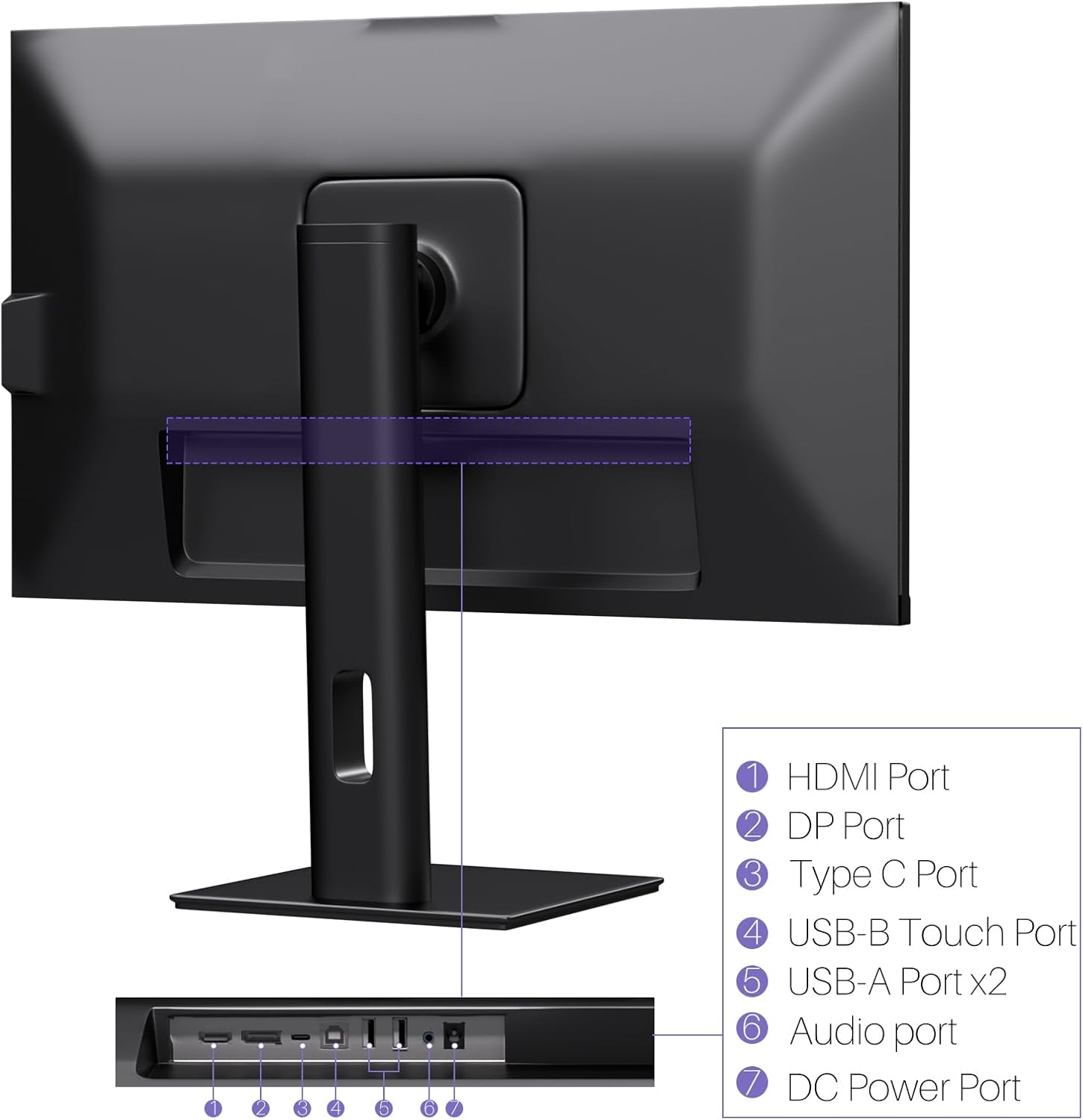
Imaj: Dèyè view of the monitor displaying the HDMI, DP, Type-C, USB-B Touch, USB-A, Audio, and DC Power ports.
- HDMI Port: Connects to devices via HDMI cable for video and audio input.
- Pò DP: Connects to devices via DisplayPort cable for video and audio input.
- Kalite-C Port: Connects to devices via USB-C cable for video, audio, and power delivery. (Requires USB-C port on signal device to support DisplayPort Alternate Mode for touch functionality).
- USB-B Touch Port: Connects to your computer via USB-B to USB-A cable to enable touchscreen functionality.
- Pò USB-A (x2): Pou konekte periferik USB yo.
- Pò odyo: Pou konekte aparèy odyo ekstèn.
- DC pouvwa pò: Konekte ak adaptè pouvwa a.
5. Enstriksyon Enstalasyon
5.1 Asanble kanpe la
- Retire konpozan monitè a ak sipò a nan anbalaj la avèk prekosyon.
- Attach the stand arm to the monitor's VESA mounting points.
- Secure the stand base to the arm using the provided screws.
- Ensure all connections are tight and the monitor is stable.
5.2 Konekte ak yon Aparèy
The monitor supports various connection types. Choose the appropriate cable for your device.

Image: Connection diagrams illustrating how to connect the monitor as a secondary display (HDMI/DP + DC), a touchscreen monitor (HDMI/DP + USB-B + DC), or via USB-C (USB-C + DC).
- For Video and Audio (Non-Touch): Connect an HDMI or DisplayPort cable from your computer to the corresponding port on the monitor.
- For Video, Audio, and Touch (Windows PC): Connect an HDMI or DisplayPort cable for video/audio. Additionally, connect the USB-B to USB-A cable from the monitor's USB-B Touch Port to a USB-A port on your computer.
- For Video, Audio, and Touch (USB-C Compatible Device): Connect a USB-C cable from your device to the monitor's Type-C port. Ensure your device's USB-C port supports DisplayPort Alternate Mode for touch functionality.
5.3 Koneksyon pouvwa
- Connect the power adapter to the monitor's DC Power Port.
- Ploge adaptè pouvwa a nan yon priz miray.
6. Operasyon Enstriksyon
6.1 Power On/Off
Peze bouton pouvwa ki sitiye sou monitè a pou limen oswa etenn li.
6.2 Meni OSD (On-Screen Display).
Use the control buttons (typically located on the back or bottom of the monitor) to navigate the OSD menu. This menu allows you to adjust settings such as brightness, contrast, color temperature, input source, and other display parameters.
6.3 Fonksyonalite ekran taktil
The monitor features a 10-point multi-touch screen. Ensure the USB-B to USB-A cable (or USB-C cable for compatible devices) is connected to enable touch functionality.

Image: A user's hand interacting with the monitor screen, highlighting the responsive 10-point touch experience.
- Basic Touch: Tap to click, swipe to scroll.
- Jès Milti-Touch: Use two fingers to zoom in/out, rotate, or pan, depending on the application.
- Touch Calibration (Windows Only): If the cursor does not align with your touch, calibration may be required. Go to Control Panel > Hardware and Sound > Tablet PC Settings > Calibrate. Follow the on-screen prompts.
6.4 Using the Built-in Webkam
Entegrasyon an webcam is automatically detected by most operating systems and video conferencing applications. No additional drivers are typically required.

Image: The monitor displaying a video conference call, showcasing its integrated webcam for seamless communication.
- Open your preferred video conferencing software (e.g., Zoom, Microsoft Teams, Skype).
- Select the integrated webcam as your video input device in the application's settings.
6.5 Adjusting Display Resolution
To set the resolution of the monitor (Windows):
- Right-click on your desktop and select "Display Settings."
- Find your monitor (if multiple displays are connected).
- Under "Display resolution," select the recommended resolution of 3840 x 2160.
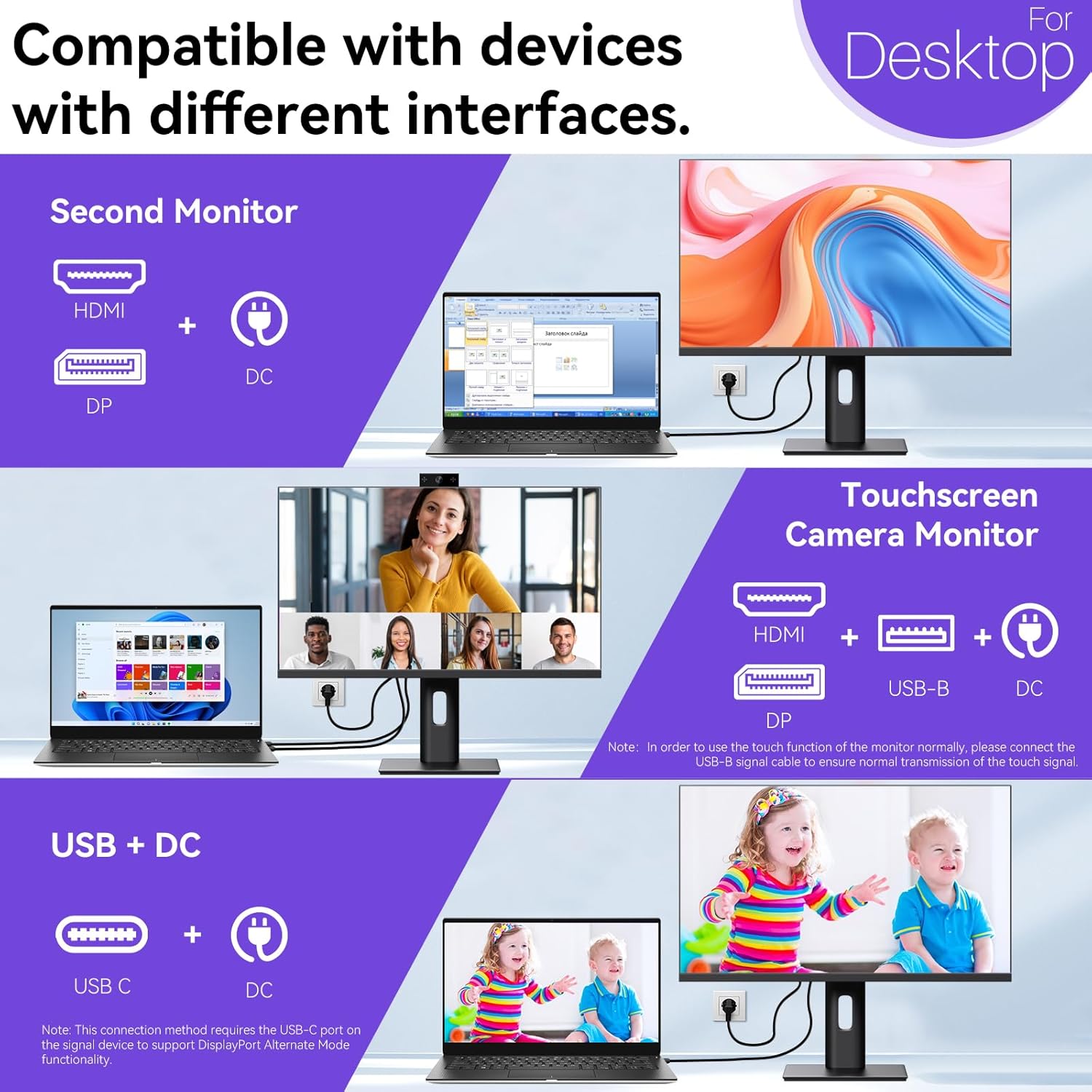
Image: A visual comparison demonstrating the superior clarity of 4K UHD (3840x2160) compared to FHD (1920x1080) and QHD (2560x1440) resolutions.
7. Antretyen
- Netwaye ekran an: Siye ekran an dousman avèk yon twal mou ki pa gen pousyè. Pou mak ki difisil pou retire, siye l dousman.ampRense twal la avèk dlo oswa yon solisyon netwayaj espesifik pou ekran. Pa flite likid dirèkteman sou ekran an.
- Netwayaj C aasing: Sèvi ak yon twal mou epi sèk pou netwaye monitè a.asing.
- Depo: Si w ap sere monitè a pou yon peryòd tan pwolonje, dekonekte li nan kouran an, mete l nan anbalaj orijinal li, epi sere l nan yon kote ki fre epi sèk.
NAN. Depanaj
If you encounter issues with your monitor, refer to the following troubleshooting guide. For problems not listed, please contact customer support.
| Pwoblèm | Kòz posib | Solisyon |
|---|---|---|
| Pa gen imaj sou ekran an | Kab kouran dekonekte; Kab videyo dekonekte; Sous antre ki pa kòrèk la chwazi. | Ensure power cable is securely connected. Check video cable (HDMI/DP/USB-C) connections. Select correct input source via OSD menu. |
| Touchscreen pa reponn | USB-B cable not connected; USB-C port not supporting DisplayPort Alternate Mode; Device incompatibility (e.g., iPhone). | Ensure the USB-B to USB-A cable is connected from the monitor to your computer. If using USB-C, verify your device's USB-C port supports DisplayPort Alternate Mode. Note: Touch function is not supported when connected to an iPhone due to iOS system restrictions. |
| Cursor moves incorrectly (Windows) | Touchscreen calibration required. | Perform touchscreen calibration: Go to Control Panel > Hardware and Sound > Tablet PC Settings > Calibrate. |
| WebCam pa detekte | USB connection issue; Software settings. | Ensure all necessary USB cables are connected. Check your application's settings to select the correct webCam. |
9. Espesifikasyon
| Karakteristik | Detay |
|---|---|
| Mak | Pisichen |
| Nimewo Modèl | 27INTSCMR-4K |
| Gwosè ekran | 27 pous |
| Rezolisyon | 3840 x 2160 piksèl (4K UHD 2160p) |
| Aspè rapò | 16:9 |
| Imaj klète | 400 Candela |
| Deskripsyon Sifas Ekran an | Briyan |
| Dimansyon pwodwi | 14.37 x 24.21 x 16.54 pous |
| Pwa atik | 16.59 liv |
| Manifakti | Shenzhen Konowa Electronics Co., LTD |
| Koneksyon | HDMI, DisplayPort, USB-C, USB-B (for touch), USB-A (x2), Audio Port |
10. Garanti ak sipò
This product comes with a manufacturer's warranty. Please refer to the warranty card included in your package for specific terms and conditions. For technical support or inquiries, please contact Pisichen customer service at support_2308@163.com. When contacting support, please provide your model number and a detailed description of the issue, including any relevant pictures or videos.