
1. Entwodiksyon
This manual provides detailed instructions for setting up, operating, and maintaining your HIGOLE PC Mini PC Stick J4105. Please read this manual thoroughly before using the device to ensure proper functionality and to prevent damage.
2. Pake kontni
Verifye ke tout atik ki nan lis anba a yo enkli nan pakè ou a. Si gen nenpòt atik ki manke oswa ki domaje, tanpri kontakte sèvis kliyan.
- HIGOLE PC Mini PC Stick J4105
- DC 12V / 3A Power Adapter
- Kab Ekstansyon HDMI
- Manyèl itilizatè

Image: Package Contents. This image displays the HIGOLE PC Mini PC Stick, its power adapter, an HDMI extension cable, and the user manual.
Video: Unboxing the HIGOLE PC Mini PC Stick. This video demonstrates the unboxing process and showcases the included components of the Mini PC Stick.
3. Pwodwi souview
The HIGOLE PC Mini PC Stick J4105 is a compact, fanless desktop PC designed for various applications, from business to home entertainment. It features a Celeron J4105 processor, 8GB RAM, and 128GB eMMC storage.
3.1 Layout Aparèy ak Pò

Image: Compact Pocket Size PC. This image illustrates the compact dimensions of the PC stick and highlights its various ports on the side, including USB-C, USB 3.0, DC 12V power input, Micro SD card slot, and power button.
- HDMI 2.0 pò: Connects to displays for 4K 60Hz video output.
- USB-C pò: Supports data transfer and power delivery (PD 3.0, 12V/2A).
- Pò USB 3.0 (x2): Pou konekte periferik tankou klavye, sourit, ak depo ekstèn.
- RJ45 Gigabit Ethernet Port: Bay yon koneksyon rezo filaire ki estab.
- 3.5mm Audio Jack: Pou kas ekoutè oswa oratè ekstèn.
- Lektè kat mikwo SD: Supports storage expansion up to 512GB.
- DC 12V Antre pouvwa: Konekte adaptè pouvwa a enkli isit la.
- Security Lock Slot: Pou sekirite fizik.

Image: HIGOLEPC Mini PC Stick on a desk. This image shows the Mini PC Stick connected to a monitor and peripherals, highlighting its small footprint in a workspace.
4. Gid Enstalasyon
Follow these steps for initial setup of your Mini PC Stick.
4.1 Konekte ak yon ekran
- Locate an available HDMI port on your monitor or TV.
- Plug the HDMI connector of the Mini PC Stick directly into the HDMI port of your display. If space is limited, use the provided HDMI extension cable.
- Ensure your display is set to the correct HDMI input source.
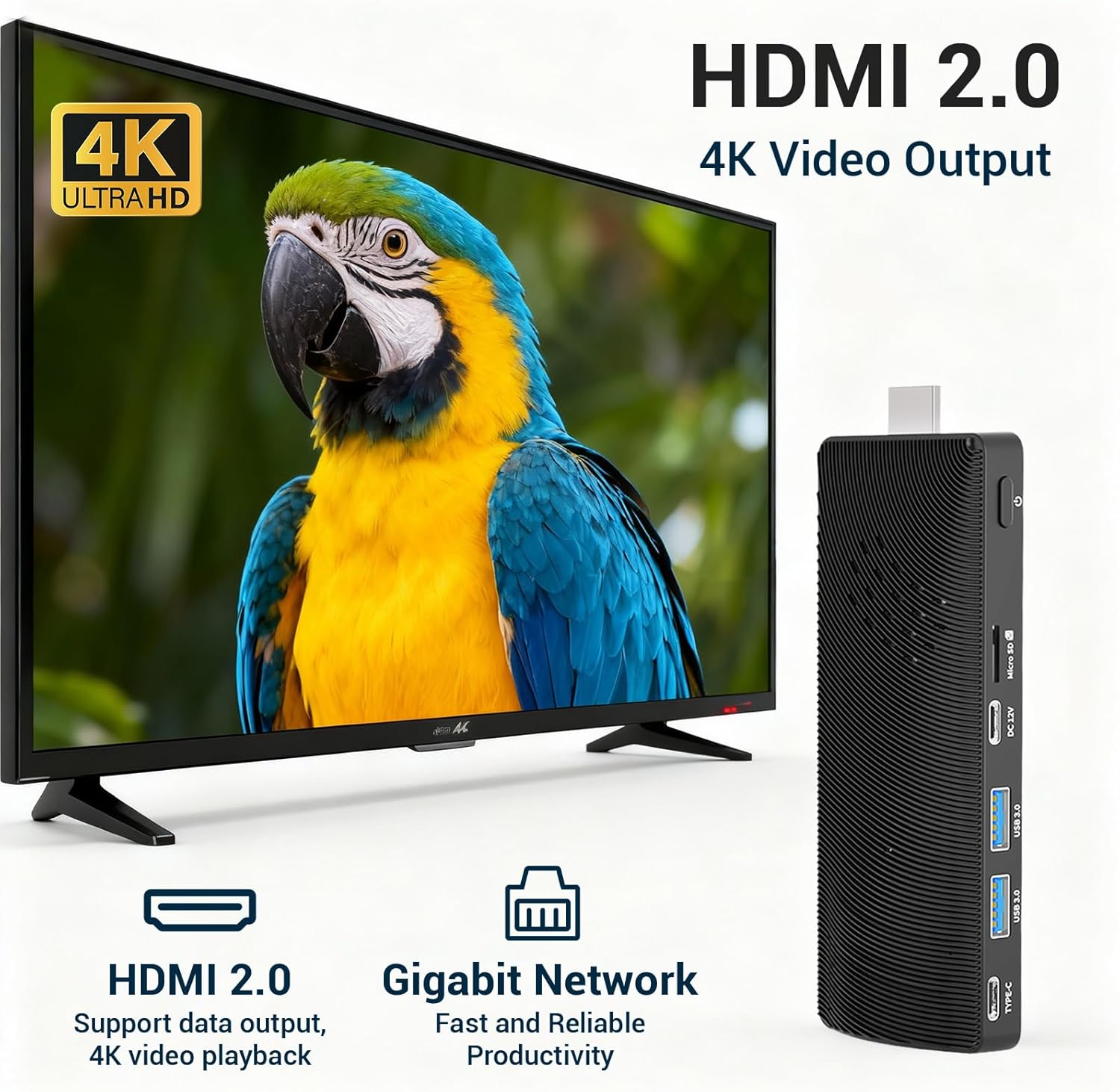
Image: HDMI 2.0 4K Video Output. This image shows the Mini PC Stick connected to a television, illustrating its ability to output 4K Ultra HD video via HDMI 2.0.
4.2 Konekte pouvwa
- Connect the DC 12V / 3A power adapter to the DC 12V input port on the Mini PC Stick.
- Plug the power adapter into a wall outlet. The device will typically power on automatically.
4.3 Konekte periferik
- Connect your USB keyboard and mouse to the USB 3.0 ports on the Mini PC Stick.
- For a wired network connection, connect an Ethernet cable to the RJ45 Gigabit Ethernet port.
- Optional: Insert a Micro SD card into the Micro SD card slot for additional storage.

Image: Versatile Connections. This diagram illustrates the various peripheral devices that can be connected to the Mini PC Stick, such as a mouse, keyboard, monitor, and speakers.
5. Operasyon Enstriksyon
5.1 Premye Demaraj ak Enstalasyon Windows
Upon first power-on, the device will guide you through the Windows 11 Pro setup process. Follow the on-screen prompts to configure your language, region, network, and user account.
5.2 Konpatibilite sistèm operasyon
The Mini PC Stick comes pre-installed with Windows 11 Pro. It also supports other operating systems such as Linux and Ubuntu, offering flexibility for various user needs.

Image: Multiple-System Compatibility. This image shows the Mini PC Stick supporting various operating systems, including Windows 11, Ubuntu, and other Linux distributions.
5.3 Koneksyon Rezo ak San Fil
The device supports both wired and wireless connections:
- Wi-Fi: Built-in 2.4/5GHz dual-band Wi-Fi for wireless internet access. To connect, go to Windows Settings > Network & Internet > Wi-Fi, select your network, and enter the password.
- Bluetooth 5.0: For connecting wireless peripherals like keyboards, mice, and headphones. To pair, go to Windows Settings > Bluetooth & devices > Add device.
- Gigabit-Ethernet: For a stable and high-speed wired network connection via the RJ45 port.

Image: Strong Wireless Connection. This image highlights the device's Wi-Fi 5.0 and Bluetooth 5.0 capabilities for robust wireless connectivity.
5.4 Konsepsyon san fanatik
The Mini PC Stick features a fanless design, ensuring silent operation and efficient heat dissipation. This makes it suitable for environments where noise reduction is critical.
5.5 Sipò pou plizyè ekspozisyon
With its HDMI 2.0 port, the Mini PC Stick supports 4K UHD graphics output at 60Hz, allowing for clear and vivid video images. It can also support dual 4K display output when used with a compatible USB-C hub that supports video output.

Image: Dual Monitor Setup. This image shows the Mini PC Stick connected to two monitors, demonstrating its capability for dual 4K display output, ideal for enhanced productivity.
6. Espesifikasyon
| Karakteristik | Spesifikasyon |
|---|---|
| Mak | HIGOLE PC |
| Nimewo Modèl | J4105-8+128 |
| Sistèm operasyon | Windows 11 Pro (supports Linux, Ubuntu) |
| Modèl CPU | Intel Celeron J4105 |
| CPU vitès | 2.0 GHz (up to 2.7 GHz burst) |
| Memwa RAM | 8GB LPDDR4 |
| Depo | 128GB eMMC |
| Grafik | Intel UHD Graphics 600 (Entegre) |
| Sòti videyo | HDMI 2.0 (4K @ 60Hz) |
| Koneksyon | Wi-Fi (2.4/5GHz), Bluetooth 5.0, Gigabit Ethernet |
| Pò | 1x USB-C, 2x USB 3.0, 1x HDMI 2.0, 1x RJ45 LAN, 1x 3.5mm Audio Jack, 1x TF Card Reader, 1x DC 12V Input |
| Karakteristik adisyonèl | Fanless Design, Security Lock Slot |
| Dimansyon | Approx. 5.04 in x 2.01 in x 0.51 in (128mm x 51mm x 13mm) |
| Pwa | Approx. 100 grams (0.22 lbs) |

Image: CPU Performance Rating. This image provides details on the Intel J4105 processor and a comparative chart of CPU performance ratings.
NAN. Depanaj
This section addresses common issues you might encounter with your Mini PC Stick.
7.1 Pa gen okenn pwodiksyon ekspozisyon
- Check HDMI Connection: Ensure the HDMI cable is securely connected to both the Mini PC Stick and the display. Try a different HDMI port on your display or a different HDMI cable.
- Verifye sous Antre: Make sure your display is set to the correct HDMI input source.
- Sik pouvwa: Disconnect the power adapter from the Mini PC Stick, wait 10 seconds, then reconnect it.
- Adaptè pouvwa: Ensure you are using the provided DC 12V / 3A power adapter. Using an incompatible adapter may prevent the device from powering on or functioning correctly.
7.2 Pa gen koneksyon entènèt
- Wi-Fi: Check if Wi-Fi is enabled in Windows settings. Ensure you have selected the correct network and entered the password accurately. Restart your Wi-Fi router.
- Fil Ethernet: Verify the Ethernet cable is securely connected to both the Mini PC Stick and your router/modem. Check the network status in Windows settings.
7.3 Periferik yo pa reponn
- Aparèy USB: Ensure USB devices (keyboard, mouse) are properly connected to the USB 3.0 ports. Try connecting them to different USB ports.
- Aparèy Bluetooth: Confirm Bluetooth is enabled and the device is correctly paired in Windows settings. Ensure the peripheral has sufficient battery.
7.4 Device Overheating
The Mini PC Stick is designed with a fanless cooling system. If you experience unusual heat, ensure the device is placed in a well-ventilated area and that its ventilation grooves are not obstructed.
8. Antretyen
Proper maintenance helps extend the lifespan of your Mini PC Stick.
- Netwayaj: Sèvi ak yon twal mou epi sèk pou netwaye deyò aparèy la. Pa sèvi ak pwodui netwayaj likid oswa ayewosòl.
- Vantilasyon: Keep the ventilation grooves clear of dust and obstructions to ensure efficient passive cooling.
- Depo: Sere aparèy la nan yon kote ki fre epi sèk, lwen limyè solèy dirèk ak tanperati ekstrèm.
- Mizajou lojisyèl: Mete sistèm operasyon ou ak chofè ou yo ajou regilyèman pou asire pèfòmans ak sekirite optimal.
9. Garanti ak sipò
Your HIGOLE PC Mini PC Stick J4105 comes with a 2-ane garanti from the date of purchase. This warranty covers manufacturing defects and malfunctions under normal use. It does not cover damage caused by misuse, accidents, unauthorized modifications, or improper installation.
For technical support, warranty claims, or further assistance, please contact HIGOLE PC customer service through the retailer where you purchased the product or visit the official HIGOLE PC websit pou enfòmasyon kontak.
Tanpri konsève prèv acha ou a pou sèvis garanti a.