
1. Entwodiksyon
Thank you for choosing the Magcubic HY350MAX Portable Projector. This manual provides essential information for setting up, operating, and maintaining your device. Please read it thoroughly before use to ensure optimal performance and safety.

Figure 1: Magcubic HY350MAX Portable Projector Overview
2. Ki sa ki nan bwat la
Verifye ke tout atik yo prezan nan pakè a:
- 1 x Magcubic HY350MAX Portable Projector
- 1 x Air Mouse Remote Control
- 1 x manyèl itilizatè
3. Pwodwi Features
The Magcubic HY350MAX projector offers a range of advanced features for an immersive vieweksperyans nan:
- Segondè rezolisyon: Native 1080P Full HD (1920x1080) with support for 4K and 8K content decoding, enhanced by HDR10+.
- Klate: 600 ANSI Lumens for clear images even in ambient light.
- Otomatik entelijan: Automatic focus, 6D keystone correction, screen detection, and intelligent obstacle avoidance for a perfectly aligned and sharp image.
- Integrated Smart System: Powered by Allwinner H726 chip, 2GB RAM, and 16GB internal storage, running Android 14 with over 6000 pre-installed apps.
- Koneksyon avanse: Dual-band WiFi 6 (2.4 GHz and 5 GHz) for fast and stable wireless screen mirroring, and Bluetooth 5.4 for audio device connections.
- Odyo Immersion: Built-in 12W Hi-Fi stereo speaker.
- Pwojeksyon fleksib: 180° rotation allows projection onto walls or ceilings. Short throw ratio of 1.0:1, projecting 40 to 140 inches.
- Inivèsèl konpatibilite: HDMI and USB ports for connecting PS5, laptops, TV sticks, USB drives, smartphones, and tablets.
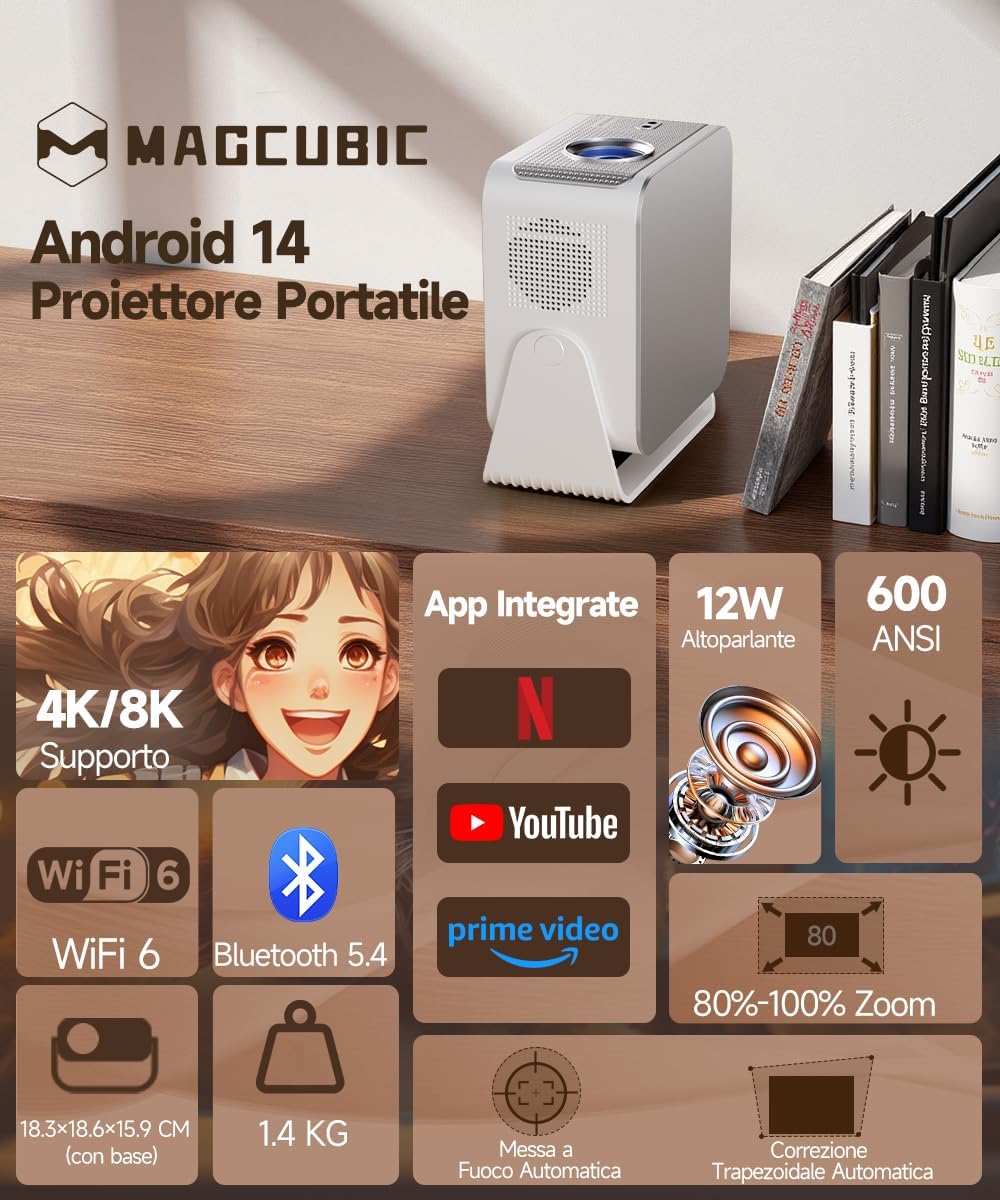
Figure 2: Key Features of the HY350MAX Projector

Figure 3: 1080P Native Resolution Clarity

Figure 4: Android 14 and Integrated Applications
4. Enstalasyon
4.1 Placement and Power
- Place the projector on a stable, flat surface. The 180° rotation feature allows for versatile placement, including ceiling projection.
- Konekte kab kouran an nan pwojektè a epi answit nan yon priz kouran.
- For optimal projection, ensure the room is sufficiently dark.

Figure 5: Flexible 180° Rotation for Placement
4.2 Initial Image Adjustment
The projector features automatic focus and keystone correction. Upon powering on or moving the projector, it will automatically adjust the image for clarity and shape.
- Konsantrasyon otomatik: The projector will automatically focus the image. This works best for projection distances under 2.5 meters.
- Otomatik koreksyon Keystone: The projector will automatically correct the image's trapezoidal distortion.
- Konsantre manyèl: If the projection distance is greater than 2.5 meters or if automatic focus is not sensitive enough, use the remote control to adjust focus manually.

Figure 6: Automatic Image Correction Features

Figure 7: Auto and Manual Focus Guide
4.3 Konekte Aparèy
The projector supports various input methods:
- HDMI: Connect gaming consoles (e.g., PS5), laptops, or TV sticks using an HDMI cable.
- USB: Mete kle USB yo pou li medya yo.
- WiFi 6: Connect to your home network for streaming and wireless screen mirroring from smartphones and tablets.
- Bluetooth 5.4: Konekte ak yon oratè Bluetooth ekstèn oswa yon kas ekoutè pou yon odyo amelyore.
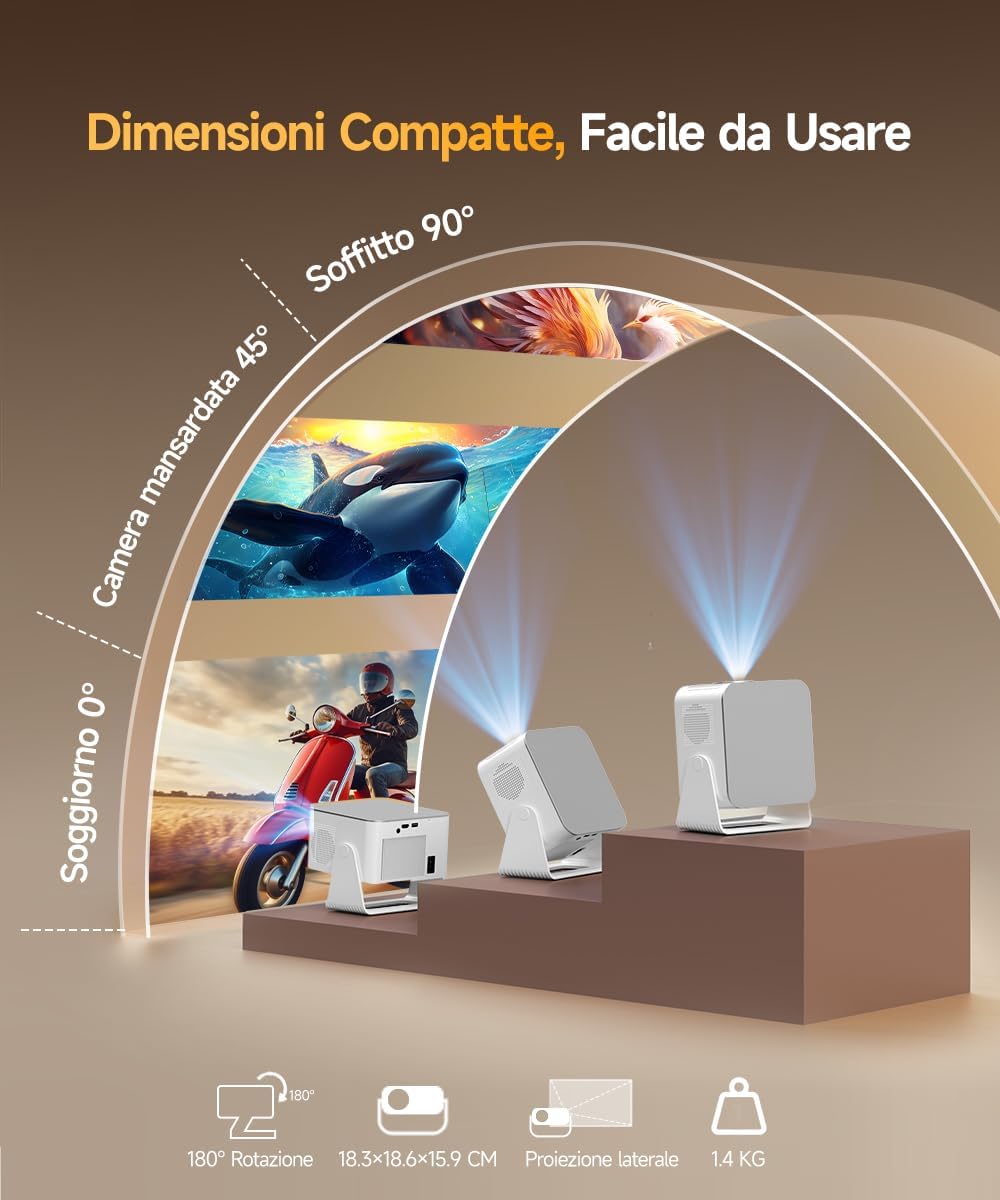
Figure 8: Universal Connectivity Options
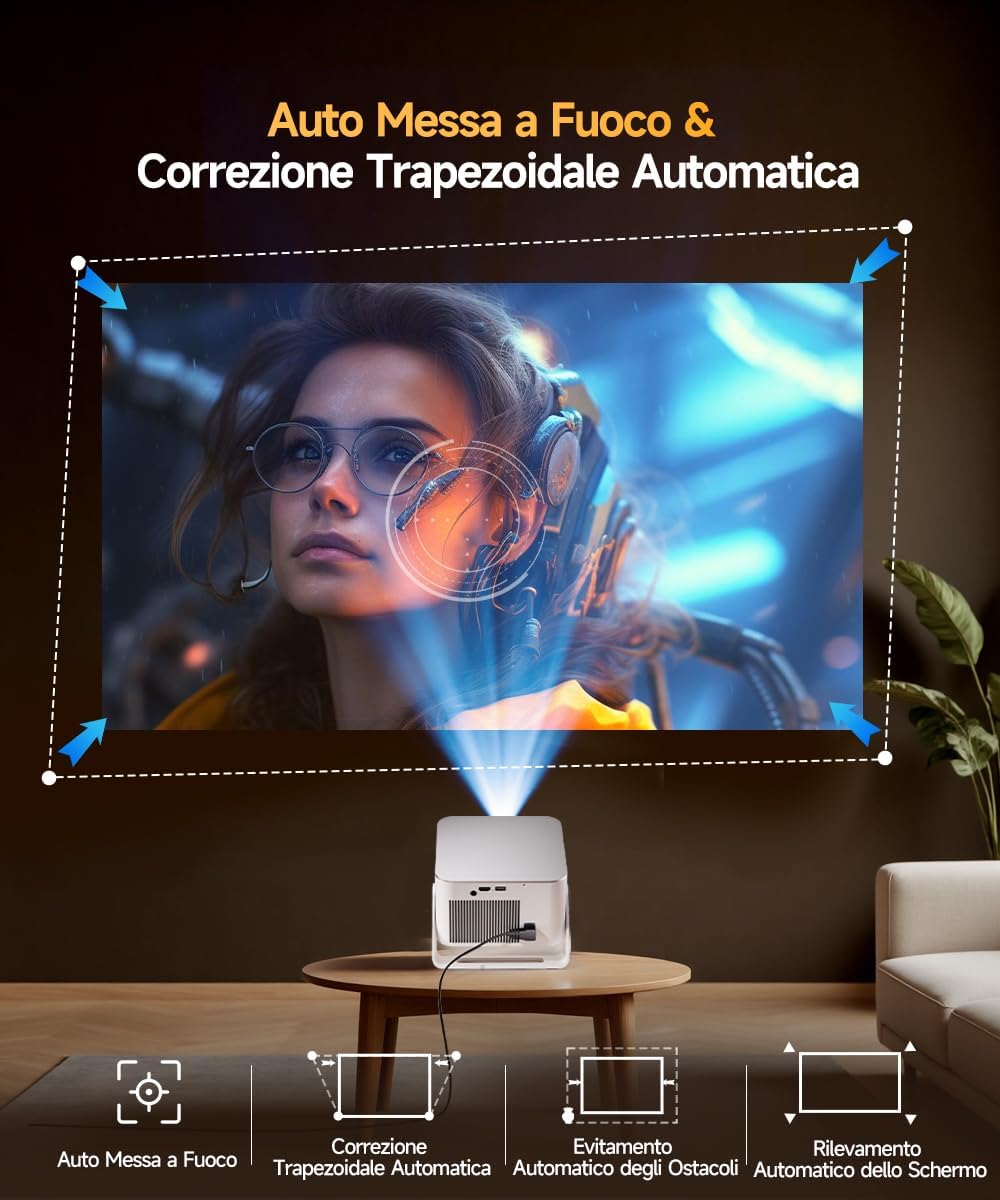
Figure 9: WiFi 6 and Bluetooth 5.4
4.4 Air Mouse Remote Control Setup
To use the Air Mouse function of your remote control, follow these steps:
- Activate Bluetooth on your projector.
- Simultaneously press the left and right directional buttons on the remote control until the projector emits an audible signal.
- Press the button with the 'mouse' symbol on the remote control to activate the Air Mouse function.
- Deplase ponyèt ou pou kontwole kurseur ki sou ekran an.

Figure 10: Air Mouse Remote Control Usage
Video 1: Demonstrates the steps to pair and use the Air Mouse remote control for navigation.
5. Operasyon Enstriksyon
5.1 Power On/Off
Peze bouton pouvwa a sou pwojektè a oswa sou kontwòl remote la pou limen oswa etenn aparèy la.
5.2 Navige nan Entèfas la
The projector runs on Android 14, providing a user-friendly interface. Use the remote control (or Air Mouse) to navigate through menus, select apps, and adjust settings.
- Ekran Kay: Access integrated apps, input sources (HDMI, USB), and settings.
- App Store: Download additional applications as needed.
- Anviwònman: Adjust display, sound, network, and system preferences.
5.3 Miroir ekran
Utilize the WiFi 6 dual-band connectivity for seamless screen mirroring from compatible devices.
- Ensure both your device (smartphone, tablet, laptop) and the projector are connected to the same WiFi network.
- Select the screen mirroring option on the projector's interface (e.g., Airplay, Miracast).
- Initiate screen mirroring from your device's settings.
5.4 Sòti odyo
The projector features a built-in 12W Hi-Fi stereo speaker. For external audio, use Bluetooth 5.4 to connect to speakers or headphones.
- To connect via Bluetooth, go to the projector's settings, select Bluetooth, and pair with your desired audio device.
Videyo 2: Finiview of the projector's features, including automatic adjustments, connectivity, and smart interface.
Video 3: Demonstration of the projector's image quality and clarity with various nature scenes.
6. Antretyen
6.1 Netwayaj
- Sèvi ak yon twal mou epi sèk pou netwaye deyò pwojektè a.
- Pou lantiy la, sèvi ak yon twal espesyal ak yon solisyon pou netwaye lantiy. Evite materyèl abrazif.
- Asire w ouvèti vantilasyon yo pa gen pousyè ak obstak.
6.2 Depo
Lè w pa itilize pwojektè a pou yon bon bout tan, sere l nan yon kote ki fre epi sèk, lwen limyè solèy dirèk ak tanperati ekstrèm.
NAN. Depanaj
Si ou rankontre pwoblèm ak pwojektè ou a, gade solisyon komen sa yo:
- Pa gen pouvwa: Check the power cable connection and ensure the power outlet is functional.
- Pa gen imaj: Verify the input source is correctly selected (HDMI, USB, WiFi). Ensure the lens cap is removed.
- Imaj flou: Allow the automatic focus to complete. If still blurry, manually adjust focus using the remote control. Ensure the projection surface is flat.
- Imaj defòme: The automatic keystone correction should resolve this. If not, check projector placement or manually adjust keystone settings if available.
- Pa gen son: Check volume settings on both the projector and the connected source device. Ensure Bluetooth audio devices are correctly paired.
- Pwoblèm koneksyon WiFi/Bluetooth: Asire w ke pwojektè a nan zòn routeur/aparèy Bluetooth la. Rekòmanse tou de aparèy yo.
Pou plis asistans, tanpri kontakte sèvis kliyan.
8. Espesifikasyon
| Karakteristik | Spesifikasyon |
|---|---|
| Mak | Magcubic |
| Nimewo Modèl | HY350MAX |
| Rezolisyon natif natal | 1920 x 1080 (1080P Full HD) |
| Rezolisyon ekspozisyon maksimòm | 7680 x 4320 (8K Support) |
| Klète | 600 ANSI lumèn |
| Pwopòsyon kontras | Segondè |
| Koneksyon Teknoloji | Bluetooth 5.4, HDMI, USB, WiFi 6 (5 Ghz+2.4 Ghz) |
| Sistèm operasyon | Android 14 |
| CPU | Allwinner H726 |
| RAM | 2 GB |
| Depo Entèn | 16 GB |
| Odyo | 12W Hi-Fi Stereo Speaker |
| Gwosè pwojeksyon | 40 - 140 pous |
| Projection Distance (Min/Max) | 0.9 m / 3.1 m |
| Pwa | 1.4 Kilogram |
| Konsomasyon pouvwa | 100 Watts |
| Karakteristik espesyal | Integrated Apps, Auto Focus, Auto Keystone Correction, Intelligent Image Adjustment, 180° Rotatable, HDR10+ |
Video 4: Comparison between Magcubic HY350MAX and HY350 models, highlighting system and CPU upgrades.
9. Garanti ak sipò
Magcubic is committed to providing quality products and customer satisfaction.
- Garanti pwodwi: 1-ane garanti manifakti.
- Garanti Ranbousman: 30-jou garanti ranbousman.
- Sipò Kliyan: 24-hour live customer assistance.
- Sipò teknik: Sipò teknik pou tout lavi.
For any inquiries or support needs, please refer to the contact information provided with your purchase or visit the official Magcubic websit.