
1. Entwodiksyon
This manual provides comprehensive instructions for setting up, operating, and maintaining your RUPA Android TV Box 14.0. Please read this manual carefully before using the device to ensure optimal performance and safety. Keep this manual for future reference.
The RUPA Android TV Box 14.0 is a high-performance streaming media player designed to transform your television into a smart entertainment hub. Featuring the powerful RK3518pro chipset, 2GB RAM, ak 32GB depo entèn, it delivers smooth operation and supports stunning 4K and 8K Ultra HD resolutions. Avèk Android 14.0, WiFi 6, dual-band connectivity, Bluetooth 5.0, and a voice-controlled remote, it offers a rich and interactive vieweksperyans nan.

Image: An illustration of the RK3518pro chipset, highlighting its core processing unit, 2GB RAM, and 32GB internal storage, which are crucial for the TV box's performance.
2. Pake kontni
Carefully unpack your RUPA Android TV Box and verify that all items listed below are included and in good condition. If any items are missing or damaged, please contact customer support.
- RUPA Android TV Box Unit
- Vwa Remote Kontwòl
- HDMI kab
- Adaptè pouvwa
- Manyèl Itilizatè (dokiman sa a)

Image: The complete contents of the RUPA Android TV Box package, laid out on a surface. This includes the main TV box unit, a voice-controlled remote, an HDMI cable, a power adapter, and the printed user manual.
3. Pwodwi souview
Familiarize yourself with the main components and ports of your Android TV Box.

Image: The RUPA Android TV Box, a compact black square device, shown alongside its voice-controlled remote. The remote features a circular navigation pad and dedicated buttons for popular streaming services.
3.1. Device Ports and Indicators
The Android TV Box features various interfaces for connectivity:
- HDMI Port: Pou konekte ak televizyon ou oswa ekran ou.
- LAN Port (Ethernet): For a wired network connection (10/100M Ethernet).
- Pò USB: Multiple USB ports (including USB 3.0) for connecting external storage, keyboards, mice, or other peripherals.
- Antre pouvwa: Pou konekte adaptè kouran ki founi an.
4. Gid Enstalasyon
Follow these steps to set up your RUPA Android TV Box:
- Konekte ak televizyon an: Connect one end of the HDMI cable to the HDMI port on the Android TV Box and the other end to an available HDMI input on your television.
- Konekte pouvwa: Plug the power adapter into the DC IN port on the TV Box, then plug the adapter into a wall outlet.
- Pouvwa sou: Turn on your television and select the correct HDMI input source using your TV's remote control. The Android TV Box should automatically power on and display the boot screen.
- Premye konfigirasyon: Follow the on-screen instructions to complete the initial setup, which typically includes language selection, network connection (Wi-Fi or Ethernet), and Google account sign-in.
- Remote Control Pairing: If your voice remote control is not automatically paired, follow the instructions provided on-screen or in the remote control section of this manual to pair it.
5. Operasyon Enstriksyon
5.1. Navigasyon debaz
Use the directional pad (up, down, left, right) and the "OK" button on your remote control to navigate through menus and select items. The "Back" button returns to the previous screen, and the "Home" button takes you to the main Android TV home screen.
5.2. Jesyon App
The RUPA Android TV Box runs on the latest Android 14.0 system, providing access to a vast library of applications via the Google Play Store. You can download and install your favorite streaming services, games, and utility apps.
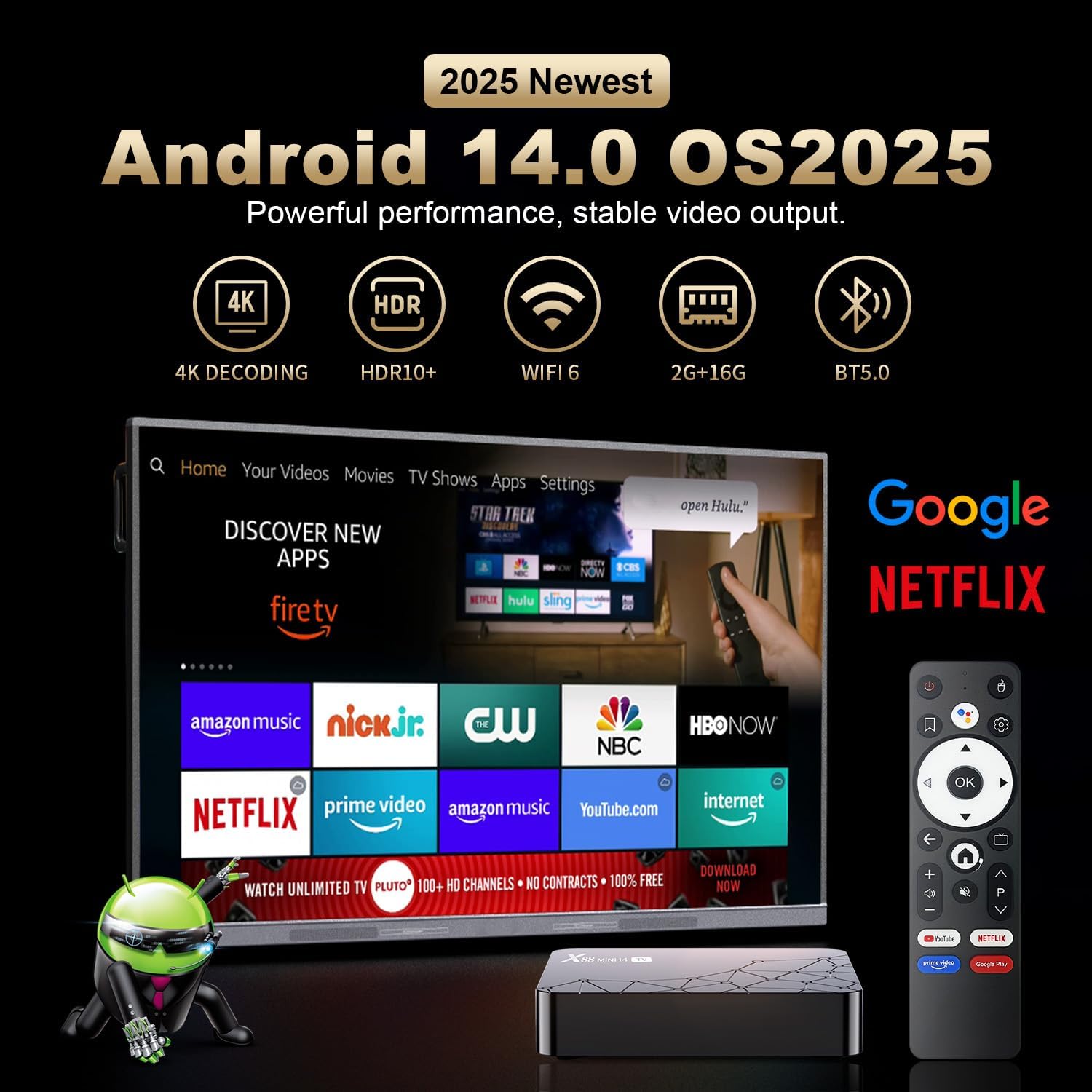
Image: A television screen displaying the Android 14.0 operating system interface. Various popular streaming applications such as Netflix, YouTube, Amazon Prime Video, and Google Play are visible, indicating broad app compatibility and access to the Google Play Store.
5.3. Kontwòl vwa
The included remote control features voice control capabilities. Press the dedicated voice button on the remote and speak your commands to search for content, open applications, or control playback. This feature enhances user interaction and convenience.

Image: A voice-controlled remote for the Android TV Box, positioned next to a television displaying various streaming app icons. A speech bubble indicates the voice command "Ask Google for a little help on your big screen," highlighting the remote's functionality for voice search and control.
The remote also supports motion sensing operating, utilizing a gyroscope for gesture recognition, providing an alternative method for navigation and control.
5.4. Ekran Mirroring
The Android TV Box supports screen mirroring technologies like Airplay and Airscreen, allowing you to cast content from your mobile phone, tablet, or laptop directly to your television screen for a larger vieweksperyans nan.
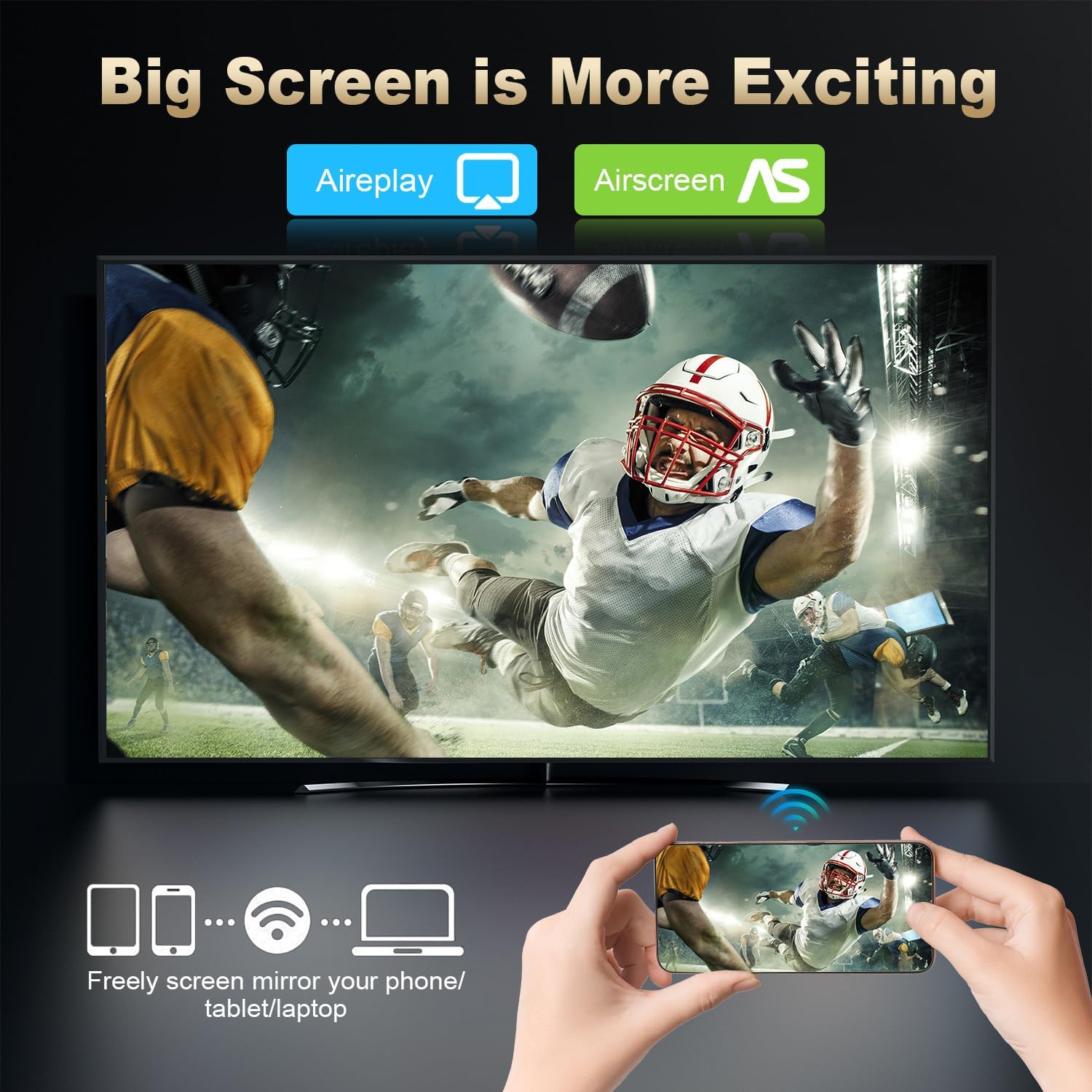
Image: A large television screen displaying a sports event, with a smartphone in the foreground showing the same content. Text indicates "Airplay" and "Airscreen" support, illustrating the screen mirroring capability from mobile devices to the TV.
6. Koneksyon rezo
Your RUPA Android TV Box offers flexible network connection options for stable and fast internet access:
- Wi-Fi: Supports WIFI6 dual-band Wi-Fi (2.4 GHz and 5.8 GHz) for reliable wireless internet access, reducing interference from external signals.
- Ethernet: A 100M Ethernet port is available for a direct, wired internet connection, providing maximum stability and speed for streaming and online activities.
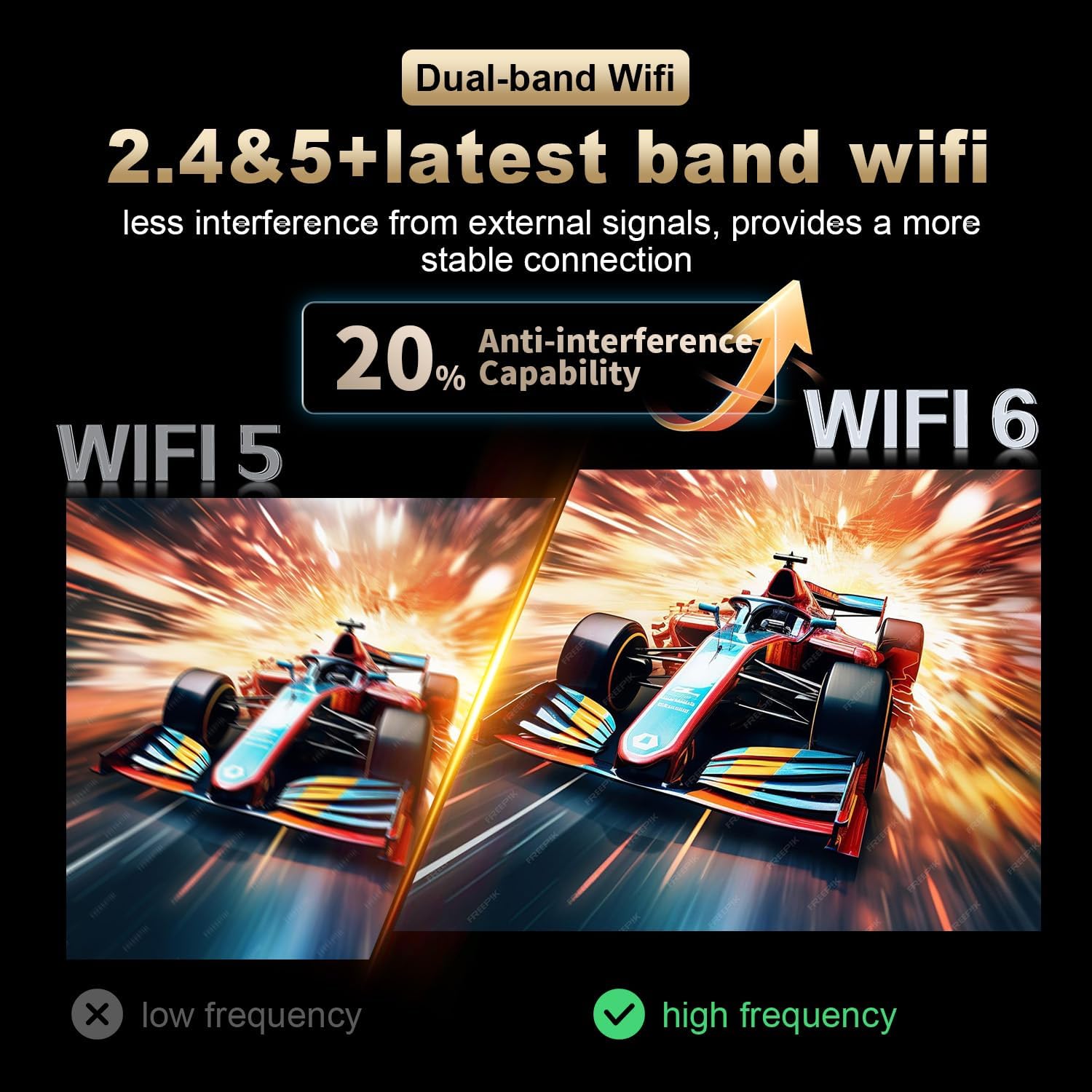
Image: A visual comparison illustrating the improved anti-interference capability of WiFi 6 (2.4 & 5.8 GHz dual-band) compared to older WiFi 5 technology, indicating a more stable and reliable wireless connection for the Android TV Box.
7. Display and Resolution
The RUPA Android TV Box supports advanced display technologies for a superior vieweksperyans nan:
- Rezolisyon: Supports up to 4K and 8K Ultra HD resolutions, providing sharp and vivid images for movies, TV shows, and games.
- HDR10+: Enhances picture quality with improved contrast, brightness, and color accuracy, delivering a more immersive visual experience.

Image: A visual representation comparing the clarity and detail of 1080P, 4K, and 8K resolutions. The image highlights the significant visual improvement offered by 8K Ultra HD and HDR10+, showcasing a vibrant floral display on a television screen.
8. Antretyen
To ensure the longevity and optimal performance of your RUPA Android TV Box, follow these maintenance guidelines:
- Netwayaj: Use a soft, dry cloth to clean the device. Do not use liquid cleaners, abrasive materials, or aerosols.
- Vantilasyon: Ensure the device is placed in a well-ventilated area to prevent overheating. Do not block any ventilation openings on the device.
- Pouvwa Off: When not in use for extended periods, it is recommended to power off the device and unplug it from the power outlet to conserve energy and protect the device.
- Mizajou lojisyèl: Regularly check for and install system updates to ensure you have the latest features, performance enhancements, and security patches.
NAN. Depanaj
If you encounter issues with your RUPA Android TV Box, refer to the following common problems and solutions:
| Pwoblèm | Solisyon posib |
|---|---|
| Pa gen kouran/Aparèy la pa limen |
|
| Pa gen imaj sou televizyon an |
|
| Remote kontwòl pa reponn |
|
| Pwoblèm koneksyon Wi-Fi |
|
| Aplikasyon yo ap plante oswa bloke |
|
10. Espesifikasyon
| Karakteristik | Detay |
|---|---|
| Mak | RUPA |
| Modèl | RK3518pro |
| Sistèm operasyon | Android 14.0 |
| Processeur | RK3518pro Chipset |
| RAM | 2GB |
| Depo Entèn | 32GB |
| Sipò pou rezolisyon | Up to 8K Ultra HD, 4K, 1080P |
| Sipò HDR | HDR10+ |
| Wi-Fi | WIFI 6, Dual-Band (2.4 GHz / 5.8 GHz) |
| Ethernet | 10/100M LAN Port |
| Bluetooth | Bluetooth 5.0 |
| Pò USB | Multiple (including USB 3.0) |
| Sòti videyo | HDMI |
| Kalite kontwolè | Voice Remote Control (with motion sensing) |
| Dimansyon pwodwi | 7.2 x 4.4 x 2.2 pous (18.3 x 11.2 x 5.6 cm) |
| Pwa atik | 10.6 ons (0.3 kilogram) |
| Premye Dat ki disponib | 16 septanm 2025 |
11. Enfòmasyon sou Sekirite
Tanpri obsève prekosyon sekirite sa yo pou evite domaj nan aparèy la oswa blesi pèsonèl:
- Pa ekspoze aparèy la nan dlo, imidite, oswa tanperati ekstrèm.
- Evite mete aparèy la toupre sous chalè oswa nan limyè solèy la dirèk.
- Pa eseye ouvri oswa repare aparèy la tèt ou. Konfye tout antretyen bay pèsonèl kalifye.
- Sèvi ak adaptè kouran ki vini ak li a sèlman. Itilizasyon adaptè ki pa otorize ka domaje aparèy la epi anile garanti a.
- Kenbe aparèy la ak Pwodwi pou Telefòn li yo pa rive jwenn timoun yo.
- Asire bon vantilasyon alantou aparèy la pou anpeche surchof.
12. Garanti ak sipò
For warranty information and customer support, please refer to the documentation included with your purchase or contact the manufacturer directly.
Manifakti: Shenzhen Hugsun Technology Co., Ltd.
Kontakte Imèl: contact@hugsun.com
For additional support and resources, you may visit the RUPA Store on Amazon: RUPA Store