
Entwodiksyon
Thank you for choosing the RecorCam HC801PRO 4G Trail Camera. This manual provides detailed instructions to help you set up, operate, and maintain your camera effectively. Please read this manual thoroughly before use to ensure optimal performance and longevity of your device.
Karakteristik kle
- Koneksyon 4G: Equipped with a 4G module and an upgraded 360° antenna for stable mobile data transfer, compatible with major French carriers (Telecom France, Orange, SFR, BOUYGUES).
- Siveyans an tan reyèl: Access real-time photos and videos via the free "SuntekCam" mobile application (iOS and Android compatible).
- Mòd Operasyon Doub:
- Mòd TÈS: Allows real-time surveillance and manual capture of videos or photos through the app.
- Mòd ON: Automatically detects motion and captures images/videos. The app's "Cloud" page can be refreshed to view the latest media.
- Imaging-wo kalite: Captures ultra-clear 120 MP photos and 4K videos with clear audio, utilizing H.265 video format for 80% storage efficiency.
- Vizyon lannwit avanse: Features 850 nm infrared technology and adaptive lighting for superior night vision up to 20 meters, preventing over or under-exposure.
- Konsepsyon dirab: IP65 waterproof rating, suitable for various outdoor environments.
- Pouvwa: Requires 8 AA 1.5V alkaline dry batteries (not included).
Kontni pake
Tanpri verifye pake a pou asire w ke tout atik yo la:
- RecorCam HC801PRO 4G Trail Camera
- senti (x1)
- Mounting Support (x1)
- Vis (x3)
- USB Cable (x1) - for connecting the camera to a computer to view foto ak videyo
- Manyèl itilizatè (x1)
Enstriksyon Enstalasyon
- Insert SD Card and SIM Card:
Open the camera housing. Carefully insert a compatible SD card and a prepaid SIM card into their respective slots. Ensure the SIM card does not have a PIN lock enabled. The camera supports prepaid SIM cards only.

Image: A person inserting a SIM card and an SD card into the RecorCam HC801PRO trail camera. The camera is open, revealing the battery compartment and card slots.
- Enstale pil:
Insert 8 AA 1.5V alkaline dry batteries into the battery compartment. Ensure correct polarity.
- Pouvwa sou:
Turn on the camera. Wait approximately 30 seconds for the signal bar and cloud icon on the camera's display to turn green, indicating successful network connection.
Video: Demonstrates inserting the SIM card and batteries, then powering on the camera. The signal and cloud icons turn green, indicating network readiness.
- Download the SuntekCam App:
Download the "SuntekCam" application on your mobile phone. It is available for both iOS and Android devices.
You can scan the QR code displayed on the camera screen or use the following link: http://app.appurl.me/79814428341

Image: A smartphone displaying the SuntekCam app download page and a QR code, positioned next to the RecorCam HC801PRO camera.
- Konekte kamera ak aplikasyon an:
- On the camera, navigate to "Network" and select "iOS APP" or "Android APP".
- Then select "Device ID" to display the QR code on the camera screen.
- Open the SuntekCam app on your phone, press the "+" icon, and use the app to scan the QR code displayed on the camera.
- Enter the default password "123456" to connect successfully.
Video: Shows the process of scanning the QR code from the camera with the SuntekCam app and entering the default password to establish a connection.
Operasyon
Mòd TÈS
In TEST mode, real-time surveillance is possible. You must manually send instructions via the SuntekCam application to capture photos or videos. This mode is useful for checking the camera's field of view and ensuring proper setup before deployment.
ON Mode
When set to ON mode, the camera automatically detects movement and captures images or videos. The camera screen will turn off after 10 seconds to conserve battery. To view the latest captured media, refresh the "Cloud" page within the SuntekCam app. Remember to check the battery level regularly and adjust camera settings as needed.
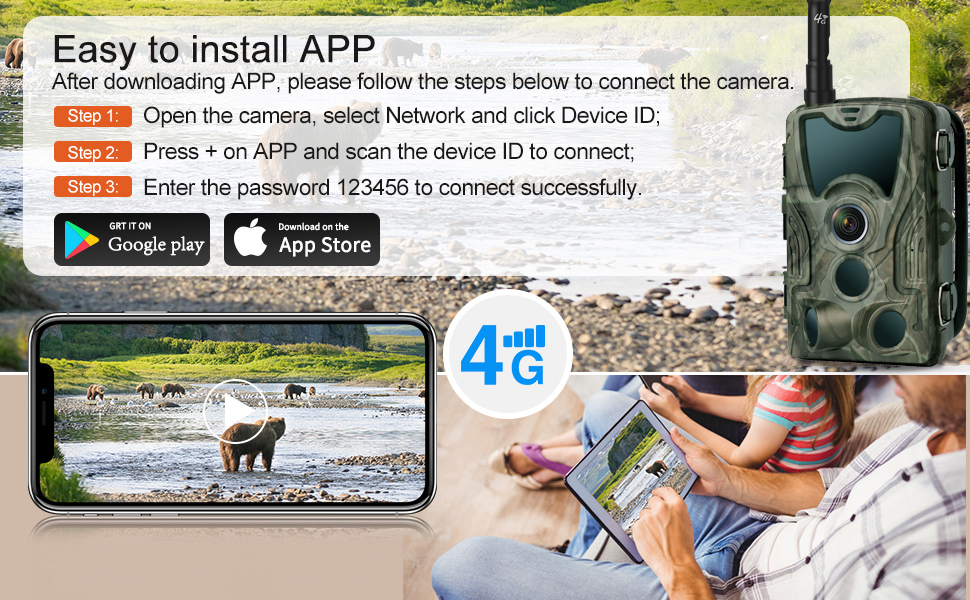
Image: A visual comparison of the TEST and ON modes, showing how the app interface changes for real-time control versus automatic motion detection and cloud updates.
Video: Demonstrates switching between TEST and ON modes, showing how to manually trigger captures in TEST mode and how the app automatically receives media in ON mode.
Image and Video Quality
The HC801PRO captures high-resolution images at 120 MP and records videos in 4K with clear audio. The H.265 video compression format optimizes storage space, allowing for more media to be stored on your SD card.

Image: A split image demonstrating the superior clarity of 120MP 4K capture from the HC801PRO compared to other cameras, highlighting fine details in wildlife.
Vizyon lannwit
The camera is equipped with 36 pieces of 850nm infrared LEDs, providing excellent night vision capabilities up to 20 meters. The adaptive lighting technology ensures balanced exposure, preventing images from being too bright or too dark in low-light conditions.

Image: A night scene captured by the camera, featuring a fox in a forest, demonstrating the effectiveness of the 850nm infrared night vision.
Durability and Environmental Resistance
The RecorCam HC801PRO features an IP65 waterproof rating, making it resistant to rain, dust, and fog. It is designed to operate reliably in outdoor environments with an operating temperature range of -20°C to 75°C.

Image: The trail camera mounted on a tree in a forest during rainfall, illustrating its IP65 waterproof rating and suitability for outdoor use.
Espesifikasyon
| Karakteristik | Detay |
|---|---|
| Mak | RecorCam |
| Non modèl | HC801PRO |
| Koneksyon Teknoloji | San fil (4G) |
| Karakteristik espesyal | Time Lapse |
| Itilizasyon | Outdoor (Game & Trail) |
| Kalite aliye | Mòn pye bwa |
| Rezolisyon anrejistreman videyo | 4K |
| Rezolisyon imaj | 120 MP |
| Vizyon lannwit Range | Up to 20 meters (850nm IR LED) |
| Evalyasyon ki enpèmeyab | IP65 |
| Tanperati Fonksyònman | -20 ° C a 75 ° C |
| Sous pouvwa | 8 pil alkalin AA 1.5V (pa enkli) |
| Fòma Capture Videyo | AVI (H.265 compression) |
| Materyèl | Akrilonitrile butadien stirèn (ABS) |
| Dimansyon | 13.5 x 8.5 x 7.5 cm |
Depanaj
- Kamera pa limen: Ensure batteries are inserted correctly with proper polarity and are fully charged. Check if the power switch is in the ON position.
- No network connection (signal/cloud icon not green):
- Verify the SIM card is correctly inserted and is a prepaid card without a PIN lock.
- Check for network coverage in the camera's location.
- Rekòmanse kamera a.
- Pwoblèm koneksyon aplikasyon an:
- Ensure the camera is powered on and has network connectivity.
- Verify you have scanned the correct QR code and entered the default password "123456".
- Tcheke koneksyon entènèt telefòn ou an.
- Update the SuntekCam app to the latest version.
- No photos/videos captured in ON mode:
- Ensure the camera is in ON mode and not TEST mode.
- Check the SD card for sufficient storage space and proper insertion.
- Verify motion detection settings are configured correctly (sensitivity, detection interval).
- Ensure batteries have sufficient charge.
- Move kalite imaj/videyo:
- Netwaye lantiy kamera a.
- Asire w ke kamera a byen monte pou anpeche l deplase.
- Tcheke pou wè si gen obstak nan chan mayetik kamera a. view.
If you encounter persistent issues, please contact RecorCam customer support for assistance.
Antretyen
- Netwayaj: Regularly clean the camera lens and housing with a soft, dry cloth. Avoid using abrasive cleaners or solvents.
- Ranplasman batri: Replace all 8 AA batteries when the battery level is low to ensure continuous operation. Do not mix old and new batteries or different types of batteries.
- SD Kat Jesyon: Periodically format the SD card to maintain optimal performance and prevent data corruption. Back up important media before formatting.
- Mizajou mikrolojisyèl: Check the SuntekCam app or RecorCam's official website for any available firmware updates to improve camera performance and features.
- Depo: When not in use for extended periods, remove the batteries and store the camera in a cool, dry place.
Garanti ak sipò
RecorCam products come with a standard manufacturer's warranty. For specific warranty details, please refer to the warranty card included in your package or visit the official RecorCam website. For technical support or any inquiries, please contact RecorCam customer service. Contact information can typically be found on the product packaging or the brand's official websit.