
Entwodiksyon
This manual provides essential information for setting up, operating, maintaining, and troubleshooting your Apple Watch Series 11 GPS + Cellular 42mm. Please read it thoroughly to ensure proper use and to maximize your device's capabilities.
- Know Your Sleep Score: Track and understand your sleep quality for improved rest.
- Health Insights: Take ECGs, receive notifications for heart rate irregularities, and monitor blood oxygen levels with the Vitals app.
- Konsepsyon: The thin and lightweight design ensures comfort for continuous wear, including during exercise and sleep.
- Fitness Partner: Utilize advanced metrics for workouts, including Pacer, Heart Rate Zones, training load, and Workout Buddy powered by Apple Intelligence (requires nearby iPhone).
- Lavi batri: Enjoy up to 24 hours of normal use, with fast charging providing up to 8 hours of use in just 15 minutes.

Imaj: Plis paseview of Apple Watch Series 11 features including health insights, battery life, sleep score, and 5G connectivity.
Ki sa ki nan bwat la
Verifye ke tout konpozan yo prezan nan anbalaj la:
- Ka Apple Watch
- Sport Band (M/L size for 160–210mm wrists)
- 1m mayetik chaje kab

Image: The Apple Watch Series 11 packaging contents, showing the watch case, sport band, and USB-C magnetic fast charging cable.
Enstalasyon
1. Mete braslè a
Slide the band into the slots on the top and bottom of the Apple Watch case until you feel and hear a click. Ensure the band is securely fastened before wearing.
2. Chaje Apple Watch ou a
Connect the 1m Magnetic Charging Cable to a USB-C power adapter (sold separately) and plug it into a power outlet. Place the back of your Apple Watch on the magnetic charger. The watch will display a charging indicator. Allow the watch to charge fully before initial use.
3. Konekte ak iPhone
- Asire w iPhone ou a gen dènye vèsyon iOS la epi li gen Bluetooth ak Wi-Fi aktive.
- Limen Apple Watch ou a lè w peze epi kenbe bouton bò a jiskaske logo Apple la parèt.
- Bring your iPhone near your Apple Watch. A pairing animation will appear on your iPhone. Tap 'Continue'.
- Mete iPhone ou a yon fason pou Apple Watch ou a parèt nan viewrechèch nan aplikasyon Apple Watch la.
- Swiv enstriksyon ki parèt sou ekran an sou tou de aparèy yo pou konplete pwosesis koneksyon an, tankou konfigirasyon sèvis selilè a si ou vle.
Enstriksyon Operasyon
Navigasyon debaz
- Kouwòn dijital: Thorne pou defile, agrandi, oswa ajiste valè yo. Peze yon fwa pou ale nan kadran mont lan oswa nan lis aplikasyon yo. Peze de fwa pou chanje ant de dènye aplikasyon ou yo. Peze epi kenbe pou Siri.
- Bouton bò: Press once to open the Dock (recent apps). Double-press for Apple Pay. Press and hold for emergency services or to power off.
- Manyen Display: Tap to select, swipe to navigate, force touch for additional options (if available).
Siveyans Sante
The Apple Watch Series 11 offers advanced health features:
- Aplikasyon EKG: Take an electrocardiogram to record your heart's electrical activity. Open the ECG app and follow the on-screen instructions.
- Siveyans batman kè: The watch continuously monitors your heart rate. You will receive notifications for unusually high or low heart rates, and irregular rhythms.
- Aplikasyon Oksijèn nan San: Mezire saturation oksijèn nan san ou lè w bezwen.
- Suivi dòmi: Mete mont ou a nan kabann pou swiv dòmi ou.tages and receive a sleep score in the Vitals app.
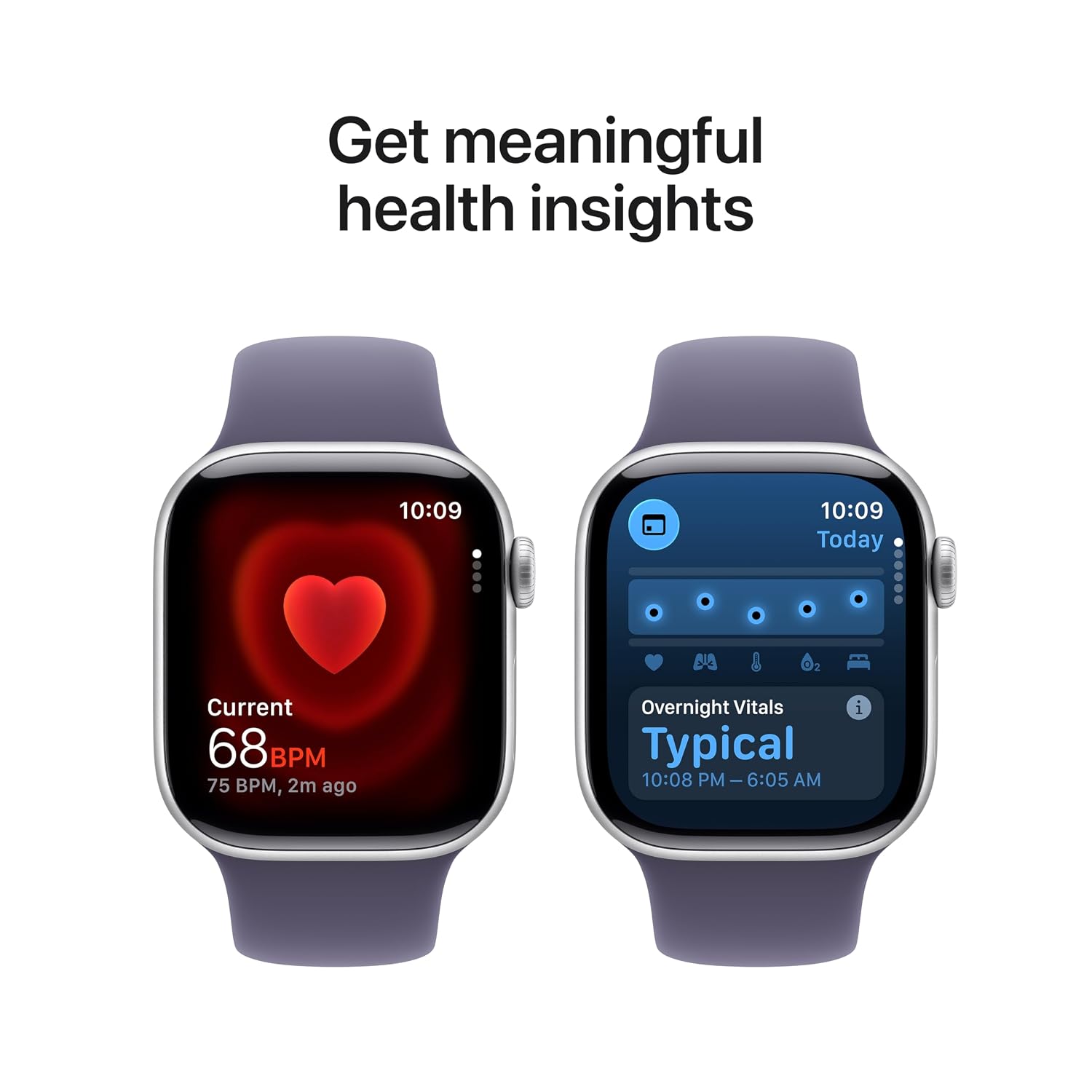
Image: The Apple Watch Series 11 showing current heart rate and overnight vitals within the Vitals app.
Fòm Tracking
Suivi aktivite chak jou ou ak antrennman ou avèk presizyon:
- Bag aktivite: Monitor your Move, Exercise, and Stand goals throughout the day.
- Aplikasyon Antrennman: Select from various workout types, including running, cycling, swimming, and more. The watch provides advanced metrics like Pacer, Heart Rate Zones, and training load.
- Workout Buddy: Utilize Apple Intelligence features from your nearby iPhone for enhanced workout guidance.

Image: The Apple Watch Series 11 showing activity rings on one screen and the interface for an Outdoor Run workout on another.
Koneksyon selilè
With GPS + Cellular, your Apple Watch can make calls, send messages, and stream music even when your iPhone is not nearby, provided you have an active cellular plan with a compatible carrier.

Image: A person wearing an Apple Watch Series 11, highlighting its 5G connectivity for independent use.
Antretyen
Netwaye Apple Watch ou a
- Turn off your Apple Watch and disconnect it from the charger.
- Siye mont lan ak yon twal ki pa abrazif e ki pa gen pousyè. Si sa nesesè, siye l yon ti kras.ampht twal la ak dlo fre.
- For the band, follow specific cleaning instructions based on its material (e.g., silicone bands can be wiped with a damp cloth and mild soap).
- Pa sèvi ak pwodwi chimik piman bouk oswa materyèl abrazif.
Rezistans dlo
The Apple Watch Series 11 is water resistant, but not waterproof. It can be used for shallow-water activities like swimming in a pool or ocean. It should not be used for scuba diving, waterskiing, or other activities involving high-velocity water or submersion below shallow depths. Water resistance may decrease over time. Avoid exposing the watch to soap, shampoo, conditioner, lotions, perfumes, solvents, detergent, acids, acidic foods, insect repellent, sunscreen, oil, or hair dye, as these can negatively affect water seals and acoustic membranes.
Mizajou lojisyèl
Keep your Apple Watch software updated to ensure optimal performance and access to the latest features and security enhancements. Updates are managed through the Apple Watch app on your paired iPhone.
Depanaj
Pwoblèm komen ak solisyon yo
- Gade a pa limen: Ensure the watch is charged. Place it on the magnetic charging cable for at least 30 minutes. If it still doesn't turn on, force restart it by holding both the side button and Digital Crown for at least 10 seconds until you see the Apple logo.
- Pwoblèm kouple: Ensure your iPhone's Bluetooth is on and both devices are close to each other. Restart both your iPhone and Apple Watch. If issues persist, unpair the watch from your iPhone (if previously paired) and attempt to pair again.
- Pòv lavi batri: Check for background app refresh settings. Reduce screen brightness. Disable 'Always On Display' if not needed. Ensure software is up to date.
- Aplikasyon ki pa reponn: Force quit the app by pressing the side button, then swipe left on the app and tap the 'X' button. Reopen the app. If the issue continues, restart your Apple Watch.
- Cellular Connectivity Problems: Verify your cellular plan is active and compatible with Apple Watch. Check your carrier's coverage in your area. Ensure cellular data is enabled on your watch.
Kontakte Sipò
If you encounter issues that cannot be resolved using this guide, please visit the official Apple Support website or contact Apple customer service for further assistance.
Espesifikasyon
| Karakteristik | Detay |
|---|---|
| Nimewo Modèl | MF8J4HN/A |
| Sistèm operasyon | WatchOS |
| Kapasite Depo memwa | 64 GB |
| Karakteristik espesyal | Activity Tracker, Alarm Clock, Always On Display, Fall Detection, GPS |
| Kapasite batri | 0.1 Miliamp Hours (up to 24 hours normal use) |
| Koneksyon Teknoloji | Bluetooth, Selilè |
| Pwa atik | 29.6 g |
| Manifakti | Apple |
| Peyi orijin | Lachin |
Garanti ak sipò
Enfòmasyon sou Garanti
Your Apple Watch Series 11 is covered by Apple's standard limited warranty. For detailed terms and conditions, please refer to the warranty documentation included with your product or visit the official Apple website. Extended coverage, such as '1 Year Protect+ with AppleCare Service', may be available for purchase separately.
Sipò pou Kliyan
For technical assistance, service, or to find authorized service providers, please visit the official Apple Support websit (support.apple.com) or contact Apple customer service directly. Have your device's serial number ready when contacting support.


