
1. Entwodiksyon
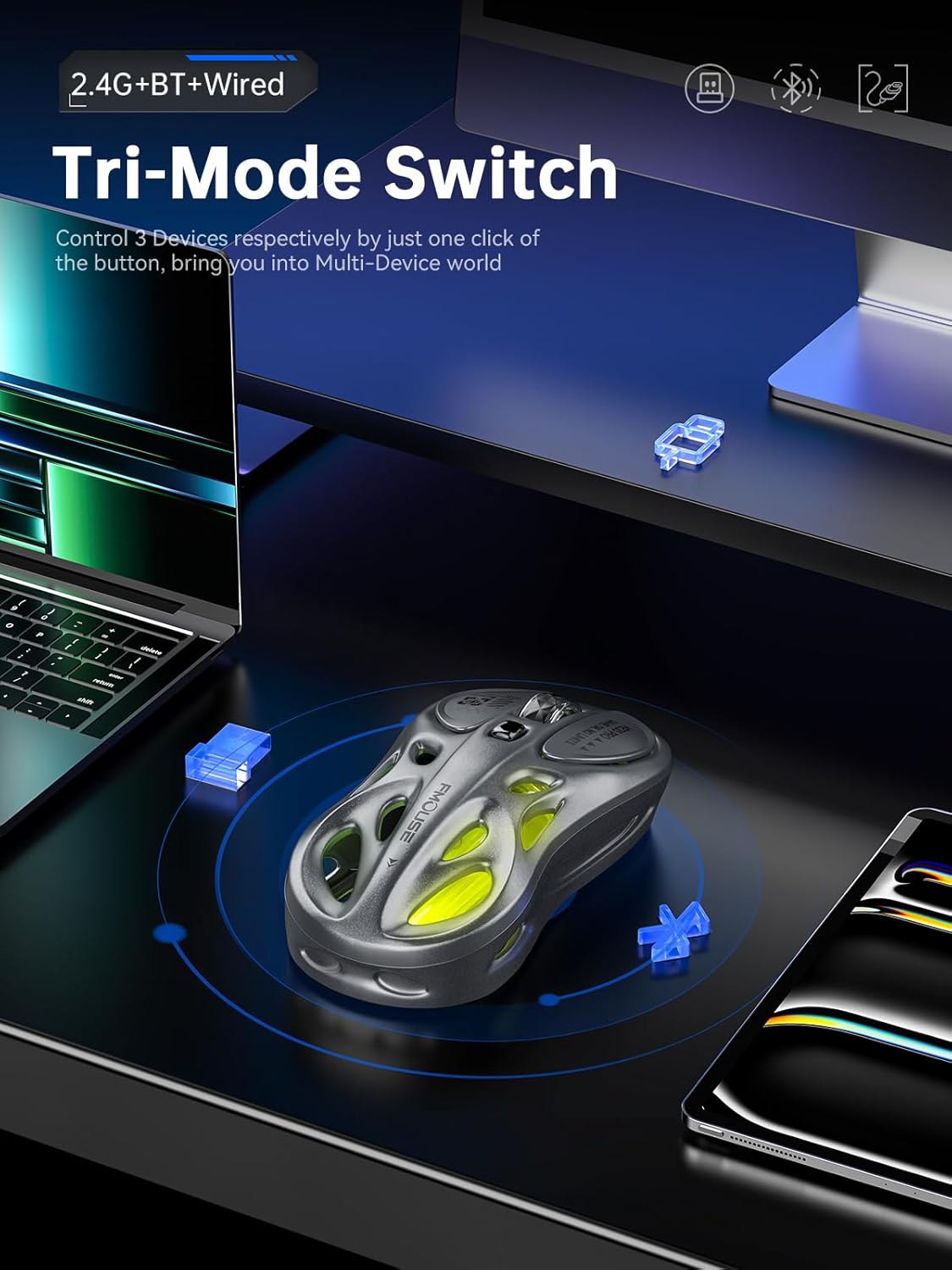
Thank you for choosing the FMOUSE M235 PRO Gaming Wireless Mouse. This tri-mode mouse offers versatile connectivity options (2.4G wireless, Bluetooth, and wired Type-C), high-performance features like 4800 DPI and 1000Hz polling rate, and customizable RGB lighting. This manual provides detailed instructions for setup, operation, and maintenance to ensure optimal performance.
2. Pake kontni
- FMOUSE M235 PRO Gaming Wireless Mouse
- 2.4G USB reseptè
- Type-C Charging/Data Cable
- Manyèl itilizatè
- Sak Depo
3. Pwodwi souview
The FMOUSE M235 PRO features an ergonomic hollow design for reduced hand fatigue and a lightweight build (approximately 65g). It includes multiple buttons for enhanced functionality and customizable RGB lighting.
Imaj: Anlè view of the FMOUSE M235 PRO Gaming Wireless Mouse.

Image: Lightweight design of the FMOUSE M235 PRO mouse.
Fonksyon bouton:
- Bouton Goch: Fonksyon klike estanda.
- Dwa bouton: Fonksyon estanda klike sou bò dwat la.
- wou woulo liv: Defile monte/desann, klike sou bouton mitan bouton an.
- Bouton DPI: Cycles through DPI levels.
- Bouton Avant: Navige pi devan nan navigatè/aplikasyon yo.
- Bouton dèyè: Navige bak nan navigatè/aplikasyon yo.
- Mode Switch (Bottom): Switches between 2.4G, Bluetooth, and Wired modes.
- ON/OFF Switch (Bottom): Limen oswa etenn sourit la.

Imaj: Anba view of the FMOUSE M235 PRO mouse with labeled components.
4. Enstalasyon
The FMOUSE M235 PRO supports three connection modes: Wired, 2.4G Wireless, and Bluetooth. You can seamlessly switch between up to 3 devices.
4.1 Koneksyon branche
- Connect the Type-C end of the charging/data cable to the mouse.
- Connect the USB-A end of the cable to your computer's USB port.
- Ensure the mouse's ON/OFF switch is in the 'ON' position. The mouse will automatically switch to wired mode.
Koneksyon san fil 4.2 2.4G
- Jwenn reseptè USB 2.4G la nan pake a.
- Branche reseptè USB 2.4G la nan yon pò USB ki disponib sou òdinatè w la.
- Flip the mouse's ON/OFF switch to 'ON'.
- Press the 'MODE' switch button on the bottom of the mouse until the indicator light turns vèt. This indicates 2.4G mode.
- The mouse should now be connected.
4.3 Bluetooth Koneksyon
- Flip the mouse's ON/OFF switch to 'ON'.
- Press the 'MODE' switch button on the bottom of the mouse until the indicator light turns ble (pou Bluetooth 1) oubyen wouj (for Bluetooth 2).
- On your device (computer, laptop, iPad, etc.), go to Bluetooth settings and enable Bluetooth.
- Chèche pou new devices. The mouse should appear as "BT Mouse" or similar.
- Select the mouse to pair. The indicator light will stop flashing once successfully paired.
- To switch between two paired Bluetooth devices, press the 'MODE' switch button to toggle between blue and red indicator lights.
Video: Demonstrates the tri-mode connection process (wired, 2.4G, Bluetooth) for the FMOUSE M235 PRO Gaming Wireless Mouse. Shows how to plug in the data cable, insert the 2.4G USB receiver, and pair via Bluetooth with different devices.
5. Operasyon Enstriksyon
5.1 DPI Ajisteman
The mouse features 5 adjustable DPI levels (800-4800) for precise control. Press the DPI button located on the top of the mouse to cycle through the available DPI settings. Each DPI level may correspond to a different RGB color indicator for easy identification.

Image: Illustration of 5-level adjustable DPI settings.
5.2 Kontwòl ekleraj RGB
The mouse features customizable RGB backlighting. Long press the DPI button to switch between multiple lighting modes and effects. Experience dynamic RGB track synchronization.
5.3 Customization and Macro Programming
For advanced customization, including button remapping, macro programming, and detailed lighting effects, download the official FMOUSE software (FMOUSE Futura) from the official website. The software allows you to adjust various parameters to personalize your mouse for specific tasks or games.

Image: Screenshot of the FMOUSE software for macro programming and customization.
6. Chaje
The FMOUSE M235 PRO is equipped with a 500mAh rechargeable lithium-ion battery. Use the provided Type-C cable to charge the mouse.
- Connect the Type-C end of the cable to the mouse's charging port.
- Konekte bout USB-A a nan yon sous kouran (pa egzanp, yon pò USB òdinatè, yon adaptè USB nan miray).
- The mouse's indicator light will typically show charging status (e.g., pulsing green).
- Yon chaj konplè pran apeprè 2 èdtan.

Image: Type-C charging illustration.
7. Antretyen
- Netwayaj: Sèvi ak yon twal mou epi sèk pou netwaye sourit la. Evite itilize pwodui chimik ki agresif oswa materyèl abrazif.
- Depo: Sere sourit la nan yon kote ki fre epi sèk, lwen limyè solèy dirèk ak tanperati ekstrèm.
- Swen batri: To prolong battery life, avoid fully discharging the mouse frequently. Charge it regularly.
- Depo Reseptè: When not in use, store the 2.4G USB receiver in a safe place to prevent loss. Note that there is no dedicated storage slot on the mouse itself.
NAN. Depanaj
| Pwoblèm | Solisyon posib |
|---|---|
| Mouse not responding in 2.4G mode | Ensure the 2.4G USB receiver is securely plugged in. Check if the mouse is switched to 2.4G mode (green indicator light). Try plugging the receiver into a different USB port. |
| Mouse not pairing via Bluetooth | Ensure the mouse is in Bluetooth pairing mode (blue or red indicator light flashing). Make sure Bluetooth is enabled on your device and it's discoverable. Try restarting both the mouse and your device. |
| Koneksyon ki ralanti oswa ki pa ale souvan | Reduce distance between mouse and receiver/device. Avoid interference from other wireless devices. Ensure the mouse is fully charged. |
| Ekleraj RGB pa travay | Ensure the mouse is powered on. Long press the DPI button to cycle through lighting modes. Check software settings if applicable. |
| DPI a pa chanje | Press the DPI button firmly. If using custom software, ensure DPI settings are correctly configured and applied. |
| Sourit la pa chaje | Verify the Type-C cable is properly connected to both the mouse and the power source. Try a different cable or USB port/charger. |
9. Espesifikasyon
| Karakteristik | Detay |
|---|---|
| Nimewo Modèl | M235 PRO |
| Koneksyon Teknoloji | 2.4GHz USB / Dual Bluetooth / Wired (Type-C) |
| Teknoloji deteksyon mouvman | Optical (PixArt PAW3212DB-TJDT chip) |
| Nivo DPI | 5 adjustable levels, up to 4800 DPI |
| Pousantaj biwo vòt | 1000Hz |
| Batri | 500mAh ityòm iyon (rechargeable) |
| Pwa atik | 6.7 ons (apeprè 65g) |
| Dimansyon | 4.7 x 2.4 x 1.3 pous (119 x 62 x 33 mm) |
| Karakteristik espesyal | RGB backlight, Customizable buttons, Macro programming, Ergonomic hollow design |
| Konpatibilite | Windows, Mac, Android (Laptops, iPads, MacBooks) |
10. Garanti ak sipò
For warranty information and technical support, please refer to the documentation included with your purchase or visit the official FMOUSE website. You can typically find drivers, FAQs, and contact information for customer service there.
Official FMOUSE Websit: www.fmouse.com