
Entwodiksyon
Welcome to the user manual for your new DOOGEE Tab A9 Wi-Fi Tablet. This guide provides essential information to help you set up, operate, maintain, and troubleshoot your device. Please read this manual thoroughly to ensure optimal performance and longevity of your tablet.
Kontni pake
Verifye ke tout atik yo prezan nan pakè ou a:
- DOOGEE Tab A9 Tablet
- USB Kalite-C kab
- Charger
- Manyèl itilizatè
- (Optional accessories, depending on package edition: Stylus Pen, Reinforced Case, Bluetooth Mouse, Leather Protective Cover, Bluetooth Keyboard)
Enstalasyon
1. Premye Chajman
Before first use, fully charge your tablet. Connect the USB Type-C cable to the tablet's charging port and the other end to the provided charger. Plug the charger into a power outlet. The charging indicator will show the charging status.
2. Powering On / Off
- Pou limen: Peze epi kenbe bouton Power la jiskaske logo DOOGEE a parèt sou ekran an.
- Pou etenn: Peze epi kenbe bouton Power la jiskaske yon meni pou etenn parèt. Chwazi "Power off" pou fèmen aparèy la.
- Pou rekòmanse: From the power-off menu, select "Restart" to reboot the device.
3. Inisyal Enstalasyon Sòsye
Lè w limen tablèt la pou premye fwa, li pral gide w nan yon pwosesis konfigirasyon inisyal. Swiv enstriksyon ki parèt sou ekran an pou:
- Chwazi lang ou.
- Konekte nan yon rezo Wi-Fi.
- Aksepte tèm ak kondisyon yo.
- Konekte avèk kont Google ou a oubyen kreye yon nouvo.
- Konfigire blokaj ekran an (Kòd PIN, modèl, modpas).

Imaj: Devan ak dèyè view of the DOOGEE Tab A9 tablet, illustrating its design and camera placement.
Enstriksyon Operasyon
1. Navigasyon debaz
- Manyen: Tape yon ikòn oswa yon opsyon pou chwazi li.
- Glise: Trennen dwèt ou sou ekran an pou defile paj yo oswa kontni an.
- Zoom-pou-Zoom: Mete de dwèt sou ekran an epi separe yo pou agrandi, oubyen pense yo ansanm pou agrandi.
- Ekran Kay: Tape bouton Akèy la (anjeneral yon sèk oswa yon ikòn kay) pou retounen nan ekran prensipal la.
- Retounen: Tap the Back button (usually a left arrow) to return to the previous screen.
- Aplikasyon ki sot pase yo: Tap the Recent Apps button (usually a square or three vertical lines) to view epi chanje ant aplikasyon ou te itilize dènyèman yo.
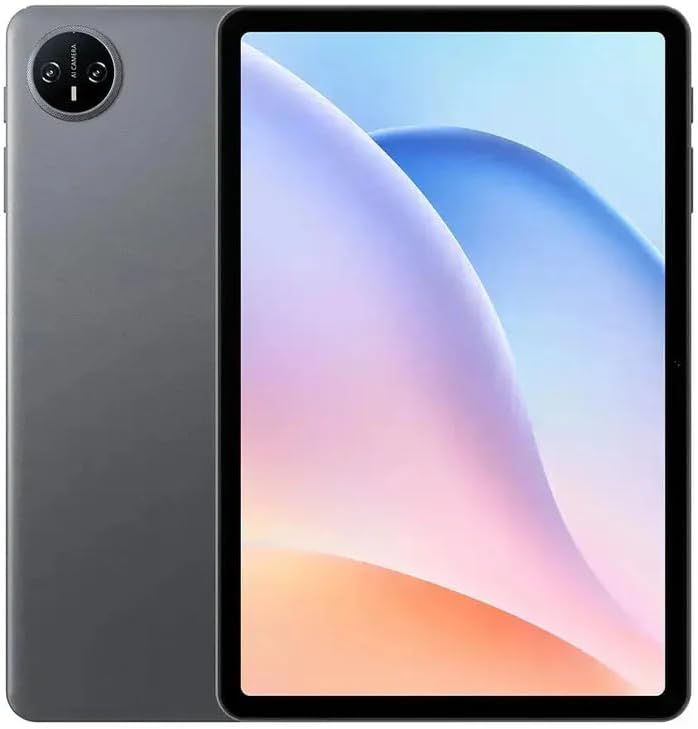
Imaj: Devan view of the DOOGEE Tab A9 tablet with its display active, showing the user interface.
2. Wi-Fi Koneksyon
Pou konekte ak yon rezo Wi-Fi:
- Ale nan Anviwònman > Rezo ak entènèt > Wi-Fi.
- Aktive Wi-Fi a On.
- Chwazi rezo ou vle a nan lis la.
- Antre modpas la si yo mande w epi tape Konekte.
3. Pè Bluetooth
Pou pè ak yon aparèy Bluetooth:
- Ale nan Anviwònman > Aparèy ki konekte > Bluetooth.
- Aktive Bluetooth On.
- Ensure the other Bluetooth device is in pairing mode.
- Select the device from the list of available devices and follow any on-screen prompts to complete pairing.
4. Itilizasyon kamera
Tablèt la gen yon kamera devan 5MP ak yon kamera dèyè 8MP.
- Louvri a Kamera aplikasyon.
- Tape bouton deklanchè a pou pran yon foto.
- Chanje ant kamera devan ak dèyè a lè w sèvi ak ikòn chanjman kamera a.
- Chwazi mòd videyo pou anrejistre videyo.
5. Karakteristik ekspozisyon

Image: Visual representation of the DOOGEE Tab A9's 10.1-inch IPS HD display, highlighting its 1280x800 resolution, 80.2% screen-to-body ratio, and 16.7 million screen colors.
The DOOGEE Tab A9 features a 10.1-inch IPS HD display with a resolution of 1280x800 pixels, offering a wide field of view and vibrant colors. The screen-to-body ratio is approximately 80.2%, providing an immersive vieweksperyans nan.
6. Jesyon batri

Image: Infographic detailing the DOOGEE Tab A9's 6580mAh battery capacity and its estimated usage times for Wi-Fi standby, music playback, video watching, and web Navigasyon.
The tablet is equipped with a 6580mAh battery. To optimize battery life:
- Ajiste klète ekran an.
- Fèmen aplikasyon ki pa itilize yo.
- Etenn Wi-Fi a oswa Bluetooth la lè w pa ap itilize li.
- Use power-saving modes available in Android settings.
Antretyen
1. Netwayaj
- Sèvi ak yon twal mou ki pa gen pousyè pou netwaye ekran an ak kò tablèt la.
- Evite itilize pwodui chimik ki agresif, pwodui netwayaj abrazif, oswa espre ayewosòl.
- Pou tach ki difisil pou retire, yon ti kras dampRense twal la avèk dlo oswa yon solisyon netwayaj espesifik pou ekran.
2. Depo
- Sere grenn nan nan yon kote ki fre epi sèk, lwen limyè solèy dirèk ak tanperati ekstrèm.
- If storing for an extended period, ensure the battery is charged to about 50% to prevent deep discharge.
3. Mizajou lojisyèl
Tcheke epi enstale mizajou lojisyèl regilyèman pou asire tablèt ou a gen dènye karakteristik yo, patch sekirite yo ak amelyorasyon pèfòmans yo. Ale nan Anviwònman > Sistèm > Aktyalizasyon sistèm lan.
Depanaj
| Pwoblèm | Solisyon posib |
|---|---|
| Tablèt la pa limen | Asire w batri a chaje. Konekte plato a epi eseye ankò. Si li pa reponn, peze epi kenbe bouton Pouvwa a pandan 10-15 segonn pou fòse yon rekòmanse. |
| Pa ka konekte ak Wi-Fi | Check if Wi-Fi is enabled in settings. Restart your router and tablet. Verify the Wi-Fi password. |
| Applications are crashing or freezing | Close and reopen the application. Clear the app's cache (Settings > Apps > [App Name] > Storage & cache). Restart the tablet. |
| Pèfòmans dousman | Fèmen aplikasyon ou pa itilize yo. Vide kach la ak aplikasyon tanporè yo files. Check for system updates. Consider a factory reset if issues persist (backup data first). |
| Touchscreen pa reponn | Restart the tablet. Ensure the screen is clean and free of debris. If a screen protector is installed, ensure it is properly applied. |
Espesifikasyon
| Karakteristik | Detay |
|---|---|
| Non modèl | DOOGEE Tab A9 |
| Sistèm operasyon | Android 15 |
| Processeur | Unisoc T310 Octa-Core (1x Cortex-A75 @2.0GHz, 3x Cortex-A55 @1.8GHz) |
| GPU | Arm Mali G52 |
| RAM | 3GB LPDDR3 |
| Depo Entèn (ROM) | 64GB eMMC |
| Depo dilatabl | Sipòte kat TF jiska 2TB |
| Gwosè ekspozisyon | 10.1 pous |
| Kalite ekspozisyon | IPS HD LCD |
| Rezolisyon ekspozisyon | 1280 x 800 piksèl |
| Rapò ekran-ak-kò | 80.2% |
| Kamera devan | 5MP |
| Kamera dèyè | 8MP ak Flash |
| Anrejistreman videyo | FHD 1080p @ 30fps |
| Wi-Fi | 802.11 a / b / g / n / ac (2.4GHz / 5GHz) |
| Bluetooth | Bluetooth 5.0 |
| Selilè rezo | Not supported (Wi-Fi only model) |
| Kapasite batri | 6580 mAh (38.38 Wh) |
| Chaje | 10W Max Charging Current, USB Type-C |
| Audio Jack | Jack kas ekoutè 3.5mm |
| Detèktè | Akseleromètr |
| Dimansyon | 242.5 × 160.9 × 9.7 mm (approx. 25L x 18W x 1.5T cm) |
| Pwa | 512 grams (approx. 500 grams) |
| Koulè | Gri |
Garanti ak sipò
Enfòmasyon sou Garanti
Your DOOGEE Tab A9 tablet comes with a limited one-year manufacturer's warranty from the date of purchase. This warranty covers defects in materials and workmanship under normal use. It does not cover damage caused by accidents, misuse, unauthorized repairs, or normal wear and tear. Please retain your proof of purchase for warranty claims.
Sipò pou Kliyan
For technical assistance, warranty claims, or further inquiries, please contact DOOGEE customer support through their official website or the retailer where you purchased the device. Have your model number (Tab A9) and proof of purchase ready when contacting support.