
1. Entwodiksyon
This manual provides detailed instructions for the YYSWIE D20 10.1 Inch Android 14 Tablet. Please read this guide thoroughly before using your device to ensure proper operation and to maximize its features. Keep this manual for future reference.

Figure 1: YYSWIE D20 10.1 Inch Android 14 Tablet with Stylus Pen
2. Pake kontni
Verifye ke tout atik yo prezan nan pakè ou a:
- YYSWIE D20 10.1 Inch Android 14 Tablet
- Stylus Pen
- Charger
- USB-C kab
- Pwotektè ekran pre-aplike
- Manyèl Itilizatè (dokiman sa a)

Figure 2: Tablet and Included Accessories
3. Pwodwi souview
3.1 Karakteristik kle
- Ekspozisyon: 10.1-inch IPS HD (1280x800) with eye-care mode
- Processeur: Quad-Core (1.6 GHz Allwinner)
- RAM: 6GB (3GB fizik + 3GB vityèl)
- Depo: 32GB internal, expandable up to 128GB via microSD card (not included)
- Sistèm operasyon: Android 14
- Batri: 5000mAh, up to 10 hours usage
- Kamera: 2MP devan, 5MP dèyè
- Koneksyon: Wi-Fi (802.11b), Bluetooth 4.0
- Lòt: Includes stylus pen, pre-installed screen protector, parental controls

Figure 3: High-Performance Quad-Core CPU

Figure 4: Storage Capacity Overview
3.2 Konpozan fizik yo
Familiarize yourself with the tablet's buttons, ports, and cameras.
- Bouton pouvwa: Located on the side/top edge. Used to turn the tablet on/off or put it to sleep.
- Bouton Volim: Ajiste nivo odyo yo.
- USB-C pò: Pou chaje ak transfè done.
- MicroSD Kat plas: For expanding storage.
- Kamera devan: Pou apèl videyo ak selfie.
- Kamera dèyè: Pou pran foto ak videyo.
- Reyajiste Pinhole: A small hole for factory reset (use a thin pin).

Figure 5: Front and Rear Camera Locations
4. Enstalasyon
4.1 Chaje tablèt la
- Konekte kab USB-C a nan pò USB-C tablèt la.
- Plug the other end of the USB-C cable into the provided charger.
- Ploge plato a nan yon priz kouran.
- Kite tablèt la chaje nèt anvan premye itilizasyon an. Endikatè batri a sou ekran an ap montre eta chaj la.

Figure 6: Charging the Tablet
4.2 Limen/Etenyen
- Pou limen: Press and hold the Power button until the YYSWIE logo appears.
- Pou etenn: Press and hold the Power button until a menu appears. Select "Power off" and confirm.
- Pou dòmi/reveye: Yon ti tan peze bouton pouvwa a.
4.3 Inisyal Konfigirasyon
Upon first power-on, follow the on-screen prompts to set up your tablet:
- Chwazi lang ou pi pito.
- Konekte nan yon rezo Wi-Fi.
- Sign in with your Google account or create a new one. This is necessary for downloading apps from the Google Play Store.
- Review epi aksepte tèm ak kondisyon yo.
- Set up screen lock (PIN, pattern, or password) for security.
4.4 Mete yon Kat MicroSD
Pou ogmante espas depo tablèt ou a:
- Locate the microSD card slot on the side of the tablet.
- Gently insert the microSD card into the slot with the gold contacts facing down until it clicks into place.
- The tablet will detect the card and prompt you to format it for use. Follow the on-screen instructions.
4.5 Itilizasyon plim Stylus la
The included stylus pen is non-charging and does not require Bluetooth pairing. Simply use it directly on the screen for navigation, drawing, or note-taking.

Figure 7: Using the Stylus Pen
5. Itilizasyon Tablèt ou a
5.1 Navigasyon debaz (Android 14)
Your tablet runs on Android 14, offering an intuitive user experience. Common gestures include:
- Tape: Chwazi yon atik.
- Glise: Defile nan ekran yo oswa lis yo.
- Zoom-pou-Zoom: Enlarge or reduce content.
- Long Press: Jwenn aksè nan meni kontèks yo oubyen deplase ikòn yo.
- Ba Navigasyon: Use the on-screen buttons (Back, Home, Recent Apps) at the bottom of the screen.
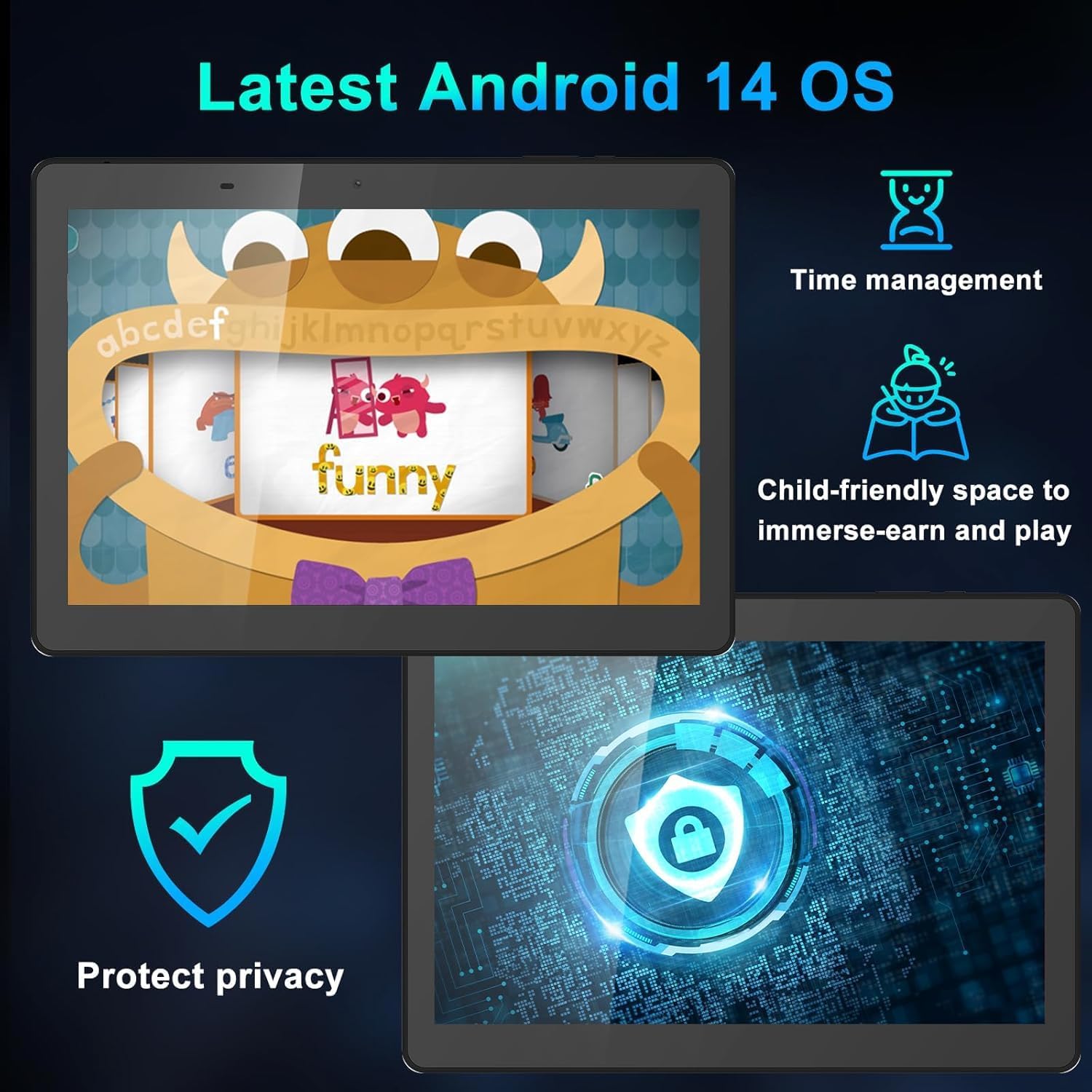
Figure 8: Android 14 Interface Highlights
5.2 Konekte ak Wi-Fi ak Bluetooth
Access these settings from the Quick Settings panel (swipe down from the top of the screen) or through the main Settings app.
- Wi-Fi: Turn Wi-Fi on, select your network, and enter the password if required.
- Bluetooth: Turn Bluetooth on, scan for devices, and select the device you wish to pair with.
5.3 Itilizasyon Kamera a
Louvri aplikasyon Kamera a nan ekran prensipal la oswa nan tiwa aplikasyon an.
- Tape bouton deklanchè a pou pran yon foto.
- Chanje ant kamera devan ak dèyè a avèk ikòn kamera a.
- Chwazi mòd videyo pou anrejistre videyo.
5.4 Kontwòl paran yo
Android 14 includes enhanced parental controls. Navigate to Anviwònman > Byennèt dijital ak kontwòl paran yo to manage screen time, app access, and content filtering for child profiles.

Figure 9: Tablet Use for Young Users
5.5 Eye-Care Mode
To reduce blue light emission and eye strain, activate Eye-Care Mode. This can usually be found in Anviwònman > Display oubyen atravè panèl Anviwònman rapid la.

Figure 10: 10.1 Inch IPS HD Display
6. Antretyen ak Swen
6.1 Netwayaj
Sèvi ak yon twal mou ki pa gen pousyè pou netwaye ekran an ak kò tablèt la. Evite itilize pwodui chimik ki agresif oswa materyèl abrazif.
6.2 Jesyon batri
- Evite tanperati ekstrèm, ki ka diminye lavi batri a.
- Pou yon batri ki an bon eta, evite vide batri a nèt souvan oubyen evite kite l a 100% chaj pandan yon bon bout tan.
- Sèvi sèlman ak plato ak kab ki vini ak aparèy la.
6.3 Mizajou lojisyèl
Tcheke epi enstale mizajou lojisyèl regilyèman pou asire tablèt ou a gen dènye karakteristik yo, patch sekirite yo ak amelyorasyon pèfòmans yo. Ale nan Anviwònman > Sistèm > Mizajou sistèm.
NAN. Depanaj
Si w rankontre pwoblèm ak tablèt ou a, gade solisyon komen sa yo:
| Pwoblèm | Solisyon |
|---|---|
| Tablèt la pa limen | Ensure the battery is charged. Connect the charger and wait a few minutes before attempting to power on again. If unresponsive, try a soft reset by pressing and holding the power button for 10-15 seconds. |
| Tablet freezes or is unresponsive | Press and hold the Power button for about 10 seconds to force a restart. If the issue persists, try clearing the cache of problematic apps or performing a factory reset (see below). |
| Pwoblèm koneksyon Wi-Fi | Restart your tablet and your Wi-Fi router. Forget the network in Wi-Fi settings and reconnect. Ensure you are within range of the Wi-Fi signal. |
| Batri vide byen vit | Reduce screen brightness, close unused apps, disable Wi-Fi/Bluetooth when not in use, and check for apps consuming excessive power in battery settings. |
| Stylus pen not working | Ensure the screen is clean. The stylus is passive and does not require charging or pairing. If the issue persists, test with finger input to determine if it's a screen or stylus issue. |
7.1 Reset faktori
A factory reset will erase all data on your tablet and restore it to its original factory settings. Back up important data before proceeding.
- Ale nan Anviwònman > Sistèm > Opsyon Reyajiste.
- Chwazi Efase tout done (reset faktori).
- Konfime desizyon w lan epi antre kòd PIN/modèl/modpas ou si yo mande w.
- Tablèt la ap rekòmanse epi kòmanse pwosesis réinitializasyon an.
8. Espesifikasyon
| Karakteristik | Detay |
|---|---|
| Mak | YYSWIE |
| Nimewo Modèl | D20 |
| Sistèm operasyon | Android 14 |
| Gwosè ekran | 10.1 pous |
| Rezolisyon ekran | 1280 x 800 pixels (IPS HD) |
| Processeur | 1.6 GHz kat-nwayo (Allwinner) |
| RAM | 6GB (3GB fizik + 3GB vityèl) |
| Depo Entèn | 32 GB |
| Depo dilatabl | Jiska 128GB atravè kat MicroSD |
| Kapasite batri | 5000mAh |
| Mwayèn lavi batri | Jiska 10 èdtan |
| Dèyè WebCam Rezolisyon | 5 MP |
| Devan WebCam Rezolisyon | 2 MP |
| Kalite san fil | 802.11b (Wi-Fi) |
| Bluetooth | Bluetooth 4.0 |
| Pwa atik | 1.57 liv |
| Dimansyon pwodwi | 12.2 x 7.48 x 1.34 pous |

Figure 11: Tablet Dimensions and Key Specifications
9. Garanti ak sipò
9.1 Enfòmasyon sou Garanti
YYSWIE offers a 12-mwa garanti for its products. If you experience any issues within this period, please contact our customer support for assistance.
9.2 Sipò pou Kliyan
For any questions, technical assistance, or warranty claims, please contact YYSWIE customer support. We aim to reply to customer messages within 24 hours.
- Sipò sou entènèt: Refer to the YYSWIE store on Amazon for contact options.
- Sipò Imèl: Available 24/7 for dedicated technical assistance.