
1. Entwodiksyon
Thank you for choosing the Pisichen 24 inch Touch Screen Gaming Monitor. This manual provides essential information for setting up, operating, and maintaining your monitor. Please read it thoroughly before use to ensure optimal performance and safety.
This monitor features a 24-inch QHD (2560x1440P) display with a 165Hz refresh rate, 2ms response time, and 10-point projected capacitive touchscreen functionality. It supports FreeSync and HDR, offering a vibrant and responsive visual experience for both gaming and professional applications.

Image: The Pisichen 24-inch 2K 165Hz Touch Screen Monitor highlighting its key features like HDR, IPS Panel, and 10-point Touch.
2. Pake kontni
Anvan ou kontinye ak enstalasyon an, tanpri verifye si tout konpozan yo prezan nan pake a:
- Pisichen 24 inch Touch Screen Monitor
- Sipò Monitè (Baz ak Kou)
- DP kab
- HDMI kab
- USB B Touch Cable
- USB CC Kab
- DC pouvwa adaptè
- Manyèl Itilizatè (dokiman sa a)
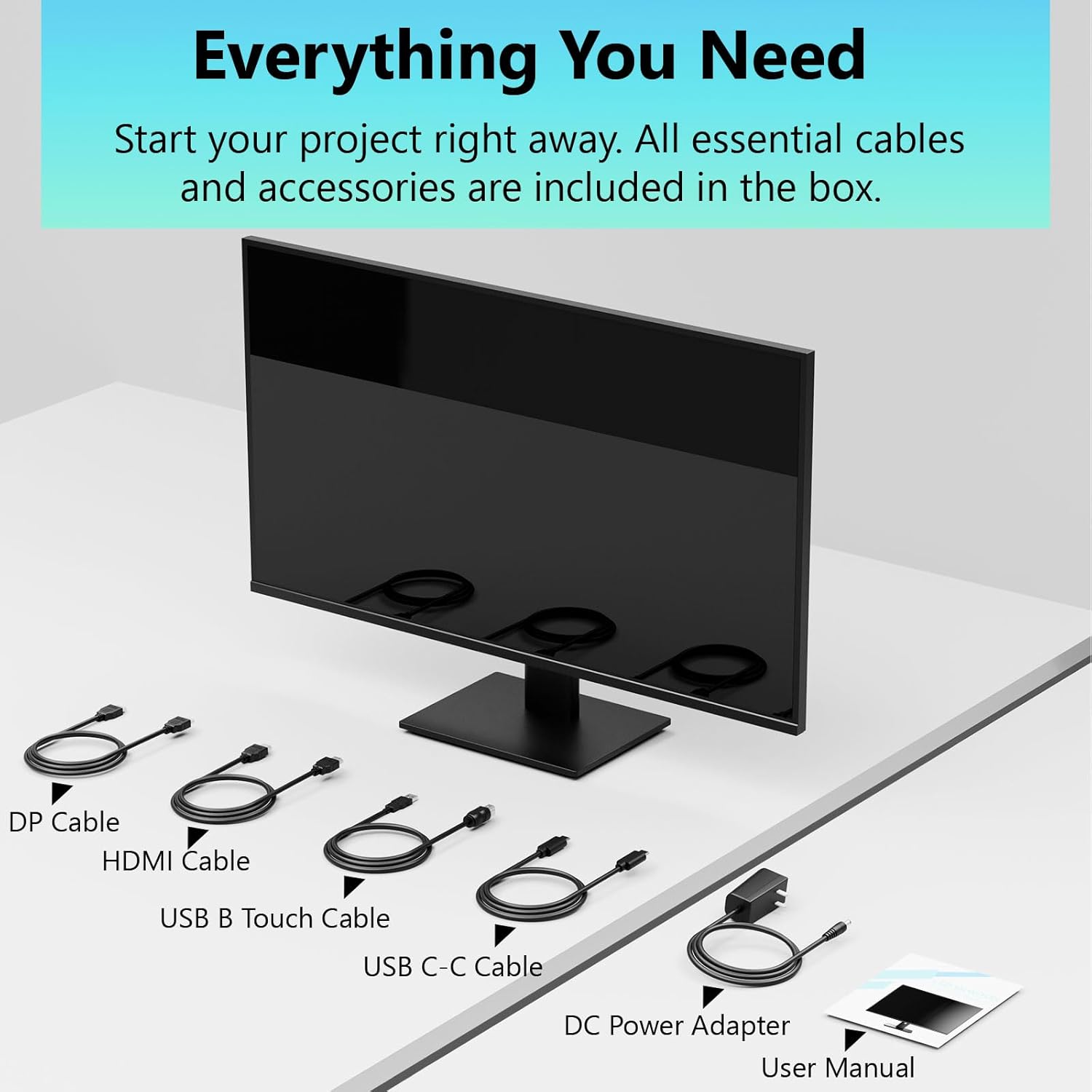
Image: All essential cables and accessories included in the box for the monitor setup.
3. Enstriksyon Enstalasyon
3.1 Asanble kanpe la
- Retire monitè a nan anbalaj li avèk prekosyon, mete l fas anba sou yon sifas mou epi pwòp pou evite reyur.
- Attach the stand neck to the monitor's rear panel.
- Fikse baz sipò a nan kou sipò a avèk vis yo bay yo.
- Ensure all connections are firm before placing the monitor upright.
3.2 Enstalasyon VESA Mount (Opsyonèl)
This monitor supports VESA mounting. If you plan to use a VESA-compatible arm or wall mount, remove the stand and attach the VESA mount according to the mount's instructions. The VESA pattern is typically 75x75mm or 100x100mm (refer to specifications for exact details).
3.3 Konekte ak yon Aparèy
Monitè a ofri plizyè opsyon koneksyon:
- HDMI: Connect one end of the HDMI cable to the monitor's HDMI port and the other end to your computer's HDMI output.
- DisplayPort (DP): Connect one end of the DP cable to the monitor's DP port and the other end to your computer's DP output.
- USB Kalite-C: For compatible devices, connect the USB C-C cable to the monitor's USB Type-C port and your device's USB Type-C port. This single cable can transmit video, data, and power (charging).
- USB Type-B (for Touch Functionality): To enable the touch screen feature, connect the USB B Touch Cable from the monitor's USB Type-B port to an available USB Type-A port on your computer.

Image: The monitor's rear panel with various connectivity options, including HDMI, DisplayPort, and USB-C ports.
3.4 Koneksyon pouvwa
Connect the DC Power Adapter to the monitor's power input port, then plug the adapter into a power outlet.
3.5 Initial Power On and Touch Compatibility
Press the power button on the monitor. The display should light up. If no image appears, ensure all cables are securely connected and the correct input source is selected on the monitor (via the OSD menu).
For touch functionality, ensure the USB B Touch Cable is connected to your computer. Touch compatibility may vary by operating system and device. Most Windows PCs support multi-touch. For Mac devices, single-touch click is generally supported, but multi-touch may require specific drivers or configurations. Game consoles (PS3/4/5, Xbox, Steam Deck) and some other devices (Fire TV, Apple products like iPhone/iPad) typically do not support touch functionality.

Image: A compatibility chart illustrating which devices support multi-touch or single-touch, and which devices do not support touch functionality with the monitor.
4. Operasyon Enstriksyon
4.1 Power On/Off
Press the power button located on the monitor to turn it on or off. The power indicator light will show the monitor's status.
4.2 Meni OSD (On-Screen Display).
The OSD menu allows you to adjust various monitor settings. Use the control buttons (usually located on the back or bottom of the monitor) to navigate the menu. Common menu options include:
- Anviwònman Foto: Brightness, Contrast, Sharpness, Color Temperature, HDR mode.
- Montre Anviwònman: Aspect Ratio, Input Source selection (HDMI, DP, USB-C).
- Gaming Settings: FreeSync, Response Time (Overdrive), Crosshair.
- Anviwònman odyo: Volume (if internal speakers or audio output are present).
- Anviwònman sistèm: Language, OSD Transparency, Reset to Factory Defaults.
4.3 Fonksyonalite ekran taktil la
The monitor supports 10-point multi-touch, allowing for intuitive interaction directly on the screen. Ensure the USB B Touch Cable is connected to your computer for this feature to work.
- Tap sèl: Equivalent to a left-click.
- Tape epi kenbe: Ekivalan a yon klike sou bò dwat la.
- Zoom-pou-Zoom: Sèvi ak de dwèt pou agrandi oswa diminye imaj la.
- Glise: Navigate through content or scroll.

Image: A user interacting with the monitor's touch screen, highlighting its precision and responsiveness for creative tasks.
4.4 Ajisteman ergonomik
The monitor stand allows for tilt adjustments to achieve the most comfortable viewing and touch angle. Gently adjust the screen to your preferred position.
4.5 Karakteristik Swen Je
The monitor includes advanced eye-comfort features such as Flicker-Free technology and Low Bluelight mode to reduce eye strain during prolonged use. These settings can typically be adjusted within the OSD menu.

Image: Visual representation of the monitor's advanced eye-comfort features, including Flicker-Free and Low Bluelight technologies.
5. Antretyen
5.1 Netwaye monitè a
- Toujou etenn monitè a epi debranche kòd kouran an anvan ou netwaye li.
- Sèvi ak yon moso twal mou, ki san pèl dampLave avèk dlo oswa yon pwodui netwayaj ekran dou ki pa abrazif.
- Pa flite pwodui netwayaj la dirèkteman sou ekran an. Aplike l sou twal la anvan.
- Evite itilize benzèn, diluant, pwodui netwayaj ki gen amonyak, oswa materyèl abrazif, paske sa yo ka domaje sifas ekran an.
5.2 Depo
When storing the monitor for an extended period, ensure it is powered off, unplugged, and stored in a cool, dry place away from direct sunlight and extreme temperatures. Use the original packaging if available for best protection.
NAN. Depanaj
Si ou rankontre pwoblèm ak monitè ou a, gade etap depanaj komen sa yo:
- Pa gen pouvwa: Ensure the power adapter is securely connected to both the monitor and a working power outlet. Check if the power indicator light is on.
- Pa gen imaj/siyal:
- Verify that the video cable (HDMI, DP, or USB-C) is securely connected to both the monitor and your computer.
- Asire w ke sous opinyon ki kòrèk la chwazi nan meni OSD monitè a.
- Tcheke paramèt ekspozisyon òdinatè w la pou asire w ke monitè a detekte epi li aktive.
- No Touch Functionality:
- Confirm the USB B Touch Cable is connected from the monitor to your computer.
- Check your computer's device manager to see if the touch screen driver is installed and functioning correctly.
- Refer to the "Initial Power On and Touch Compatibility" section for device-specific limitations.
- Imaj ki tranble oswa defòme:
- Tcheke kab videyo a pou wè si li domaje oswa si koneksyon yo lach.
- Eseye yon lòt kab videyo oswa yon lòt pò.
- Ajiste to rafrechisman an nan paramèt ekspozisyon òdinatè w la.
- Piksèl mouri: A small number of bright or dark pixels are common in LCD/LED technology and are not considered a defect unless they exceed manufacturer specifications.
Si pwoblèm nan pèsiste apre ou fin eseye etap sa yo, tanpri kontakte sèvis kliyan.
7. Espesifikasyon
| Karakteristik | Spesifikasyon |
|---|---|
| Mak | Pisichen |
| Nimewo Modèl | 24IN165HZ-QHD |
| Gwosè ekran | 23.8 pous |
| Rezolisyon | QHD Wide 1440p (2560 x 1440) |
| Aspè rapò | 16:9 |
| Rafrechisman pousantaj | 165 Hz |
| Tan repons | 2 Milisegond |
| Kalite ekspozisyon | LED IPS |
| Klète | 400 Candela (cd/m²) |
| Pwopòsyon kontras | 3000:1 |
| Viewing Ang | 178 Degre |
| Gamut koulè | 99% |
| Picture Quality Enhancement | HDR |
| Adaptive Sync | FreeSync |
| Koneksyon Teknoloji | DisplayPort, HDMI, USB Type-C, USB Type-B |
| Karakteristik adisyonèl | Tilt Adjustment, 10-Point Touchscreen |
| Dimansyon atik (D x W x H) | 0.75"D x 21.5"W x 12.7"H |
| Pwa atik | 5.38 Kilogram |
| Koulè | Nwa |
8. Enfòmasyon sou Garanti
This product comes with a 1-year limited warranty from the date of purchase. The warranty covers manufacturing defects and workmanship under normal use. It does not cover damage caused by misuse, accidents, unauthorized modifications, or external factors. Please retain your proof of purchase for warranty claims.
9. Sipò pou Kliyan
For technical assistance, warranty claims, or further inquiries, please contact Pisichen customer support. You may find contact information on the official Pisichen websit entènèt la oubyen atravè revandè w la.
Pou plis resous ak enfòmasyon sou pwodwi yo, vizite Pisichen Store on Amazon.