
1. Entwodiksyon
This manual provides essential information for the NIMO 15.6" Gaming Laptop (Model N159). It covers product features, setup procedures, operating instructions, maintenance guidelines, troubleshooting tips, and detailed specifications. Please read this manual thoroughly before using your new laptop to ensure optimal performance and longevity.

Image: The NIMO 15.6" Gaming Laptop, showcasing its display and key features like fingerprint unlock, Type-C PD charger, and backlit keyboard.
2. Ki sa ki nan bwat la
Verifye ke tout atik yo prezan nan anbalaj la:
- 1 x NIMO N159 Laptop
- 1 x Chargeur rapid Kalite-C 100W PD
- 1 x Manyèl Itilizatè (dokiman sa a)
- Windows 11 Home Operating System (pre-installed)
- Enfòmasyon sou garanti (2 zan garanti, 90 jou pou retounen)
3. Pwodwi souview
3.1 Karakteristik kle
- Processeur: AMD Ryzen 7 7735HS (8 Nwayo, 16 Fil, jiska 4.75GHz)
- Grafik: Integrated AMD Radeon 680M GPU
- Ekspozisyon: 15.6" Full HD (1920x1080) IPS Anti-Glare Display
- memwa: 16GB DDR5 RAM (upgradeable)
- Depo: 1TB PCIe 4.0 SSD (upgradeable)
- Chaje: 100W Type-C PD Fast Charger
- Sekirite: Fingerprint Reader for secure unlock
- Klavye: Backlit Keyboard with Numeric Keypad
- Odyo: Dual 2W stereo speakers, dual beamforming microphones
- WebCam: 2MP with physical camera shutter
- Sistèm operasyon: Windows 11 Kay

Image: An illustration detailing the AMD Ryzen 7 7735HS processor, highlighting its 8 cores, 16 threads, and integrated Radeon 680M graphics for balanced performance.
3.2 Pò ak Konektè
Familiarize yourself with the available ports on your NIMO laptop:

Image: A detailed diagram illustrating the location and type of ports on the NIMO laptop, including USB 2.0, USB 3.2 Gen1, Type-C Gen2 (multifunction), HDMI 2.0, Audio Jack, Micro SD Reader, and Kensington Lock.
- USB 2.0 pò: For connecting older USB devices.
- Pò USB 3.2 Gen1 (x4): For high-speed data transfer with compatible USB devices.
- Type-C Gen2 Ports (x2, Multifunction): Supports data transfer, video output, and power delivery (100W PD fast charging).
- HDMI 2.0 pò: Pou konekte ak ekran ekstèn oswa televizyon.
- Audio Jack: Pou konekte kas ekoutè oswa oratè ekstèn.
- Micro SD Reader: Pou li kat memwa Micro SD.
- Fant Kensington Lock: Pou pwoteje laptop ou a ak yon kadna konpatib.
4. Enstalasyon
4.1 Premye pouvwa sou
- Depake laptop la ak tout akseswa yo nan bwat la.
- Connect the 100W Type-C PD Fast Charger to one of the Type-C ports on the laptop and then to a power outlet.
- Louvri kouvèti laptop la. Laptop la ka limen otomatikman, oubyen ou ka bezwen peze bouton pouvwa a.
- Swiv enstriksyon ki sou ekran an pou konplete konfigirasyon Windows 11 Home la, ki gen ladan seleksyon lang, koneksyon rezo a, ak kreyasyon kont itilizatè.
4.2 Chaje batri a
Before first use, it is recommended to fully charge the laptop battery. The 100W Type-C PD Fast Charger can provide approximately 5 hours of usage time with just 1 hour of charging.

Image: A visual representation of the 100W Type-C lightning-fast charger connected to the NIMO laptop, demonstrating its ability to charge quickly and efficiently.
5. Operasyon Enstriksyon
5.1 Mòd pou limen/etenn ak dòmi
- Pouvwa sou: Peze bouton pouvwa a ki sitiye sou klavye a.
- Pouvwa Off: Klike sou bouton Start la nan Windows, answit chwazi Power > Shut down.
- Mòd dòmi: Click the Start button, then select Power > Sleep, or close the laptop lid.
5.2 Using the Fingerprint Unlock
The fingerprint reader is integrated into the touchpad for quick and secure access.
- During Windows setup or later in Windows Settings, configure your fingerprint for login.
- To unlock, simply place your registered finger on the fingerprint reader on the touchpad.
5.3 Adjusting the Backlit Keyboard
The keyboard backlight can be adjusted for comfortable typing in various lighting conditions.

Image: A visual guide demonstrating the fingerprint unlock feature on the touchpad and the functionality of the backlit keyboard, including how to cycle through brightness settings using the F9 key.
- Peze a F9 key to cycle through backlight settings:
- 1 Tap: Light (Temporary)
- 2 Taps: Light (Temporary)
- 3 Taps: Light (Constant)
- 4 Taps: Off
5.4 Sèvi ak Webcam Shutter
For privacy, the laptop includes a physical camera shutter.
- Slide the shutter to the left to open the camera.
- Slide the shutter to the right to close and cover the camera lens.

Image: A visual guide demonstrating the physical camera shutter, showing both the 'Camera Open' and 'Camera Close' statuses for enhanced privacy.
6. Antretyen
6.1 Netwaye òdinatè pòtab la
- Always power off the laptop and disconnect the charger before cleaning.
- Sèvi ak yon ti moso twal mou, ki san pèl damplave avèk dlo oubyen yon pwodui netwayaj ekran pou ekran an.
- Pou klavye a ak chasi a, sèvi ak yon twal mou epi sèk. Evite pwodui chimik ki agresif oswa materyèl abrazif.
- Use compressed air to clear dust from vents periodically.
6.2 Swen Batri
- Evite dechaje batri a nèt souvan.
- Sere laptop la nan yon kote ki fre epi sèk si ou pa itilize li pou yon bon bout tan.
- Pa ekspoze laptop la nan tanperati ekstrèm.
6.3 Mizajou lojisyèl
Tcheke epi enstale regilyèman si gen mizajou sistèm operasyon an ak chofè yo pou asire pèfòmans ak sekirite optimal.
NAN. Depanaj
| Pwoblèm | Kòz posib | Solisyon |
|---|---|---|
| Laptop la pa limen. | Pwoblèm batri ki ba oswa adaptè kouran. | Connect the charger and wait a few minutes before attempting to power on. Ensure the charger is properly connected to both the laptop and the power outlet. |
| Ekran an vid oswa nwa. | Laptop in sleep mode, display settings issue, or hardware problem. | Press any key or the power button to wake from sleep. Try connecting an external monitor to check if the display output works. Restart the laptop. |
| Limyè klavye a pa fonksyone. | Backlight turned off or at lowest setting. | Peze a F9 key repeatedly to cycle through brightness levels and turn on the backlight. |
| Fingerprint unlock not working. | Finger not properly placed, or sensor issue. | Ensure your finger is clean and dry and covers the sensor completely. Re-register your fingerprint in Windows Settings if the issue persists. |
| Pèfòmans ralanti. | Too many applications running, insufficient storage, or outdated drivers. | Close unnecessary applications. Check available storage space. Update Windows and device drivers. |
If you encounter issues not listed here or require further assistance, please contact NIMO customer support.
8. Espesifikasyon
| Mak | NIMO |
| Non modèl | NIMO N159B |
| Gwosè ekran | 15.6 pous |
| Rezolisyon ekran | 1920 x 1080 Pixels (FHD IPS) |
| Processeur | AMD Ryzen 7 7735HS (8 Cores, 4.75 GHz Max Turbo) |
| RAM | 16 GB DDR5 (4800 MHz) |
| Disk Drive | SSD 1024 GB (PCIe 4.0) |
| Koprosesè grafik | AMD Radeon 680M (Entegre) |
| Sistèm operasyon | Windows 11 Kay |
| Kalite san fil | 802.11a/b/g/n/ac |
| Pò USB 2.0 | 1 |
| Pò USB 3.0 | 4 |
| Mwayèn lavi batri | 5 Hours (54Wh, 11.4V/4700mAh) |
| Pwa atik | 3.8 liv |
| Dimansyon pwodwi | 14.07 x 8.98 x 0.76 pous |
| Koulè | Ble |
| Dèyè WebCam Rezolisyon | 2 MP |
| Karakteristik espesyal | Klavye retroeklere, lektè anprent, odyo HD, klavye nimerik |
9. Garanti ak sipò
9.1 Garanti manifakti a
Your NIMO N159 laptop is covered by a comprehensive Garanti manifakti 2 an from Nimo Direct Inc. This warranty covers defects in materials and workmanship under normal use. For warranty claims, please contact customer support.
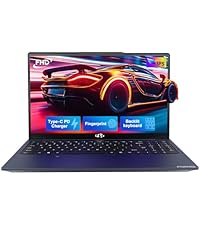
Image: A technician working on a laptop's internal components, representing the 2-year support provided for Nimo products.
9.2 Règleman pou retounen
Nimo Direct Inc. offers a Règleman pou retounen san pwoblèm nan 90 jou. You may return any Nimo product for any reason within 90 days of purchase. Please refer to your purchase documentation for specific return procedures.
Image: A delivery person handing a package to a customer, illustrating the 90-day return policy for Nimo products.
9.3 Sipò pou Kliyan
For any product-related questions, technical assistance, or warranty claims, please contact our professional after-sales service team. Our dedicated support team is available to resolve issues or facilitate replacements.
- Imèl: service@nimopc.com
- Sou entènèt: Vizite NIMO ofisyèl la website or product page for contact options.
Image: Customer service representatives wearing headsets, indicating professional customer assistance available via phone and live chat.