
Entwodiksyon
Thank you for choosing the Upperizon 14-inch 4K OLED Portable Monitor. This manual provides essential information for setting up, operating, and maintaining your new monitor. Please read it thoroughly before use to ensure optimal performance and longevity of the device.
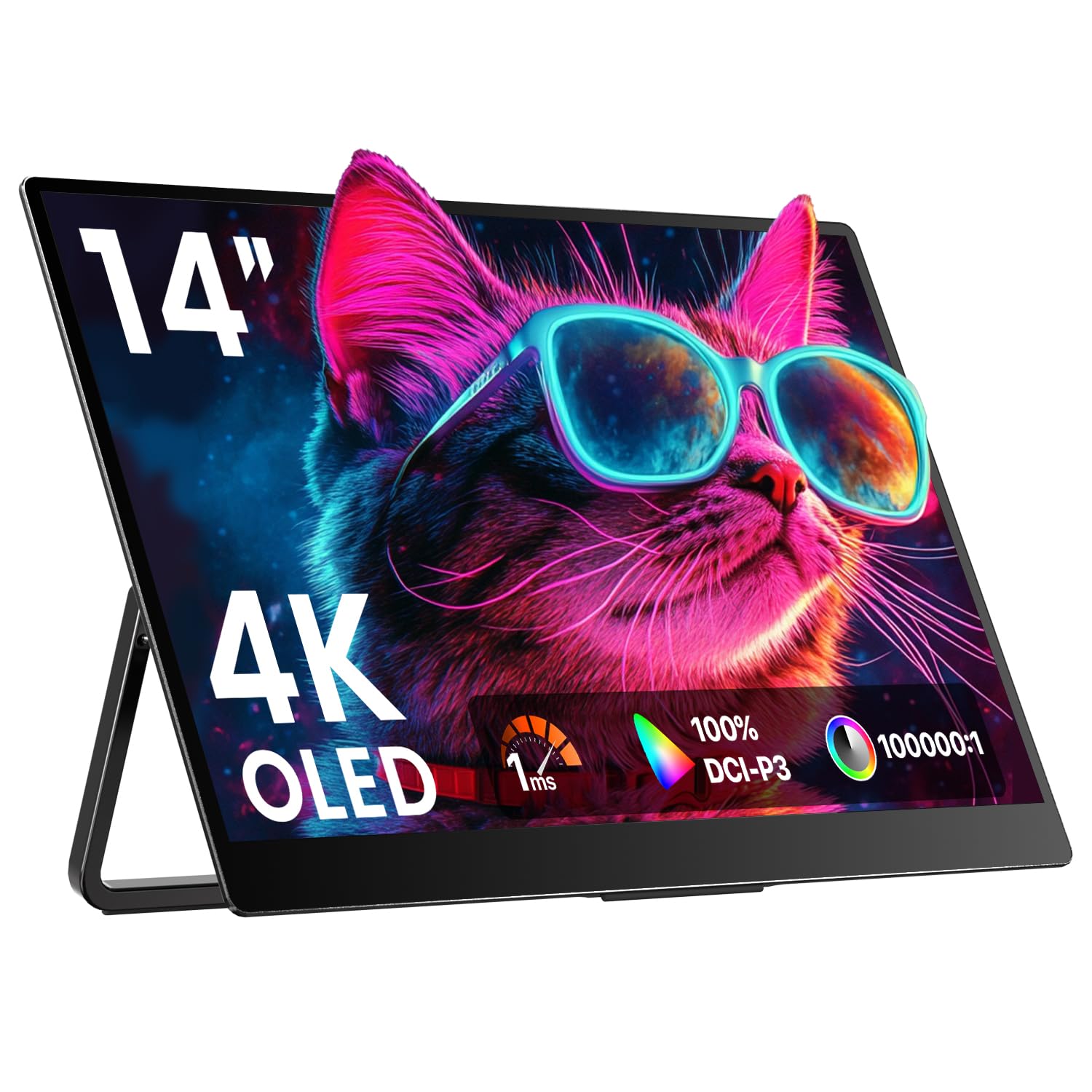
Image: The Upperizon 14-inch 4K OLED Portable Monitor, showcasing its sleek design and integrated kickstand.
Ki sa ki nan bwat la
Verifye ke tout atik ki nan lis anba a yo enkli nan pakè ou a. Si gen nenpòt atik ki manke oswa ki domaje, tanpri kontakte sèvis kliyan.
- 1 × Portable Monitor
- 2 × USB-C to USB-C display cable
- 1 × HDMI cable
- 1 × pouvwa adaptè
- 1 × Sleeve Case

Image: A visual representation of the items included in the product packaging: the 14-inch portable monitor, two USB-C to USB-C cables, one HDMI cable, a power adapter, and a protective sleeve case.
Pwodwi souview
Siveye Karakteristik
- OLED Self-Luminous Display: Each pixel emits light independently for deep blacks and vivid colors.
- Rezolisyon 4K UHD (3840x2400): Provides sharp, detailed visuals.
- Pixel-Perfect Color Precision: Factory-calibrated to ΔE < 2, 100% DCI-P3, and 10-bit color depth.
- Tan Repons 1ms: Reduces motion blur for smooth visuals.
- Doub Oratè Entegre: Delivers integrated audio.
- Ultra-Slim & Lightweight: Designed for portability.
- Sipò entegre: Offers adjustable viewing angles from 0° to 180°.
- VESA monte: Compatible with 75x75mm VESA mounts (M4*5mm screws).
Pò ak kontwòl
The monitor features various ports and control buttons for connectivity and settings adjustment.

Imaj: Detaye view of the monitor's side, highlighting two USB-C ports, one HDMI port, and control buttons (Power/Exit, Down/Up, Menu/Confirm).
- Pò USB-C (x2): Full-featured ports for video, audio, and power delivery.
- Pò HDMI (x1): For video and audio input from compatible devices.
- Power/Exit Button: Turns the monitor on/off and exits menu options.
- Bouton Desann/Monte: Navigates menu options and adjusts values (e.g., brightness, volume).
- Meni/Konfime bouton: Accesses the On-Screen Display (OSD) menu and confirms selections.
- Audio Jack: Pou konekte kas ekoutè oswa oratè ekstèn.
Enstalasyon
Connecting via USB-C (Single Cable Solution)
For devices supporting DisplayPort Alt Mode or Thunderbolt 3/4/5, a single USB-C cable can transmit video, audio, and power.
- Connect one end of the provided USB-C to USB-C cable to a full-featured USB-C port on your device (laptop, MacBook, Surface, etc.).
- Connect the other end of the USB-C cable to either USB-C port on the portable monitor.
- The monitor should automatically detect the signal and display your device's screen.
Nòt enpòtan: Ensure your device's USB-C port supports DisplayPort Alt Mode or Thunderbolt 3/4/5 for single-cable functionality. If the screen flickers, use the original power adapter provided. Old MacBooks may require a Mini DP to HDMI adapter. Apple M1/M2/M3 chips do not support two external monitors simultaneously.

Image: A laptop connected to the portable monitor using a single USB-C cable, illustrating the plug-and-play setup.
Connecting via HDMI (Two Cable Solution)
For devices with an HDMI output, you will need both an HDMI cable for video/audio and a USB-C cable for power.
- Connect one end of the provided HDMI cable to the HDMI port on your device (PC, PS5, Xbox, etc.).
- Connect the other end of the HDMI cable to the HDMI port on the portable monitor.
- Connect one end of a USB-C to USB-A cable (or USB-C to USB-C if your power source supports it) to one of the USB-C ports on the monitor.
- Connect the other end of the power cable to the provided power adapter, and plug the adapter into a power outlet.
- Monitè a ta dwe detekte siyal la otomatikman.
Nòt enpòtan: Always use the original power adapter to ensure stable power delivery and prevent screen flickering, especially when using HDMI.

Image: A laptop connected to the portable monitor using an HDMI cable for video and a separate USB-C cable for power, demonstrating the two-cable connection method.
Kickstand and VESA Mounting
The monitor features an integrated kickstand for flexible positioning and is VESA compatible for alternative mounting options.
- Sipò entegre: Adjust the kickstand to achieve your desired viewing angle, supporting 0° to 180° rotation.
- Montaj VESA: The monitor has two VESA holes (75x75mm, M4*5mm screws) on the back. This allows for stable mounting on a VESA stand (not included) for both landscape and vertical orientations.
Nòt: The VESA stand is not included. Portrait mode is not supported when connecting to an iPad or smartphone.

Image: The monitor positioned on a desk, demonstrating the flexibility of its adjustable kickstand for different viewang ing.

Image: A close-up of the VESA mounting holes on the monitor, showing it attached to a VESA-compatible stand for both landscape and portrait orientations.
Enstriksyon Operasyon
Meni sou ekran an (OSD).
Meni OSD a pèmèt ou ajiste plizyè paramèt ekspozisyon.
- Peze a Meni/Konfime bouton an pou ouvri meni OSD a.
- Sèvi ak la Desann epi Up buttons to navigate through the menu options.
- Peze a Meni/Konfime button to select an option or enter a sub-menu.
- Sèvi ak la Desann epi Up buttons to adjust values or select sub-options.
- Peze a Pouvwa/Sòti button to go back to the previous menu or exit the OSD.
Quick Adjustments (Brightness & Volume)
You can quickly adjust brightness and volume without entering the full OSD menu.
- Klate: Peze a Up button (without OSD open) to quickly adjust brightness.
- Volim: Peze a Desann button (without OSD open) to quickly adjust volume.

Image: Illustration of the quick access controls for brightness and volume using the monitor's physical buttons.
Teknoloji HDR
The monitor supports HDR (High Dynamic Range) technology for enhanced contrast and color.
- To enable HDR, navigate to the OSD menu, find the "Other Settings" or "Display" section, and set HDR to "Auto" or "On".
- Ensure HDR is also enabled in your connected device's display settings (e.g., Windows Display Settings, macOS Display Preferences).

Image: A visual guide to enabling HDR through the monitor's OSD menu and the corresponding settings on a connected operating system.
Jwèt Crosshair
For gaming, you can enable a customizable crosshair directly on the monitor.
- Access the OSD menu and locate the "Game" or "Gaming Features" section.
- Toggle the "Crosshair" option to "On" to activate it.

Image: A comparison showing a game scene with the customizable crosshair enabled and disabled, highlighting its function.
Antretyen
Bon antretyen asire lonjevite ak pèfòmans optimal monitè ou a.
- Netwaye ekran an:
- Etenn monitè a epi dekonekte li nan kouran.
- Dousman siye ekran an ak yon twal mou, ki pa gen pèl.
- Pou mak ki difisil pou retire, pase yon ti krasampRense twal la avèk dlo oswa yon solisyon netwayaj espesifik pou ekran. Pa flite likid dirèkteman sou ekran an.
- Avoid using harsh chemicals, abrasive cleaners, or alcohol-based solutions, as these can damage the OLED panel.
- Netwayaj C aasing:
- Siye monitè a casinSiye ak yon twal mou epi sèk.
- Evite ke imidite antre nan nenpòt ouvèti.
- Depo:
- When not in use, especially during travel, store the monitor in the provided sleeve case to protect it from scratches and impacts.
- Sere nan yon kote ki fre, sèk lwen limyè solèy la dirèk ak tanperati ekstrèm.
- Manyen:
- Evite mete objè lou sou monitè a.
- Do not apply excessive pressure to the screen.
- Handle the monitor by its edges, not by the screen itself.
Depanaj
Si ou rankontre pwoblèm ak monitè ou a, gade pwoblèm ak solisyon komen sa yo.
| Pwoblèm | Kòz posib | Solisyon |
|---|---|---|
| Pa gen siyal / Ekran nwa |
|
|
| Ekran siyman |
|
|
| Pa gen son ki soti nan moun kap pale |
|
|
| Imaj la twoub oswa defòme |
|
|
If the problem persists after trying these solutions, please contact Upperizon customer support.
Espesifikasyon
| Karakteristik | Detay |
|---|---|
| Nimewo Modèl | Y14UHO |
| Gwosè ekran | 14 pous |
| Kalite Panel | OLED |
| Rezolisyon | 3840 x 2400 piksèl (4K UHD) |
| Aspè rapò | 16:10 |
| Pwopòsyon kontras | 100,000:1 |
| Gamut koulè | 100% DCI-P3 |
| Koulè Pwofondè | 10-bit (1.07 milya koulè) |
| Klète | 350 Kandela (nits) |
| Tan repons | 1 ms |
| Rafrechisman pousantaj | 60Hz |
| Koneksyon | 2 x USB-C (Full-featured), 1 x HDMI |
| Odyo | Built-in Dual Speakers, 1 x 3.5mm Audio Jack |
| Montaj | Integrated Kickstand, VESA Compatible (75x75mm) |
| Dimansyon pwodwi | 0.47 x 12.28 x 8.38 pous |
| Pwa atik | 1.33 liv (604 g) |
Garanti ak sipò
Your Upperizon portable monitor is backed by a manufacturer's warranty.
- Peryòd garanti: The product comes with a 2-year warranty. Please refer to the warranty card included in your package or the official Upperizon websit pou tèm ak kondisyon espesifik.
- Retounen: Products purchased from Amazon are eligible for return within 30 days of receipt, subject to Amazon's return policy.
- Sipò Kliyan: For technical assistance, troubleshooting beyond this manual, or warranty claims, please contact Upperizon customer support. Contact information can typically be found on the official Upperizon websit la oubyen atravè platfòm acha ou a.