
1. Entwodiksyon
This manual provides essential information for the proper setup, operation, and maintenance of your NIMO 15.6 inch Laptop Computer. Please read this manual thoroughly before using your device to ensure optimal performance and longevity. Keep this manual for future reference.
2. Pwodwi souview
2.1. Konpozan òdinatè pòtab
The NIMO 15.6 inch Laptop features a Full HD display, a backlit keyboard, and an integrated fingerprint reader for secure access. It is powered by an AMD Ryzen 5 3500U processor and runs on Windows 11.

Figi 2.1: Devan view of the NIMO 15.6 inch Laptop, showcasing ekran li ak layout klavye li.
2.2. Pò ak Konektè
Your NIMO laptop is equipped with various ports for comprehensive connectivity, allowing you to connect peripherals and external devices.

Figure 2.2: Expanded Connectivity Options. This image illustrates the location and type of ports available on the laptop, including Type-C (Charge Only), USB 3.0, HDMI, Type-C (Full Function), Charge LED, Micro SD Reader, USB 2.0, USB 3.0, Headphone Combo, and Kensington Lock.
- Kalite-C (Chaje sèlman): Pou opinyon pouvwa.
- USB 3.0: Pou transfè done gwo vitès.
- HDMI: Pou konekte ak ekran ekstèn.
- Kalite-C (Fonksyon konplè): Supports Power Delivery (PD), DisplayPort (DP), and data transfer.
- Chaje ki ap dirije: Endike estati chaje.
- Micro SD Reader: Pou li kat Micro SD.
- USB 2.0: Pou aparèy USB estanda yo.
- USB 3.0: Pou transfè done gwo vitès.
- Headphone Combo: Pou pwodiksyon odyo ak antre mikwofòn.
- Kensington Lock: Pou sekirite fizik.
3. Enstalasyon
3.1. Premye Chajman
Before first use, connect the laptop to a power outlet using the provided 65W PD Type-C charger. The Charge LED indicator will illuminate. Allow the battery to charge fully.

Figure 3.1: Type-C 65W PD Charger. This image highlights the versatility of the 65W Power Delivery charger, capable of charging the laptop, tablets, and smartphones, reducing cable clutter.
3.2. Limen
Open the laptop lid. Press the power button located on the keyboard deck. The laptop will boot up, and you will be guided through the Windows 11 initial setup process.
3.3. Enstalasyon Windows 11
Follow the on-screen instructions to configure your Windows 11 operating system. This includes selecting your region, language, connecting to a Wi-Fi network, and setting up your user account.
4. Operasyon Enstriksyon
4.1. Klavye ak Antre
The laptop features a backlit keyboard for comfortable typing in various lighting conditions, a responsive touchpad, and a numeric keypad for data entry.

Figure 4.1: Effortless Typing in Any Environment. This image demonstrates the backlit keyboard, touchpad, fingerprint reader, and numeric keypad, enhancing user experience and productivity.
- Klavye retroeklere: Peze a Fn key and the appropriate function key (usually F3 or F4, indicated by a keyboard icon) to adjust the backlight brightness or turn it on/off.
- Touchpad: Use the touchpad for navigation. Supports multi-touch gestures for scrolling, zooming, and other functions.
- Klavye nimerik: Provides dedicated number keys for efficient data entry.
4.2. Rekonesans anprent
The integrated fingerprint reader allows for secure and quick login. Set up your fingerprint in Windows Settings under 'Sign-in options'.
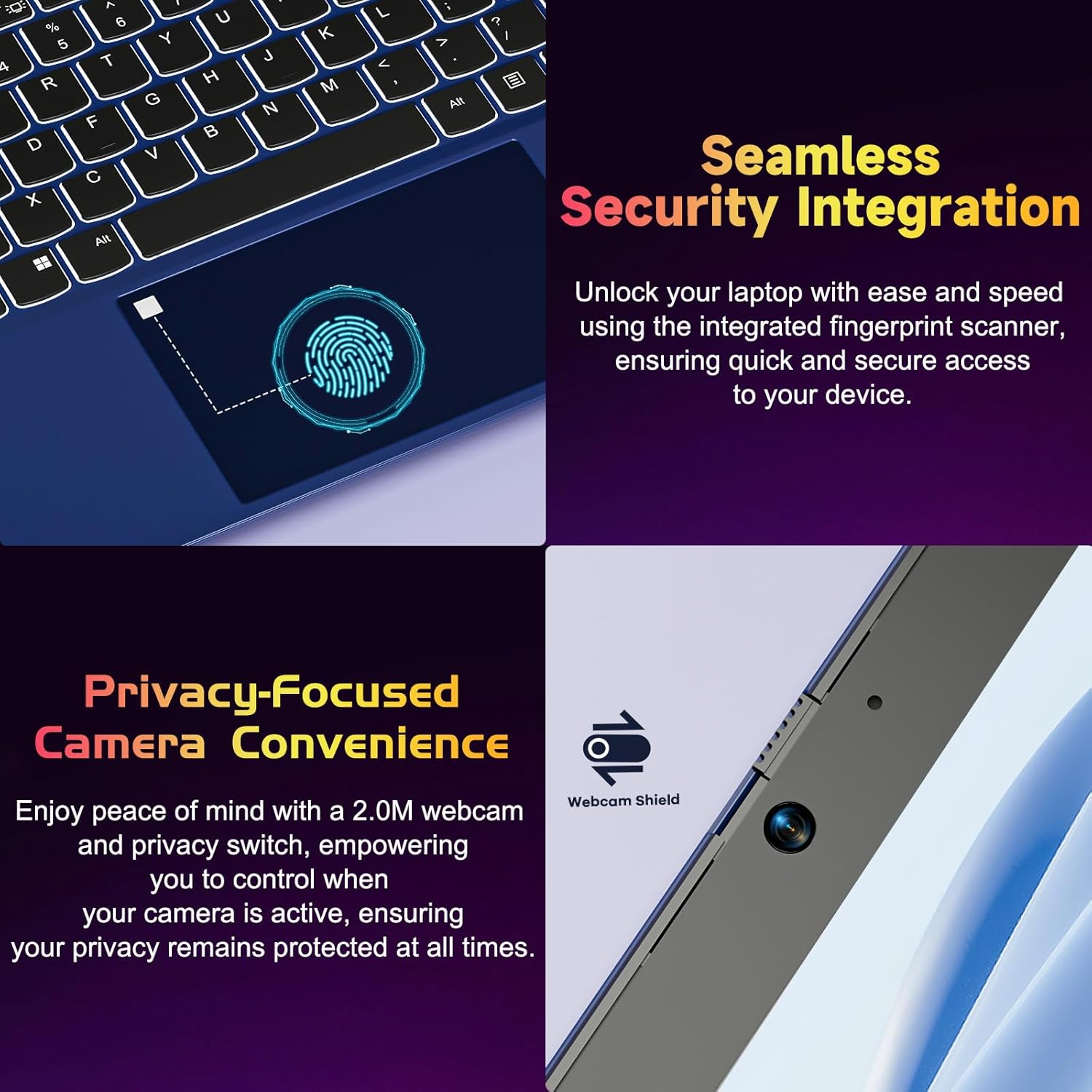
Figure 4.2: Seamless Security Integration and Privacy-Focused Camera. This image highlights the fingerprint scanner for quick and secure access, and the 2.0MP webcam with a physical privacy switch for enhanced user privacy.
4.3. Karakteristik ekspozisyon
The 15.6 inch Full HD (1920 x 1080 Pixel) IPS display offers vivid visuals and a wide viewing angle. The 180° lay-flat hinge allows for flexible screen positioning, ideal for sharing content.

Figure 4.3: Vivid Full HD Display. This image emphasizes the laptop's 15.6-inch Full HD (1920x1080) IPS display, offering bright visuals and eye protection.

Figure 4.4: 180° Lay-Flat Hinge. This image illustrates the laptop's ability to lay flat, expanding usage scenarios and facilitating content sharing.
4.4. Webcam Privacy
The laptop includes a 2.0MP webcam with a physical privacy switch (Webcam Shield). Slide the switch to cover the camera lens when not in use to ensure your privacy.
5. Antretyen
- Netwayaj: Sèvi ak yon twal mou ki pa gen pousyè pou netwaye ekran an ak deyò a. Pou mak ki difisil pou retire, siye yon ti kras.ampRense twal la avèk dlo oswa yon pwodui netwayaj ekran. Evite pwodui chimik ki agresif.
- Swen batri: Pou pwolonje lavi batri a, evite dechaje batri a nèt souvan. Sere laptop la nan yon kote ki fre epi sèk si ou pa itilize li pou yon bon bout tan.
- Mizajou lojisyèl: Mete sistèm operasyon Windows ou ajou regilyèman ak chofè yo pou asire pèfòmans ak sekirite optimal.
- Ekspansyon Depo: The laptop supports dual DDR4 SO-DIMM slots and M.2 NVMe SSD for memory and storage expansion. Consult a qualified technician for upgrades.
NAN. Depanaj
6.1. Pwoblèm pouvwa
- Laptop la pa limen: Ensure the laptop is charged. Connect the charger and wait a few minutes before attempting to power on again.
- Batri pa chaje: Verify the charger is properly connected to both the laptop and the power outlet. Try a different outlet.
6.2. Pwoblèm ekspozisyon
- Ekran an vid: Check if the laptop is powered on. Try adjusting screen brightness using the function keys. If an external monitor is connected, ensure it is properly configured.
6.3. Pwoblèm Pèfòmans
- Laptop la ralanti: Close unnecessary applications. Check for background processes consuming high resources. Ensure sufficient free storage space. Consider performing a system scan for malware.
6.4. Pwoblèm koneksyon
- Wi-Fi a pa konekte: Ensure Wi-Fi is enabled. Restart your router and the laptop. Check network settings in Windows.
7. Espesifikasyon
| Karakteristik | Detay |
|---|---|
| Mak | NIMO |
| Non modèl | NIMO N152R |
| Gwosè ekran | 15.6 pous |
| Rezolisyon ekran | 1920 x 1080 piksèl (Full HD) |
| Processeur | AMD Ryzen 5 3500U (3.7 GHz, 4 Cores, 8 Threads) |
| RAM | 8 GB DDR4 (ou ka amelyore l) |
| Vitès memwa | 3200 MHz |
| Disk Drive | 256 GB SSD (Upgradable M.2 NVMe) |
| Koprosesè grafik | AMD Integrated graphics (Vega) |
| Sistèm operasyon | Windows 11 |
| Kalite san fil | 802.11abg |
| Pò USB | 1x USB 2.0, 2x USB 3.0, 2x USB-C (1x Charge Only, 1x Full Function) |
| HDMI Port | Wi |
| Mikwo SD Reader | Wi |
| Mwayèn lavi batri | 5 èdtan |
| Pwa atik | 3.8 liv (1.72 kg) |
| Dimansyon pwodwi | 14.07 x 8.98 x 0.76 pous |
| Koulè | Rose |
| Dèyè WebCam Rezolisyon | 2 MP |
8. Garanti ak sipò
Your NIMO laptop comes with a 2-year warranty, covering manufacturing defects and hardware malfunctions under normal use. Additionally, a 90-day free return policy is provided.

Figure 8.1: After-Sales Support. This image outlines the 2-year warranty, 90-day return policy, and professional customer service available for NIMO products.
8.1. Kontakte Sipò
For technical assistance, warranty claims, or product-related questions, please contact the NIMO U.S.-based support team. Contact information can typically be found on the official NIMO websit oswa anbalaj pwodwi a.
9. Enfòmasyon sou Sekirite
Pou evite blesi oswa domaj nan aparèy ou an, obsève prekosyon sekirite sa yo:
- Pa ekspoze laptop la nan tanperati ekstrèm, limyè solèy dirèk, oswa imidite ki wo.
- Evite mete objè lou sou laptop la.
- Use only the provided charger or a compatible 65W PD Type-C charger.
- Pa eseye demonte oswa repare laptop la tèt ou. Konsilte pèsonèl sèvis ki kalifye.
- Kenbe likid lwen òdinatè pòtab la pou evite chòk elektrik oswa domaj.
- Ensure proper ventilation when using the laptop to prevent overheating.