
1. Entwodiksyon
Thank you for choosing the SGIN C10 10.1-inch Kids Tablet. This device is designed to provide an engaging and safe digital experience for children, featuring parental controls and educational content. This manual will guide you through the setup, operation, and maintenance of your tablet to ensure optimal performance and user safety.
2. Pwodwi souview
2.1 Kontni pake a
Lè w ap debale, tanpri asire w ke tout bagay ki nan lis anba a yo la:
- SGIN C10 10.1-inch Tablet
- Ka Pwoteksyon
- Charger
- USB kab
- Manyèl Enstriksyon

Image: Diagram showing the tablet's ports and buttons, along with the included accessories: tablet, protective case, charger, USB cable, and instruction manual.
2.2 Konpozan Tablèt
Familiarize yourself with the physical components of your SGIN C10 tablet:
- Bouton pouvwa: Located on the side, used to turn the tablet on/off or put it to sleep.
- Bouton Volim: Ajiste nivo pwodiksyon odyo a.
- Kas ekoutè Jack: Pou konekte kas ekoutè ak fil.
- Pò USB: Pou chaje ak transfè done.
- TF Kat plas: For expanding storage with a microSD card.
- Kamera devan: Pou apèl videyo ak selfie.
- Kamera dèyè: Pou pran foto ak videyo.
- Oratè: Pou pwodiksyon odyo.
- Ekran taktil IPS HD 10.1 pous: Main display for interaction.
- Protective Case with Stand: Provides protection and allows for hands-free viewing.
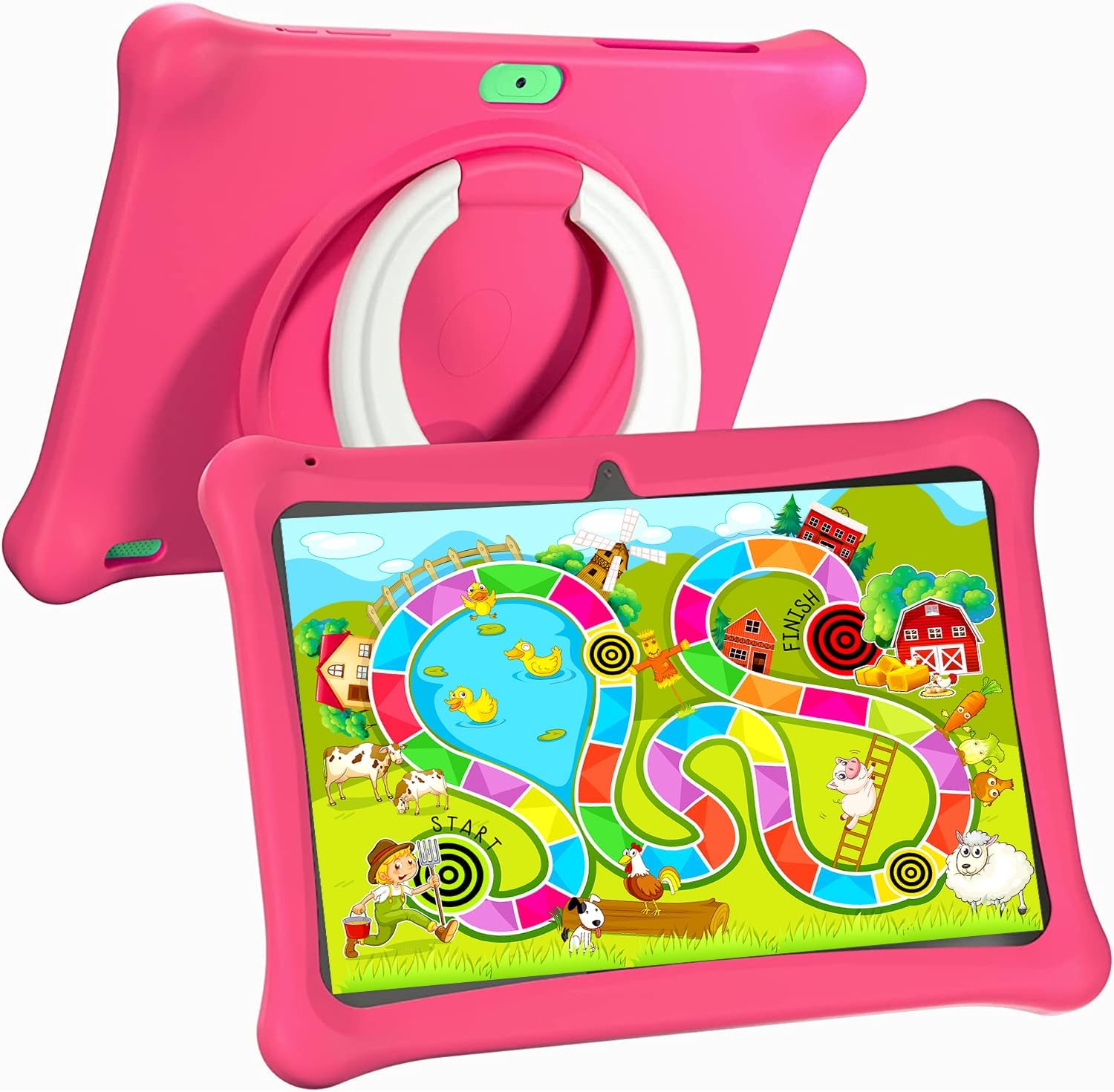
Image: The SGIN C10 tablet in its pink protective case, displaying a colorful educational game on its screen. The rear of the tablet shows the integrated stand.
2.3 Karakteristik kle
- Pèfòmans segondè: Equipped with a 1.6GHz quad-core processor, 2GB RAM, and 32GB ROM (expandable up to 32GB via TF card).
- Kid-Proof Case: Durable pink case designed to protect against dust, bumps, and drops, with heat dissipation features.
- Pre-installed iWawa Kid's Software: Offers a safe and entertaining environment with thousands of free educational games and apps.
- Parental Control System: Allows parents to manage screen time, content, and user accounts.
- Long lavi batri: 5000mAh lithium battery provides 6-8 hours of usage.
- Eye Protection Screen: 1280*800 HD IPS touch screen for vibrant colors and comfortable viewing.
- Doub Kamera: 2MP front camera and 5MP rear camera for photos and videos.

Image: Icons representing key features of the SGIN C10 tablet: Android 12, Quad-core processor, Dual Camera, 5000mAh battery, WiFi, HD Display, 2GB RAM + 32GB storage, 10 Inch screen, and Parental Control.

Image: Visual representation of the tablet's 2GB RAM and 32GB ROM (expandable via TF card), alongside a diagram of the 1.6 GHz Quad-core Processor.

Image: The 10-inch HD display showing vibrant content, and a close-up of the protective case's rotatable stand.

Image: A child using the tablet, highlighting the 5000mAh Lithium Battery, and a close-up of the tablet's dual camera system.
3. Enstalasyon
3.1 Premye chaj
- Connect the USB cable to the tablet's USB port.
- Connect the other end of the USB cable to the provided charger.
- Ploge plato a nan yon priz kouran.
- Kite tablèt la chaje nèt anvan premye itilizasyon an. Endikatè batri a sou ekran an ap montre eta chaj la.
3.2 Limen/Etenyen
- Pou limen: Press and hold the Power Button until the SGIN logo appears on the screen.
- Pou etenn: Press and hold the Power Button until a menu appears. Select "Power off" and confirm.
- Pou dòmi/reveye: Briefly press the Power Button to put the tablet to sleep or wake it up.
3.3 Konekte ak Wi-Fi
- Sou ekran prensipal la, glise anba soti anwo pou ouvri panèl Anviwònman rapid la.
- Tape epi kenbe ikòn Wi-Fi a pou ouvri paramèt Wi-Fi yo.
- Aktive Wi-Fi a si li etenn.
- Chwazi rezo Wi-Fi ou vle a nan lis la.
- Enter the network password if prompted, then tap "Connect".
3.4 Initial iWawa Setup
The SGIN C10 tablet comes with iWawa Kid's software pre-installed. Follow the on-screen prompts to set up the child-friendly environment and parental controls during the first launch.
4. Operasyon Enstriksyon
4.1 Navigasyon debaz
- Manyen: Tape yon ikòn oswa yon opsyon pou chwazi li.
- Glise: Trennen dwèt ou sou ekran an pou defile paj yo oswa lis yo.
- Zongle: Sèvi ak de dwèt pou agrandi oswa diminye imaj yo oubyen web paj.
- Bouton Kay: Retounen ou nan ekran prensipal la.
- Bouton tounen: Retounen ou nan ekran anvan an.
- Bouton Aplikasyon Dènye: Montre aplikasyon ou te itilize dènyèman yo.
4.2 Itilizasyon Kamera a
- Louvri aplikasyon Kamera a nan ekran prensipal la oswa nan tiwa aplikasyon an.
- Tape ikòn chanjman kamera a pou chanje ant kamera devan an ak kamera dèyè a.
- Tape bouton deklanchè a pou pran yon foto.
- Tap the video icon to switch to video recording mode, then tap the record button to start/stop recording.
4.3 Installing/Uninstalling Apps
- Enstale aplikasyon: Within the iWawa environment, access the Kids Store to download free games and educational applications. Parents can also approve apps from the Google Play Store via parental controls.
- Dezenstalasyon aplikasyon yo: From the parental control interface, select the app management option to uninstall unwanted applications.
4.4 Ajiste Anviwònman
- Volim: Use the physical Volume Buttons on the side of the tablet.
- Klate: Swipe down from the top of the screen to access Quick Settings and adjust the brightness slider. More detailed display settings are available in the main Settings app.
- Lòt Anviwònman: Access the main Settings app for Wi-Fi, Bluetooth, display, sound, storage, and other system configurations.
5. Kontwòl Paran
The SGIN C10 tablet features a robust parental control system integrated with the iWawa Kid's software, allowing you to create a safe and customized environment for your child.
5.1 Aksè Kontwòl Paran yo
To access parental control settings, you will typically need to exit the iWawa Kid's interface and enter a password-protected parent mode. Follow the on-screen instructions within the iWawa app to set up and manage this access.
5.2 Key Parental Control Features
- Mete modpas: Establish a secure password to prevent children from exiting the iWawa environment or altering settings.
- Limit Tan Devan Ekran: Define daily usage limits and specific time periods when the tablet can be used.
- Jesyon kontni: Control access to apps, games, videos, and websites. You can whitelist appropriate websites and block unwanted content.
- App Approval: Manage which applications your child can access, including those downloaded from the Kids Store or Google Play Store.
- Multiple User Accounts: Kreye yon pwofesyonèl apafiles for each child, allowing personalized settings and content for individual users.
- Ad Elimination: The system helps eliminate unwanted advertisements within the child's environment.
6. Antretyen
6.1 Netwaye Aparèy la
- Always power off the tablet before cleaning.
- Sèvi ak yon twal mou ki pa gen pousyè pou siye ekran an ak kò a.
- Pou tach ki difisil pou retire, yon ti kras dampSiye twal la avèk dlo oswa yon pwodui netwayaj ki an sekirite pou ekran. Evite pwodui chimik ki agresif.
- Asire w pa gen imidite ki antre nan pò oswa ouvèti yo.
6.2 Swen Batri
- Evite dechaje batri a nèt souvan.
- Pa ekspoze tablèt la nan tanperati ekstrèm.
- Sèvi sèlman ak plato ak kab ki vini ak aparèy la.
6.3 Mizajou lojisyèl
Periodically check for system updates in the tablet's Settings menu under "System" or "About tablet." Keeping your software updated ensures optimal performance and security.
6.4 Jesyon Depo
To manage storage, you can:
- Delete unused apps and files.
- Move photos and videos to a computer or cloud storage.
- Insert a TF (microSD) card into the designated slot to expand storage capacity up to 32GB.
NAN. Depanaj
| Pwoblèm | Solisyon posib |
|---|---|
| Tablèt la pa limen. | Asire w batri a chaje. Konekte chajè a epi tann kèk minit anvan ou eseye limen l ankò. |
| Ekran an pa reponn. | Restart the tablet by holding the Power Button for about 10 seconds until it powers off, then power it on again. |
| Pa ka konekte ak Wi-Fi. | Check if Wi-Fi is enabled. Ensure the password is correct. Restart your Wi-Fi router. |
| Aplikasyon yo ap plante oswa ap mache dousman. | Close background apps. Clear app cache (Settings > Apps > [App Name] > Storage > Clear cache). Ensure sufficient storage space. |
| Parental controls are not working as expected. | Re-enter the parental control settings and verify all configurations (time limits, content filters, app approvals). Ensure the correct child profile se aktif. |
8. Espesifikasyon
| Karakteristik | Spesifikasyon |
|---|---|
| Mak | SGIN |
| Non modèl | C10 |
| Sistèm operasyon | Android |
| Gwosè ekran | 10 pous |
| Rezolisyon ekran maksimòm | 1280 piksèl |
| Processeur | 1.6GHz Quad-core (Intel Processor Brand) |
| RAM | 2GB |
| Depo Entèn (ROM) | 32GB |
| Depo dilatabl | Kat TF jiska 32GB |
| Kamera devan | 2MP |
| Kamera dèyè | 5MP |
| Kapasite batri | 5000mAh |
| Koneksyon | WiFi, Bluetooth |
| Pwa atik | 2.35 liv |
| Dimansyon pwodwi | 1 x 1 x 1 pous |
9. Garanti ak sipò
For warranty information and technical support, please refer to the documentation included with your purchase or visit the official SGIN website. If you encounter issues not covered in this manual, please contact SGIN customer service for assistance.