
Entwodiksyon
Thank you for choosing the SGIN S15 N5100 15.6-inch Laptop. This manual provides essential information for setting up, operating, maintaining, and troubleshooting your new device. Please read it carefully to ensure optimal performance and longevity of your laptop.
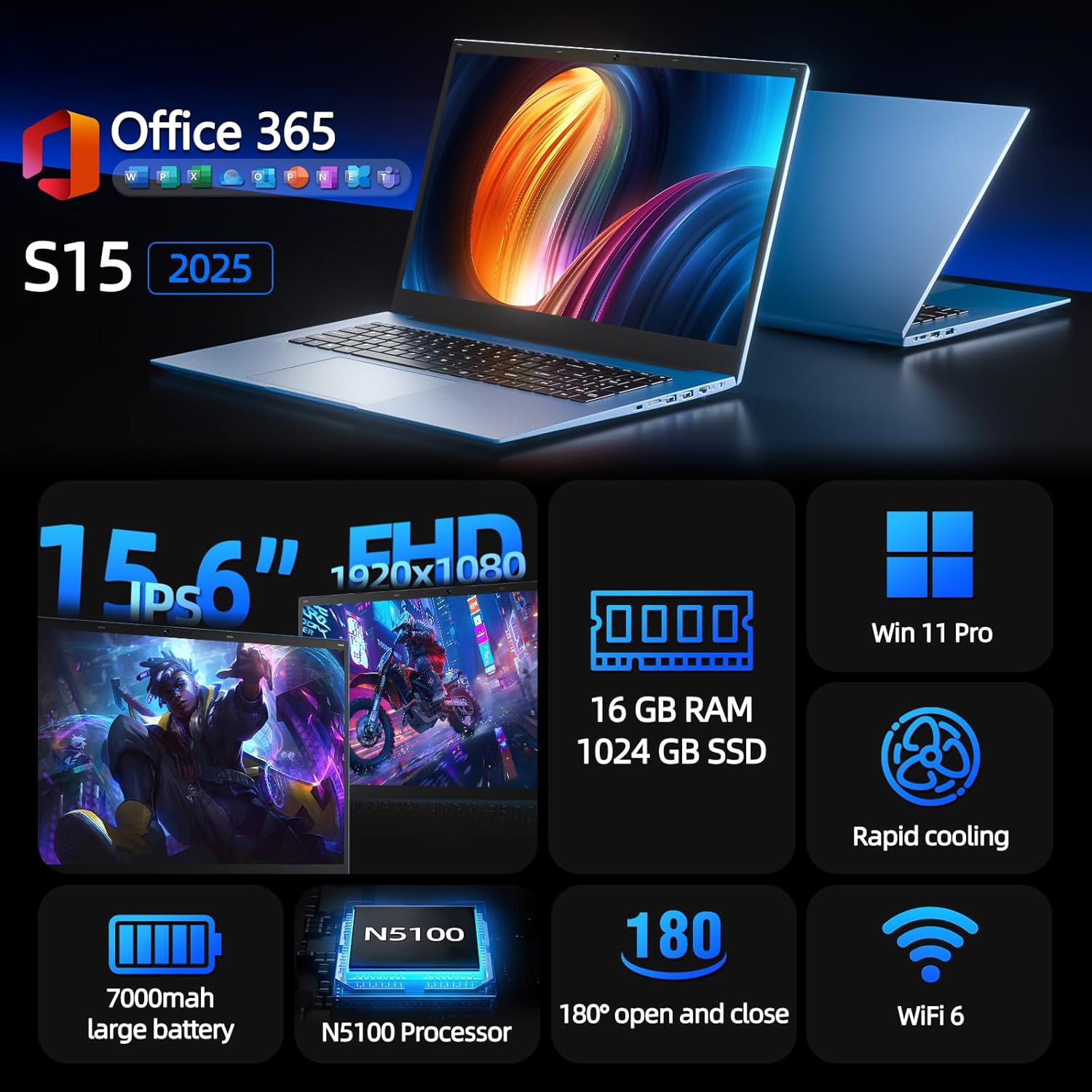
Figure 1: SGIN S15 N5100 Laptop Overview
1. Enstalasyon
1.1 Debale ak Premye Enspeksyon
Carefully remove all components from the packaging. Verify that all items listed in the "What's in the Box" section are present and undamaged. If any items are missing or damaged, contact customer support immediately.
- SGIN S15 N5100 Laptop
- Pouvwa adaptè/Charjeur
- Manyèl Itilizatè (dokiman sa a)
Videyo 1: Debale ak premye revizyon anview of the SGIN S15 Laptop.
1.2 Konekte adaptè kouran an
Connect the power adapter to the DC-in port on the side of the laptop. Plug the other end into a power outlet. The battery indicator light will illuminate, indicating that the laptop is charging.

Figure 2: Laptop ports, including the DC-in port for charging.
1.3 First Power On and Windows Setup
Press the power button to turn on the laptop. Follow the on-screen instructions to complete the Windows 11 Pro setup. This includes selecting your region, language, connecting to a Wi-Fi network, and creating a user account. The laptop comes pre-installed with a 1-year Office 365 subscription, which can be activated during or after the initial setup.
2. Operasyon Enstriksyon
2.1 Ekspozisyon Karakteristik
The SGIN S15 features a 15.6-inch Full HD IPS (1920x1080) Anti-Glare Display. The 180° viewing angle allows for flexible screen positioning, ideal for sharing content or adjusting to your preferred working posture.

Figure 3: High-resolution IPS display with 180° hinge.
2.2 Depo ak Pèfòmans
Equipped with 16GB DDR4 RAM and a 1024GB SSD, the laptop offers fast boot-up times and smooth multitasking. The Intel Celeron N5100 processor (4 cores, 4 threads, up to 2.8GHz) provides efficient performance for daily tasks, business applications, and student work.

Figure 4: Internal storage and memory configuration.

Figure 5: Celeron N5100 processor details.
2.3 Koneksyon
The laptop supports WiFi 6 for strong wireless signals and fast connections, and Bluetooth 5.2 for connecting peripherals. It includes various ports for external devices:
- HDMI pò
- Kalite-C pò
- 3.5mm TRRS audio jack
- Memory card slot (TF card up to 1TB)
- USB 3.2 ports (2 ports)

Figure 6: WiFi 6 connectivity for enhanced network performance.
3. Antretyen
3.1 Swen Batri
The laptop is equipped with a 7000mAh battery, providing up to 8 hours of continuous use. To prolong battery life:
- Evite dechaje batri a nèt souvan.
- Pa ekspoze laptop la nan tanperati ekstrèm.
- Sere laptop la ak yon chaj pasyèl (anviwon 50%) si ou pa itilize li pou yon bon bout tan.

Figure 7: Laptop battery for extended use.
3.2 Netwaye òdinatè pòtab la
Sèvi ak yon twal mou ki pa gen pousyè pou netwaye ekran an ak deyò a. Pou tach ki difisil pou retire, siye yon ti kras.ampen the cloth with water or a screen-safe cleaner. Avoid harsh chemicals or abrasive materials. Ensure the laptop is powered off and unplugged before cleaning.
3.3 Sistèm refwadisman
The laptop features dual cooling fans for efficient heat dissipation. Ensure that the vents are not obstructed to maintain optimal airflow and prevent overheating. Avoid using the laptop on soft surfaces like beds or couches that can block the vents.
NAN. Depanaj
4.1 Pwoblèm pouvwa
- Laptop la pa limen: Asire w adaptè kouran an byen konekte epi priz la ap fonksyone. Tcheke si batri a gen ase chaj.
- Batri pa chaje: Verify the power adapter is correctly plugged into both the laptop and the wall outlet. Try a different outlet if available.
4.2 Pwoblèm ekspozisyon
- Ekran an vid: Connect an external monitor via HDMI to check if the issue is with the laptop's display or graphics output. Ensure the laptop is powered on and not in sleep mode.
- Ekran k ap flache: Update your display drivers. Adjust the screen refresh rate in Windows display settings.
4.3 Pwoblèm koneksyon
- Wi-Fi a pa konekte: Ensure Wi-Fi is enabled in Windows settings. Restart your router and the laptop. Check for updated Wi-Fi drivers.
- Aparèy Bluetooth la pa konekte: Ensure Bluetooth is enabled on both the laptop and the device. Place devices close to each other during pairing.
4.4 Pwoblèm Pèfòmans
- Laptop la ralanti: Close unnecessary applications. Check Task Manager for high CPU/RAM usage. Ensure sufficient free space on the SSD. Run a disk cleanup.
- Surchof: Ensure cooling vents are clear. Use the laptop on a hard, flat surface. Consider reducing heavy workload if persistent.
5. Espesifikasyon
| Karakteristik | Detay |
|---|---|
| Non modèl | S15 |
| Nimewo Modèl Atik | N5100 |
| Gwosè ekspozisyon | 15.6 pous |
| Rezolisyon ekran | 1920 x 1080 pixels (FHD IPS Anti-Glare) |
| Processeur | Intel Celeron N5100 (4 Cores, 4 Threads, up to 2.8GHz) |
| RAM | 16 GB DDR4 |
| Depo | 1024 GB SSD (Expandable with TF card up to 1TB) |
| Sistèm operasyon | Windows 11 Pro |
| Batri | 7000mAh (jiska 8 èdtan) |
| Koneksyon san fil | WiFi 6, Bluetooth 5.2 |
| Pò | HDMI, Type-C, 3.5mm TRRS Jack, Memory Card Slot, 2x USB 3.2 |
| Dimansyon (LxWxH) | 14.56 x 9.4 x 0.86 pous |
| Pwa atik | 4.4 liv |
6. Garanti & Sipò
6.1 Pwodwi Garanti
Your SGIN S15 N5100 laptop comes with a 1-year repair service warranty apati dat acha a. Garanti sa a kouvri domaj fabrikasyon ak fonksyònman defo pyès ki nan konpitè anba itilizasyon nòmal. Tanpri konsève prèv acha ou pou reklamasyon garanti.
6.2 Règleman pou retounen
A politik retounen 30 jou is offered for this product. Please refer to your retailer's specific return guidelines for detailed information.
6.3 Sipò pou Kliyan
For any technical assistance, troubleshooting, or warranty inquiries, please contact SGIN customer support. We offer 24/7 customer instant help to address your concerns promptly.
Contact information (e.g., website, email, phone number) would typically be provided here by the manufacturer.