
1. Entwodiksyon
Thank you for choosing the Darmoshark M5PRO Mini Wireless Gaming Mouse. This manual provides detailed instructions for setting up, operating, and maintaining your new gaming mouse. The M5PRO features a tri-mode connection (2.4G wireless, Bluetooth, wired), a high-precision PAW3950 optical sensor, and a lightweight design for optimal performance.
2. Pwodwi souview
The Darmoshark M5PRO is designed for competitive gaming, offering versatile connectivity and advanced sensor technology. Its ergonomic shape is ideal for finger grip players, providing responsive control and comfort during extended use.

Image: Darmoshark M5PRO Mini Wireless Gaming Mouse in various colors, highlighting its design.
Karakteristik kle:
- Koneksyon Tri-Mòd: Seamlessly switch between 2.4G wireless, Bluetooth 5.0, and wired USB connections.
- PAW3950 Optical Sensor: Provides up to 30000 DPI, 750 IPS tracking speed, and 50G acceleration for precise and responsive tracking.
- To Sondaj 8KHz: Experience ultra-low latency with an 8KHz polling rate in 2.4G wireless mode, ensuring rapid response times.
- Konsepsyon ultra lejè: Weighing approximately 38 grams, the mouse reduces hand fatigue during long gaming sessions.
- 5 bouton pwogramasyon: Customize button functions via the dedicated software.
- Batri ityòm entegre: High-capacity rechargeable battery for extended wireless usage.
- Lajè konpatibilite: Compatible with Windows and Apple Mac operating systems.
3. Pake kontni
Tanpri tcheke pake a pou atik sa yo:
- Darmoshark M5PRO Mini Wireless Gaming Mouse
- 2.4G Wireless Receiver (USB Dongle)
- Kab USB-C pou USB-A (pou chaje ak koneksyon filaire)
- Manyèl Itilizatè (dokiman sa a)
- Grip Tape (optional accessory, if included)
4. Enstalasyon ak Koneksyon
4.1. Mòd Filaire
- Konekte bout USB-C kab yo bay la ak sourit la.
- Konekte bout USB-A kab la nan yon pò USB ki disponib sou òdinatè w la.
- Sourit la ap chanje otomatikman nan mòd filaire epi li pral kòmanse chaje.
4.2. 2.4G Wireless Mode (with 8KHz Receiver)
- Locate the 2.4G wireless receiver (USB dongle) in the package.
- Branche reseptè san fil 2.4G la nan yon pò USB ki disponib sou òdinatè w la.
- On the bottom of the mouse, locate the tri-mode switching key. Switch it to the 2.4G wireless icon (usually indicated by a small antenna or 'G' symbol).
- The mouse should automatically connect. If not, press and hold the pairing button (if available, refer to the diagram) on the mouse until the indicator light flashes, then release.

Image: M5PRO mouse with its 8KHz wireless receiver for 2.4G connectivity.
4.3. Bluetooth mòd
- On the bottom of the mouse, switch the tri-mode switching key to the Bluetooth icon.
- The mouse's indicator light will start flashing, indicating it is in pairing mode.
- Sou òdinatè w la oswa aparèy ou an, ouvri paramèt Bluetooth yo.
- Chèche pou new devices and select "Darmoshark M5PRO" from the list.
- Swiv nenpòt envit ki sou ekran pou konplete pwosesis kouple a.
5. Itilizasyon Sourit la
5.1. Fonksyon bouton
The M5PRO mouse features 5 programmable buttons and a scroll wheel.
- Klike Goch: Klike prensipal estanda.
- Klike sou dwa: Klike segondè estanda.
- Track Roller Key (Scroll Wheel): Scrolls up/down, and acts as a middle click button.
- DPI Adjustment Key: Sikle nan nivo DPI predetèmine yo.
- Bouton Avant: Default function for navigating forward in web navigatè oswa file eksploratè.
- Bouton Backspace: Default function for navigating backward in web navigatè oswa file eksploratè.

Imaj: Eksploze view of the M5PRO mouse showing internal components and button layout.
5.2. Ajisteman DPI
Press the DPI Adjustment Key (located on the underside of the mouse, refer to the product diagram) to cycle through different DPI sensitivity levels. The default DPI settings can be customized using the Darmoshark software.
5.3. Chaje Sourit la
When the battery is low, the mouse's indicator light will typically flash red. Connect the mouse to your computer using the provided USB-C cable to charge it. The indicator light will show charging status and turn off or change color when fully charged.

Image: Darmoshark M5PRO mouse charging via USB-C cable, highlighting its built-in lithium battery.
6. Software Customization
To unlock the full potential of your Darmoshark M5PRO mouse, download and install the official Darmoshark driver software from the manufacturer's websit. Lojisyèl la pèmèt ou:
- Customize DPI settings and create multiple profiles.
- Program button functions and macros.
- Ajiste pousantaj sondaj la.
- Manage power settings and battery life.
- Mizajou firmwèr.

Image: Darmoshark proprietary driver software interface for mouse customization.
7. Espesifikasyon
| Modèl | M5PRO |
| Capteur | Capteur optik PAW3950 |
| DPI | Jiska 30000 DPI |
| Tracking vitès | 750 ONSÈY |
| Akselerasyon | 50G |
| Pousantaj biwo vòt | 8KHz (2.4G Wireless), 1KHz (Wired/Bluetooth) |
| Koneksyon | 2.4G san fil, Bluetooth 5.0, USB-C ak fil |
| Bouton | 5 Bouton pwogramasyon |
| Pwa | Apeprè. 38g |
| Dimansyon (L x W x H) | 91.7 mm x 57.4 mm x 35.7 mm |
| Batri | Batri ityòm entegre (300mAh) |
| Konpatibilite | Windows, Apple Mac |
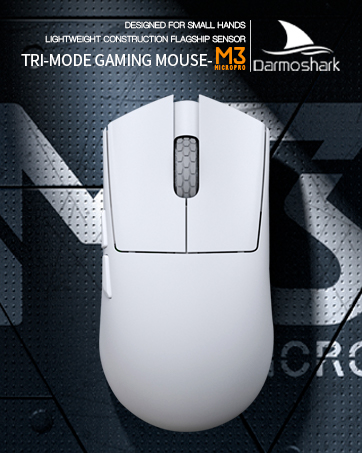
Image: Product parameter diagram with mouse dimensions.
8. Antretyen
- Netwayaj: Sèvi ak yon twal mou epi sèk pou netwaye sourit la. Evite itilize pwodui chimik ki agresif oswa materyèl abrazif.
- Depo: Sere sourit la nan yon kote ki fre epi sèk, lwen limyè solèy dirèk ak tanperati ekstrèm.
- Swen batri: Pou pwolonje lavi batri a, evite dechaje sourit la nèt souvan. Chaje li lè endikatè batri fèb la parèt.
NAN. Depanaj
9.1. Sourit la pa reponn
- Branche Mode: Asire w kab USB a byen konekte ak sourit la ak òdinatè a. Eseye yon lòt pò USB.
- 2.4G Wireless Mode: Ensure the 2.4G receiver is plugged in and the mouse is switched to 2.4G mode. Try re-pairing the mouse with the receiver. Ensure the mouse battery is charged.
- Mòd Bluetooth: Ensure Bluetooth is enabled on your device and the mouse is in Bluetooth pairing mode. Try re-pairing the mouse in your device's Bluetooth settings. Ensure the mouse battery is charged.
9.2. Cursor Movement is Erratic or Inaccurate
- Netwaye detèktè optik ki anba sourit la avèk yon twal mou epi sèk.
- Asire w ke w ap itilize sourit la sou yon sifas ki apwopriye (pa egzanp, yon tapi sourit). Evite sifas ki reflete anpil limyè oswa transparan.
- Adjust the DPI settings using the DPI Adjustment Key or the software.
- Check for any software conflicts or outdated drivers. Update mouse drivers if necessary.
9.3. Pwoblèm Koneksyon San Fil
- Reduce the distance between the mouse and the receiver/device.
- Avoid placing the receiver near other wireless devices or sources of interference (e.g., Wi-Fi routers, cordless phones).
- Asire w ke sourit la chaje nèt.
10. Videyo pwodwi ofisyèl la
Watch the official product video for a visual guide on the Darmoshark M5PRO Mini Wireless Gaming Mouse.
Videyo: Yon finiview of the Darmoshark M5PRO Wireless Gaming Mouse, showcasing its design and features in various colors.
11. Garanti ak sipò
For warranty information and technical support, please refer to the warranty card included with your product or visit the official Darmoshark websit.
Manifakti: Darmoshark
Websit: Darmoshark Official Store