
Entwodiksyon
Welcome to the user manual for your new BESTTAB W90 Android 15 Tablet. This guide provides essential information to help you set up, operate, and maintain your device. Please read this manual thoroughly to ensure optimal performance and longevity of your tablet.
Ki sa ki nan bwat la
Upon opening your BESTTAB W90 Tablet package, please verify that all the following items are included:
- BESTTAB W90 Tablet
- 18W pouvwa adaptè
- USB-C kab
- Manyèl Itilizatè (dokiman sa a)
- Kat apre-lavant

Image: Contents of the BESTTAB W90 Tablet box, showing the tablet, 18W power adapter, USB-C cable, user manual, and after-sales card.
Pwodwi souview ak Karakteristik
The BESTTAB W90 is an advanced Android 15 tablet designed for a versatile user experience, from entertainment to productivity. Key features include:
- Sistèm operasyon: Android 15 with enhanced privacy and app control.
- Processeur: MediaTek Unisoc T615 Octa-Core with integrated Gemini AI for intelligent resource allocation.
- Ekspozisyon: 11-inch FHD (1920x1200) display with 120Hz sampling rate, 380 nits brightness, Widevine L1 certification for HD streaming, and TÜV Rheinland Low Blue Light Certification.
- Memwa ak Depo: 24GB RAM (8GB physical + 16GB expansion) and 256GB internal storage, expandable up to 2TB via MicroSD/TF card.
- Batri: 8000mAh battery with 18W fast charging and AI battery management.
- Kamera: 16MP rear camera and 8MP front camera with AI optimization and Face Unlock.
- Odyo: HD Dual Speakers for clear sound, 3.5mm headphone jack, and Bluetooth 5.0.
- Koneksyon: Dual-band Wi-Fi (2.4G+5G ac), Bluetooth 5.0, and Four-Mode Satellite Positioning (GPS, Beidou, GLONASS, Galileo).
- Konsepsyon: Ultra-slim 7.9mm profile.
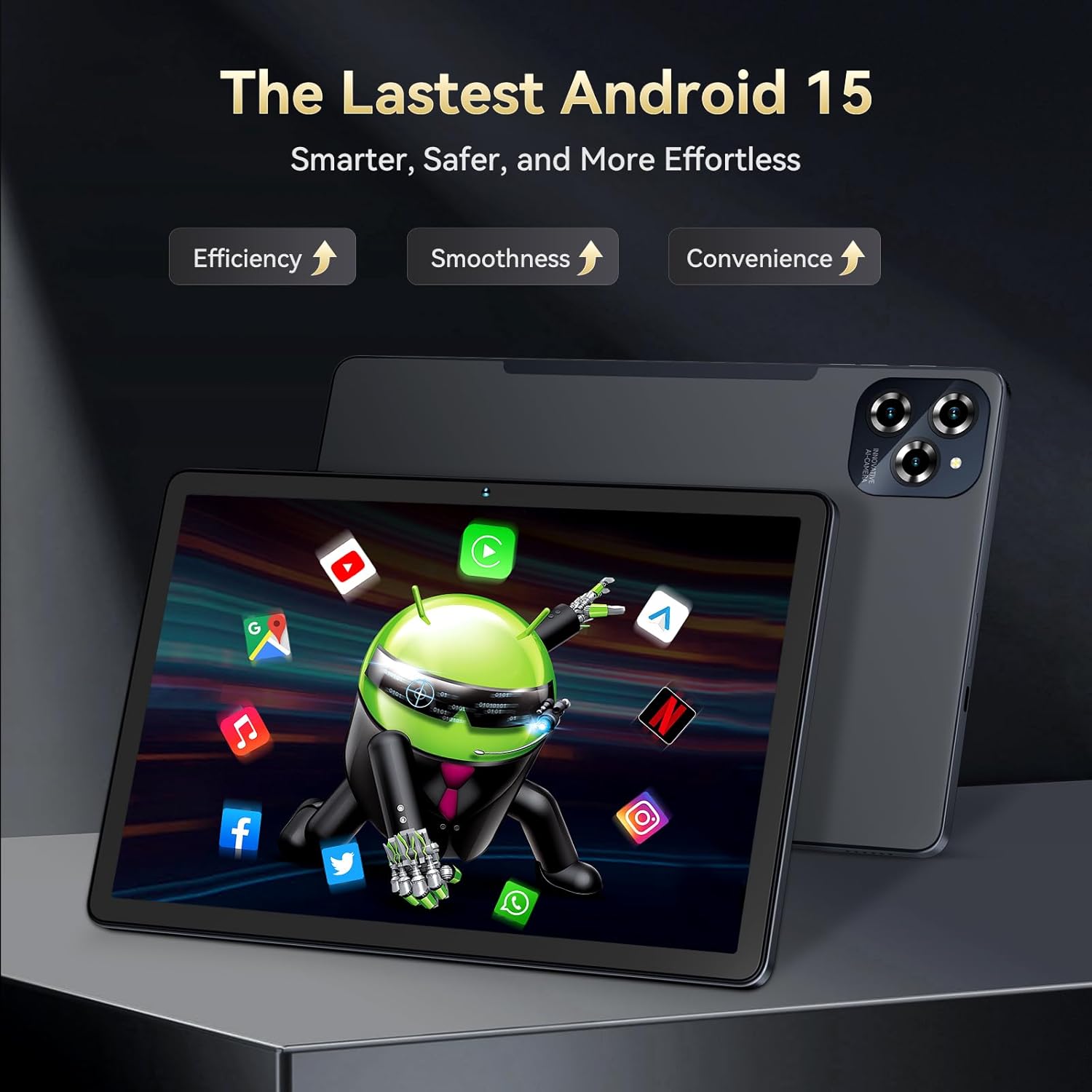
Image: The BESTTAB W90 Tablet showcasing the Android 15 interface.

Image: The tablet highlighting its Gemini AI 2.0 capabilities.

Image: The 11-inch FHD display with Widevine L1 support.

Image: The Unisoc T615 Octa-Core Processor.
Enstalasyon
- Premye chaj: Before first use, connect the tablet to the 18W power adapter and USB-C cable. Charge the tablet fully until the battery indicator shows 100%.
- Limen/Etenyen: Press and hold the Power Button (located on the side) for a few seconds to turn the tablet on. To turn off, press and hold the Power Button, then select 'Power off' from the options.
- Inisyal Enstalasyon Sòsye: Follow the on-screen instructions to select your language, connect to a Wi-Fi network, sign in with your Google account, and set up basic preferences.
- Inserting SIM/SD Card: Locate the card slot on the side of the tablet. Use the provided ejector tool to open the tray. Carefully place your Nano-SIM card (if applicable) and/or MicroSD/TF card into the designated slots, ensuring correct orientation. Close the tray securely.
Enstriksyon Operasyon
Navigasyon debaz
- Jès manyen: Tape pou chwazi, glise pou defile, pense pou agrandi.
- Ekran Kay: Glise agoch oswa adwat pou jwenn aksè nan diferan panèl ekran prensipal la.
- Notifikasyon ak Paramèt Rapid: Glise desann soti nan tèt ekran an pou view notifikasyon ak aksè rapid paramèt aktive.
Konekte ak Wi-Fi
- Ale nan Anviwònman > Rezo ak entènèt > Wi-Fi.
- Aktive Wi-Fi sou.
- Chwazi rezo ou vle a nan lis la epi antre modpas la si yo mande w.
Sèvi ak Kamera
Open the Camera app from the home screen or app drawer. You can switch between the 16MP rear camera and 8MP front camera. Tap the shutter button to take photos or record videos.
Face Unlock Setup
- Ale nan Anviwònman> Sekirite ak konfidansyalite> Debloke Aparèy> Debloke figi.
- Follow the on-screen instructions to register your face. Ensure good lighting conditions.
Mòd Split-Ecran
To use two apps simultaneously, open an app, then swipe up from the bottom of the screen and hold to access recent apps. Tap the app icon at the top of the app card and select 'Split screen'. Choose a second app to open in the other half of the screen.
Gemini AI Features
The integrated Gemini AI assists with various tasks, including photo editing, real-time translation, and intelligent resource management. Access Gemini AI features through compatible apps or by using voice commands (e.g., "Hey Google").
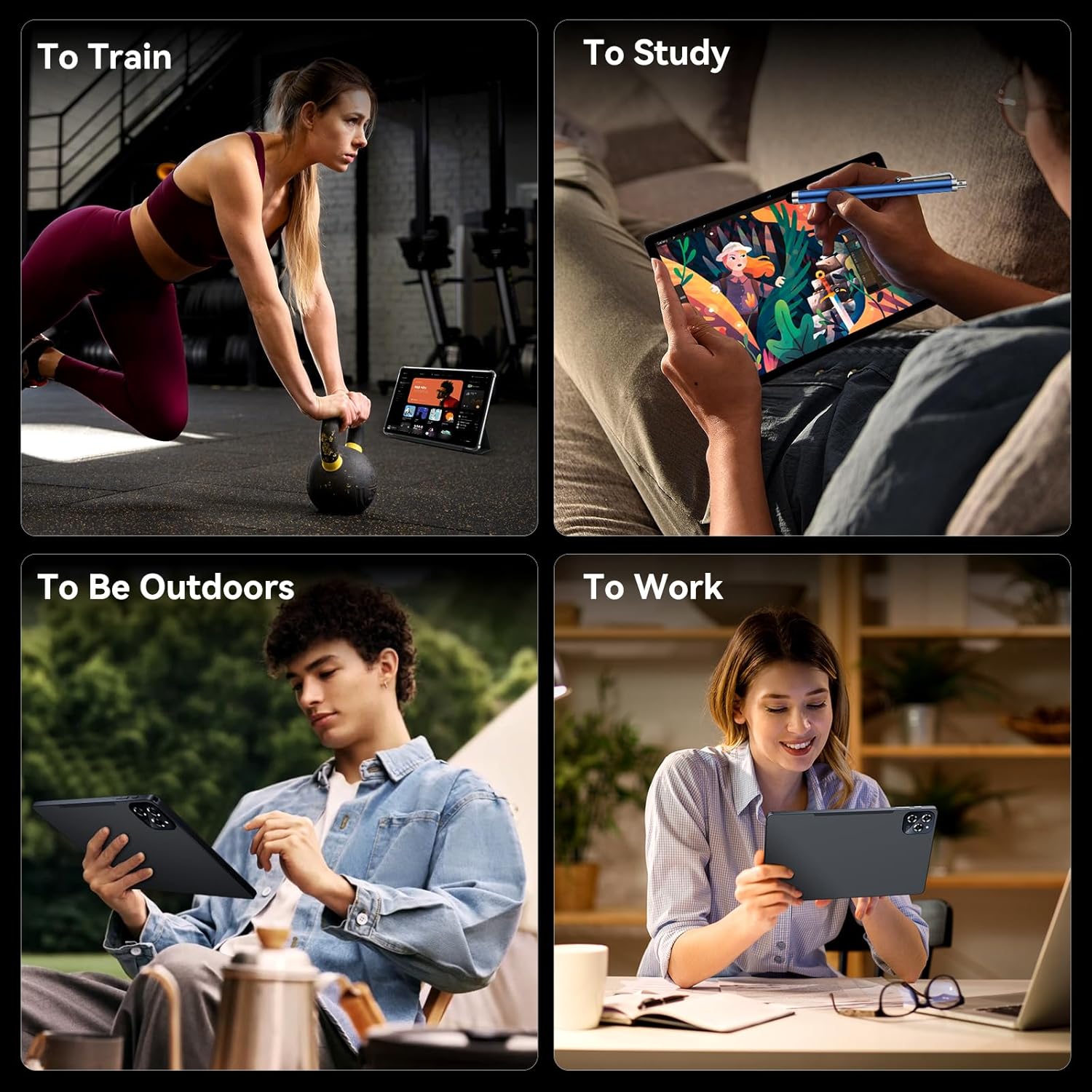
Image: The BESTTAB W90 Tablet in various use cases, including work, study, and leisure.
Antretyen
- Netwayaj: Sèvi ak yon twal mou ki pa gen pousyè pou netwaye ekran an ak kò tablèt la. Evite itilize pwodui chimik ki agresif oswa materyèl abrazif.
- Swen batri: To prolong battery life, avoid exposing the tablet to extreme temperatures. It is recommended to keep the battery charge between 20% and 80% for daily use.
- Mizajou lojisyèl: Tcheke epi enstale mizajou lojisyèl regilyèman pou asire tablèt ou a gen dènye fonksyonalite yo, patch sekirite yo, ak amelyorasyon pèfòmans yo. Ale nan Anviwònman > Sistèm > Mizajou sistèm.
- Jesyon Depo: Utilize the built-in Memory Manager to clear junk files and optimize storage. Consider expanding storage with a MicroSD card if needed.
Depanaj
| Pwoblèm | Solisyon posib |
|---|---|
| Tablèt la pa vle limen | Ensure the battery is charged. Connect to the charger for at least 30 minutes. If it still doesn't turn on, try holding the power button for 10-15 seconds. |
| Pwoblèm koneksyon Wi-Fi | Rekòmanse tablèt la ak routeur Wi-Fi ou a. Bliye rezo a nan paramèt Wi-Fi yo epi rekonekte. Asire w ke ou nan zòn siyal Wi-Fi a. |
| Pèfòmans dousman | Fèmen aplikasyon ou pa itilize yo. Efase kach la ak aplikasyon tenten yo files using the Memory Manager. Restart the tablet. Check for system updates. |
| Aplikasyon yo ap plante oswa bloke | Force close the app (Settings > Apps > [App Name] > Force stop). Clear the app's cache (Settings > Apps > [App Name] > Storage & cache > Clear cache). Reinstall the app if the issue persists. |
| Deblokaj vizaj la pa fonksyone | Ensure you are in a well-lit environment. Clean the front camera lens. Re-register your face in settings. |
Espesifikasyon
| Karakteristik | Detay |
|---|---|
| Mak | BESTTAB |
| Non modèl | W90 |
| Sistèm operasyon | Android 15 |
| Gwosè ekran | 11 pous |
| Rezolisyon ekran | 1920 x 1200 piksèl |
| Processeur | Unisoc T615 Okta-nwayo (2.2 GHz) |
| RAM | 24 GB (8GB physical + 16GB expansion) |
| Gwosè memwa flash | 256 GB |
| Depo dilatabl | Jiska 2TB atravè kat MicroSD/TF |
| Dèyè WebCam Rezolisyon | 16 MP |
| Devan WebCam Rezolisyon | 8 MP |
| Kapasite batri | 8000mAh |
| Kalite san fil | 802.11ax (Dual-band Wi-Fi), Bluetooth 5.0 |
| GPS | GPS, Beidou, GLONASS, Galileo |
| Pwa atik | 2.05 liv |
| Dimansyon pwodwi | 30 x 25 x 6 pous |
| Koulè | Gri |
Garanti ak sipò
BESTTAB is committed to providing high-quality products and excellent customer service. Your BESTTAB W90 Tablet comes with comprehensive support:
- Garanti: Enjoy a 24-month free repair warranty from the date of purchase.
- Sipò teknik: Lifetime technical support is available through the BESTTAB Official Flagship Store.
- Kontakte: For any inquiries or support needs, please refer to the contact information provided on your After-sales Card or visit the official BESTTAB websit.

Image: BESTTAB Two Year Warranty Support details.