
Entwodiksyon
Mèsi pou acha aasing the Matbip Multi-Platform Wireless Gaming Controller. This controller is designed to enhance your gaming experience across various platforms, including Nintendo Switch, Android, iOS, and PC. It features advanced functions such as TURBO burst, macro programming, customizable RGB lighting, and HD vibration, providing precise control and immersive feedback. Please read this manual carefully before use to ensure proper operation and to fully utilize all features.
Pwodwi souview
Familiarize yourself with the various components and buttons of your Matbip controller.
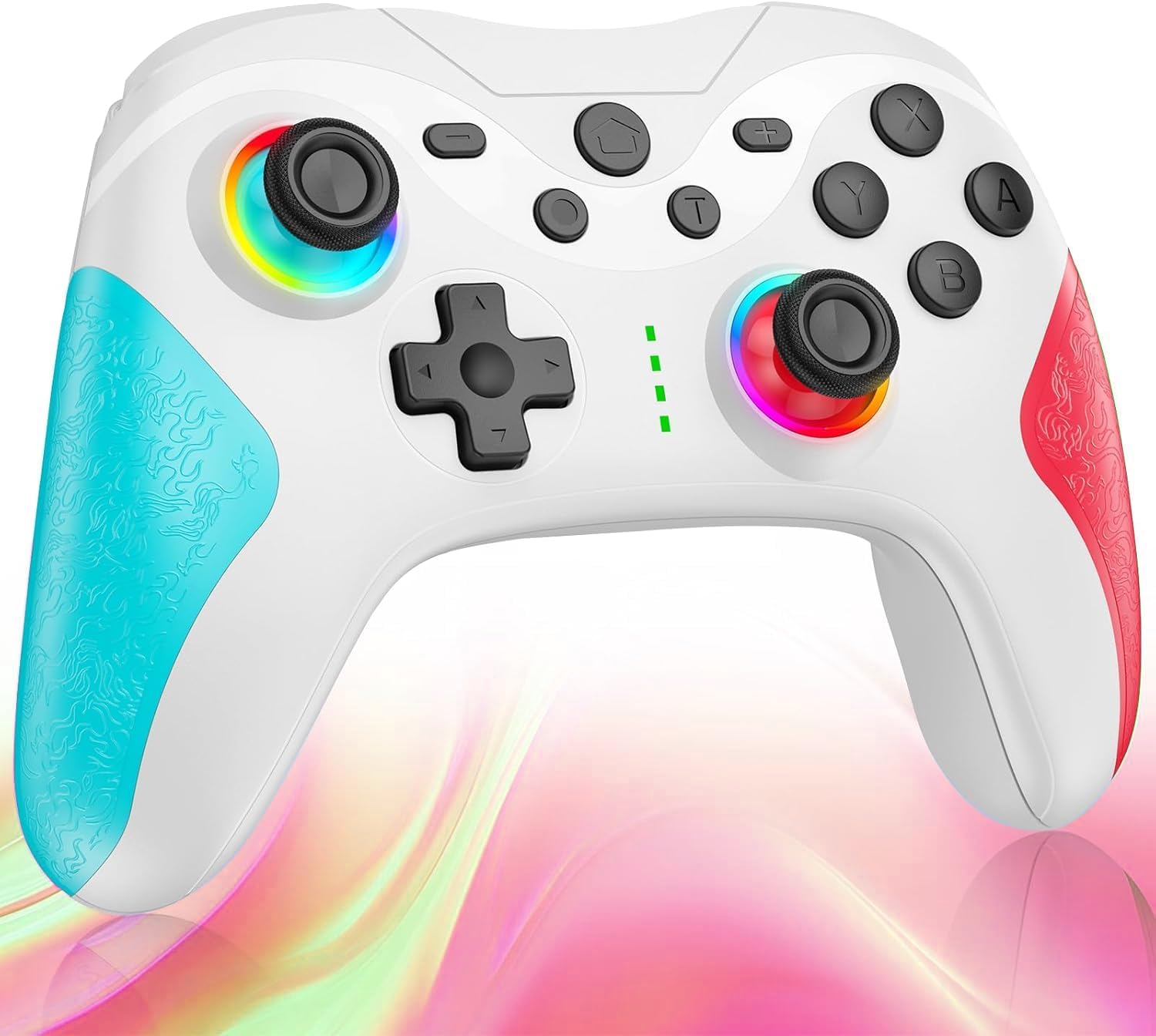
Imaj: Devan view of the Matbip Multi-Platform Wireless Gaming Controller. It features a white body with blue textured grips on the left and red textured grips on the right. The joysticks are illuminated with a rainbow RGB light. Standard buttons (A, B, X, Y), a D-pad, and central function buttons (Home, Plus, Minus, T) are visible.
Konpozan kle:
- Joysticks gòch/dwat: For directional control, with customizable RGB lighting.
- D-Pad: Pou yon antre direksyonèl presi.
- Action Buttons (A/B/X/Y): Standard gaming input buttons.
- Shoulder Buttons (L/R/ZL/ZR): Top-mounted trigger and bumper buttons.
- Bouton Retounen: Additional programmable buttons on the rear for strategic gameplay.
- Bouton Kay: Returns to the system home screen.
- Bouton Plis (+) / Mwens (-): Bouton fonksyon espesifik sistèm nan.
- T Button (TURBO): Activates and manages the TURBO burst function.
- Pò chaje: USB-C pò pou chaje.
- Limyè endikatè: Montre estati koneksyon an ak nivo batri a.
Enstalasyon
1. Chaje Kontwolè a
Before first use, fully charge the controller. Connect the provided USB-C cable to the controller's charging port and the other end to a USB power source (e.g., console, PC, or USB wall adapter). The indicator lights will show charging status and turn off when fully charged.
2. Pairing ak Aparèy
The controller supports Bluetooth wireless connection across multiple platforms.
Pou Nintendo Switch:
- On the Switch HOME Menu, select Kontwolè > Chanje Grip/Lòd.
- Peze epi kenbe la Bouton Kay on the Matbip controller for 3-5 seconds until the indicator lights flash rapidly.
- Once paired, the indicator light(s) on the controller will remain solid.
For Android/iOS Devices:
- Pèmèt Bluetooth sou aparèy Android oswa iOS ou.
- Peze epi kenbe la Bouton Kay on the Matbip controller for 3-5 seconds until the indicator lights flash rapidly.
- On your device's Bluetooth settings, select the controller (e.g., "Matbip Controller") from the list of available devices to pair.
Pou PC (Windows):
- Ensure your PC has Bluetooth enabled. Go to Anviwònman > Aparèy > Bluetooth ak lòt aparèy.
- Klike sou Ajoute Bluetooth oswa lòt aparèy > Bluetooth.
- Peze epi kenbe la Bouton Kay on the Matbip controller for 3-5 seconds until the indicator lights flash rapidly.
- Select the controller from the list of devices to pair.
Enstriksyon Operasyon
TURBO Burst Function:
The TURBO function allows for rapid, automatic button presses, ideal for combat games.
- To activate TURBO: Peze epi kenbe la bouton T, then press the desired action button (e.g., A, B, X, Y, L, R, ZL, ZR). The button will now continuously activate when held down.
- Pou ajiste vitès TURBO: Pandan w ap kenbe a bouton T, deplase la right joystick up or down to cycle through 3 different burst speeds.
- To deactivate TURBO: Peze epi kenbe la bouton T, then press the same action button again.
Fonksyon makro:
Program a sequence of button presses to a single back button for complex actions.
- Specific instructions for macro programming will be detailed in the full manual. Generally, this involves entering a programming mode, pressing the sequence, and assigning it to a back button.
Ekleraj RGB personalizable:
The joysticks feature 9-color RGB lighting to enhance your gaming atmosphere.
- To change RGB color/mode: Press a specific button combination (e.g., T + Left Joystick click) to cycle through different colors and lighting effects.
HD Vibration Adjustment:
Adjust the intensity of the HD vibration feedback to your preference (4 levels).
- Pou ajiste vibrasyon an: Press a specific button combination (e.g., T + D-Pad Up/Down) to cycle through the 4 vibration levels.
Capteur gyro:
The high-precision gyro sensor enables intuitive motion control in supported games.
- The gyro sensor is automatically active when connected to a compatible device (e.g., Nintendo Switch) and used in games that support motion controls.
Sleep Wake-up Function:
The controller supports waking up your Nintendo Switch console from sleep mode.
- When the Switch is in sleep mode, simply press the Bouton Kay on the controller to wake it up and reconnect.
Antretyen
Proper maintenance ensures the longevity and optimal performance of your controller.
- Netwayaj: Sèvi ak yon twal mou epi sèk pou siye kontwolè a. Pou pousyè tè ki difisil pou retire, siye l yon ti kras.ampRense twal la avèk dlo. Pa sèvi ak pwodui chimik ki agresif oswa pwodui netwayaj abrazif.
- Depo: Sere kontwolè a nan yon kote ki fre epi sèk, lwen limyè solèy dirèk, tanperati ekstrèm ak imidite.
- Swen batri: Avoid fully discharging the battery frequently. If storing for a long period, charge the controller to about 50% every few months.
- Evite gout: Pwoteje kontwolè a kont tonbe ak enpak, ki ka domaje konpozan entèn yo.
Depanaj
If you encounter issues with your controller, please refer to the following common solutions:
| Pwoblèm | Solisyon posib |
|---|---|
| Kontwolè a pa limen. | Asire w ke kontwolè a chaje. Konekte l nan yon sous kouran avèk kab USB-C a. |
| Controller does not pair. | Ensure Bluetooth is enabled on your device. Make sure the controller is in pairing mode (flashing lights). Try restarting both the controller and the device. |
| Reta antre oswa dekoneksyon. | Ensure there are no strong wireless interferences nearby. Move closer to the device. Re-pair the controller. |
| Bouton yo oswa joystick yo pa reponn. | Try resetting the controller (refer to the full manual for reset instructions, usually a small pinhole button). Ensure no debris is obstructing the buttons. |
| Vibrasyon an pa fonksyone. | Check if vibration is enabled in the game or system settings. Adjust the vibration intensity on the controller. |
Espesifikasyon
| Karakteristik | Detay |
|---|---|
| Dimansyon pwodwi | 10 x 15 x 6.5 cm |
| Pwa | 300 g |
| Koneksyon | Bluetooth Wireless |
| Konpatibilite | Nintendo Switch, Android, iOS, PC (Windows) |
| Karakteristik espesyal | TURBO Burst, Macro Function, 9-Color RGB Lighting, 4-Level HD Vibration, Gyro Sensor, Back Buttons, Sleep Wake-up |
| ASIN | B0FHWRK7CQ |
| Dat lage | 16 jiyè 2025 |
Garanti ak sipò
Matbip is committed to providing high-quality products and customer satisfaction. This product comes with a standard manufacturer's warranty. For detailed warranty information, please refer to the documentation included with your purchase or contact Matbip customer support.
If you require further assistance, have questions, or encounter issues not covered in this manual, please contact our customer support team. A Japanese instruction manual is included with the product to ensure ease of use for first-time users.
Enfòmasyon pou kontakte: Please refer to the packaging or the official Matbip websit la pou jwenn dènye enfòmasyon kontak pou sèvis kliyan.