
FUNYET DuetBook N5095
FUNYET 14-inch Laptop N5095
Manyèl itilizatè
Model: DuetBook N5095
Entwodiksyon
This manual provides essential information for setting up, operating, maintaining, and troubleshooting your FUNYET 14-inch Laptop N5095. Please read this guide thoroughly to ensure optimal performance and longevity of your device.

Imaj: Devan view of the FUNYET 14-inch Laptop N5095, highlighting its key specifications on the screen.
1. Inisyal Enstalasyon
1.1 Debale ak Premye Limen
- Carefully remove the laptop and all accessories from the packaging. The box should contain the laptop, AC adapter, warranty card, and this instruction manual.
- Connect the AC adapter to the laptop's DC-in port and then to a power outlet.
- Louvri kouvèti laptop la. Laptop la ka limen otomatikman, oubyen ou ka bezwen peze bouton pouvwa ki sitiye sou klavye a.
1.2 Windows 11 Pro Configuration
Upon first boot, you will be guided through the Windows 11 Pro setup process. Follow the on-screen instructions to:
- Chwazi rejyon ou ak layout klavye a.
- Konekte nan yon rezo Wi-Fi.
- Konekte avèk kont Microsoft ou a oubyen kreye yon nouvo.
- Mete yon kòd PIN pou koneksyon rapid.
- Ajiste paramèt konfidansyalite yo.

Image: The Windows 11 Pro operating system interface shown on the laptop screen.
2. Kijan pou itilize òdinatè pòtab ou a
2.1 Klavye ak Touchpad
The laptop features a full-sized keyboard and a large, responsive touchpad for navigation. Refer to the image below for key layout.

Imaj: Detaye view of the laptop's keyboard and touchpad.
2.2 Konekte periferik
Laptop ou a ekipe ak plizyè pò pou konekte aparèy ekstèn:
- Pò USB 3.0: Two ports for high-speed data transfer with USB devices.
- HDMI Port: Konekte ak ekran ekstèn oswa pwojektè.
- Kas ekoutè Jack: Pou pwodiksyon odyo nan kas ekoutè oswa oratè ekstèn.
- TF Kat plas: For expanding storage with a TF (MicroSD) card.
- Pò DC-in: Pou konekte adaptè kouran AC a.
Wireless connectivity includes Bluetooth and Wi-Fi (2.4G/5G) for connecting to networks and wireless accessories.
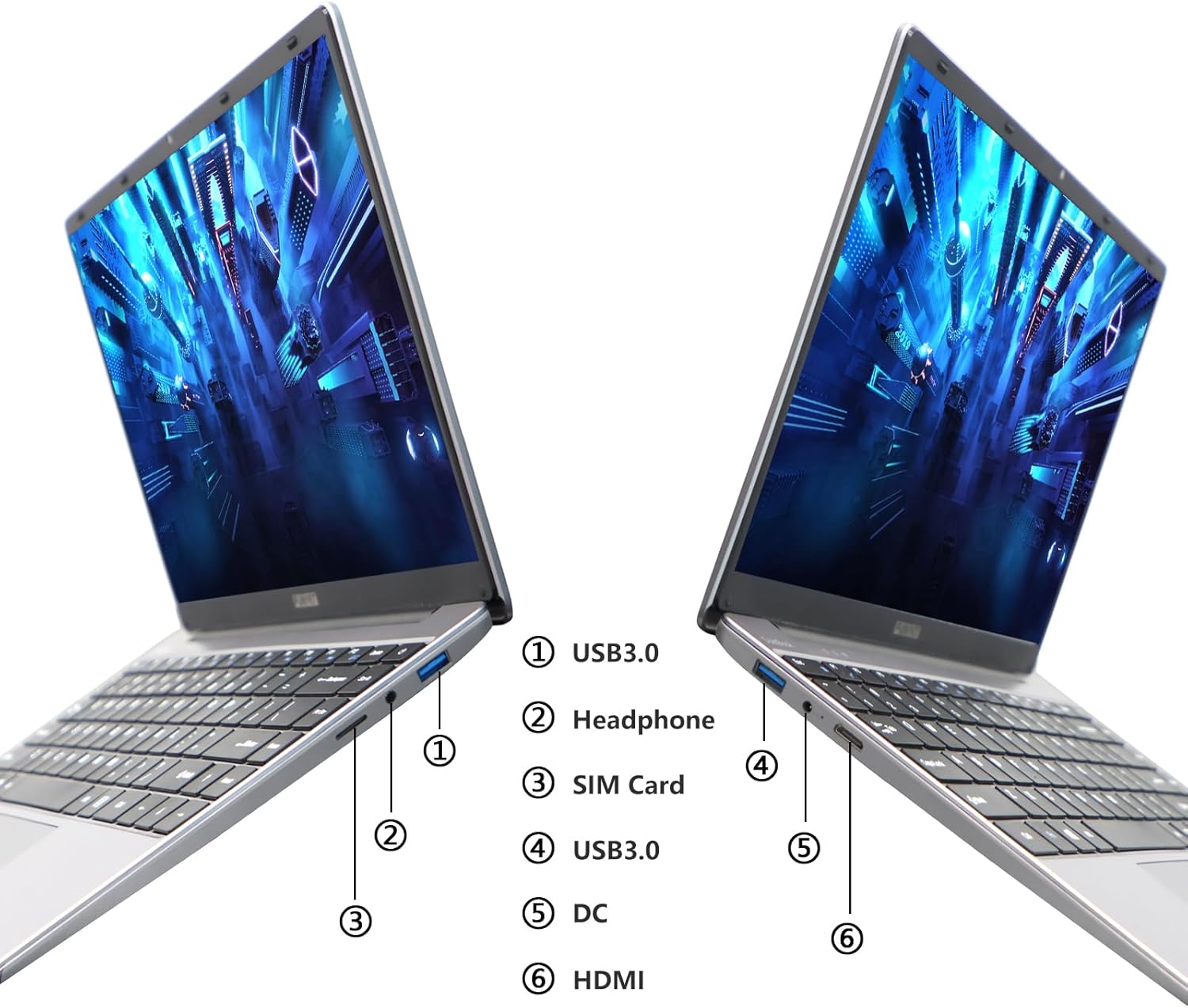
Image: Diagram illustrating the various ports on the sides of the laptop.
2.3 Ekspozisyon Karakteristik
The 14.1-inch FHD IPS display offers a 1920x1080 resolution. The laptop supports a 180-degree opening angle, allowing for flexible viewpozisyon yo.

Image: The laptop's screen fully opened to a 180-degree flat position.
2.4 Jesyon batri
The laptop is equipped with a 3800mAh (7.6V/5000mAh) battery. For optimal battery life, ensure the laptop is fully charged before first use. Unplug the AC adapter once the battery is fully charged to prevent overcharging. For extended storage, charge the battery to approximately 50% and store the device in a cool, dry place.

Image: Laptop screen showing a full battery charge indicator.
3. Antretyen
3.1 Swen Jeneral
- Keep the laptop clean by wiping surfaces with a soft, dry cloth. Avoid liquid cleaners directly on the screen or keyboard.
- Ensure proper ventilation. Do not block the air vents to prevent overheating.
- Evite ekspoze laptop la nan tanperati ekstrèm, limyè solèy dirèk, oswa imidite ki wo.
- Handle the laptop with care to prevent physical damage.
3.2 Ekspansyon Depo
The laptop's storage can be expanded using a TF (MicroSD) card. Insert the TF card into the designated slot until it clicks into place. To remove, gently push the card in until it springs out.
NAN. Depanaj
| Pwoblèm | Kòz posib | Solisyon |
|---|---|---|
| Laptop la pa limen. | Pwoblèm batri ki ba oswa adaptè kouran. | Ensure the AC adapter is securely connected and the power outlet is functional. Charge the laptop for at least 30 minutes before attempting to power on again. |
| Pwoblèm koneksyon Wi-Fi. | Incorrect Wi-Fi password, router issues, or Wi-Fi adapter disabled. | Verify the Wi-Fi password. Restart your router. Check Windows settings to ensure Wi-Fi is enabled. |
| Pèfòmans ralanti. | Too many applications running, low storage space, or outdated drivers. | Close unnecessary applications. Check available storage on the SSD. Update Windows and device drivers. |
| Ekran an vid oswa li ap tranble. | Display driver issue, external display conflict, or hardware problem. | Restart the laptop. If connected to an external monitor, disconnect it. Update graphics drivers. |
If you encounter issues not listed here or if the suggested solutions do not resolve the problem, please contact FUNYET support.
5. Espesifikasyon teknik
| Karakteristik | Detay |
|---|---|
| Non modèl | DuetBook N5095 |
| Processeur | Intel 11th Gen Celeron N5095 (up to 2.9 GHz, 4 Cores, 4 Threads) |
| Grafik | Grafik Intel UHD (Entegre) |
| RAM | 16GB DDR4 |
| Depo | 512GB SSD (Expandable via TF card) |
| Ekspozisyon | 14.1-inch FHD IPS (1920 x 1080 pixels) |
| Sistèm operasyon | Windows 11 Pro |
| Koneksyon san fil | Wi-Fi (2.4G/5G), Bluetooth 4.2 |
| Pò | 2x USB 3.0, 1x HDMI, 1x Headphone Jack, 1x DC-in, 1x TF Card Slot |
| Batri | 3800mAh (7.6V/5000mAh) Lithium Ion |
| Dimansyon (LxWxH) | 12.7 x 8.3 x 0.8 pous |
| Pwa | 3 liv |

Image: Visual summary of key laptop features and specifications.
6. Garanti ak sipò
FUNYET provides comprehensive support for your laptop:
- Garanti: 2-ane garanti apati dat acha a.
- Retounen/Echanj: 6 months of free replacement or return service.
- Sipò sou entènèt: 24/7 online support with instant responses.
- Sipò telefòn: Available every business day from 4 PM to 10 PM Pacific Time.
For assistance, please contact FUNYET support:
- Telefòn: +1 800-986-9631
- Imèl: funyetstore@outlook.com
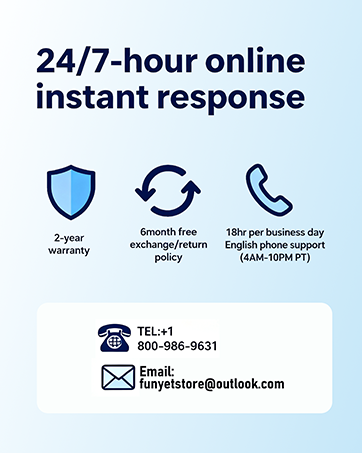
Image: FUNYET customer support and warranty details.
Ask a question about this manual
Ask about setup, troubleshooting, compatibility, parts, safety, or missing instructions. Manuals+ will review the question and use this page’s manual context to help answer it.