
Entwodiksyon
This manual provides detailed instructions for the setup, operation, and maintenance of your AWOL VISION ThunderBeat 4.1.2 All-Wireless Home Theater Sound System. Please read this manual thoroughly before using the product to ensure proper functionality and to maximize your audio experience.
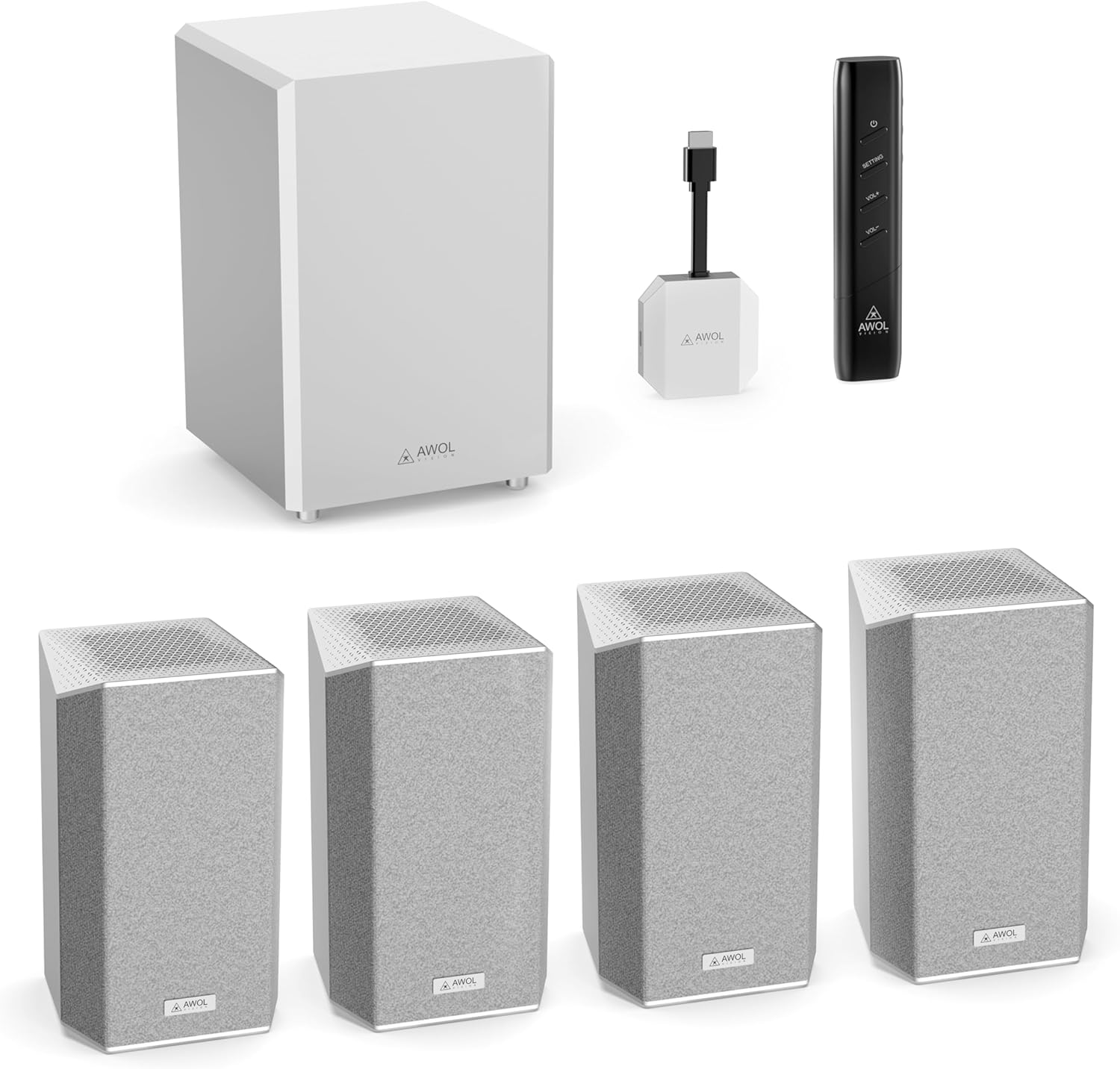
Image: The AWOL VISION ThunderBeat 4.1.2 system, including the subwoofer, four satellite speakers, wireless dongle, and remote control.
Ki sa ki nan bwat la
Depake tout konpozan yo ak anpil atansyon epi verifye ke ou te resevwa atik sa yo:
- Wireless subwoofer
- Satellite Speakers (x4)
- Wireless Dongle
- Kontwòl remote (avèk 2 pil AAA enkli)
- AC adaptè
- AC pouvwa kòd
- RCA pou 3.5mm Audio kab
- 3.5mm a 3.5mm Audio Kab
- Kab Ekstansyon HDMI
- USB-C kab
- Manyèl Enstriksyon
- Wall Mount Kit (optional installation)

Image: A visual representation of all items included in the ThunderBeat system packaging.
Enstalasyon
1. Plasman Konpozan yo
Optimal placement of your ThunderBeat system components is crucial for an immersive audio experience. Consider the layout of your room and the primary listening area.
- Subwoofers: Place the subwoofer in a location that provides balanced bass response. Experiment with different positions to find the best sound for your room.
- Oratè satelit: Position the four satellite speakers around your listening area. For a 4.1.2 setup, two speakers typically go to the front-left and front-right, and two to the rear-left and rear-right. Ensure upward-firing speakers are unobstructed for Dolby Atmos effects.

Image: A diagram showing flexible speaker placement options to adapt to different room sizes and configurations.
2. Connecting the Wireless Dongle
The ThunderBeat system utilizes a wireless dongle for simplified connectivity, eliminating the need for extensive cabling.
- Insert the ThunderBeat Dongle into the eARC HDMI port of your AWOL VISION projector or compatible display device.
- Ensure the dongle is securely connected.

Imaj: Yon gwo plan view of the wireless dongle, highlighting its power and source status indicators, and available input connections including HDMI eARC, AUX, Bluetooth, and DC.
3. alimante sou ak appariement
- Connect the AC adapter and power cord to the subwoofer and each satellite speaker, then plug them into a power outlet.
- Power on your AWOL VISION projector or display device.
- The ThunderBeat system is designed for instant, perfectly synchronized surround sound upon power-up, with automatic pairing between the dongle and speakers.
- Verify the pairing status indicator on the dongle. A solid light typically indicates a successful connection.

Image: A visual representation of the streamlined, all-wireless setup in a home theater environment, showing the dongle connected to a projector.
Enstriksyon Operasyon
1. Fonksyon kontwòl Remote
The included remote control allows you to manage all aspects of your ThunderBeat system.
- Bouton pouvwa: Limen oswa etenn sistèm lan.
- Volim monte/desann: Ajiste volim sistèm jeneral la.
- Anviwònman bouton: Accesses advanced audio settings, including individual speaker volume and EQ modes.

Image: The sleek remote control for the AWOL VISION ThunderBeat system, designed for intuitive control of your home theater.
2. Individual Speaker Volume Control
For a truly customized audio experience, you can adjust the volume of each speaker independently.
- Peze a Anviwònman bouton sou kontwòl remote la.
- Navigate through the on-screen menu (if available) or use the remote's directional buttons to select individual speaker channels (Left, Right, Subwoofer, Rear Left, Rear Right, Left Top Front, Right Top Front).
- Adjust the volume level for each selected speaker. The indicator light on the speaker will illuminate during adjustment and turn off after approximately 5 seconds.

Image: A graphical display demonstrating the independent volume adjustment feature for each speaker, including left, right, subwoofer, and surround channels.
3. EQ Setting Modes
Optimize your sound for different content types using the built-in EQ modes.
- Peze a Anviwònman bouton sou kontwòl remote la.
- Select the EQ settings option.
- Choose from available presets such as Konsè, Nouvèl, oswa Fim, or customize the frequency bands for a personalized sound profile.

Image: A visual representation of the EQ setting mode, offering custom sound control and preset options like Concert, News, and Movie.
Antretyen
To ensure the longevity and optimal performance of your AWOL VISION ThunderBeat system, follow these maintenance guidelines:
- Netwayaj: Use a soft, dry cloth to clean the surfaces of the subwoofer and satellite speakers. Avoid abrasive cleaners, solvents, or chemical sprays.
- Vantilasyon: Ensure that the speakers and subwoofer have adequate ventilation. Do not block any vents or place the units in enclosed spaces that could restrict airflow.
- Anviwònman: Keep the system away from direct sunlight, heat sources, excessive dust, and moisture.
- Câbles: Periodically check all cable connections for security and signs of wear.
Depanaj
If you encounter issues with your ThunderBeat system, refer to the following common problems and solutions:
| Pwoblèm | Kòz posib | Solisyon |
|---|---|---|
| Pa gen son ki soti nan moun kap pale | Power not connected; Dongle not properly inserted; Speakers not paired; Incorrect audio source selected. | Check power connections for all components. Ensure the dongle is fully inserted into the eARC port. Verify speaker pairing (indicator lights). Select the correct audio input on your projector/display. |
| Distorted or unclear audio | Volume too high; Poor audio source quality; Speaker placement issues. | Reduce volume. Test with a different audio source. Adjust speaker placement to optimize sound. |
| Remote kontwòl pa travay | Dead batteries; Obstruction between remote and system; Remote out of range. | Replace AAA batteries in the remote. Ensure a clear line of sight to the system. Operate the remote within its effective range. |
| Subwoofer la pa pwodui bas | Subwoofer not powered; Volume too low; Subwoofer settings incorrect. | Check subwoofer power connection. Increase subwoofer volume via remote. Check EQ settings to ensure bass is not reduced. |
If the problem persists after attempting these solutions, please contact AWOL VISION customer support.
Espesifikasyon
| Karakteristik | Detay |
|---|---|
| Nimewo Modèl | ThunderBeat-4.1.2 |
| Konfigirasyon chanèl son antoure | 4.1.2 (with projector as center channel, effectively 5.1.2) |
| Oratè maksimòm pwodiksyon pouvwa | 720 Watts (Total System Output) |
| Subwoofer | Dual 8-inch subwoofers (120W each) |
| Koneksyon Teknoloji | Wireless (5.2GHz/5.8GHz), Bluetooth, HDMI eARC, AUX |
| Audio Sòti Mode | Dolby Atmos, Dolby TrueHD, DTS Support |
| Repons Frekans | 200 KHz (System) |
| Dimansyon pwodwi | 14.57"P x 22.44"L x 22.05"H (An jeneral) |
| Pwa atik | 37.7 liv |
| Batri | 2 pil AAA (pou kontwòl remote la, enkli) |
Garanti ak sipò
AWOL VISION is committed to providing high-quality products and customer satisfaction.
- Sipò pou pwodwi: Your AWOL VISION ThunderBeat system comes with 2 Years Product Support.
- Enfòmasyon pou kontakte: If you require assistance, please contact our support team:
- Phone / WhatsApp: +1 (888) 891-6866
- Imèl: support@awolvision.com
- 30-Day Price Protection: Refer to AWOL VISION's official policies for details on price protection.