
ARZOPA Z1C
ARZOPA 16.1-inch Z1C Portable Monitor User Manual
Model: Z1C | Brand: ARZOPA
Entwodiksyon
This manual provides essential information for setting up, operating, and maintaining your ARZOPA 16.1-inch Z1C Portable Monitor. Please read it thoroughly before use to ensure optimal performance and longevity of your device.
Ki sa ki nan bwat la
- 1 x ARZOPA 16.1" Portable Monitor
- 1 x USB-C pou USB-C kab
- 1 x Mini HDMI pou HDMI kab
- 1 x Gid Itilizatè (dokiman sa a)

Figure 1: Included accessories with the ARZOPA Z1C Portable Monitor.
Karakteristik pwodwi
- 16.1" FHD 1080P Display: Experience clear picture quality with 1920x1080 resolution and 100% sRGB color gamut for vibrant visuals.
- Dual-Orientation & Stable Kickstand: Easily switch between horizontal and vertical display modes. The integrated 80° adjustable kickstand provides stable support on various surfaces.
- Inivèsèl konpatibilite: Connects instantly to laptops, PCs, Macs, smartphones (with full-function USB-C), Xbox/PS5/Switch consoles, and more via USB-C or HDMI.
- Ultra-pòtab konsepsyon: Weighing just 1.7lbs with a 0.3-inch slim profile, the monitor is designed for easy transport in backpacks or briefcases.

Figure 2: The ARZOPA Z1C Portable Monitor showcasinkapasite ekspozisyon li yo.
Enstalasyon
1. Debalaj ak premye enspeksyon
Carefully remove all components from the packaging. Inspect the monitor and accessories for any signs of damage. Retain the packaging for future transport or storage.
2. Konekte ak aparèy ou an
The ARZOPA Z1C supports multiple connection methods:
- USB-C (Full Function): Use the provided USB-C to USB-C cable to connect the monitor to a compatible laptop, smartphone, or tablet. This single cable can transmit both video signal and power.
- HDMI & USB-A: Use the provided Mini HDMI to HDMI cable for video signal and a USB-A to USB-C cable (not explicitly listed in "What's in the Box" but implied by "Rich Cables Boost Compatibility" image) for power if your device does not support full-function USB-C.

Figure 3: Connection options for the ARZOPA Z1C Portable Monitor.
Ensure your device's USB-C port supports video output (DisplayPort Alternate Mode) and power delivery for single-cable operation. If not, external power via USB-A is required.
Video 1: A user demonstrates connecting the ARZOPA portable monitor to a laptop via USB-C, highlighting its ease of use and slim design.
Enstriksyon Operasyon
1. Power On/Off
The monitor will typically power on automatically when connected to a powered device. To manually power on/off or access the On-Screen Display (OSD) menu, use the buttons located on the side of the monitor.

Figi 4: Plis paseview of the monitor's ports and control buttons.
2. Display Modes
Once connected, your operating system should detect the monitor. You can configure display modes (Duplicate, Extend, Second Screen Only) through your device's display settings.
- Horizontal/Vertical Orientation: The monitor supports both landscape and portrait modes. Adjust the physical orientation and then change the display settings on your connected device accordingly.
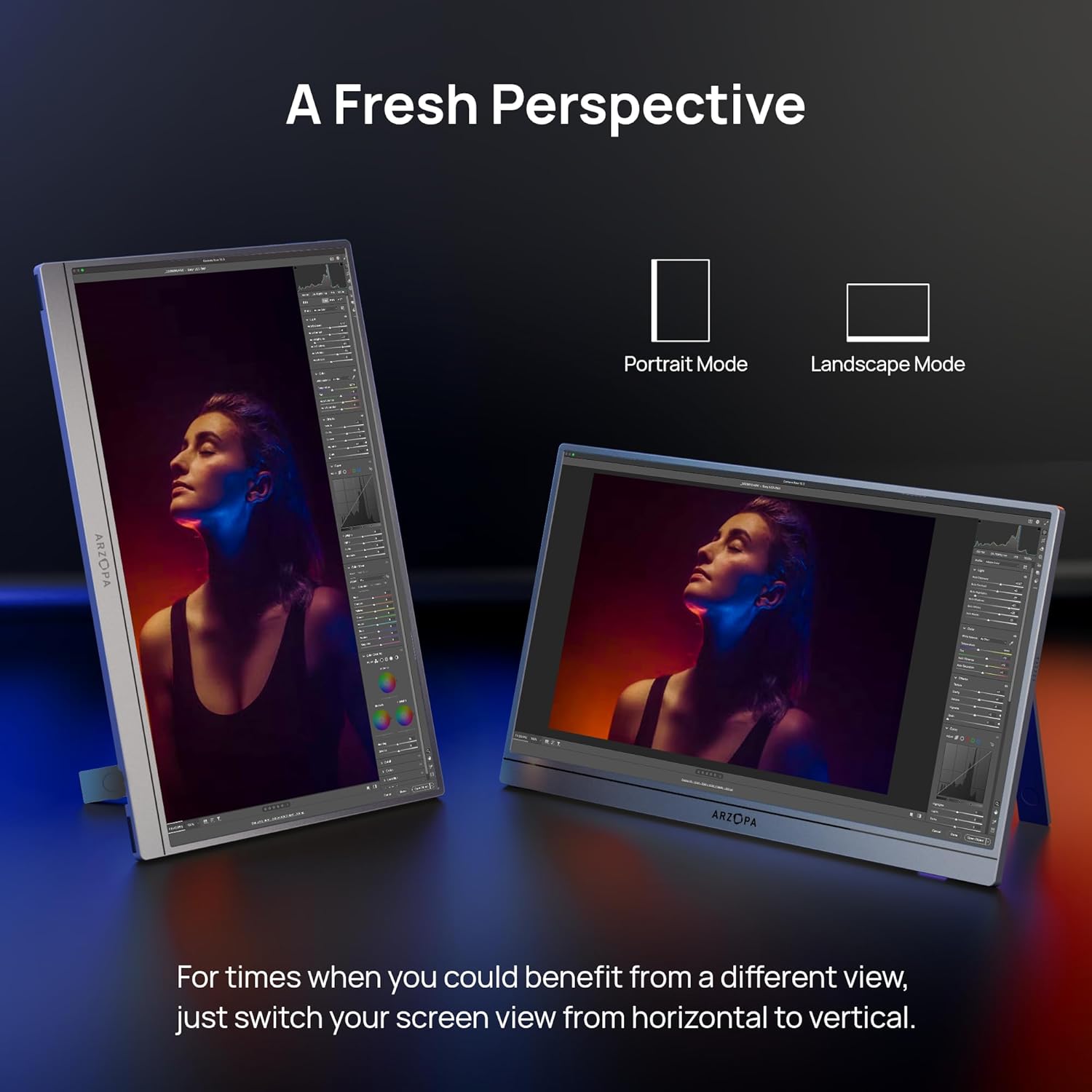
Figure 5: The ARZOPA Z1C monitor supports both portrait and landscape orientations.
3. Meni sou ekran an (OSD).
Use the OSD menu button and adjustment controls to fine-tune settings such as brightness, contrast, color temperature, input source, and more.
Antretyen
- Netwayaj: Use a soft, lint-free cloth to gently wipe the screen and exterior. Avoid harsh chemicals or abrasive materials.
- Depo: When not in use, store the monitor in a cool, dry place, ideally in its original packaging or a protective sleeve to prevent scratches.
- Manyen: Evite mete twòp presyon sou ekran an oubyen evite lage aparèy la.
Depanaj
- Pa gen siyal:
- Ensure cables are securely connected to both the monitor and the source device.
- Verify the input source selected on the monitor matches the connected port (e.g., USB-C, HDMI).
- Check if your device's USB-C port supports video output.
- Ekran k ap flache:
- Ensure the monitor is receiving sufficient power. If using a single USB-C cable, try connecting an additional power source to the monitor's second USB-C port or using a dedicated power adapter.
- Reduce screen brightness if flickering persists.
- Pa gen son:
- Tcheke paramèt volim monitè a nan meni OSD la.
- Verify your device's audio output is directed to the portable monitor.
Espesifikasyon
| Gwosè ekran | 16.1 pous |
| Rezolisyon | FHD 1080p (1920 x 1080 piksèl) |
| Aspè rapò | 16:9 |
| Sifas ekran | Mat |
| Pwa atik | 1.7 liv |
| Dimansyon pwodwi | 14.37 x 11.02 x 0.39 pous |
| Total pò USB | 2 (USB-C) |
| Voltage | 220 Volts (Input) |
| Manifakti | ARZOPA |
| Nimewo Modèl | Z1C |
Garanti ak sipò
ARZOPA offers 24-month after-service support. For any inquiries or issues, please contact the dedicated customer support team. This ensures prompt responses and hassle-free solutions from purchase to long-term use.
Gen lòt plan pwoteksyon ki disponib pou achte:
- Plan Pwoteksyon 3 Zan
- Plan Pwoteksyon 4 Zan
- Pwoteksyon Konplè: Yon sèl plan kouvri tout acha pase ak acha nan lavni ki kalifye yo (faktirasyon mansyèl)
Ask a question about this manual
Ask about setup, troubleshooting, compatibility, parts, safety, or missing instructions. Manuals+ will review the question and use this page’s manual context to help answer it.