
1. Entwodiksyon
This manual provides essential information for setting up, operating, and maintaining your NIMO N156 15.6" FHD Laptop. Please read this guide thoroughly before using your device to ensure proper function and longevity. Keep this manual for future reference.
2. Pake kontni
Verifye ke tout atik yo prezan nan pakè ou a:
- 1 x NIMO N156 Laptop
- 1 x Chargeur rapid Kalite-C 100W PD
- 1 x Manyèl Itilizatè (dokiman sa a)
- Windows 11 Home Operating System (pre-installed)

Imaj: Laptop NIMO N156 la, montreasing its 15.6-inch Full HD IPS display, Intel Core i5-12450H processor, 32GB RAM, 1TB SSD, fingerprint reader, Type-C PD charger, and backlit keyboard.
3. Pwodwi souview
3.1. Konpozan ak Karakteristik
- Ekspozisyon: 15.6" Full HD (1920x1080) IPS Anti-glare Panel with 178° wide viewang ing.
- Processeur: Intel Core i5-12450H (8 Cores, up to 4.4GHz).
- memwa: 32GB DDR4 RAM (user-expandable).
- Depo: 1TB PCIe NVMe SSD (user-expandable).
- Klavye: Full-size backlit keyboard with numeric keypad.
- Sekirite: Integrated fingerprint reader, Webcam privacy shield.
- Chaje: 100W Type-C Power Delivery (PD) fast charging.
- Koneksyon: Wi-Fi 6.

Image: A detailed diagram illustrating the various ports on the NIMO N156 laptop, including Micro SD, USB 2.0, USB 3.0, Headphone Jack, Kensington lock, Type-C (multifunction), Type-C (PD Charger Only), HDMI, and Charge LED.
3.2. Aranjman pò a
Familiarize yourself with the port locations for connecting peripherals:
- Bò Goch: USB 3.0 Port, USB 2.0 Port, Micro SD Card Slot, Headphone Jack, Kensington Lock.
- Bò Dwa: HDMI Port, USB 3.0 Port, Type-C Port (multifunction), Type-C Port (for PD Charger only), Charge LED.
4. Enstalasyon
4.1. Premye Limen
- Unpack the laptop and charger from the box.
- Connect the 100W Type-C PD Fast Charger to the designated Type-C charging port on the laptop and plug it into a power outlet.
- Open the laptop lid. The power button is typically located on the top right of the keyboard or on the side. Press and hold the power button for a few seconds until the screen illuminates.
- Allow the laptop to charge for at least 30 minutes before initial use, especially if the battery is completely depleted.

Image: The NIMO 100W Type-C PD Fast Charger, designed for rapid charging of the laptop and compatible devices.
4.2. Enstalasyon Windows 11
Follow the on-screen instructions to complete the Windows 11 setup process. This typically includes:
- Chwazi rejyon ou ak layout klavye a.
- Konekte nan yon rezo Wi-Fi.
- Konekte avèk oswa kreye yon kont Microsoft.
- Setting up a PIN or password.
- Reviewaktire paramèt vi prive yo.
5. Operasyon Enstriksyon
5.1. Jesyon pouvwa
- Pouvwa sou: Peze bouton pouvwa a.
- Mòd dòmi: Peze bouton pouvwa a yon ti tan oubyen fèmen kouvèti a.
- Fèmen: Klike sou bouton Start Windows la, answit sou Power > Shut down.
- Rekòmanse: Klike sou bouton Start Windows la, answit sou Power > Restart.
5.2. Karakteristik klavye a

Imaj: Yon gwo plan view of the NIMO N156 laptop's backlit keyboard, highlighting the numeric keypad and the integrated fingerprint sensor on the touchpad.
- Klavye retroeklere: Use the dedicated function key (often Fn + Fx, where Fx is an icon resembling a keyboard with light) to toggle the backlight on/off or adjust brightness levels.
- Klavye nimerik: The full-size numeric keypad on the right provides convenient data entry.
5.3. Lektè anprent dwèt
The integrated fingerprint reader allows for secure and quick login. To set it up:
- Ale nan Anviwònman Windows > Kont > Opsyon koneksyon.
- Under 'Windows Hello Fingerprint', click 'Set up' and follow the on-screen prompts to register your fingerprints.
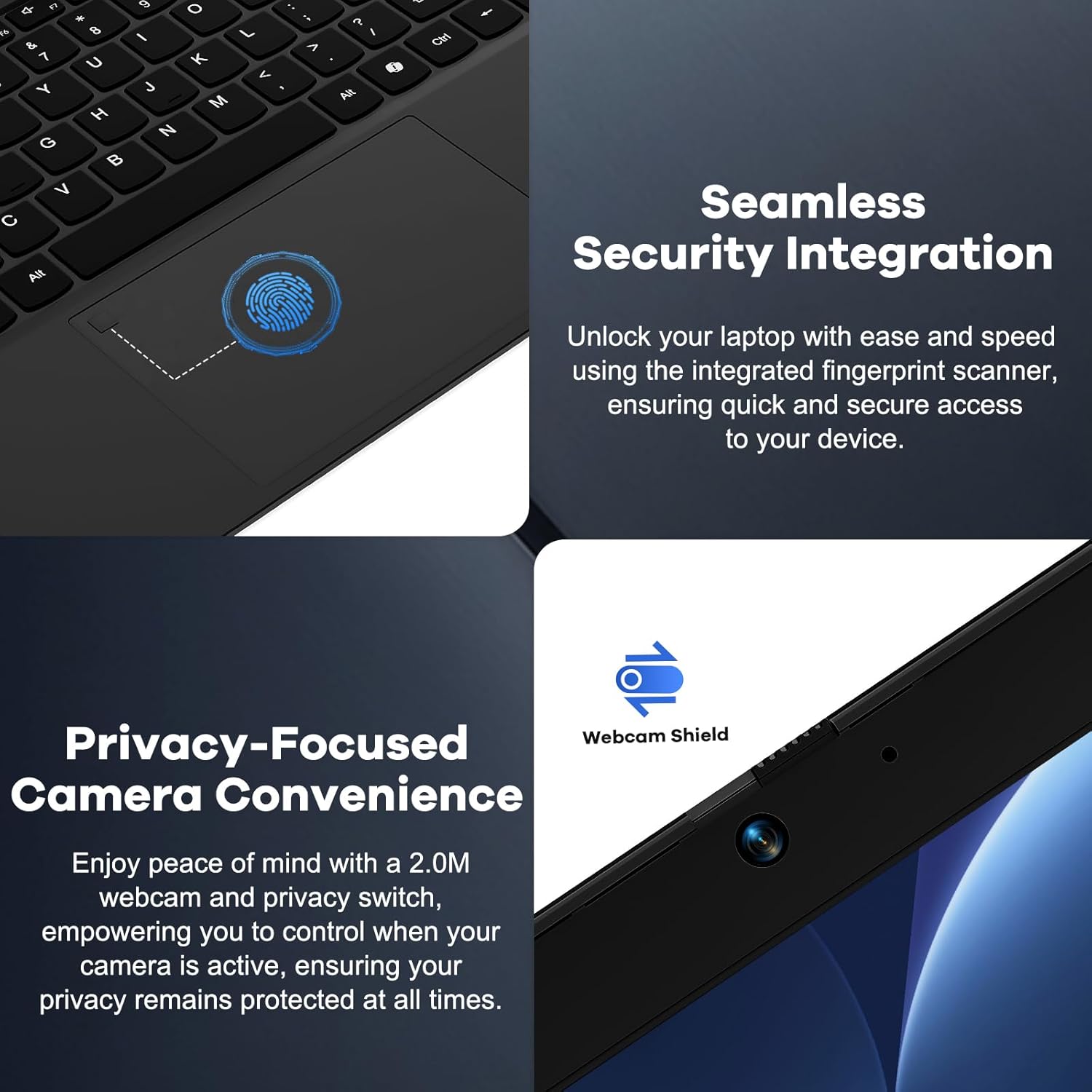
Image: A split image showing a close-up of the fingerprint reader on the touchpad for seamless security integration, and the physical webcam shield for privacy control.
5.4. Webcam Privacy Shield
The laptop features a physical privacy shield for the webcam. Slide the cover to the left to open the webcam for use, and slide it to the right to cover it when not in use, ensuring your privacy.
5.5. Konekte periferik
Sèvi ak diferan pò yo pou konekte aparèy ekstèn yo:
- Pò USB: Connect USB drives, external keyboards, mice, or other USB accessories.
- HDMI Port: Konekte ak yon monitè ekstèn oswa yon televizyon pou yon ekspozisyon pwolonje.
- Type-C Ports: One port supports multifunctionality (data transfer, display output via adapter), and the other is dedicated for the 100W PD charger.
- Kas ekoutè Jack: Konekte kas ekoutè oswa oratè ekstèn.
- Mikwo SD kat plas: Mete yon kat Micro SD pou plis espas depo oswa transfè done.
6. Antretyen
6.1. Netwayaj
- Always power off the laptop and disconnect the charger before cleaning.
- Sèvi ak yon ti moso twal mou, ki san pèl damplave avèk dlo oubyen yon pwodui netwayaj ekran pou ekran an.
- For the keyboard and chassis, use a soft, dry cloth. A can of compressed air can remove dust from crevices.
- Avoid harsh chemicals, abrasives, or excessive moisture.
6.2. Storage and RAM Upgrades
The NIMO N156 laptop features user-expandable DDR4 RAM and PCIe NVMe SSD storage. Refer to the official NIMO support resources or a qualified technician for detailed instructions on performing upgrades to avoid voiding your warranty or damaging the device.

Image: The NIMO N156 laptop displaying multiple open applications, emphasizing its high-speed 32GB RAM and 1TB PCIe SSD for faster performance and multitasking.
6.3. Swen batri
- Evite dechaje batri a nèt souvan.
- Store the laptop in a cool, dry place if not used for extended periods, with the battery charged to around 50-70%.
- Use only the provided NIMO 100W Type-C PD Fast Charger.
NAN. Depanaj
Si ou rankontre pwoblèm, eseye etap debaz sa yo pou depanaj:
- Laptop la pa limen: Ensure the charger is properly connected and plugged into a working outlet. Try a different outlet. If the battery is completely drained, allow it to charge for a while before attempting to power on.
- Ekran an vid: Check if the laptop is powered on. Try connecting an external monitor via HDMI to see if there's a display output.
- Pwoblèm koneksyon Wi-Fi: Ensure Wi-Fi is enabled in Windows settings. Restart your router and the laptop. Check for updated network drivers.
- Pèfòmans ralanti: Close unnecessary applications. Check for sufficient free storage space. Ensure Windows and drivers are up to date.
- Surchof: Ensure ventilation vents are not blocked. Use the laptop on a hard, flat surface.
For more complex issues, refer to the NIMO support websit oswa kontakte sèvis kliyan.
8. Espesifikasyon
| Karakteristik | Spesifikasyon |
|---|---|
| Modèl | Nimo N156 |
| Ekspozisyon | 15.6" Full HD (1920x1080) IPS Anti-glare |
| Processeur | Intel Core i5-12450H (8 Cores, up to 4.4 GHz) |
| RAM | 32 GB DDR4 (3200 MHz) |
| Depo | 1 TB PCIe NVMe SSD |
| Sistèm operasyon | Windows 11 Kay |
| Grafik | Grafik Intel entegre |
| Koneksyon san fil | Wi-Fi 6 (802.11a/b/g/n/ac) |
| Pò | 2x USB 3.0, 1x USB 2.0, 2x Type-C (1x PD Charging), 1x HDMI, 1x Headphone Jack, 1x Micro SD Card Slot, 1x Kensington Lock |
| Lavi batri | Approx. 5 hours (average usage), up to 9 hours (standby) |
| Charger | 100W Type-C PD Fast Charger |
| Dimansyon (LxWxH) | 14.07 x 8.98 x 0.76 pous |
| Pwa | 5 liv |
| Karakteristik espesyal | Backlit Keyboard, Fingerprint Reader, Webcam Shield, Numeric Keypad, 180° Lay-Flat Hinge |
9. Garanti ak sipò
Your NIMO N156 laptop is backed by a comprehensive Garanti manifakti 2 zan from Nimo Direct Inc. This warranty covers defects in materials and workmanship under normal use.
Anplis de sa, NIMO ofri yon 90-Day Hassle-Free Returns policy. If you are not satisfied with your purchase, you may return it within 90 days according to the return policy terms.
For technical assistance, warranty claims, or support inquiries, please visit the official NIMO support website or contact their customer service department. Please have your model number (Nimo N156) and purchase information ready when contacting support.

Image: An illustration highlighting NIMO's after-sales services, including partially assembled domestically, 90-day returns, and 2 years of support.