
1. Entwodiksyon
This manual provides detailed instructions for the setup, operation, maintenance, and troubleshooting of your Hexgears I4 Mechanical Keyboard. Please read this manual thoroughly before using the product to ensure optimal performance and longevity.
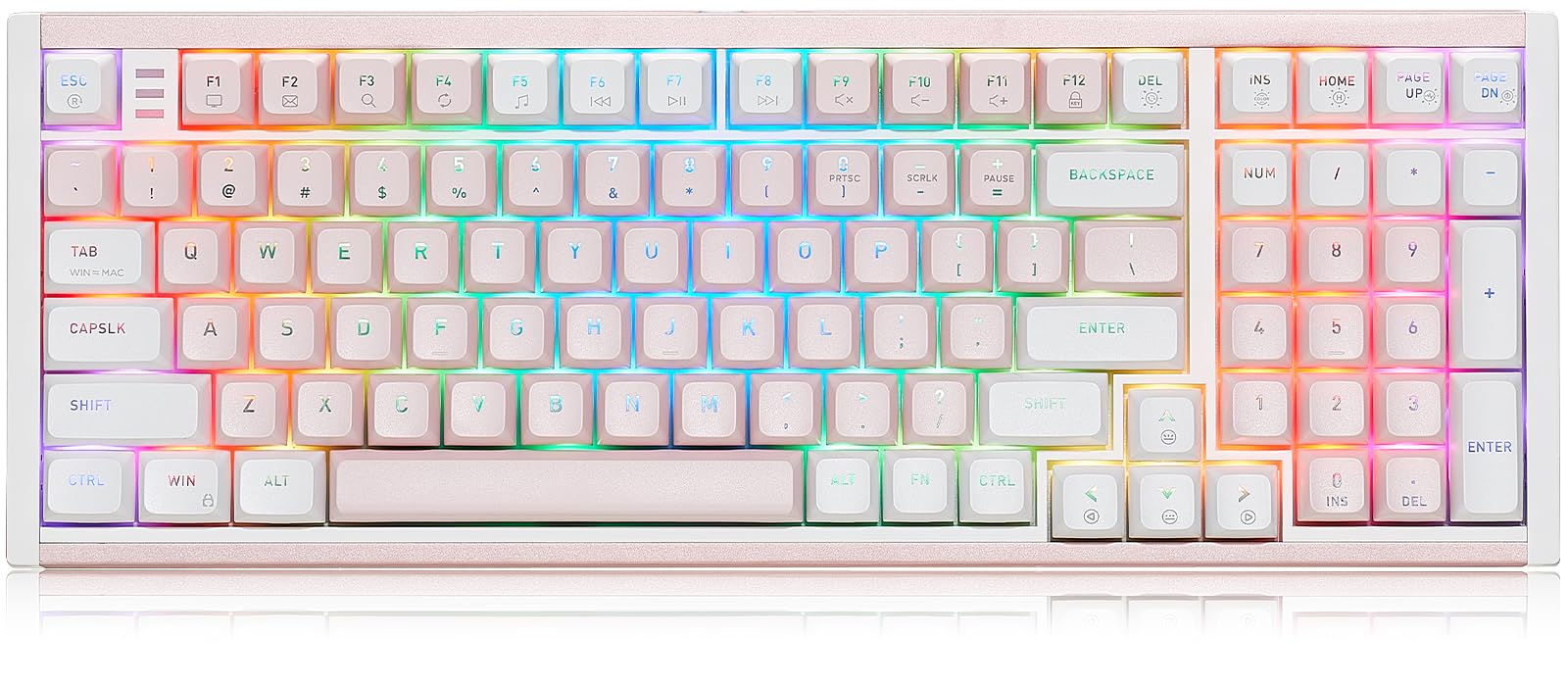
Image 1.1: The Hexgears I4 Mechanical Keyboard, showcasing tout layout ak konsepsyon li yo.
2. Pake kontni
Verifye ke tout atik ki nan lis anba a yo enkli nan pake pwodwi ou a:
- 1 x Hexgears I4 Mechanical Keyboard
- 1 x Kalite-C Kab
- 1 x Keycap Puller
- 1 x Chanje Puller
- 1 x manyèl itilizatè
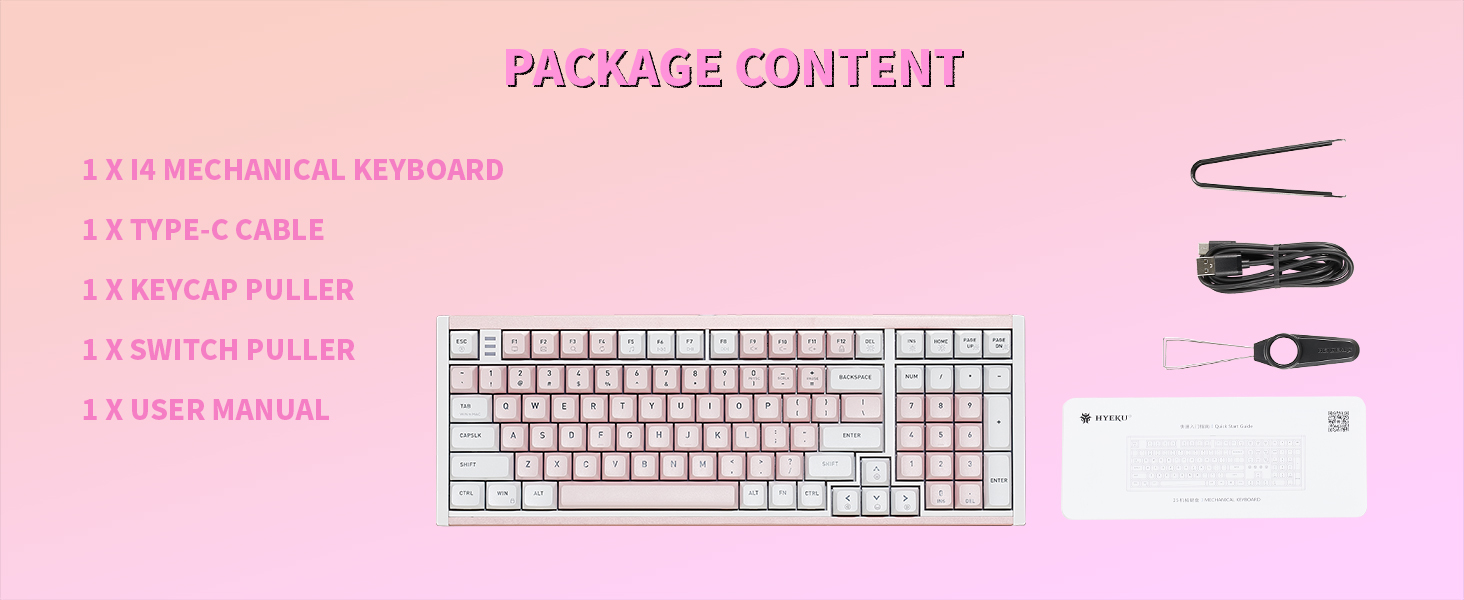
Image 2.1: Contents included in the Hexgears I4 Mechanical Keyboard package.
3. Pwodwi Features
The Hexgears I4 Mechanical Keyboard is designed for performance and customization, featuring:
- Kailh Smoky Quick Switches: Experience precise feedback with a satisfying tactile bump, crisp response, and enhanced comfort. The enclosed Box structure provides dust/water resistance and a 100-million-keystroke lifespan.
- Premium Full Aluminum Case: The keyboard boasts an aluminum case for enhanced durability and a premium aesthetic. Its spray-painted finish ensures a smooth texture, complemented by a silver decorative backplate.
- Flex-Cut Hot-Swappable PCB: Easily customize your typing experience by switching between different key switches without soldering. This feature allows for personalized typing tailored to your preferences.
- 16.8M Dynamic RGB Backlight: Upgrade your desk setup with customizable RGB options for per-key illumination, allowing users to personalize brightness, colors, and light effects. The thick PBT keycaps are not shine-through, offering brilliance without glare.
- Fully Programmable via Hexgears Driver: Remap keys, create macros, and customize RGB lighting. Features N-key rollover (NKRO) anti-ghosting for 100% accurate keystroke registration during complex multi-key commands.

Image 3.1: Close-up of the Kailh Smoky Quick Switch, highlighting its tactile feel and durability.

Image 3.2: Diagram illustrating the hot-swappable PCB, compatible with 3/5 pin mechanical switches.
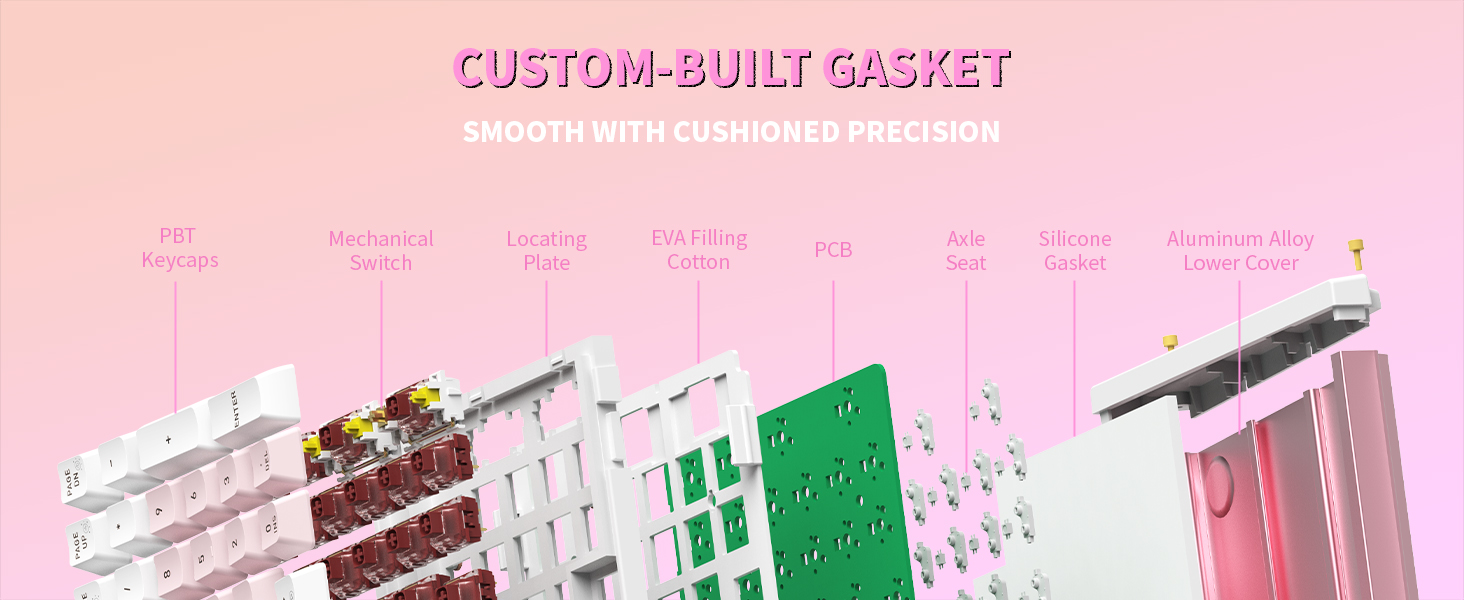
Imaj 3.3: Eksploze view of the keyboard's custom-built gasket structure for cushioned precision.
4. Enstriksyon Enstalasyon
- Depake klavye a: Carefully remove the Hexgears I4 keyboard and all accessories from its packaging.
- Konekte kab USB-C a: Insert the USB-C end of the provided cable into the port on the keyboard. Connect the other end (USB-A) to an available USB port on your computer (PC, Mac, Laptop, Tablet, or Xbox).
- Rekonesans Sistèm: Your operating system (Windows or Mac OS) should automatically detect and install the necessary drivers. Allow a few moments for this process to complete.
- Plasman: Mete klavye a sou yon sifas ki plat e ki estab.

Image 4.1: Connecting the Hexgears I4 keyboard via its USB-C cable.
5. Operasyon Enstriksyon
5.1. Kontwòl ekleraj dèyè RGB
The Hexgears I4 features dynamic RGB backlighting with 16.8 million colors and 20 preset effects. Use the following key combinations to adjust the lighting:
- FN + LAKAY: Toggle backlight constant brightness mode.
- FN + PAJ: Toggle backlight breathing mode.
- FN + DEL: Cycle through backlight effect modes.
- FN + PAJ anba: Adjust backlight switch.
- FN + INS: Change backlight color switch.

Image 5.1: Key combinations for controlling RGB backlight effects and colors.
5.2. Kle ak Makro Pwogramasyon
Utilize the Hexgears Driver software for full customization:
- Remap any key to suit your workflow or gaming style.
- Create and edit complex macros for single-key execution of multiple commands.
- Customize RGB lighting effects beyond the onboard presets.
The driver software ensures N-key rollover (NKRO) anti-ghosting for accurate keystroke registration.
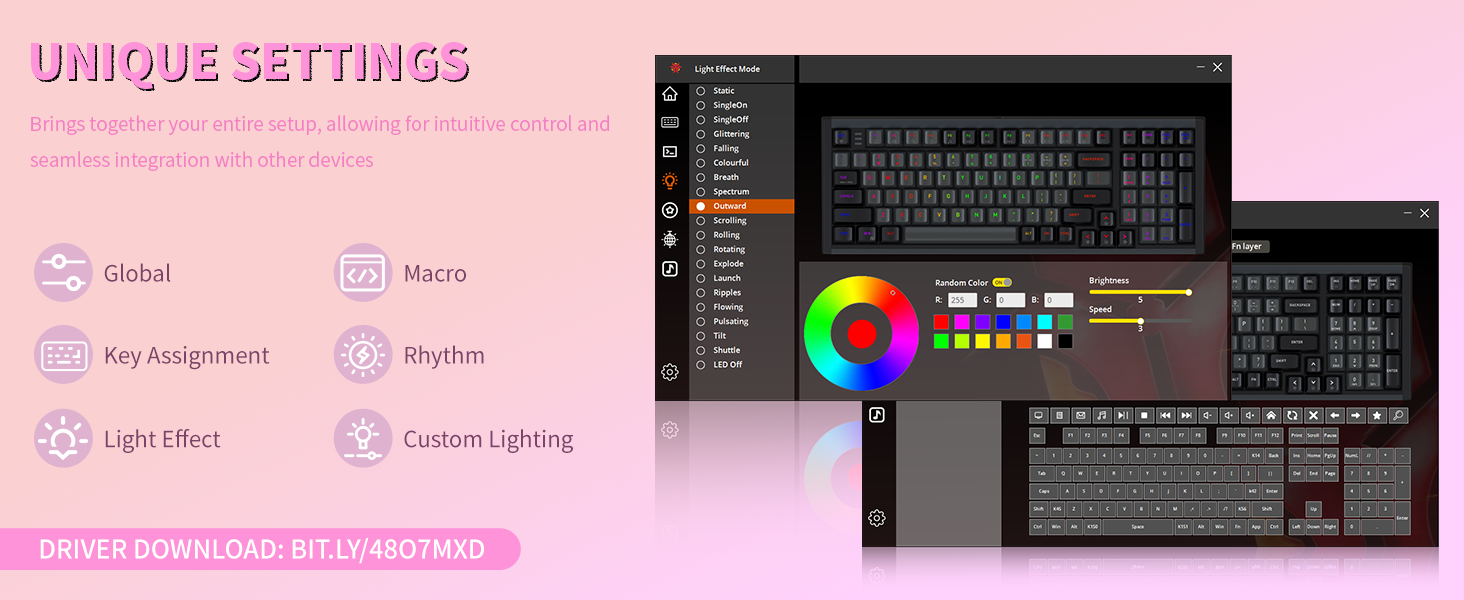
Image 5.2: Screenshot of the Hexgears Driver software interface for macro and lighting customization.
5.3. Windows/Mac Mode Switching
The keyboard supports both Windows and Mac OS. Refer to the quick start guide or the Hexgears Driver for specific instructions on switching between operating system modes, typically indicated by a key combination or a physical switch.
6. Antretyen
6.1. Netwayaj
Pou kenbe aparans ak fonksyonalite klavye ou a an bon eta:
- Dekonekte klavye a nan òdinatè w la anvan ou netwaye li.
- Sèvi ak yon ti moso twal mou, ki san pèl dampRense avèk dlo oswa yon solisyon netwayaj dou pou siye sifas la.
- Pou pousyè ak debri ant bouchon kle yo, sèvi ak lè konprese oswa yon ti bwòs.
- Avoid harsh chemicals or abrasive materials that could damage the finish or keycaps.
6.2. Ranplasman kle ak switch
The Hexgears I4 features hot-swappable switches, allowing for easy replacement without soldering. Use the provided keycap and switch pullers:
- Retire kouvèti kle a: Gently attach the keycap puller to the desired keycap and pull upwards until it detaches.
- Retire Chanjman: Use the switch puller to grasp the top and bottom clips of the switch. Apply gentle pressure and pull the switch straight up.
- Enstalasyon: Align the pins of the new switch with the holes on the PCB and press down firmly until it clicks into place. Then, press the desired keycap onto the switch stem.
NAN. Depanaj
- Klavye a pa reponn: Ensure the USB-C cable is securely connected to both the keyboard and the computer. Try connecting to a different USB port or using a different USB-C cable.
- RGB Backlight Not Working: Check the backlight control key combinations (FN + keys) to ensure it's not turned off or set to a very dim setting. Verify that the Hexgears Driver software is installed and updated.
- Kle yo pa anrejistre: If individual keys are not working, try removing and re-inserting the switch using the provided switch puller. Ensure the switch pins are not bent. If the issue persists, consider replacing the switch.
- Incorrect Key Layout (Mac/Windows): Ensure the keyboard is set to the correct operating system mode. Refer to the quick start guide for mode switching instructions.
8. Espesifikasyon
| Karakteristik | Detay |
|---|---|
| Mak | Hexgears |
| Modèl | I4 |
| Koneksyon Teknoloji | USB-C |
| Chanje Kalite | Kailh Smoky Quick Switch (Tactile) |
| Keycaps | PBT Keycaps |
| Ekleraj | 16.8M Dynamic RGB Backlight |
| Karakteristik espesyal | Hot-Swappable PCB, Aluminum Case, Fully Programmable |
| Aparèy konpatib | Laptop, MAC, PC, Tablet, Xbox |
| Materyèl | Aliminyòm |
| Pwa atik | 1.95 liv |
| Dimansyon pake | 16.54 x 7.2 x 2.28 pous |
9. Enfòmasyon sou Garanti
Hexgears products are covered by a limited warranty against manufacturing defects. For specific warranty terms and conditions, please refer to the warranty card included in your product packaging or visit the official Hexgears websit la. Kenbe prèv acha ou pou reklamasyon garanti.
10. Sipò pou Kliyan
If you encounter any issues or have questions regarding your Hexgears I4 Mechanical Keyboard, please contact our customer support team. You can reach us through the following methods:
- Sipò sou entènèt: Visit the official Hexgears websit pou kesyon yo poze souvan (FAQ), telechaje chofè, ak resous sipò.
- Kontakte Vandè a: If purchased through Amazon, you can contact the seller directly by navigating to your orders, selecting the product, and choosing the 'Ask a question' or 'Problem with order' option.

Image 10.1: Hexgears customer support information.