
1. Entwodiksyon
Thank you for choosing the TCL Gaming Monitor 25G54. This monitor is designed to provide an immersive gaming experience with its advanced display technology and high performance. This manual will guide you through the setup, operation, and maintenance of your new monitor.
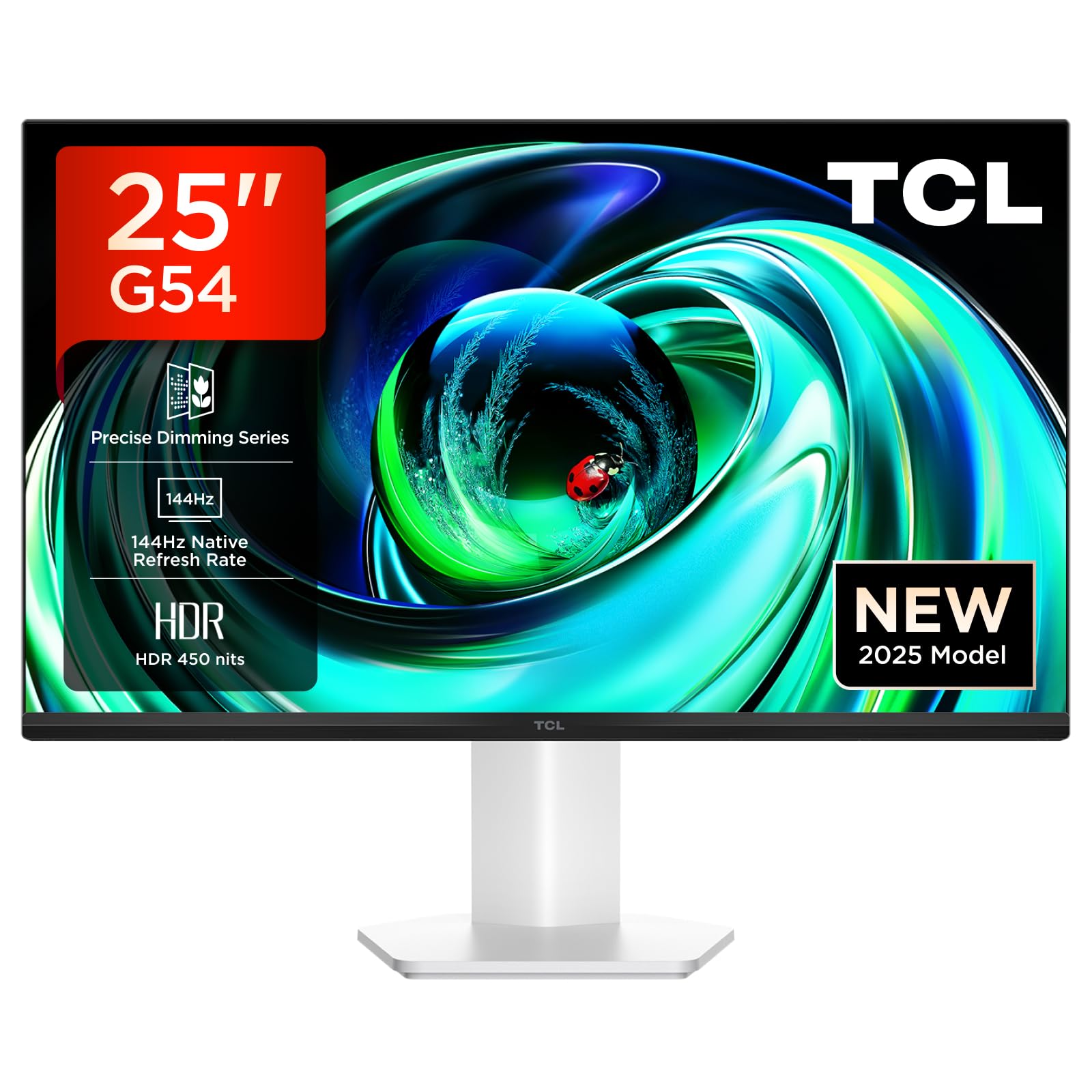
Figi 1: Devan view of the TCL Gaming Monitor 25G54.
2. Enfòmasyon sou Sekirite
Tanpri li tout enstriksyon yo ak anpil atansyon anvan ou itilize monitè a. Kenbe manyèl sa a pou referans pita.
- Pa ekspoze monitè a anba lapli oswa imidite pou evite dife oswa chòk elektrik.
- Pa ouvri monitè a casing. Pa gen pyès ki ka sèvi ak men itilizatè a anndan an. Konfye tout antretyen bay pèsonèl kalifye.
- Mete monitè a sou yon sifas ki plat e ki estab pou anpeche l tonbe.
- Asire w ke gen bon vantilasyon toutotou monitè a. Pa bloke ouvèti vantilasyon yo.
- Sèvi sèlman ak adaptè kouran ak kab manifakti a bay yo.
- Disconnect the power plug from the outlet if the monitor will not be used for a long period.
3. Pake kontni
Verifye ke tout atik yo prezan nan pakè ou a:
- TCL Gaming Monitor 25G54
- Sipò Monitè (Baz ak Kou)
- Pouvwa kab
- HDMI kab
- Manyèl itilizatè ak kat garanti
Note: Specific cable types (e.g., DisplayPort) may vary by region or package.
4. Enstalasyon
4.1 Asanble kanpe la
- Retire konpozan monitè a ak sipò a nan anbalaj la avèk prekosyon.
- Kole kou sipò a sou panèl monitè a. Asire w ke li byen klike nan plas li oswa li byen fikse ak vis jan yo endike nan gid demaraj rapid la.
- Tache baz sipò a nan kou sipò a, epi sekirize l ak vis ki vini ak li a.
- Place the assembled monitor on a stable desk.
4.2 Konekte monitè a
The monitor supports various input options. Connect the appropriate cable from your computer or gaming console to the monitor.
- Koneksyon HDMI: Use an HDMI cable to connect your device to the monitor's HDMI port.
- Koneksyon DisplayPort: Use a DisplayPort cable to connect your device to the monitor's DisplayPort.
- Koneksyon USB: Sèvi ak pò USB yo pou konekte periferik yo.

Figi 2: Dèyè view showing the monitor's connectivity ports including HDMI, DisplayPort, and USB.
4.3 Limen
- Konekte kab kouran an nan antre kouran monitè a epi answit nan yon priz kouran.
- Press the power button, usually located on the back or bottom of the monitor, to turn it on.
5. Operasyon Enstriksyon
5.1 Meni OSD (On-Screen Display).
The OSD menu allows you to adjust various monitor settings. Access it using the joystick button, typically located on the back of the monitor.

Figure 3: Illustration of the joystick button for OSD menu navigation.
Anviwònman OSD komen yo:
- Klate/Kontrast: Ajiste nivo luminans ak kontras ekran an.
- Anviwònman koulè: Modify color temperature, gamma, and color space (e.g., DCI-P3, sRGB).
- Sous Antre: Manually select the active input (HDMI, DisplayPort).
- Karakteristik Gaming: Enable/disable FreeSync, adjust response time, and other gaming-specific enhancements.
- Mòd Foto: Select preset display modes for different content types (e.g., Standard, Game, Movie).
5.2 Ajisteman ergonomik
The monitor stand offers ergonomic adjustments for optimal viewing konfò.
- Enklinezon: Ajiste ang vètikal ekran an.
- Swivel: Thorne ekran an orizontalman.
- Ajisteman wotè: Raise or lower the screen to eye level.
- Pivote: Rotate the screen to portrait or landscape orientation.

Figure 4: Illustration of the monitor's ergonomic stand, showing tilt and height adjustment capabilities.
6. Karakteristik
The TCL Gaming Monitor 25G54 incorporates several key technologies for superior performance:
- Teknoloji Mini LED: Combines QLED and OLED advantages for precise, pixel-level illumination, offering sharp contrast and a wide color gamut.
- Seri gradyasyon presi: Enhances overall image quality by optimizing light and shadow, providing a high-quality visual experience.
- HDR 400 nit Brightness: With a peak brightness of 450 nits and a contrast ratio of 4,500,000:1, it delivers extended dynamic range and vivid details in both dark and bright areas.
- Pousantaj rafrechisman 144Hz: Ensures smooth and fluid images in all gaming scenes and actions, minimizing motion blur.
- 1ms (GTG) Response Time: An extremely fast response time reduces ghosting and blurring, allowing for quick target acquisition.
- 93% DCI-P3 Wide Color Gamut: Displays vibrant colors with professional-level accuracy, revealing an immersive world of color.
- TÜV Rheinland Flicker-Free & Low Blue Light: Certified for eye protection, this mode blocks harmful blue light and eliminates flicker for prolonged viewing konfò.

Figi 5: Plis paseview of the TCL 25G54 Mini LED Monitor's key features.
7. Antretyen
Bon antretyen asire lonjevite ak pèfòmans optimal monitè ou a.
- Netwaye ekran an: Siye ekran an dousman avèk yon twal mou ki pa gen pousyè. Pou mak ki difisil pou retire, sèvi ak yon solisyon netwayaj espesifik pou monitè a, aplike sou twal la, pa dirèkteman sou ekran an.
- Netwayaj C aasing: Sèvi ak yon twal mou epi sèk pou siye monitè a.asing. Evite pwodui netwayaj abrazif.
- Vantilasyon: Ensure the ventilation openings are clear of dust and debris. Use compressed air to clean if necessary.
- Pouvwa Off: Always turn off and unplug the monitor before cleaning or if it will be unused for an extended period.
NAN. Depanaj
Si ou rankontre pwoblèm ak monitè ou a, gade solisyon komen sa yo:
| Pwoblèm | Kòz posib | Solisyon |
|---|---|---|
| Pa gen imaj sou ekran an | Power cable disconnected, input cable loose, incorrect input source selected. | Check power and input cable connections. Select correct input source via OSD. |
| Imaj la twoub oswa defòme | Incorrect resolution, faulty cable, graphics driver issue. | Set display resolution to 1920x1080. Try a different cable. Update graphics drivers. |
| Ekran k ap flache | Refresh rate mismatch, faulty cable, external interference. | Ensure refresh rate is set to 144Hz. Try a different cable. Check for nearby electronic devices. |
| Pa gen son | Audio cable not connected, volume too low, incorrect audio output selected. | Connect headphones to the monitor's audio output. Adjust volume. Select monitor as audio output on your device. |
Si pwoblèm nan pèsiste apre ou fin eseye solisyon sa yo, tanpri kontakte sèvis kliyan TCL.
9. Espesifikasyon
| Karakteristik | Spesifikasyon |
|---|---|
| Mak | TCL |
| Nimewo Modèl | 25G54 |
| Gwosè ekran | 25 pous |
| Rezolisyon | 1920x1080 (FHD) |
| Kalite Panel | IPS |
| Rafrechisman pousantaj | 144 Hz |
| Tan repons | 1 ms (GTG) |
| Klète | 450 nits |
| Pwopòsyon kontras | 4,500,000:1 |
| Sipò HDR | VESA Display HDR 400 |
| Gamut koulè | 93% DCI-P3 |
| Viewing Ang | 178 Degre |
| Koneksyon | 1x HDMI, 1x DisplayPort, 4x USB, Headphone Output |
| Adaptive Sync | FreeSync |
| Dimansyon (DxWxH) | 18.2 x 55.6 x 43.9 cm |
| Pwa | 4.39 kg |
| Karakteristik espesyal | Mini LED, Flicker-Free, Low Blue Light |
10. Garanti ak sipò
Your TCL Gaming Monitor 25G54 comes with a 2-year manufacturer's warranty. For warranty claims, technical support, or service inquiries, please visit the official TCL support websit la oubyen kontakte détayan lokal ou a.
Pou plis enfòmasyon, vizite a Magazen TCL sou Amazon.
11. Enfòmasyon sou resiklaj
Please dispose of this product responsibly. Electronic waste should not be disposed of with household waste. Follow local regulations for the proper disposal of electronic devices. This helps protect the environment and human health.