
1. Entwodiksyon
The FIREBAT X3 Wired RGB Gaming Mouse is designed for precision and comfort, suitable for various computing tasks including gaming, office work, and general use. This manual provides detailed instructions for setting up, operating, and maintaining your mouse.

Plis paseview of the FIREBAT X3 Wired RGB Gaming Mouse highlighting its main features.
2. Enstalasyon
2.1 Konekte Sourit la
The FIREBAT X3 Gaming Mouse features a simple plug-and-play design for easy setup.
- Locate an available USB-A port on your computer or laptop.
- Insert the USB connector of the mouse into the USB-A port.
- Your operating system will automatically detect and install the necessary drivers. No additional software installation is required for basic functionality.

The FIREBAT X3 mouse connects via a standard USB-A port for immediate use.
3. Operasyon
3.1 Fonksyon bouton
The FIREBAT X3 Gaming Mouse is equipped with 6 programmable buttons for enhanced control.
- Bouton Goch: Fonksyon klike estanda.
- Dwa bouton: Fonksyon estanda klike sou bò dwat la.
- wou woulo liv: Scrolls up and down. Can also be pressed for a middle-click function.
- DPI Adjustment Key: Changes the mouse sensitivity (DPI).
- Bouton Avant: Navige pi devan nan web navigatè oswa file eksploratè.
- Bouton tounen: Navige bak nan web navigatè oswa file eksploratè.

Illustration of the 6-button layout on the FIREBAT X3 Gaming Mouse.
3.2 Ajiste DPI (Sansiblite)
The mouse features 4 adjustable DPI levels to suit different tasks and preferences.
- Peze a DPI Adjustment Key (located behind the scroll wheel) to cycle through the preset DPI settings.
- The default DPI levels are 1200, 1800, 2400, and 3600.
- Each press will switch to the next DPI level, allowing you to find the optimal sensitivity for your current activity.

The DPI adjustment key allows for quick changes in mouse sensitivity.
3.3 Mòd Ekleraj RGB
The FIREBAT X3 mouse features 7 dynamic RGB backlit modes to enhance your setup.
- The RGB lighting automatically cycles through its 7 distinct modes.
- There is no manual button to change the RGB mode; the mouse will continuously display various lighting effects.
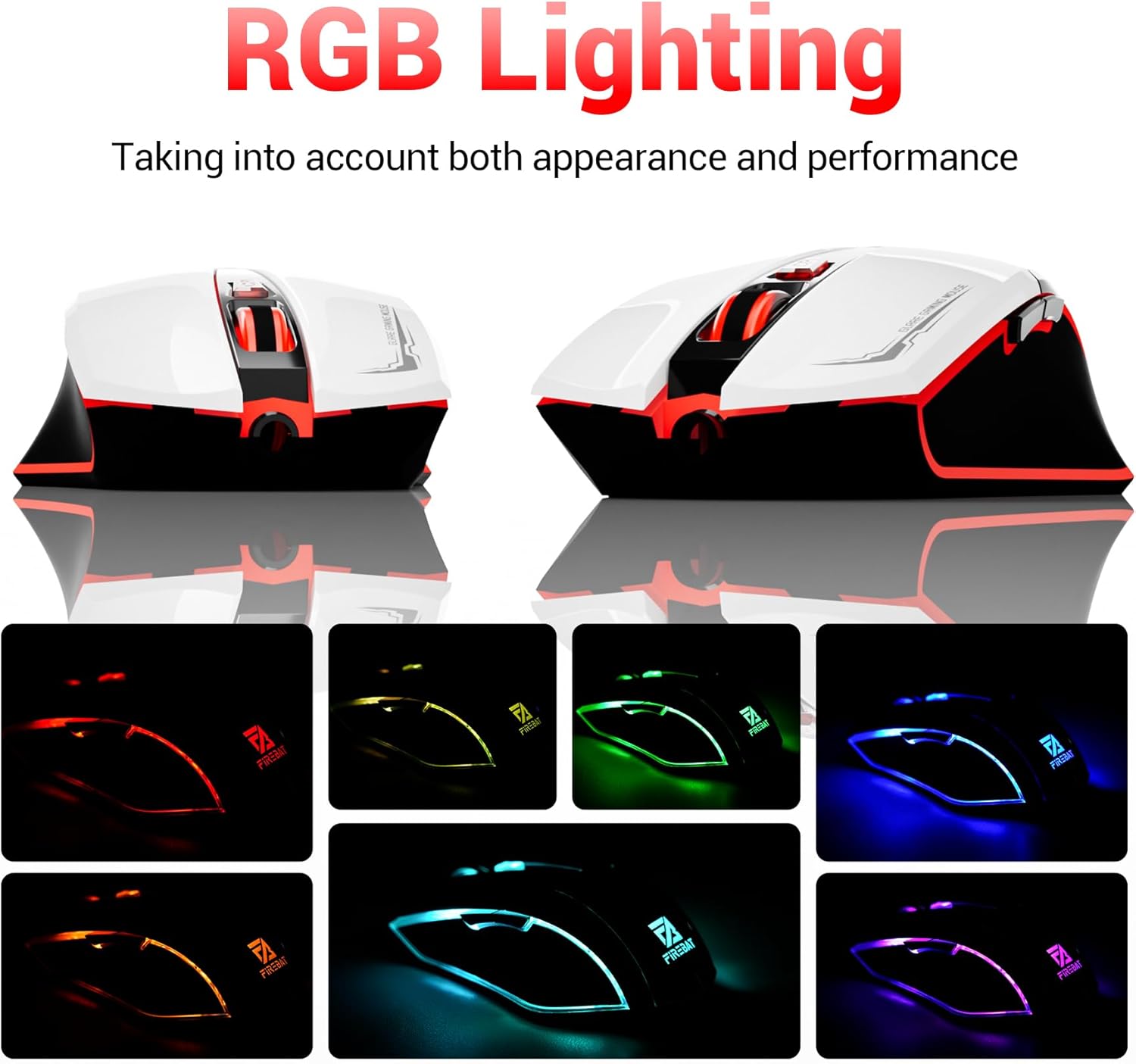
The mouse features vibrant RGB lighting with multiple dynamic modes.
3.4 Konsepsyon ergonomik ak konfò
The mouse is designed with an ergonomic shape to provide a comfortable grip and reduce hand fatigue during extended use, suitable for both right and left-hand users.

The ergonomic design ensures comfort during prolonged use.
3.5 Quiet Click Feature
The mouse incorporates a 'Heavy Bass Design' for its key sounds, ensuring soft clicks without excessive noise, which is beneficial in quiet environments.

The mouse features quiet clicks, minimizing noise during use.
4. Antretyen
4.1 Netwayaj
To ensure optimal performance and longevity, keep your mouse clean.
- Dekonekte sourit la nan òdinatè w la anvan ou netwaye li.
- Sèvi ak yon moso twal mou, ki san pèl dampRense avèk dlo oswa yon solisyon netwayaj dou pou siye sifas sourit la.
- Avoid using harsh chemicals, abrasive cleaners, or excessive moisture, as these can damage the mouse.
- For the optical sensor, use a cotton swab to gently remove any dust or debris.
4.2 Depo
Lè w pa ap itilize sourit la, sere l nan yon anviwònman pwòp epi sèk, lwen tanperati ekstrèm ak limyè solèy dirèk.
NAN. Depanaj
5.1 Sourit la pa reponn
- Tcheke koneksyon USB a: Asire w kab USB a byen branche nan yon pò USB ki fonksyone sou òdinatè w la. Eseye yon lòt pò USB.
- Rekòmanse òdinatè: Pafwa, yon senp rekòmanse ka rezoud pwoblèm koneksyon.
- Tès sou yon lòt òdinatè: Si posib, teste sourit la sou yon lòt òdinatè pou detèmine si pwoblèm nan soti nan sourit la oswa nan konfigirasyon òdinatè w la.
5.2 Cursor Movement is Erratic or Jumpy
- Netwaye Capteur Optik: Dust or debris on the optical sensor can cause erratic movement. Refer to the cleaning instructions in the Maintenance section.
- Use a Mouse Pad: Ensure you are using the mouse on a suitable surface. Reflective, transparent, or uneven surfaces can interfere with the optical sensor.
5.3 RGB Lighting Not Working
- Tcheke pouvwa USB a: Ensure the mouse is receiving sufficient power through the USB connection.
- Pa gen kontwòl manyèl: Remember that the RGB lighting cycles automatically and does not have a manual control button. If the mouse is functioning otherwise, the lighting should be active.
6. Espesifikasyon
| Karakteristik | Detay |
|---|---|
| Nimewo Modèl | X3 Gaming Mouse |
| Mak | FIREBAT |
| Koneksyon Teknoloji | USB filaire |
| Mouvman Deteksyon | Optik |
| Nivo DPI | 1200 / 1800 / 2400 / 3600 |
| Kantite bouton | 6 (Pwogramasyon) |
| Ekleraj | 7 mòd RGB |
| Dimansyon pwodwi | 5 x 3 x 0.1 pous (12.7 x 7.6 x 0.25 cm) |
| Pwa atik | 5.1 ons (144.6 gram) |
| Ergonomi | Right or Left Hand Use |
| Manifakti | FIREBAT |
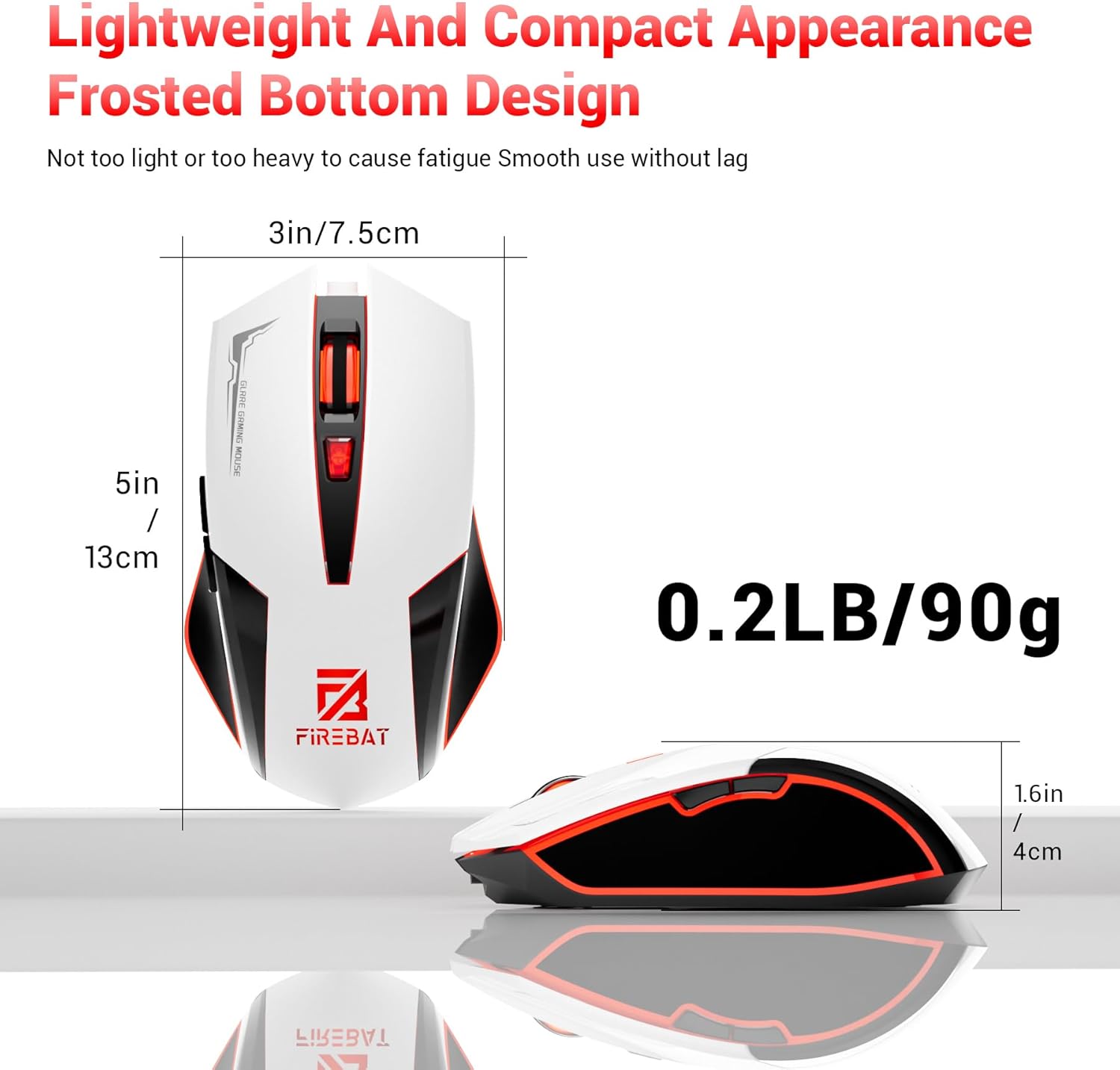
Physical dimensions and weight of the FIREBAT X3 Gaming Mouse.
7. Garanti ak sipò
7.1 Enfòmasyon sou Garanti
FIREBAT products are manufactured to high-quality standards. For specific warranty details, please refer to the warranty card included with your product or visit the official FIREBAT websit. Tipikman, pwodwi yo vini ak yon garanti limite ki kouvri domaj fabrikasyon.
7.2 Sipò pou Kliyan
If you encounter any issues or have questions regarding your FIREBAT X3 Gaming Mouse, please contact our customer support team:
- Imèl: sipò@firebatpc.com
- Websit: www.firebatpc.com
Please provide your product model number (X3 Gaming Mouse) and a detailed description of your issue when contacting support for faster assistance.