
DrayTek VAP905-K
Manyèl Itilizatè Pwen Aksè WiFi 6 Pèfòmans Segondè DrayTek VigorAP 905 la
Model: VAP905-K
1. Pwodwi souview
The DrayTek VigorAP 905 is a high-performance WiFi 6 Mesh Wireless Access Point designed for efficient network management in demanding environments. It delivers robust wireless connectivity and flexible wired options.
Karakteristik kle:
- Fast Wi-Fi 6 Access Point: Experience lightning-fast speeds with a combined speed of up to 3000Mbps, ideal for businesses requiring efficient networks for demanding applications.
- Strong WPA3 Connection Encryption: Ensures robust wireless security with the latest WPA3-Personal or 802.1x Enterprise. Supports mixed WPA3/WPA2 and different SSIDs with varying security levels.
- Fasil pou konfigire ak jere: Effortlessly manage up to 8 compatible mesh VigorAPs and up to 20 APs using the Wireless Virtual Controller module. Features auto-provisioning and AP monitoring.
- Flexible 2.5 Gigabit Ethernet Uplink & 4 x GbE Connectivity: Connects to the network via its 2.5Gb Ethernet interface. Additional Gigabit Ethernet interfaces provide wired connectivity for devices like laptops or printers.
- High Density Performance: Capable of linking up to 256 clients with 802.11ax dual-band antennas and Wi-Fi 6 2x2 Multi-User MIMO technology, suitable for high-density environments.
- Wall/Desk Form Factor Design: A versatile design that complements both business and home interiors. LED indicators can be scheduled or disabled.

Figi 1: Devan view of the DrayTek VigorAP 905 Access Point, showcasing konsepsyon kontra enfòmèl antèn li yo ak de antèn ekstèn yo.
2. Enstalasyon
2.1 Kontni pake a
Anvan ou kòmanse, asire w ke tout bagay yo prezan nan pake a:
- DrayTek VigorAP 905 Access Point
2.2 Enstalasyon Fizik
The VigorAP 905 can be mounted on a wall or placed on a desk.
- Chwazi yon kote: Select a central location for optimal Wi-Fi coverage, away from obstructions and sources of interference.
- Koneksyon pouvwa: Connect the power adapter to the AP's PWR port and plug it into an electrical outlet. Alternatively, if using Power over Ethernet (PoE), connect an Ethernet cable from a PoE-enabled switch or injector to the 2.5G Ethernet port (P1/PoE).
- Rezo Koneksyon: Connect an Ethernet cable from your router or network switch to the 2.5G Ethernet port (P1/PoE) on the VigorAP 905.
- Optional Wired Devices: Use the additional Gigabit Ethernet ports (P2, P3, P4, P5) to connect wired devices such as computers or printers.

Figi 2: Side view of the VigorAP 905, illustrating the power input, reset button, WPS button, 2.5G Ethernet port (P1/PoE), and four Gigabit Ethernet ports (P2-P5).
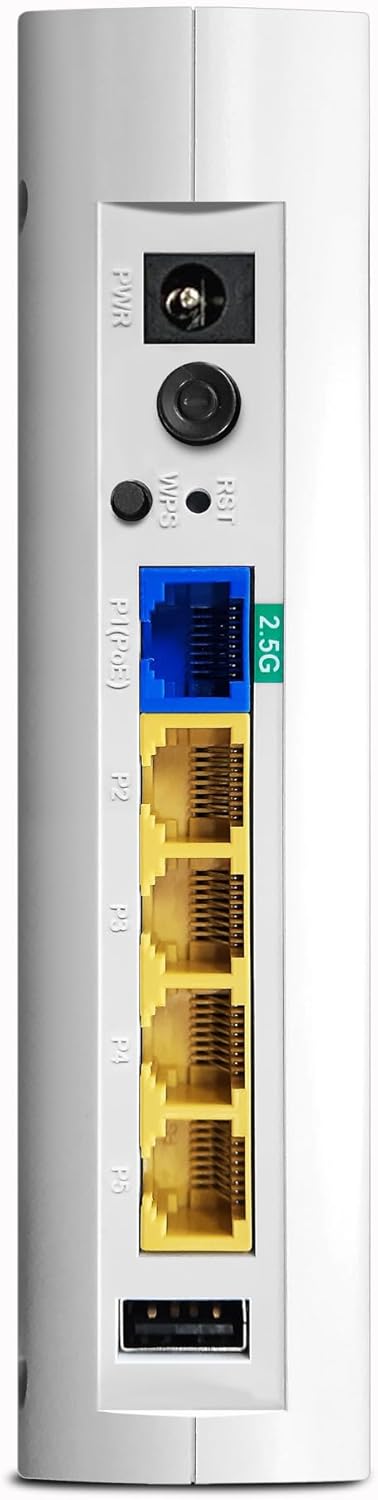
Figi 3: Detaye view of the VigorAP 905's rear panel, highlighting the power port, reset/WPS buttons, 2.5G Ethernet port, and four standard Gigabit Ethernet ports.
2.3 Inisyal Konfigirasyon
After physical installation, the VigorAP 905 requires initial configuration. Refer to the DrayTek official website or the included quick start guide for detailed instructions on accessing the web interface and setting up your Wi-Fi network (SSID, password, security settings).
- Aksè a Web Entèfas: Typically, you connect a computer directly to one of the AP's LAN ports or connect wirelessly to its default SSID (usually printed on the device). Then, open a web browser and enter the default IP address (e.g., 192.168.1.1).
- Konekte kalifikasyon: Use the default username and password (also usually printed on the device or in the quick start guide) to log in.
- Enstalasyon sòsye: Follow the on-screen wizard to configure basic settings such as Wi-Fi name (SSID), password, and security type (WPA3 recommended).
3. Operating the VigorAP 905
3.1 Endikatè ki ap dirije
The VigorAP 905 features LED indicators on its front panel to provide status information:
- Pouvwa dirije: Endike estati pouvwa aparèy la.
- WLAN LEDs: Indicate Wi-Fi activity for 2.4GHz and 5GHz bands.
- LED LAN: Endike aktivite sou pò Ethernet yo.
- Refer to the full user manual for a detailed explanation of each LED's behavior (e.g., solid, blinking, color).

Figi 4: Angle view of the VigorAP 905, highlighting the front panel with its array of LED indicators for various statuses.
3.2 Koneksyon san fil
Once configured, devices can connect to the VigorAP 905 wirelessly using the configured SSIDs and passwords. The device supports Wi-Fi 6 (802.11ax) for enhanced performance and efficiency.
- Konekte Aparèy: On your wireless device (smartphone, laptop, tablet), search for available Wi-Fi networks, select your configured SSID, and enter the password.
- Rezo may: If you have multiple compatible VigorAPs, you can set up a mesh network for seamless roaming and extended coverage. Consult the DrayTek documentation for mesh setup procedures.
3.3 Koneksyon Filaire
The VigorAP 905 provides five Ethernet ports for wired connections:
- P1 (2.5G Ethernet/PoE): Primary uplink to your network, supporting 2.5 Gigabit speeds and Power over Ethernet.
- P2-P5 (Gigabit Ethernet): Standard Gigabit Ethernet ports for connecting wired devices.
4. Antretyen
Regular maintenance ensures optimal performance and longevity of your VigorAP 905.
- Mizajou mikrolojisyèl: Tcheke DrayTek la regilyèman. website for new firmware versions. Updating firmware can provide new features, performance improvements, and security patches.
- Netwayaj: Kenbe aparèy la pwòp epi san pousyè. Sèvi ak yon twal mou epi sèk. Pa sèvi ak pwodui netwayaj likid.
- Vantilasyon: Ensure the device has adequate ventilation to prevent overheating. Do not block ventilation holes.
- Konfigirasyon backup: Regularly back up your device's configuration settings through the web interface. This allows for quick restoration in case of a reset or replacement.
NAN. Depanaj
This section addresses common issues you might encounter with your VigorAP 905.
5.1 No Power / LEDs Off
- Tcheke Koneksyon Pouvwa: Ensure the power adapter is securely connected to the AP and the electrical outlet.
- Verifye Priz: Teste priz elektrik la ak yon lòt aparèy pou konfime li ap travay.
- PoE Check: If using PoE, ensure your PoE switch or injector is powered on and providing power.
5.2 Pa ka konekte ak Wi-Fi
- Check SSID and Password: Verify that you are selecting the correct Wi-Fi network name (SSID) and entering the correct password. Passwords are case-sensitive.
- AP Status: Check the WLAN LEDs on the AP. If they are off, the Wi-Fi might be disabled or the AP is not functioning correctly.
- Reboot AP: Power cycle the VigorAP 905 by unplugging and re-plugging the power adapter.
- Distance/Interference: Move closer to the AP or check for sources of interference (e.g., microwaves, cordless phones).
5.3 Vitès Wi-Fi ki ba
- Entèferans Chanèl: Use the AP's web interface to perform a site survey and select a less congested Wi-Fi channel.
- Fòs siyal: Ensure your device has a strong Wi-Fi signal. Obstacles like walls can degrade performance.
- Kantite Aparèy: Too many devices connected to the AP can impact performance.
- Firmware: Ensure the AP is running the latest firmware.
5.4 Pa ka jwenn aksè Web Entèfas
- Adrès IP: Confirm you are using the correct IP address for the AP. If the AP is connected to a router, it might have received a dynamic IP address.
- Rezo Koneksyon: Ensure your computer is connected to the same network as the AP (either directly via Ethernet or wirelessly).
- Pare-feu/Antiviris: Dezaktive tanporèman nenpòt pare-feu oswa lojisyèl antivirus sou òdinatè w la ki ta ka bloke aksè.
- Reset faktori: As a last resort, perform a factory reset by pressing and holding the reset button for several seconds (refer to the full manual for exact duration). Note: This will erase all configurations.
6. Espesifikasyon
| Karakteristik | Detay |
|---|---|
| Mak | DrayTek |
| Non modèl | VAP905 |
| Nimewo Modèl Atik | VAP905-K |
| Koneksyon Teknoloji | Wi-Fi |
| Wireless Kominikasyon Creole | 802.11ax (Wi-Fi 6) |
| Gwoup Gwoup Frekans | Doub-Band |
| Karakteristik espesyal | WPA3 Security, Easy Management, High Density Performance, Versatile Design |
| Aparèy konpatib | Laptop, Printer, Mobile Devices |
| Itilizasyon Rekòmande | Biznis |
| Pwa atik | 330 gram |
| Dimansyon pake | 15 x 6 x 4 cm |
| Peyi orijin | Taiwan |
7. Garanti ak sipò
7.1 Enfòmasyon sou Garanti
DrayTek products typically come with a manufacturer's warranty. Please refer to the warranty card included with your product or visit the official DrayTek website for specific warranty terms and conditions applicable to the VigorAP 905.
7.2 Sipò teknik
For technical assistance, product registration, or to download the latest drivers and firmware, please visit the official DrayTek support website. You may also find helpful resources, FAQs, and community forums there.
DrayTek Official Websit: www.draytek.com
Ask a question about this manual
Ask about setup, troubleshooting, compatibility, parts, safety, or missing instructions. Manuals+ will review the question and use this page’s manual context to help answer it.