
Entwodiksyon
Thank you for choosing the Rapoo 9390M Wireless Multi-Mode Keyboard and Mouse Combo. This ultra-slim set offers versatile connectivity options, including 2.4 GHz wireless and Bluetooth 4.0/5.0, allowing seamless switching between multiple devices. Designed for efficiency and comfort, this combo features a full-size QWERTZ keyboard with multimedia keys and an ambidextrous optical mouse.
This manual provides essential information for setting up, operating, and maintaining your new Rapoo 9390M combo. Please read it carefully before use.
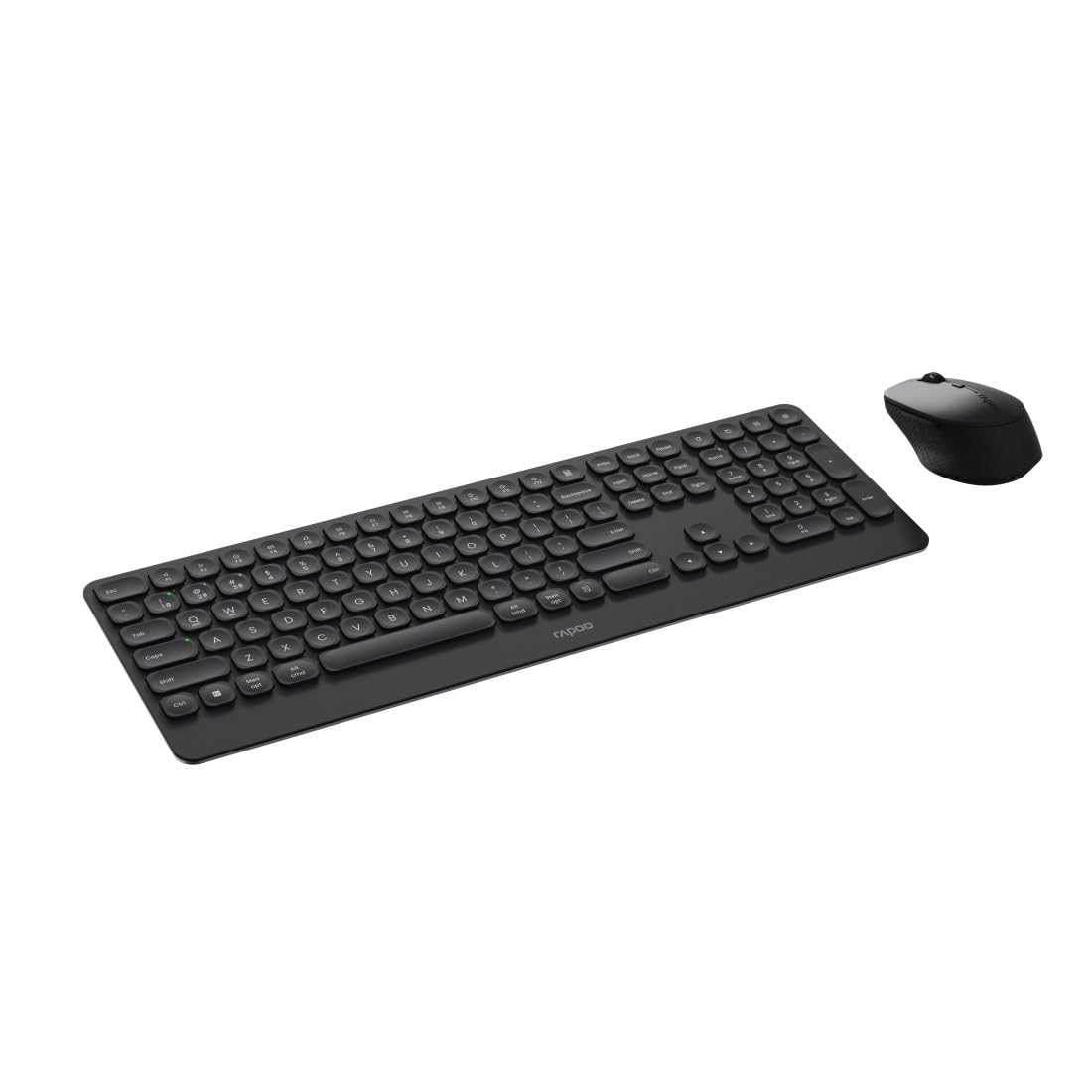
Image: The Rapoo 9390M wireless keyboard and mouse combo, showcasing its sleek design and full QWERTZ layout.
Enstalasyon
1. Enstalasyon batri
The Rapoo 9390M combo requires batteries for operation. Ensure correct polarity when inserting.
- Klavye: Requires 2 x AAA alkaline batteries.
- Sourit: Requires 1 x AA alkaline battery.
Batteries are included in the package.

Imaj: Side profile of the Rapoo 9390M keyboard and mouse, illustrating their ultra-slim design. Battery compartments are typically located on the underside of each device.
2. Konekte Aparèy yo
The Rapoo 9390M supports multi-mode connectivity: 2.4 GHz wireless via USB receiver and Bluetooth 4.0/5.0.
2.1. Koneksyon san fil 2.4 GHz
- Insert the USB receiver into an available USB Type-A port on your computer or device.
- Limen klavye a ak sourit la avèk bouton pouvwa respektif yo.
- Aparèy yo ta dwe konekte otomatikman ak òdinatè w la.
2.2. Bluetooth Koneksyon
The keyboard can pair with up to 3 Bluetooth devices, and the mouse with up to 2.
Keyboard Bluetooth Pairing:
- Limen klavye a.
- Peze epi kenbe Fn + 1, Fn + 2, oswa Fn + 3 for 3 seconds to select a Bluetooth channel. The indicator light will flash slowly.
- Open Bluetooth settings on your device (PC, laptop, tablet, TV).
- Chèche pou "Rapoo BT3.0 Keyboard" or "Rapoo BT5.0 Keyboard" and select to pair.
- Yon fwa yo konekte, limyè endikatè a ap sispann flache.
Mouse Bluetooth Pairing:
- Vire sourit la.
- Press the Bluetooth pairing button on the underside of the mouse. The indicator light will flash slowly.
- Louvri paramèt Bluetooth sou aparèy ou an.
- Chèche pou "Rapoo BT3.0 Mouse" or "Rapoo BT5.0 Mouse" and select to pair.
- Yon fwa yo konekte, limyè endikatè a ap sispann flache.
Enstriksyon Operasyon
1. Chanje ant Aparèy Konekte yo
The Rapoo 9390M allows you to switch between multiple connected devices (up to 4 for keyboard, 3 for mouse, including 2.4 GHz).
- Klavye: Peze Fn + 1, Fn + 2, Fn + 3 (pou aparèy Bluetooth) oubyen Fn + 4 (for 2.4 GHz USB receiver) to switch between paired devices.
- Sourit: Press the mode switch button on the underside of the mouse to cycle between Bluetooth 1, Bluetooth 2, and 2.4 GHz modes.
2. Fonksyon klavye
The keyboard features a full QWERTZ layout with 110 keys, including a numeric keypad and dedicated function keys.
- Kle miltimedya: Use the function keys (F1-F12) in combination with the Fn key to access multimedia controls (e.g., volume, play/pause, browser).
- Bouton Navigatè yo: Dedicated keys for browser functions may be present.

Imaj: Anwo-anba view of the Rapoo 9390M keyboard and mouse, highlighting the QWERTZ key layout and mouse button configuration.
3. Fonksyon Sourit
The optical mouse features 5 buttons, including a scroll wheel, and adjustable DPI.
- Ajisteman DPI: The mouse supports a DPI range of up to 2400. A dedicated DPI button (often located near the scroll wheel) allows you to cycle through different sensitivity levels.
- Konsepsyon anbidextre: The mouse is designed for comfortable use by both right-handed and left-handed users.
Antretyen
1. Netwayaj
To ensure optimal performance and longevity, keep your keyboard and mouse clean.
- Sèvi ak yon ti moso twal mou, ki san pèl dampfini ak dlo oswa yon solisyon netwayaj twò grav.
- Evite pwodui chimik ki fò, pwodui netwayaj abrazif, oswa imidite twòp.
- Pou klavye a, sèvi ak lè konprese pou retire pousyè ak debri ki ant kle yo.
2. Ranplasman batri
Lè limyè endikatè batri a flache oswa pèfòmans lan diminye, li lè pou ranplase batri yo.
- Open the battery compartment on the underside of the keyboard (2x AAA) and mouse (1x AA).
- Retire pil fin vye yo epi jete yo yon fason responsab dapre règleman lokal yo.
- Insert new alkaline batteries, ensuring correct polarity.
- Fèmen lòj batri a byen.
Depanaj
Pwoblèm Koneksyon
- No connection (2.4 GHz): Ensure the USB receiver is securely plugged into a working USB port. Try a different USB port. Ensure the keyboard and mouse are powered on.
- No connection (Bluetooth): Ensure Bluetooth is enabled on your device. Re-initiate the pairing process as described in the Setup section. Ensure the keyboard/mouse is in Bluetooth mode and not 2.4 GHz mode.
- Koneksyon tanzantan: Move the devices closer to the receiver/device. Avoid placing the devices near other wireless interference sources (e.g., Wi-Fi routers, other wireless peripherals).
Input Not Registering / Lag
- Check batteries: Low batteries can cause performance issues. Replace them if necessary.
- Chanje mòd: Ensure the keyboard and mouse are set to the correct connection mode (2.4 GHz or Bluetooth) for the device you are using.
- Rekòmanse aparèy yo: Turn off and on the keyboard, mouse, and your computer/device.
Espesifikasyon
| Karakteristik | Deskripsyon |
|---|---|
| Modèl | 9390M |
| Koneksyon | 2.4 GHz RF (USB Type-A receiver), Bluetooth 4.0, Bluetooth 5.0 |
| Layout klavye | QWERTZ (German) |
| Kle klavye | 110 keys, Scissor mechanism, Laser engraved keycaps |
| Karakteristik klavye | Multimedia keys, Browser buttons, Ultra-slim design, Aluminum base |
| Capteur sourit | Optik |
| DPI sourit | Jiska 2400 DPI |
| Sourit bouton | 5 buttons (including scroll wheel) |
| Sourit Design | Ambidextrous, High-quality plastic |
| Range opere | Jiska 10 mèt |
| OS konpatibilite | Windows XP / Vista / 7 / 8 / 10 / 11 |
| Sous pouvwa | Battery powered (Alkaline) |
| Batri enkli | Wi (2x AAA pou klavye, 1x AA pou sourit) |
| Keyboard Dimensions (W x D x H) | 42.6 x 14.3 x 2 cm |
| Pwa klavye | 409 g |
| Mouse Dimensions (W x D x H) | 6.6 x 10.4 x 3.7 cm |
| Pwa sourit | 60 g |
Garanti ak sipò
For warranty information and technical support, please refer to the warranty card included in your product packaging or visit the official Rapoo websit la. Kenbe prèv acha ou pou reklamasyon garanti.