
1. Plis paseview
The Upperizon Portable Monitor M215FH is a 21.5-inch Full HD (1920x1080) display designed for enhanced productivity and entertainment on the go. It features a 120Hz refresh rate, 110% sRGB color gamut, 8-bit color depth, 300 nits brightness, and a 1300:1 contrast ratio for vibrant and sharp visuals. With its ultra-slim, frameless, and lightweight design, built-in kickstand, and VESA compatibility, this monitor offers flexibility for various setups.
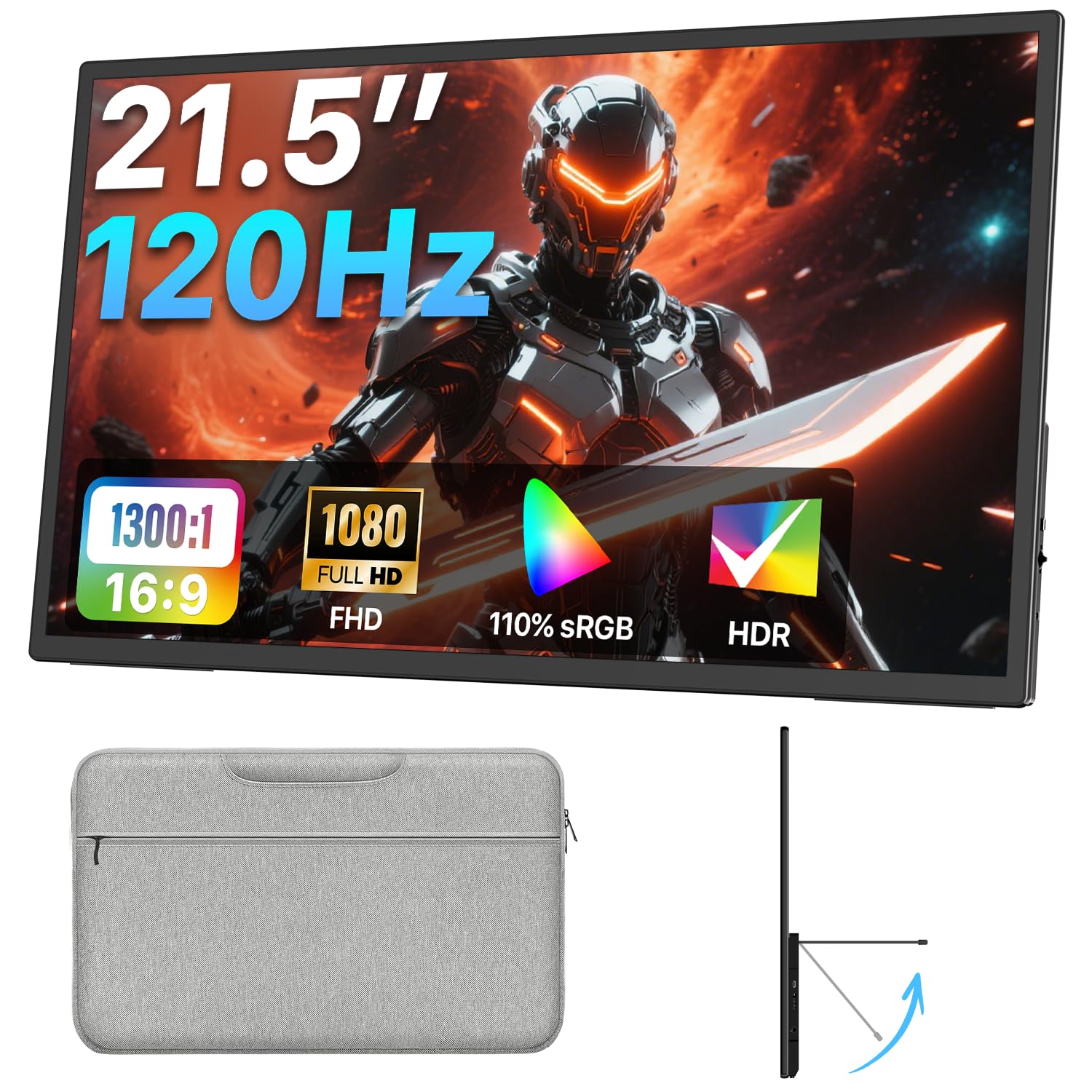
Image 1.1: The Upperizon 21.5-inch Portable Monitor in use, showcasing its display quality.
2. Ki sa ki nan bwat la
Tanpri verifye sa ki nan pake a pou asire w tout atik yo la:
- 1 × Upperizon 21.5-inch Portable Monitor
- 1 × USB-C to USB-C cable (full-featured)
- 1 × HDMI cable
- 1 × Power Adapter (45W PD Charger with 5ft Cable)
- 1 × Sleeve Case

Image 2.1: All items included in the Upperizon Portable Monitor package.
3. Enstriksyon Enstalasyon
3.1 Enstalasyon fizik
The monitor features an integrated kickstand and VESA mount compatibility for flexible placement.
- Sèvi ak sipò a: The built-in kickstand allows for adjustment up to 90 degrees, providing various viewing angles. Simply extend the kickstand from the back of the monitor to your desired angle.
- Montaj VESA: For a more permanent setup, the monitor supports a 75x75mm VESA mount. This allows attachment to a monitor arm or wall mount (VESA stand not included). Ensure the VESA mount screws are M4*5mm.
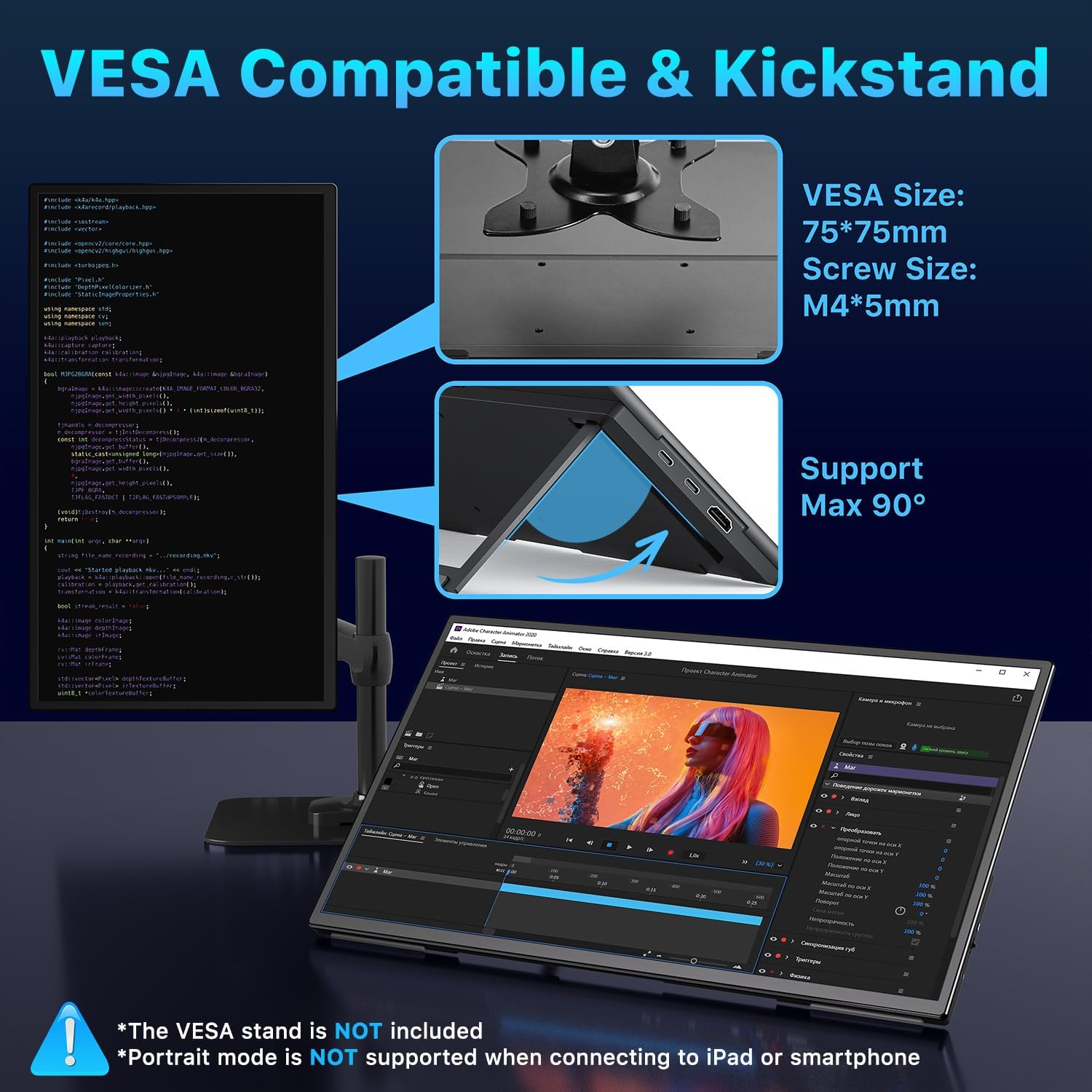
Image 3.1: The monitor's adjustable kickstand and VESA mounting points.
3.2 Konekte ak Aparèy
The monitor offers versatile connectivity options for various devices.
3.2.1 USB-C Connection (Plug & Play)
For devices with a full-featured USB-C port (supporting Thunderbolt 3/4/5 or DisplayPort Alt Mode), a single USB-C to USB-C cable can transmit both video signal and power.
- Connect one end of the full-featured USB-C cable to your device's compatible USB-C port.
- Connect the other end to one of the USB-C ports on the monitor.
- If the screen flickers or does not power on, connect the provided power adapter to the monitor's power input.
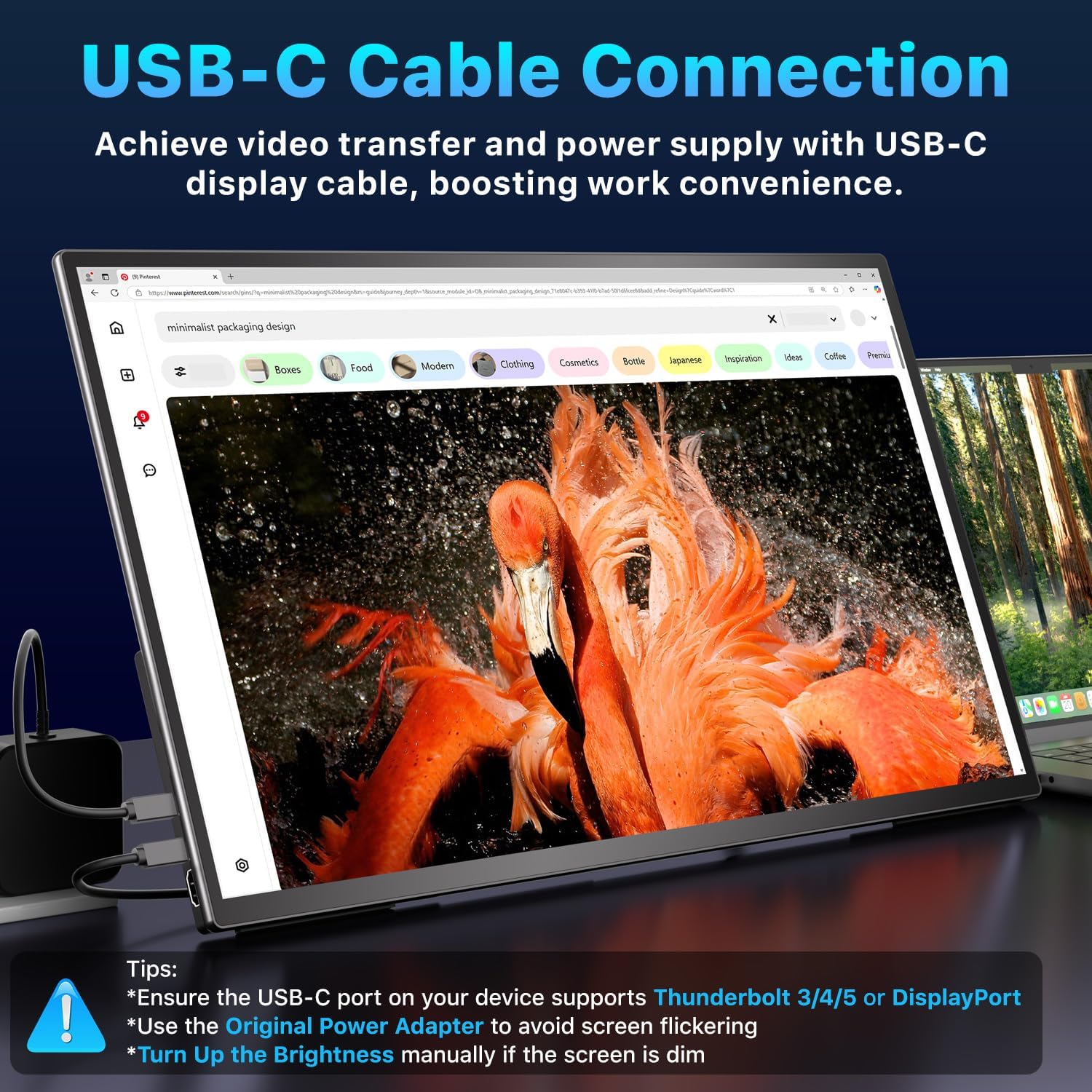
Image 3.2: USB-C cable connection for video and power.
3.2.2 Koneksyon HDMI
When using HDMI, a separate power source is required for the monitor.
- Connect one end of the HDMI cable to your device's HDMI output.
- Konekte lòt bout la nan pò HDMI ki sou monitè a.
- Connect the provided power adapter to the monitor's power input to supply power.
- Ensure your laptop/device supports HDMI 1.4 or higher for 120Hz refresh rate.

Image 3.3: HDMI cable and power cable connection.
3.2.3 Specific Device Considerations
- MacBook: Compatible with Apple M1/M2/M3/M4 and Intel Processor MacBooks via USB-C. Older MacBooks may require a Mini DP to HDMI adapter.
- Mac Mini: Connect to the rear USB-C ports for display. Do not connect to the front USB-C ports.
- Gaming Consoles (PS5, Xbox, Steam Deck): Use the HDMI connection for optimal performance. USB-C is not compatible with some gaming consoles.

Image 3.4: Connecting the monitor to a Mac Mini.
4. Operasyon Enstriksyon
4.1 Navigasyon meni OSD
The monitor features intuitive buttons for navigating the On-Screen Display (OSD) menu and adjusting settings:
- Power / Exit: Press to turn the monitor on/off. When in the OSD menu, press to exit.
- Up / Brightness: Press to navigate up in the OSD menu or to increase brightness.
- Down / Volume: Press to navigate down in the OSD menu or to adjust volume.
- Menu / Confirm: Press to enter the OSD menu or confirm a selection.

Image 4.1: Monitor control buttons and port layout.
4.2 Montre mòd
You can configure the monitor to work in various display modes with your connected device:
- Pwolonje mòd: Expands your desktop across both screens, allowing for increased workspace.
- Mòd glas: Duplicates your primary screen's content onto the portable monitor.
- Mòd pòtrè: The monitor can be rotated to a vertical orientation for reading documents or coding (Note: Portrait mode is not supported when connecting to iPad or smartphone).

Image 4.2: Various display modes for enhanced productivity.
4.3 120Hz Refresh Rate
The 120Hz refresh rate provides smoother visuals, especially beneficial for gaming and fast-paced content. Ensure your connected device and cable support this refresh rate (HDMI 1.4 or higher for HDMI connections).

Image 4.3: Visual representation of 120Hz refresh rate benefits.
4.4 HDR Technology
The monitor supports HDR (High Dynamic Range) technology, offering a wider range of colors and contrast for a more immersive visual experience. Enable HDR through the monitor's OSD menu and your device's display settings (e.g., Windows or macOS display settings).

Image 4.4: Enabling HDR for enhanced visual quality.
5. Antretyen
5.1 Netwaye monitè a
- Always power off the monitor and disconnect all cables before cleaning.
- Sèvi ak yon moso twal mou, ki san pèl damplave avèk dlo oswa yon pwodui netwayaj ekran ki pa abrazif.
- Pa flite pwodui netwayaj la dirèkteman sou ekran an.
- Evite itilize alkòl, amonyak, oswa pwodui netwayaj abrazif, paske sa yo ka domaje sifas ekran an.
5.2 Depo
- When not in use, store the monitor in its provided sleeve case to protect it from scratches and dust.
- Sere nan yon kote ki fre, sèk lwen limyè solèy la dirèk ak tanperati ekstrèm.
NAN. Depanaj
6.1 Pa gen Siyal / Ekran Nwa
- Tcheke Câbles: Ensure all cables (USB-C or HDMI and power) are securely connected to both the monitor and your device.
- Pwovizyon pou pouvwa: If using HDMI, ensure the monitor is connected to the power adapter. If using USB-C and experiencing issues, connect the power adapter.
- Aparèy konpatibilite: Verify your device's USB-C port supports video output (Thunderbolt 3/4/5 or DisplayPort Alt Mode).
- Montre Anviwònman: On your computer, press Kle Windows + P (for Windows) or go to Anviwònman sistèm > Montre (for macOS) and select the appropriate display mode (Extend, Duplicate, or Second screen only).
6.2 Screen Flickering
- Ensifizan pouvwa: This is often caused by insufficient power. Connect the provided power adapter to the monitor.
- Kalite kab: Ensure you are using the original cables provided or high-quality, full-featured cables.
6.3 No Audio from Monitor Speakers
- Anviwònman Volim: Check the monitor's volume settings via the OSD menu and your device's audio output settings.
- Sòti odyo: Ensure the monitor is selected as the audio output device on your computer or connected device.
6.4 Image Quality Issues (Blurry, Distorted)
- Rezolisyon: Ensure the display resolution on your device is set to 1920x1080 (FHD).
- Pousantaj rafrechisman: Verify the refresh rate is set correctly (e.g., 120Hz) in your device's display settings.
- Koneksyon kab: Reconnect the video cable to ensure a stable connection.
7. Espesifikasyon
| Karakteristik | Spesifikasyon |
|---|---|
| Nimewo Modèl | M215FH |
| Gwosè ekran | 21.5 pous |
| Rezolisyon | 1920 x 1080 piksèl (FHD 1080p) |
| Aspè rapò | 16:9 |
| Rafrechisman pousantaj | 120Hz |
| Gamut koulè | 110% sRGB |
| Klète | 300 Kandela (nits) |
| Pwopòsyon kontras | 1300:1 |
| Sifas ekran | Mat |
| Koneksyon | USB-C (Full-featured), HDMI |
| Total pò USB | 1 (USB-C for display/power) |
| Oratè ki entegre yo | Wi |
| Kickstand | Integrated, adjustable up to 90° |
| VESA konpatibilite | 75x75mm |
| Dimansyon pwodwi | 0.55 x 19.4 x 11.3 pous |
| Pwa atik | 3.72 liv (1690g) |
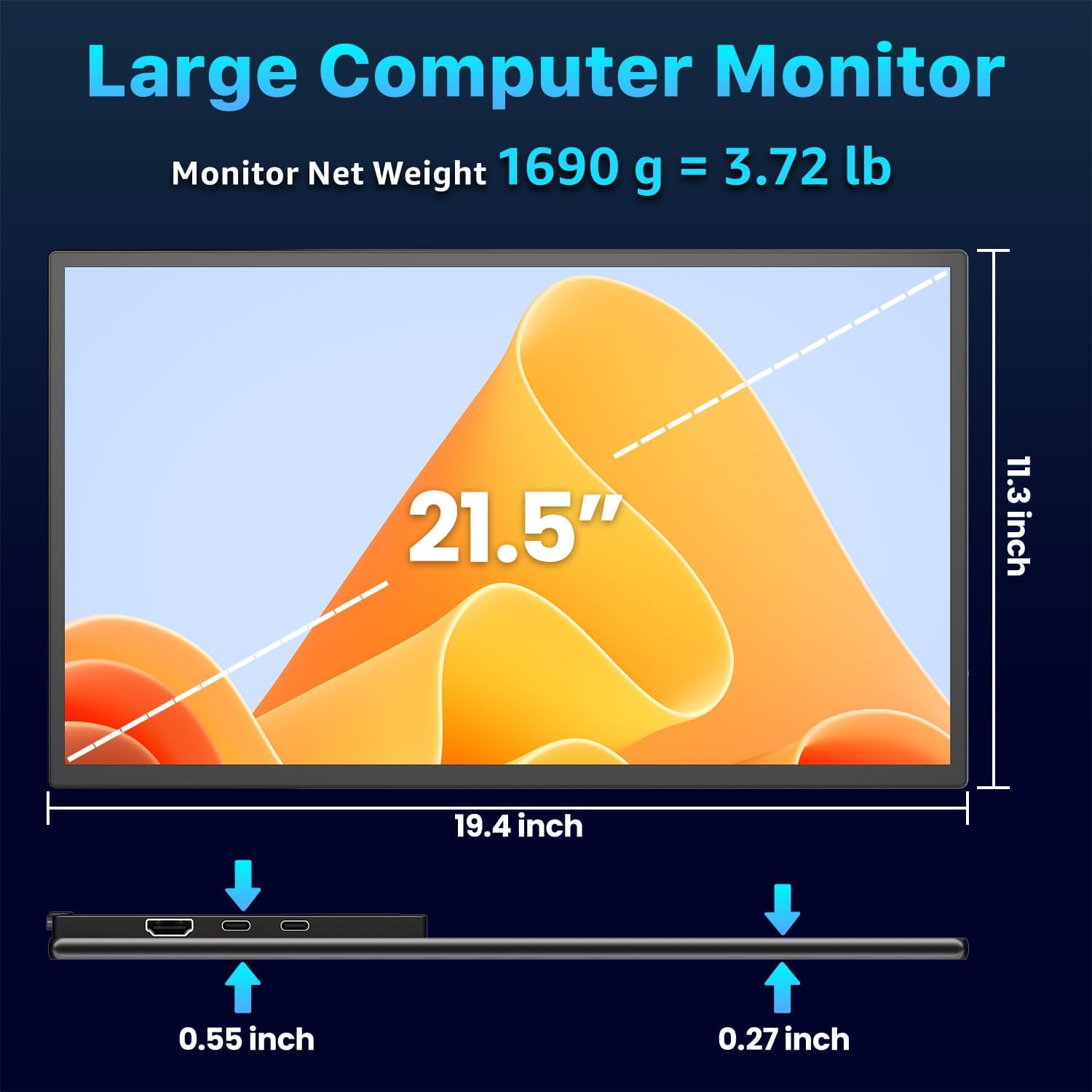
Imaj 7.1: Dimansyon fizik ak pwa monitè a.
8. Garanti ak sipò
8.1 Enfòmasyon sou Garanti
The Upperizon Portable Monitor M215FH typically comes with a 2-year warranty. Please refer to the warranty registration information provided with your product or scan the QR code on the monitor for details on how to register your product and activate your warranty.
8.2 Sipò pou Kliyan
For any issues, questions, or technical assistance, please contact Upperizon customer support. Contact information can usually be found on the product packaging, the official Upperizon website, or by scanning the QR code provided on the monitor for support details.
For returns, the product is eligible for a refund or replacement within 30 days of purchase, subject to the retailer's return policy.