
1. Entwodiksyon
Thank you for choosing the RUPA RK3518pro Android TV Box 14.0. This device transforms your television into a smart entertainment hub, offering access to a vast array of streaming content, applications, and multimedia features. Equipped with the RK3518pro chipset, 2GB RAM, and 16GB internal storage, it supports 4K and 8K Ultra HD resolutions, Wi-Fi 6, dual-band Wi-Fi, HDR10+, 100M Ethernet, Bluetooth 5.0, and USB 3.0 connectivity. This manual provides essential information for setting up, operating, maintaining, and troubleshooting your device to ensure an optimal user experience.
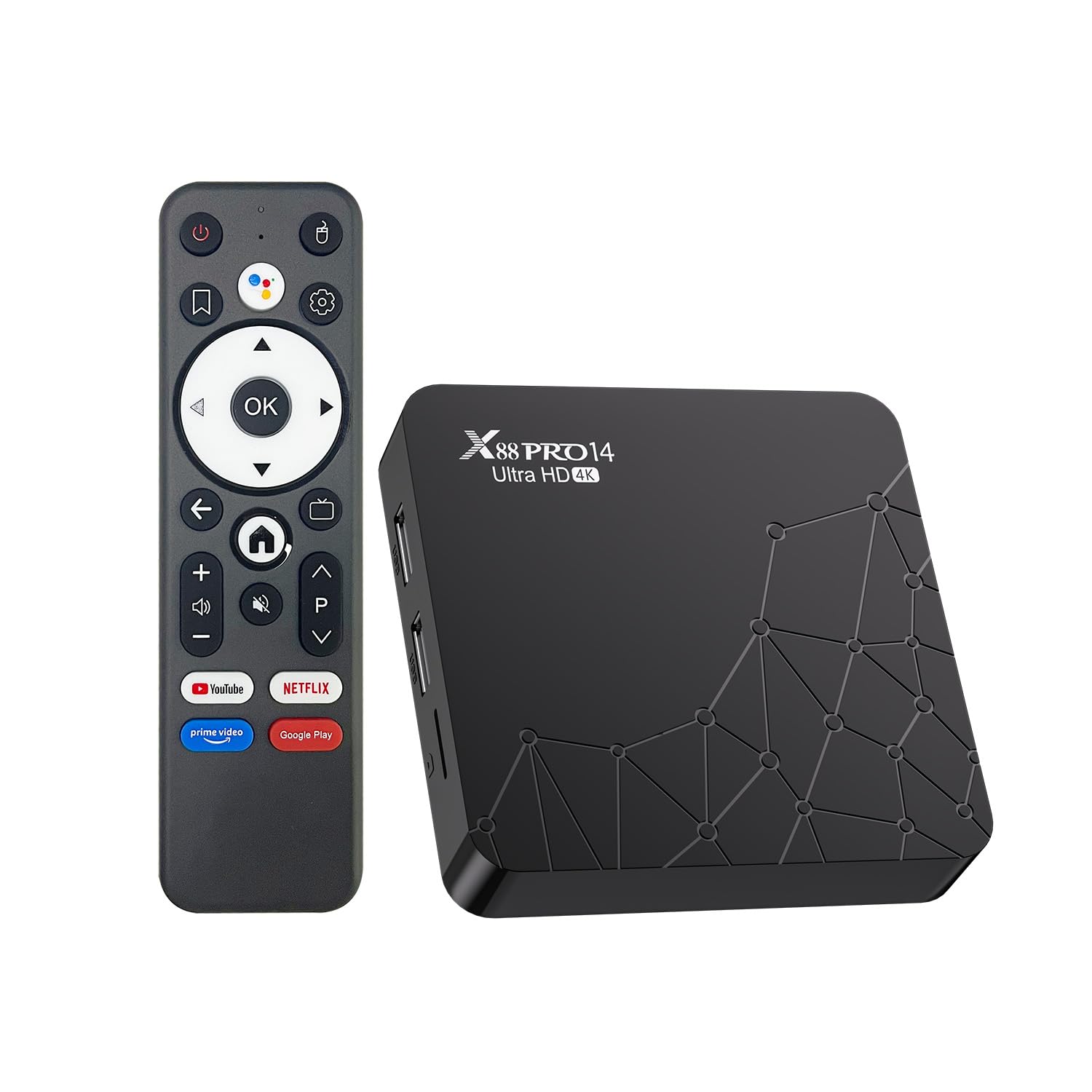
Image 1.1: RUPA RK3518pro Android TV Box 14.0 device.
2. Gid Enstalasyon
2.1 Debale ak Kontni Pakè a
Depake tout bagay yo nan bwat la avèk atansyon. Asire w ke tout konpozan yo prezan anvan ou kontinye ak enstalasyon an.

Image 2.1: Package contents including the TV box, remote control, user manual, HDMI cable, and power adapter.
2.2 Konekte Aparèy Ou a
Follow these steps to connect your Android TV Box:
- Koneksyon pouvwa: Connect the provided power adapter to the DC 5V port on the TV box and then plug it into a wall outlet.
- Koneksyon HDMI: Use the included HDMI cable to connect the HDMI OUT port on the TV box to an HDMI input port on your television. Note the HDMI input number (e.g., HDMI 1, HDMI 2) for later selection on your TV.
- Koneksyon Rezo (Si ou vle):
- Filaire (Etènèt): For a stable connection, connect an Ethernet cable from your router to the LAN port on the TV box.
- San fil (Wi-Fi): The device supports Wi-Fi 6 dual-band (2.4GHz/5.8GHz). You will configure this during the initial setup on screen.
- USB Devices (Optional): Connect USB storage devices, keyboards, or mice to the available USB 2.0 or USB 3.0 ports.
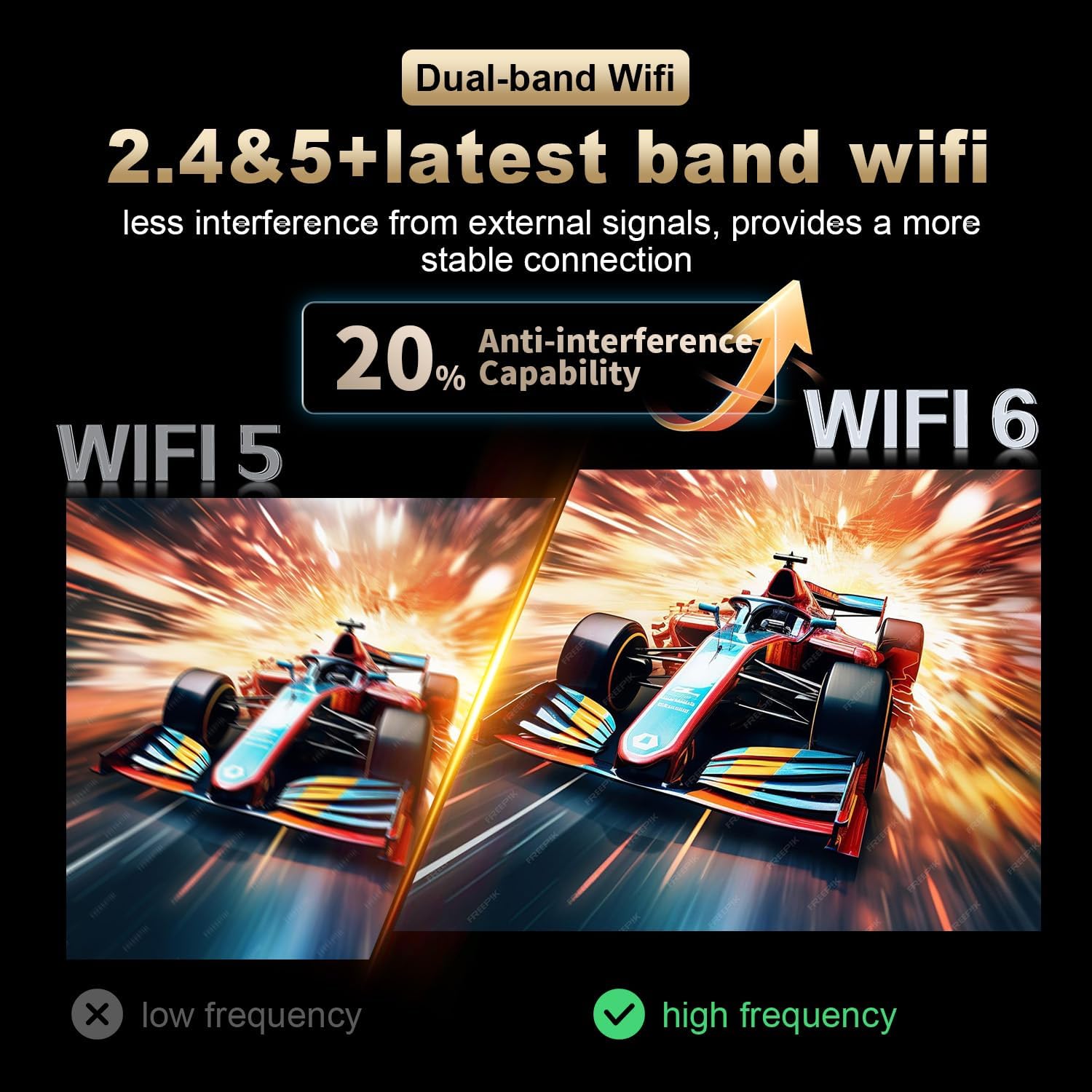
Image 2.2: Rear ports of the TV box, including HDMI, LAN, and power input.
2.3 Premye Limen ak Sòsye Enstalasyon
After connecting all cables, turn on your television and select the correct HDMI input source. The TV box will power on automatically. Follow the on-screen instructions for the initial setup, which typically includes:
- Seleksyon lang.
- Wi-Fi network connection (if not using Ethernet).
- Google account sign-in for app access.
- Paramèt dat ak lè.
3. Operasyon Enstriksyon
3.1 Navigating the Android 14.0 Interface
Your RUPA TV Box runs on the latest Android 14.0 operating system, offering a user-friendly interface. Use the provided remote control to navigate through menus, select applications, and adjust settings.
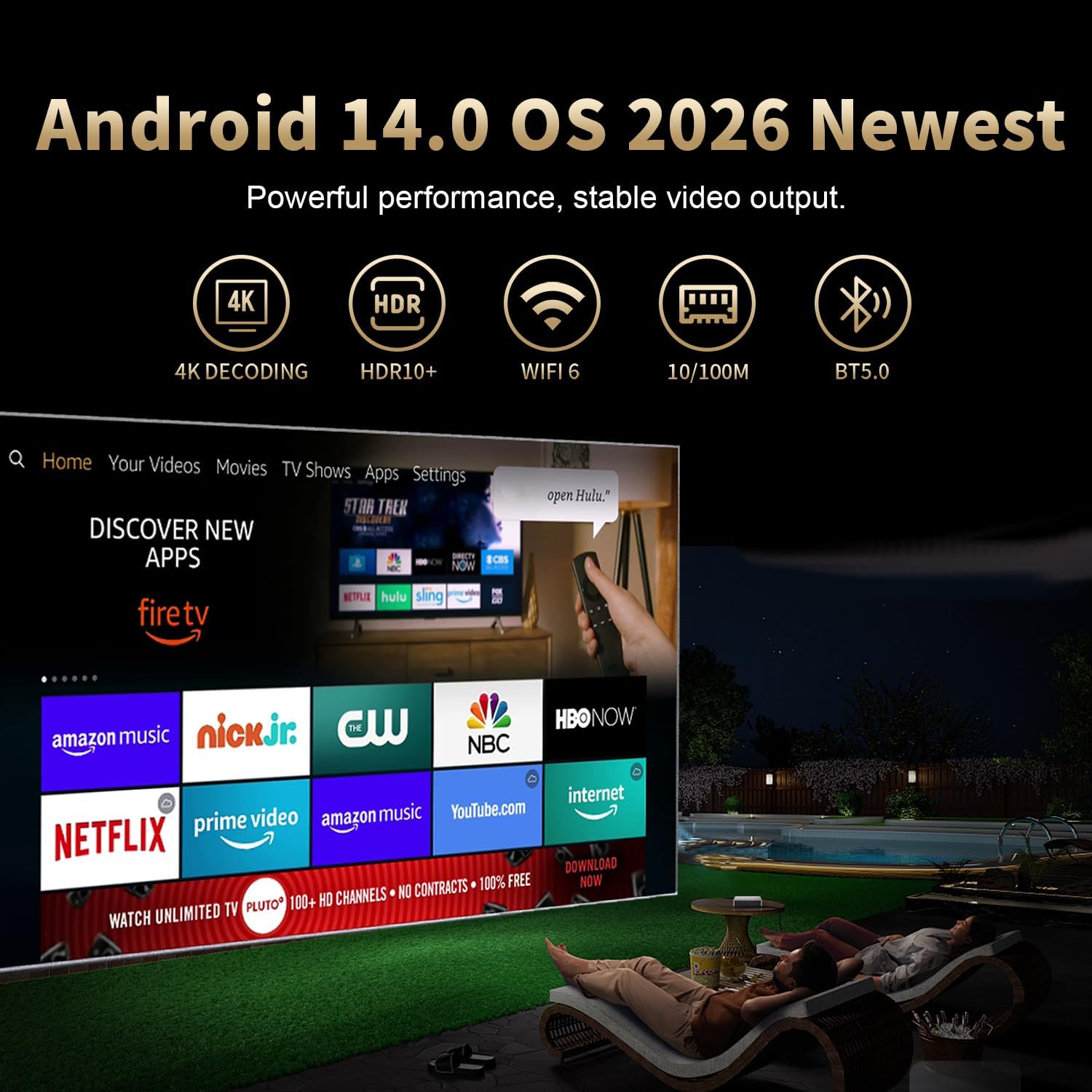
Image 3.1: Android 14.0 operating system interface with streaming service icons.
3.2 Using the Voice Remote Control
The included voice remote control allows for convenient navigation and voice commands. Press the dedicated voice button on the remote and speak clearly into the microphone to search for content, open apps, or control playback.

Image 3.2: Voice remote control in use, interacting with the TV box interface.
3.3 App Installation and Streaming
Access the Google Play Store to download and install your favorite streaming applications, games, and utilities. The device supports a wide range of apps compatible with Android 14.0.
3.4 4K and 8K Ultra HD Playback
The TV box supports video output resolutions up to 4K and 8K Ultra HD, providing a highly detailed and immersive viewing experience. Ensure your television is 4K or 8K compatible and that you are using a high-speed HDMI cable to fully utilize these resolutions. HDR10+ support enhances color and contrast for compatible content.

Image 3.3: Visual comparison demonstrating the enhanced clarity of 4K over 1080p.
3.5 Screen Mirroring and Sharing
Utilize the screen mirroring feature (e.g., Airplay, Airscreen, DLNA) to cast content from your smartphone, tablet, or laptop directly to your television via the TV box. This allows for easy sharing of photos, videos, and presentations on a larger screen.
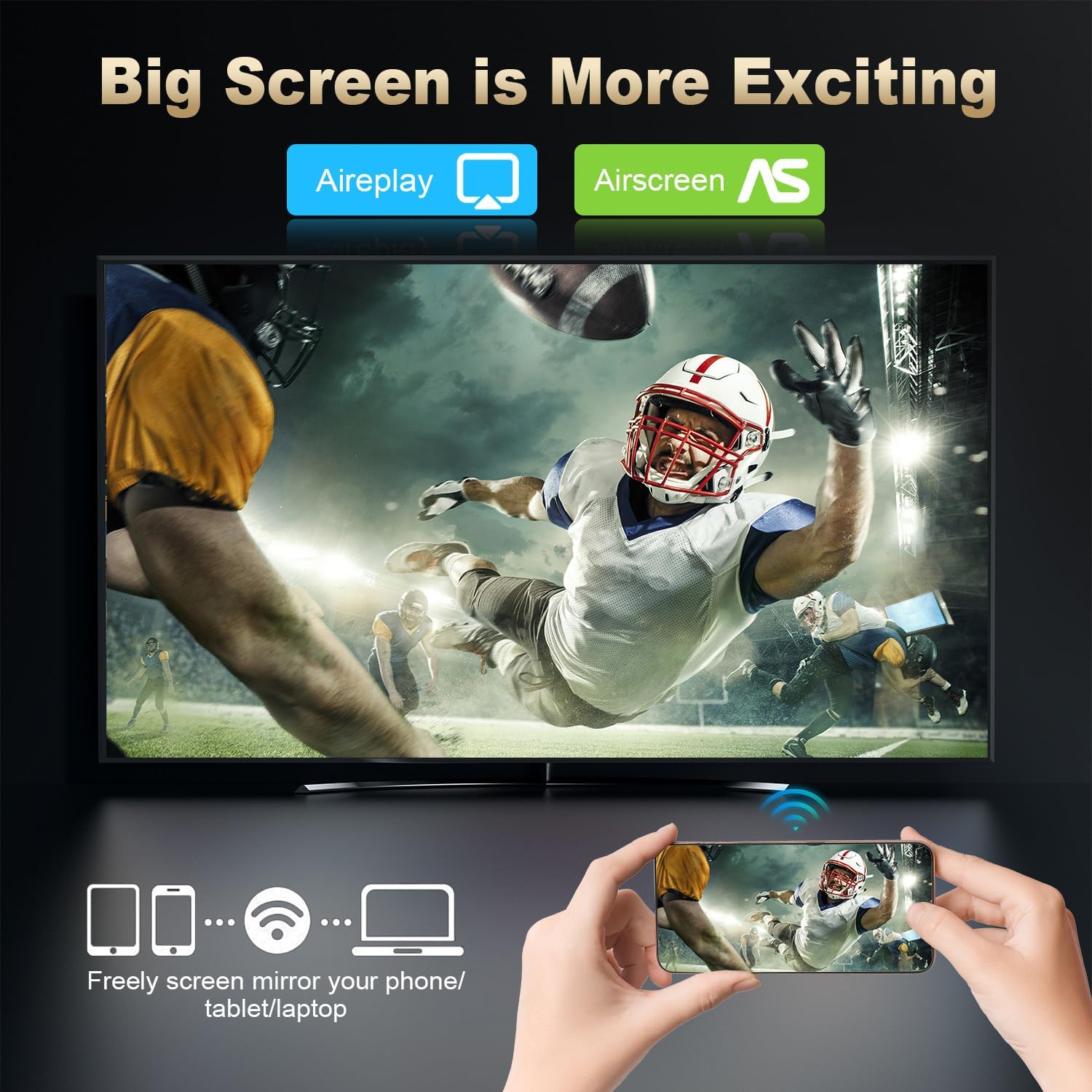
Image 3.4: Screen mirroring a mobile device to the television via the TV box.
3.6 Wi-Fi 6 and Bluetooth 5.0 Connectivity
The device features Wi-Fi 6 for faster and more stable wireless internet connections, especially in crowded network environments. Dual-band support (2.4GHz and 5.8GHz) ensures optimal performance. Bluetooth 5.0 allows for seamless connection of wireless accessories such as headphones, game controllers, and keyboards.

Imaj 3.5: Egzanpamples of multi-scene use, including watching TV, playing games, listening to music, and watching sports.
4. Antretyen
To ensure the longevity and optimal performance of your RUPA Android TV Box, consider the following maintenance tips:
- Netwayaj: Sèvi ak yon twal mou epi sèk pou netwaye deyò aparèy la. Evite pwodui netwayaj likid oswa materyèl abrazif.
- Vantilasyon: Asire w ke aparèy la mete nan yon zòn ki byen ayere pou anpeche li chofe twòp. Pa bloke ouvèti vantilasyon yo.
- Mizajou lojisyèl: Regularly check for and install system updates to benefit from new features, performance improvements, and security patches. You can usually find this option in the device's settings menu.
- Kondisyon anviwònman: Evite ekspoze aparèy la nan tanperati ekstrèm, limyè solèy la dirèk, oswa imidite segondè.
- Sik pouvwa: If the device becomes unresponsive, disconnect the power adapter, wait 10 seconds, and then reconnect it to perform a power cycle.
NAN. Depanaj
If you encounter issues with your RUPA Android TV Box, refer to the following common problems and solutions:
- Pa gen ekspozisyon sou televizyon:
- Ensure the TV box is powered on and the power adapter is securely connected.
- Verify the HDMI cable is firmly connected to both the TV box and the television.
- Tcheke si televizyon ou an byen branche sou bon sous antre HDMI a.
- Eseye yon lòt kab HDMI oswa yon lòt pò HDMI sou televizyon ou an.
- Pa gen koneksyon entènèt:
- Wi-Fi: Go to Settings > Network & Internet and ensure Wi-Fi is enabled and connected to your network. Re-enter the Wi-Fi password if necessary.
- Ethernet: Ensure the Ethernet cable is securely connected to both the TV box and your router. Check your router's internet connection.
- Restart your router and the TV box.
- Kontwòl Remote pa reponn:
- Ranplase pil yo nan kontwòl remote la.
- Asire w pa gen okenn obstak ant telekòmand lan ak bwat televizyon an.
- If it's a Bluetooth remote, ensure it's properly paired in the device's Bluetooth settings.
- Device is Slow or Lagging:
- Close any unused applications running in the background.
- Clear the cache of frequently used apps via Settings > Apps.
- Restart the TV box.
- Consider performing a factory reset (Settings > System > Reset options), but be aware this will erase all data and settings.
- Wi-Fi Disconnecting Frequently:
- Ensure the TV box is within a reasonable range of your Wi-Fi router.
- Minimize entèferans ki soti nan lòt aparèy elektwonik yo.
- Try connecting to the 5.8GHz band if your router supports it, as it often has less interference.
- Update the TV box firmware if an update is available.
6. Espesifikasyon
Detailed technical specifications for the RUPA RK3518pro Android TV Box 14.0:

Image 6.1: RK3518pro+ chipset with integrated 2GB RAM and 16GB ROM.
| Karakteristik | Spesifikasyon |
|---|---|
| Mak | RUPA |
| Non modèl | RK3518pro |
| Sistèm operasyon | Android 14.0 |
| Chipset | RK3518pro |
| Memwa RAM | 2GB |
| Kapasite Depo | 16GB |
| Rezolisyon Sòti Videyo | Up to 8K (7680 pixels), 4K |
| Video Codec Support | H.265/HEVC, VP9 |
| Sipò HDR | HDR10+ |
| Koneksyon Wi-Fi | Wi-Fi 6, Dual-Band (2.4GHz/5.8GHz) |
| Ethernet | 100M Ethernet |
| Bluetooth | Bluetooth 5.0 |
| Pò USB | USB 2.0, USB 3.0 |
| Other Special Features | DLNA, Screen Mirroring |
| Aparèy konpatib | Television, Smartphone, Personal Computer, Laptop, Tablet |
| Dimansyon (L x W x H) | 7.2" x 4.4" x 2.2" |
7. Garanti ak sipò
For warranty information and customer support, please refer to the documentation included with your purchase or contact the manufacturer directly. Keep your proof of purchase for warranty claims.
Manufacturer: RUPA