
ILEBYGO B0F83Q1HHT
ILEBYGO Mini Projector B0F83Q1HHT User Manual
Model: B0F83Q1HHT
1. Entwodiksyon
Thank you for choosing the ILEBYGO Mini Projector B0F83Q1HHT. This portable projector is designed to provide a versatile entertainment experience with its Android 13 operating system, WiFi 6, Bluetooth 5.0, 1080P Full HD resolution with 4K support, 320 ANSI lumens brightness, 270-degree rotation, auto keystone correction, and autofocus. This manual provides essential information for setting up, operating, and maintaining your projector.
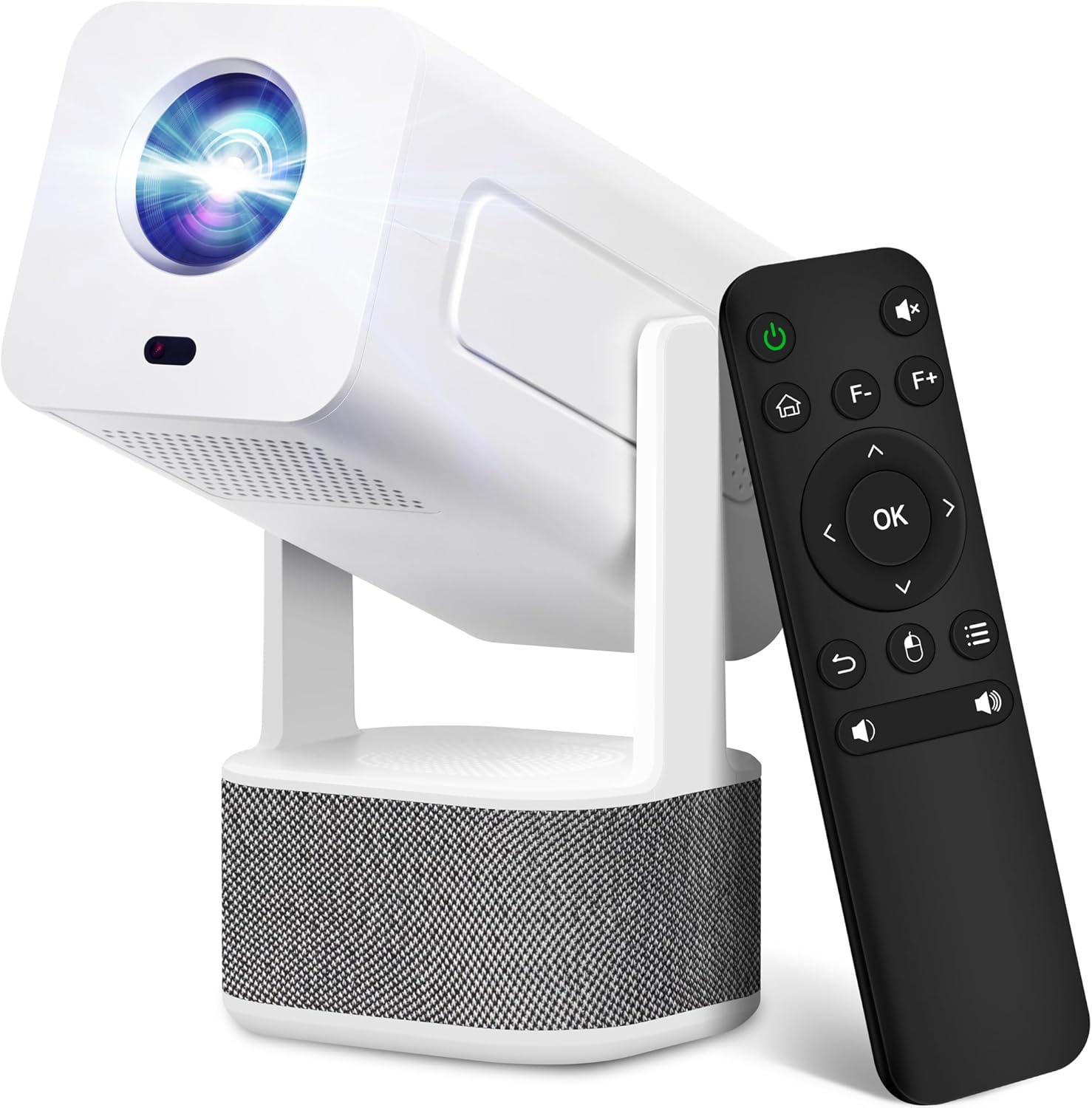
Image 1.1: ILEBYGO Mini Projector and Remote Control
The ILEBYGO Mini Projector B0F83Q1HHT offers a projection size ranging from 30 to 200 inches, making it suitable for various environments from small rooms to outdoor settings. Its dual 5W speakers deliver integrated audio, and multiple connectivity options ensure compatibility with a wide range of devices.
2. Ki sa ki nan bwat la
Tanpri verifye sa ki nan pakè w la. Si gen nenpòt atik ki manke oswa ki domaje, kontakte sèvis kliyan.
- 1x ILEBYGO Mini Projector
- 1x manyèl itilizatè
- 1x pouvwa adaptè
- 1x kontwòl Remote
3. Gid Enstalasyon
3.1. Limen
- Konekte adaptè kouran an nan pò antre DC ki sou pwojektè a.
- Ploge adaptè pouvwa a nan yon priz miray.
- Peze bouton pouvwa a sou pwojektè a oswa kontwòl remote la pou limen aparèy la.

Image 3.1: Projector Connectivity Ports (DC, HDMI, USB, Audio)
3.2. Initial Placement and Adjustment
The projector features a 270-degree rotatable design, allowing flexible placement.
- Mete pwojektè a sou yon sifas ki estab.
- Adjust the projector's angle to direct the image onto your desired projection surface (wall, screen, ceiling).
- The projector will automatically perform keystone correction and autofocus to optimize the image clarity and shape.
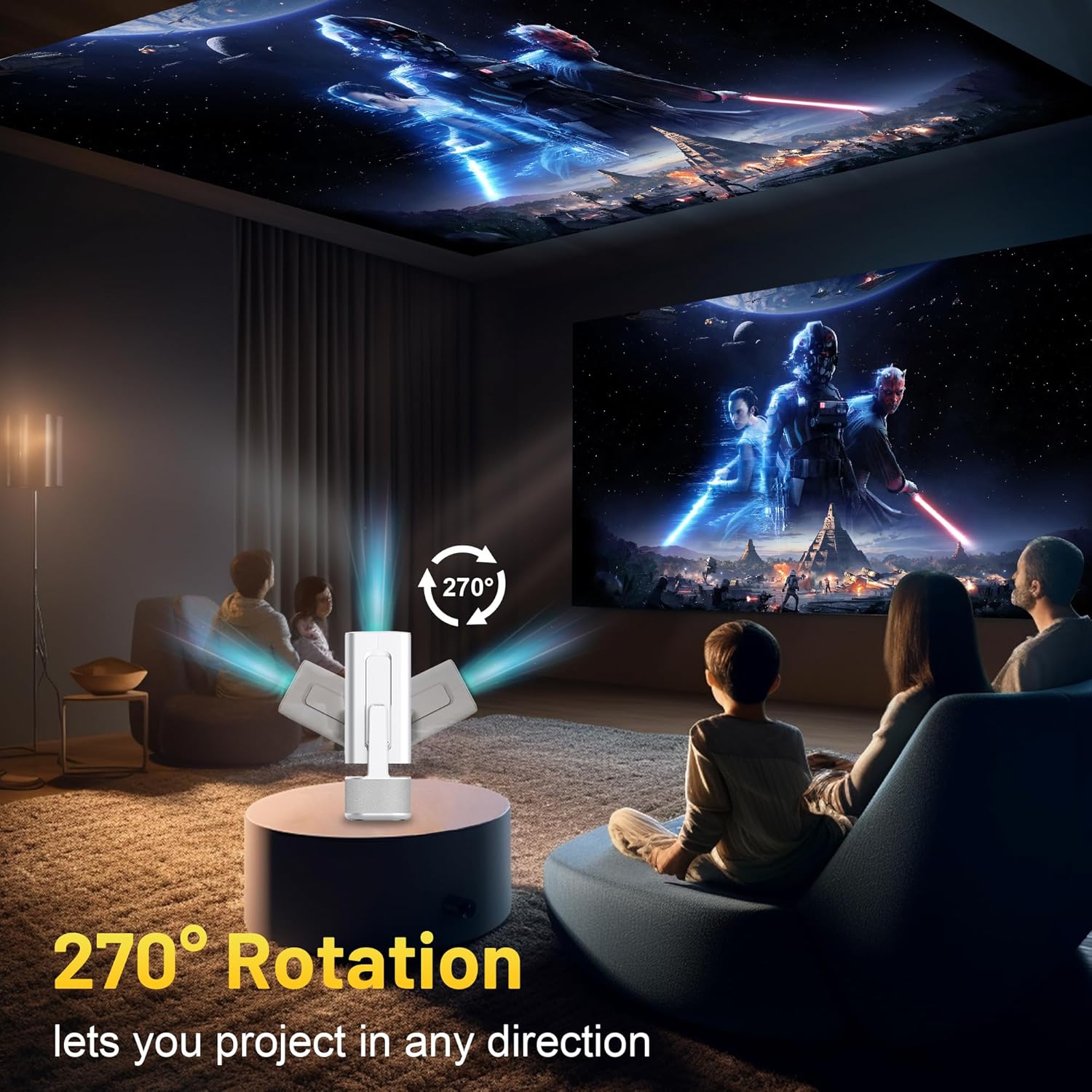
Image 3.2: 270-Degree Rotation Capability
3.3. Koneksyon rezo (WiFi)
To access online content and streaming services, connect the projector to a Wi-Fi network.
- From the home screen, navigate to 'Settings'.
- Chwazi 'Rezo ak Entènèt'.
- Aktive Wi-Fi a epi chwazi rezo ou vle a nan lis la.
- Enter the Wi-Fi password if prompted and connect.

Image 3.3: Dual Band WiFi 6 and Bluetooth 5.0
3.4. Pè Bluetooth
Pair Bluetooth devices like external speakers or headphones for enhanced audio.
- From the home screen, navigate to 'Settings'.
- Select 'Connected Devices' or 'Bluetooth'.
- Limen Bluetooth.
- Mete aparèy Bluetooth ou a nan mòd appariement.
- Select your device from the list of available devices on the projector screen to pair.
4. Operasyon Enstriksyon
4.1. Navigasyon
Use the included remote control to navigate the projector's interface. The directional buttons, 'OK' button, 'Back' button, and 'Home' button are primary controls.
4.2. App Usage (Android 13)
The projector runs on Android 13 and comes with pre-installed streaming applications.
- From the home screen, select the desired application (e.g., Netflix, YouTube, Prime Video).
- Konekte avèk kalifikasyon kont ou si sa nesesè.
- Browse and play content as you would on any Android smart device.
- Additional apps can be downloaded from the Google Play Store.

Image 4.1: Built-in Android 13 System with Apps
4.3. Screen Mirroring/Casting
Mirror content from your smartphone, tablet, or computer wirelessly.
- Asire w ke pwojektè a ak aparèy ou an konekte sou menm rezo Wi-Fi a.
- On the projector, select the screen mirroring/casting application (e.g., Miracast, AirPlay).
- On your mobile device, enable screen mirroring or casting and select the projector from the list of available devices.
4.4. External Device Connection (HDMI, USB)
Connect external devices such as laptops, gaming consoles, or USB drives.
- HDMI: Connect an HDMI cable from your device to the HDMI port on the projector. Select the HDMI input source from the projector's input menu.
- USB: Insert a USB drive into the USB port. The projector's file manager will typically open automatically, allowing you to browse and play media files.

Image 4.2: Multi-Device Compatibility
4.5. Ajisteman Imaj
The projector features automatic adjustments for convenience.
- Koreksyon Keystone Auto: The projector automatically corrects vertical image distortion. If manual adjustment is needed, navigate to 'Settings' > 'Projection Settings' > 'Keystone Correction'.
- Otofokus: The image will automatically focus when the projector is moved or powered on. Manual focus adjustment can be found in 'Settings' > 'Projection Settings' > 'Focus'.
- Zoom: Adjust the projection size from 50% to 100% without moving the projector. This setting is typically found in 'Settings' > 'Projection Settings' > 'Zoom'.

Image 4.3: Auto Keystone Correction and Autofocus
5. Antretyen
5.1. Netwayaj
- Lantiy: Sèvi ak yon twal mou ki pa gen pousyè, espesyalman fèt pou lantiy optik. Evite materyèl abrazif oswa pwodui chimik ki agresif.
- Eksteryè: Siye deyò pwojektè a avèk yon twal mou epi sèk. Pa sèvi ak pwodui netwayaj likid dirèkteman sou aparèy la.
- Vantilasyon: Asire w ouvèti vantilasyon yo pa gen pousyè ak obstak pou anpeche yo chofe twòp.
5.2. Depo
When not in use, store the projector in a cool, dry place away from direct sunlight and extreme temperatures. Use the original packaging or a protective case to prevent dust accumulation and physical damage.
NAN. Depanaj
Gade tablo ki anba a pou pwoblèm komen ak solisyon yo.
| Pwoblèm | Kòz posib | Solisyon |
|---|---|---|
| Pa gen pouvwa | Power cable not connected; Power outlet malfunction | Asire w kab kouran an byen konekte. Eseye yon lòt priz kouran. |
| Pa gen Imaj | Incorrect input source; Device not connected; Projector in standby mode | Select correct input source (HDMI, USB). Ensure external device is powered on and connected. Press power button to wake projector. |
| Imaj twoub | Out of focus; Keystone not corrected | Allow autofocus to adjust. Manually adjust focus in settings if needed. Check keystone correction settings. |
| Pa gen Son | Volume too low; Muted; External audio device not connected/paired | Increase volume. Unmute projector. Ensure Bluetooth audio device is paired and connected, or external speakers are properly connected via audio jack. |
| Pwoblèm Koneksyon Wi-Fi | Incorrect password; Network interference; Router issues | Verify Wi-Fi password. Move projector closer to router. Restart router. |
| Echèk koneksyon Bluetooth | Device not in pairing mode; Interference; Device too far | Ensure Bluetooth device is in pairing mode. Keep devices close. Turn off other Bluetooth devices to reduce interference. |
7. Espesifikasyon
| Karakteristik | Detay |
|---|---|
| Mak | ILEBYGO |
| Modèl | B0F83Q1HHT |
| Rezolisyon ekspozisyon | 1920 x 1080 (Full HD), 4K Support |
| Klète | 320 ANSI lumèn |
| Koneksyon Teknoloji | Bluetooth 5.0, HDMI, USB, Wi-Fi 6 (2.4G+5G) |
| Sistèm operasyon | Android 13 |
| Karakteristik espesyal | Auto Keystone Correction, Autofocus, 270° Rotation, Built-in Dual 5W Speakers |
| Gwosè pwojeksyon | 30''-200'' |
| Aspè rapò | 16:9 / 4:3 |
| Pwa atik | 2.72 liv |
| Dimansyon pake | 13.54 x 5.39 x 5.2 pous |
8. Garanti ak sipò
The ILEBYGO Mini Projector B0F83Q1HHT comes with a standard manufacturer's warranty. Please refer to the warranty card included in your package for specific terms and conditions.
For technical support, troubleshooting assistance, or warranty claims, please contact ILEBYGO customer service through the retailer's platform or the contact information provided in your product documentation.
Ask a question about this manual
Ask about setup, troubleshooting, compatibility, parts, safety, or missing instructions. Manuals+ will review the question and use this page’s manual context to help answer it.