
BOTSLAB G980H Pro
BOTSLAB G980H Pro 4K Dash Cam User Manual
Model: G980H Pro | Brand: BOTSLAB
1. Entwodiksyon
Thank you for choosing the BOTSLAB G980H Pro 4K Dash Cam. This manual provides detailed instructions on how to install, operate, and maintain your dash camera system, including the hardwire kit and CPL filter. Please read this manual thoroughly before use to ensure proper functionality and safety.
2. Pake kontni
Tanpri verifye ke tout atik ki nan lis anba a yo enkli nan pakè ou a:
- BOTSLAB 4K+2K Dual Dash Cam (Front and Rear Units)
- Botslab Circular Polarizing Lens (CPL) Filter
- Hardwire Kit (Type C)
- Manyèl itilizatè
- Other standard accessories (e.g., mounting adhesive, cable clips)
3. Pwodwi souview
The BOTSLAB G980H Pro is a high-performance dash camera system designed to capture crystal-clear footage of your journeys. It features a true 4K front camera and a 2K rear camera with 360° rotation capability, providing comprehensive coverage both outside and inside your vehicle.
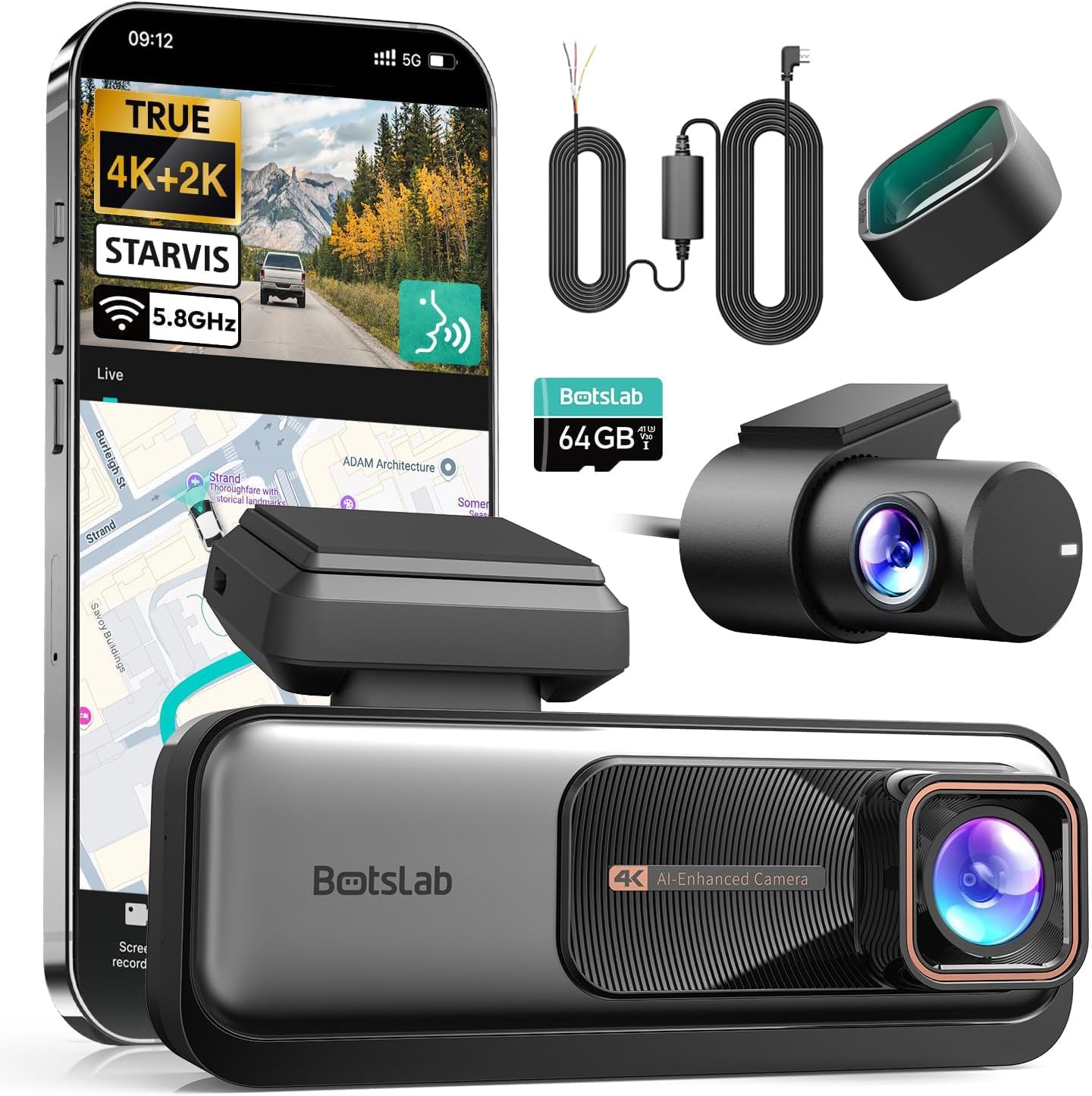
Imaj: Plis paseview of the BOTSLAB G980H Pro Dash Cam and its included components.

Image: The G980H Pro Dash Cam shown with a smartphone displaying the live view and map interface.
4. Enstalasyon ak Enstalasyon
Proper installation is crucial for optimal performance. This section guides you through the process of installing the dash cam and the hardwire kit.
4.1 Hardwire Kit Installation
The hardwire kit enables 24/7 parking mode functionality by providing continuous power to the dash cam even when the vehicle is off. It connects directly to your car's fuse box.
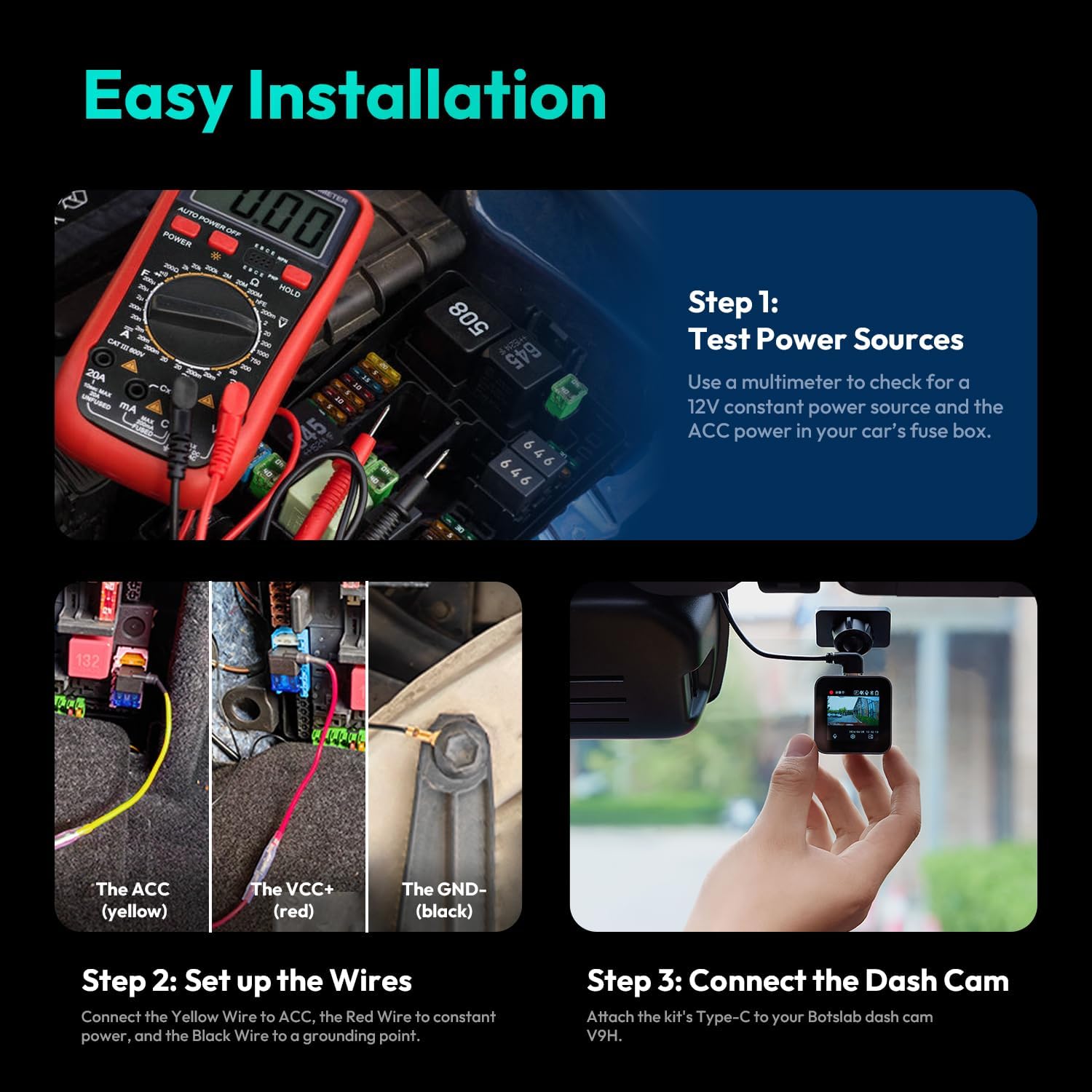
Imaj: Detaye view of the Hardwire Kit, highlighting the Type-C connector, power conversion box, and the ACC (yellow), VCC+ (red), and GND- (black) wires.
- Step 1: Test Power Sources. Use a multimeter to identify a 12V constant power source (for VCC+) and an ACC (Accessory) power source in your car's fuse box. The ACC power should only be active when the ignition is on.
- Step 2: Set Up the Wires. Connect the yellow wire (ACC) from the hardwire kit to the identified ACC fuse slot. Connect the red wire (VCC+) to the constant power fuse slot. Securely connect the black wire (GND-) to a grounding point on the vehicle's chassis, typically a metal bolt or screw.
- Step 3: Connect the Dash Cam. Attach the Type-C connector of the hardwire kit to the corresponding port on your BOTSLAB G980H Pro Dash Cam.

Image: Visual guide for the easy installation process of the hardwire kit, showing multimeter use, wire connections, and dash cam attachment.
4.2 Dash Cam Mounting
Monte kamera tablodbò devan an sou vit machin ou an, idealman dèyè vit machin nan.view glas, pou asire li pa bouche je ou view. Mount the rear camera on the rear window. Ensure both cameras have a clear view nan wout la.
4.3 CPL Filter Installation
The CPL filter helps reduce glare and reflections from the windshield and road, improving video clarity. Gently attach the CPL filter to the front lens of the dash cam. Rotate the filter while observing the live view on the dash cam or app to find the optimal position for glare reduction.
5. Operasyon Enstriksyon
This section details the key features and how to operate your G980H Pro Dash Cam.
5.1 Recording Quality and Camera Rotation
The front camera records in true 4K resolution, while the rear camera records in 2K resolution, providing exceptional detail. The rear camera can rotate 360° to monitor either the rear view or the vehicle's interior, making it versatile for various recording needs, including rideshare monitoring.

Image: Comparison of 4K front and 2K rear camera footage, demonstrating clarity for license plate recognition.
5.2 Sistèm Asistans Chofè Avanse (ADAS)
The G980H Pro features an ADAS powered by AI NPU and BOTSLAB's AI algorithm, providing real-time safety alerts:
- Pedestrian Collision Warning: Alerts you to pedestrians in your path.
- Vehicle Movement Alert: Avètisman an ap fèt lè machin ki devan w lan kòmanse deplase.
- Avètisman sou Depa liy: Alerts if you drift out of your lane.
- Driver Fatigue Warning: Prompts you to take a break if signs of fatigue are detected.

Image: Illustrations of various ADAS alerts, including front vehicle start, pedestrian proximity, too close warning, and lane departure.
5.3 Kontwòl vwa
Operate your dash cam hands-free using voice commands. Supported commands include:
- "Turn on screen" / "Turn off screen"
- "Pran foto"
- "Show front camera" / "Show rear camera"
- "Kòmansman videyo a"
5.4 Mòd Pakin 24/7
When connected via the hardwire kit, the dash cam automatically enters parking mode after your car is turned off. It continues to monitor your vehicle for impacts or motion, providing protection against theft, vandalism, and hit-and-runs.
5.5 5.8GHz WiFi & GPS Integration
The built-in 5.8GHz WiFi allows for fast and reliable connection to the companion mobile app for real-time viewing, video playback, and settings adjustment. The integrated GPS module tracks your driving route and speed, which can be reviewed using the dedicated DV playback software on your computer.
6. Antretyen
To ensure the longevity and optimal performance of your dash cam, follow these maintenance guidelines:
- Netwaye lantiy yo: Regularly wipe the camera lenses with a soft, lint-free cloth to ensure clear recordings.
- SD Kat Jesyon: Format the microSD card periodically (e.g., once a month) to prevent data corruption and ensure smooth recording. Use a high-quality, high-endurance microSD card.
- Mizajou mikrolojisyèl: Check the BOTSLAB official website or app for any available firmware updates to improve performance and add new features.
- Tanperati: Evite ekspoze kamera tablodbò a nan tanperati ekstrèm pou peryòd pwolonje.
NAN. Depanaj
If you encounter any issues with your dash cam, refer to the following common problems and solutions:
| Pwoblèm | Solisyon posib |
|---|---|
| Kamera tablodbò a pa limen. | Check power connections. Ensure the hardwire kit is correctly installed and receiving power from the fuse box. |
| Anrejistreman an sispann oswa li bloke. | Format the microSD card. Ensure you are using a high-speed (Class 10 or U3) and high-endurance microSD card. Replace the card if it's old or damaged. |
| Poor video quality / Glare. | Clean the lenses. Adjust the CPL filter by rotating it to minimize glare. Ensure the windshield is clean. |
| ADAS alerts are inaccurate. | Ensure the dash cam is mounted correctly and has a clear, unobstructed view of the road. Calibrate ADAS settings via the mobile app if available. |
| Pwoblèm koneksyon Wi-Fi. | Ensure the dash cam's Wi-Fi is enabled. Restart both the dash cam and your mobile device. Try reconnecting through the app. |
8. Espesifikasyon
Key technical specifications of the BOTSLAB G980H Pro Dash Cam:
- Rezolisyon kamera devan: Vrè 4K
- Rezolisyon kamera dèyè: 2K
- Wotasyon kamera dèyè: 360°
- Koneksyon: 5.8GHz WiFi, Built-in GPS
- Karakteristik avanse: ADAS (Pedestrian Collision, Vehicle Movement, Lane Departure, Driver Fatigue Alerts), Voice Control, 24/7 Parking Mode
- Pwodwi pou Telefòn enkli: Hardwire Kit, CPL Filter
- ASIN: B0F7RNZPB4
- Premye disponib: 7 me 2025
9. Garanti ak sipò
Your BOTSLAB G980H Pro Dash Cam is covered by a standard return policy. For specific warranty details and technical support, please refer to the documentation provided with your purchase or contact the seller directly.
Règleman retounen: This product is eligible for a refund or replacement within 30 days of purchase, subject to the seller's return policy.
Enfòmasyon vandè: For support and inquiries, please contact Botslab Security, the seller of this product.
Ask a question about this manual
Ask about setup, troubleshooting, compatibility, parts, safety, or missing instructions. Manuals+ will review the question and use this page’s manual context to help answer it.