
1. Entwodiksyon
This manual provides essential instructions for setting up, operating, and maintaining your CONSUMER CELLULAR Iris Connect smartphone. The Iris Connect is designed for reliable performance, featuring a 6.5-inch display, 32GB of storage, and running on Android 13. Please read this manual thoroughly to ensure proper use and to maximize your device's capabilities.
2. Ki sa ki nan bwat la
Upon unboxing your CONSUMER CELLULAR Iris Connect, verify that all the following items are included:
- CONSUMER CELLULAR Iris Connect Smartphone
- USB kab
- Gid Quick Start
3. Aparèy souview
Familiarize yourself with the physical components of your Iris Connect smartphone.

Figi 3.1: Devan ak dèyè view of the Iris Connect smartphone, highlighting its sleek design and camera placement.

Figi 3.2: Devan view of the Iris Connect, showcasing the 6.5-inch display and front-facing camera.
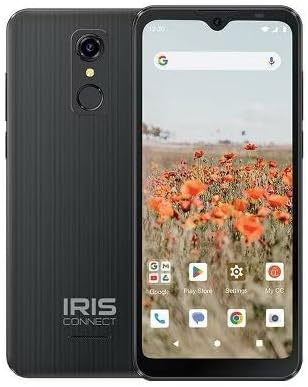
Figi 3.3: Retounen view of the Iris Connect, showing the main camera, flash, and fingerprint sensor.
Konpozan kle:
- Ekspozisyon 6.5 pous: High Definition+ screen for clear visuals.
- Kamera Devan (8MP): Located at the top of the display for selfies and video calls.
- Kamera prensipal (13MP): Located on the rear, for high-resolution photos and videos.
- Anprent Scanner: Integrated on the rear for secure unlocking.
- Bouton pouvwa: Typically on the right side, used to turn the device on/off or wake/sleep the screen.
- Bouton Volim: Toupre bouton pouvwa a, pou ajiste nivo odyo yo.
- USB-C pò: Anba a, pou chaje ak transfè done.
- 3.5mm Audio Jack: Pou konekte kas ekoutè.
4. Enstalasyon
4.1. Mete kat SIM ak kat MicroSD
- Jwenn plato SIM lan sou bò aparèy ou an.
- Insert the SIM ejector tool (not included, use a thin paperclip) into the small hole next to the tray and press gently until the tray pops out.
- Place your Nano-SIM card(s) into the designated slots with the gold contacts facing down.
- If desired, insert a microSD card (up to 256GB) into its dedicated slot for expanded storage.
- Remete plato a nan aparèy la avèk prekosyon jiskaske li fè yon klik an plas.
4.2. Premye Limen ak Asistan Enstalasyon
- Peze epi kenbe la Bouton pouvwa jiskaske ekran an limen.
- Swiv enstriksyon ki sou ekran an pou chwazi lang ou, konekte ak yon rezo Wi-Fi, epi konfigire kont Google ou.
- You may be prompted to transfer data from an old device or set up security features like the fingerprint scanner.
4.3. Chaje Aparèy la
Before first use, it is recommended to fully charge your device. The Iris Connect features a 3500 mAh battery with an approximate charging time of 2.5 hours.
- Konekte kab USB a nan pò USB-C ki anba telefòn ou an.
- Connect the other end of the USB cable to a compatible power adapter (not included) and plug it into a wall outlet.
- Endikatè chaj la ap parèt sou ekran an.
5. Operasyon Enstriksyon
5.1. Navigasyon debaz
- Manyen: Tape yon ikòn pou ouvri yon aplikasyon oubyen chwazi yon atik.
- Glise: Trennen dwèt ou sou ekran an pou defile oswa navige ant ekran yo.
- Zongle: Sèvi ak de dwèt pou agrandi oswa diminye foto yo epi web paj.
- Ekran Kay: Sant santral pou aplikasyon ak widjèt ou yo.
- Tiwa aplikasyon: Glise anlè depi ekran prensipal la pou jwenn aksè a tout aplikasyon ki enstale yo.
5.2. Fè apèl
- Tape la Telefòn ikòn sou ekran lakay ou oswa nan tiwa aplikasyon an.
- Antre nimewo telefòn nan avèk klavye a oswa chwazi yon kontak nan liv adrès ou.
- Tape la Rele bouton pou kòmanse apèl la.
5.3. Voye mesaj
- Louvri a Mesaj app.
- Tape la Kòmanse chat or Nouvo mesaj icon.
- Antre nimewo moun k ap resevwa a oubyen chwazi nan kontak yo, epi tape mesaj ou a.
- Tape la Voye bouton.
5.4. Konekte ak Wi-Fi
- Ale nan Anviwònman > Rezo ak entènèt > Entènèt.
- Aktive Wi-Fi a On.
- Chwazi rezo Wi-Fi ou vle a nan lis la epi antre modpas la si yo mande w.
5.5. Pè Bluetooth
- Ale nan Anviwònman > Aparèy ki konekte > Preferans koneksyon > Bluetooth.
- Aktive Bluetooth On.
- Chwazi Pè nouvo aparèy and choose your desired device from the list. Follow any on-screen prompts to complete pairing.
5.6. Itilizasyon kamera
The Iris Connect features a 13MP main camera and an 8MP front-facing camera.
- Louvri a Kamera app.
- Tape la Panno bouton pou pran yon foto.
- Switch between photo and video modes, or front and rear cameras, using the on-screen icons.
5.7. Scanner anprent
To set up the fingerprint scanner for secure unlocking:
- Ale nan Anviwònman > Sekirite ak vi prive > Aparèy debloke > Anprent.
- Swiv enstriksyon ki sou ekran an pou anrejistre anprent dwèt ou yo.
6. Antretyen
6.1. Netwaye Aparèy la
To keep your device clean and functional:
- Sèvi ak yon twal mou ki pa gen pousyè pou siye ekran an ak kò a.
- Evite itilize pwodui chimik ki agresif, pwodui netwayaj abrazif, oswa espre ayewosòl.
- Asire w ke pò yo pa gen pousyè ak debri.
6.2. Swen batri
To optimize your battery life (up to 26 hours of use):
- Evite tanperati ekstrèm.
- Pa kite aparèy la ap chaje pou yon bon bout tan apre li fin plen.
- Adjust screen brightness and close unused apps to conserve power.
6.3. Mizajou lojisyèl
Tcheke regilyèman pou wè si gen mizajou lojisyèl pou asire aparèy ou an gen dènye karakteristik ak patch sekirite yo:
- Ale nan Anviwònman > Sistèm > Aktyalizasyon sistèm lan.
- Swiv enstriksyon ki sou ekran an pou telechaje epi enstale nenpòt mizajou ki disponib.
NAN. Depanaj
This section addresses common issues you might encounter with your Iris Connect smartphone.
- Aparèy pa soumen: Asire w batri a chaje. Konekte chajè a epi tann kèk minit anvan ou eseye limen l ankò.
- Pa gen siyal rezo: Check if your SIM card is correctly inserted. Verify that Airplane Mode is off (swipe down from the top of the screen to check quick settings). Contact your service provider if the issue persists.
- Aplikasyon yo ap plante oswa bloke: Try restarting the app. If the issue continues, restart the phone. You may also clear the app's cache or data via Anviwònman > Aplikasyon yo > [Non Aplikasyon an] > Depo ak kach.
- Pèfòmans ralanti: Close unused apps, clear cache, or consider uninstalling rarely used applications to free up storage.
- Unable to connect to Wi-Fi/Bluetooth: Ensure Wi-Fi/Bluetooth is enabled in settings. Try forgetting the network/device and reconnecting. Restart your phone and the router/Bluetooth device.
- Forgot screen lock password/pattern: If you have a Google account linked, you might be able to reset it. Otherwise, a factory reset may be necessary (this will erase all data).
For more complex issues, please refer to the official CONSUMER CELLULAR support resources or contact their customer service.
8. Espesifikasyon
Detailed technical specifications for the CONSUMER CELLULAR Iris Connect smartphone (Model: SH4650).
| Karakteristik | Spesifikasyon |
|---|---|
| Non modèl | Iris Konekte |
| Nimewo Modèl | SH4650 |
| Sistèm operasyon | Android 13.0 |
| Gwosè ekspozisyon | 6.5 pous |
| Rezolisyon ekspozisyon | 1440 x 810 |
| Modèl CPU | Snapdragon 710 |
| CPU vitès | 2 GHz |
| Gwosè memwa RAM enstale | 3 GB |
| Depo Entèn | 32 GB |
| Depo dilatabl | Jiska 256GB via microSD |
| Kamera prensipal | 13 MP |
| Kamera devan | 8 MP |
| Kapasite batri | 3500 Miliamp Orè |
| Evalyasyon pouvwa batri | 3600 (likely Wh or similar unit, as mAh is 3500) |
| Tan pou chaje | 2.5 èdtan |
| Koneksyon | 4G LTE, Bluetooth, Wi-Fi |
| Karakteristik espesyal | Dual Camera, Expandable Storage, Fingerprint Scanner, Long Battery Life |
| Audio Jack | 3.5 Milimèt |
| Dimansyon | 8 x 6 x 3 pous |
| Pwa atik | 6.5 ons |
9. Garanti ak sipò
For information regarding your product's warranty, please refer to the warranty card included with your purchase or visit the official CONSUMER CELLULAR website. For technical assistance, troubleshooting beyond this manual, or customer service inquiries, please contact CONSUMER CELLULAR support directly.
CONSUMER CELLULAR Official Websit: www.consumercellular.com