
1. Entwodiksyon
This manual provides detailed instructions for the setup, operation, and maintenance of your Transformers GK01 Wireless Mechanical Keyboard. The GK01 is a versatile keyboard featuring tri-mode connectivity (Bluetooth 5.0, 2.4GHz wireless, and USB-C wired), a 101-key layout, RGB backlighting, and hot-swappable switches for a customizable typing experience.

Figure 1.1: Transformers GK01 Wireless Mechanical Keyboard.
2. Pake kontni
Tanpri verifye ke tout atik ki nan lis anba a yo enkli nan pakè ou a:
- Transformers GK01 Wireless Mechanical Keyboard
- USB-C pou USB-A kab
- 2.4GHz Wireless USB Dongle
- 2-an-1 Keycap ak switch Puller
- Manyèl Itilizatè (dokiman sa a)
- Spare Switches (2 pieces)
- Kouvri klavye
3. Enstalasyon ak Koneksyon
3.1. Tri-Mode Connection Overview
The GK01 keyboard supports three connection modes: USB-C wired, 2.4GHz wireless, and Bluetooth 5.0. You can connect to up to five devices simultaneously and switch between them seamlessly.

Figure 3.1: Tri-Mode Connection Capabilities.
3.2. Koneksyon filaire USB-C
- Jwenn pò USB-C a sou klavye a.
- Konekte yon bout kab USB-C ki founi an nan klavye a.
- Connect the other end of the USB-C cable to an available USB-A port on your computer.
- Klavye a pral rekonèt otomatikman epi li pral pare pou itilize.
3.3. Koneksyon san fil 2.4GHz
- Locate the 2.4GHz wireless USB dongle.
- Branche kle a nan yon pò USB-A ki disponib sou òdinatè w la.
- On the keyboard, ensure the mode switch (usually on the side or back) is set to 2.4GHz mode.
- Klavye a ta dwe konekte otomatikman. Si se pa sa, peze Fn + R pou kòmanse pairing.

Figure 3.2: USB-C Port and 2.4GHz Dongle Location.
3.4. Koneksyon Bluetooth 5.0
The keyboard supports connecting to up to three Bluetooth devices (BT1, BT2, BT3).
- On the keyboard, set the mode switch to Bluetooth mode.
- To enter pairing mode for a specific Bluetooth channel, press and hold Fn + Q (pou BT1), Fn + W (pou BT2), oubyen Fn + E (for BT3) for 3-5 seconds until the indicator light flashes rapidly.
- On your device (PC, tablet, smartphone), open Bluetooth settings and search for new devices.
- Select "Transformers GK01" from the list of available devices.
- Yon fwa konekte, limyè endikatè a sou klavye a ap sispann flache.
- Pou chanje ant aparèy Bluetooth ki asosye yo, jis peze Fn + Q, Fn + W, oswa Fn + E.
4. Operasyon debaz
4.1. Keyboard Layout and Anti-Ghosting
The GK01 features a 101-key layout, providing a full set of keys including a numeric keypad. All keys are equipped with anti-ghosting technology, ensuring that every keystroke is registered accurately, even when multiple keys are pressed simultaneously.
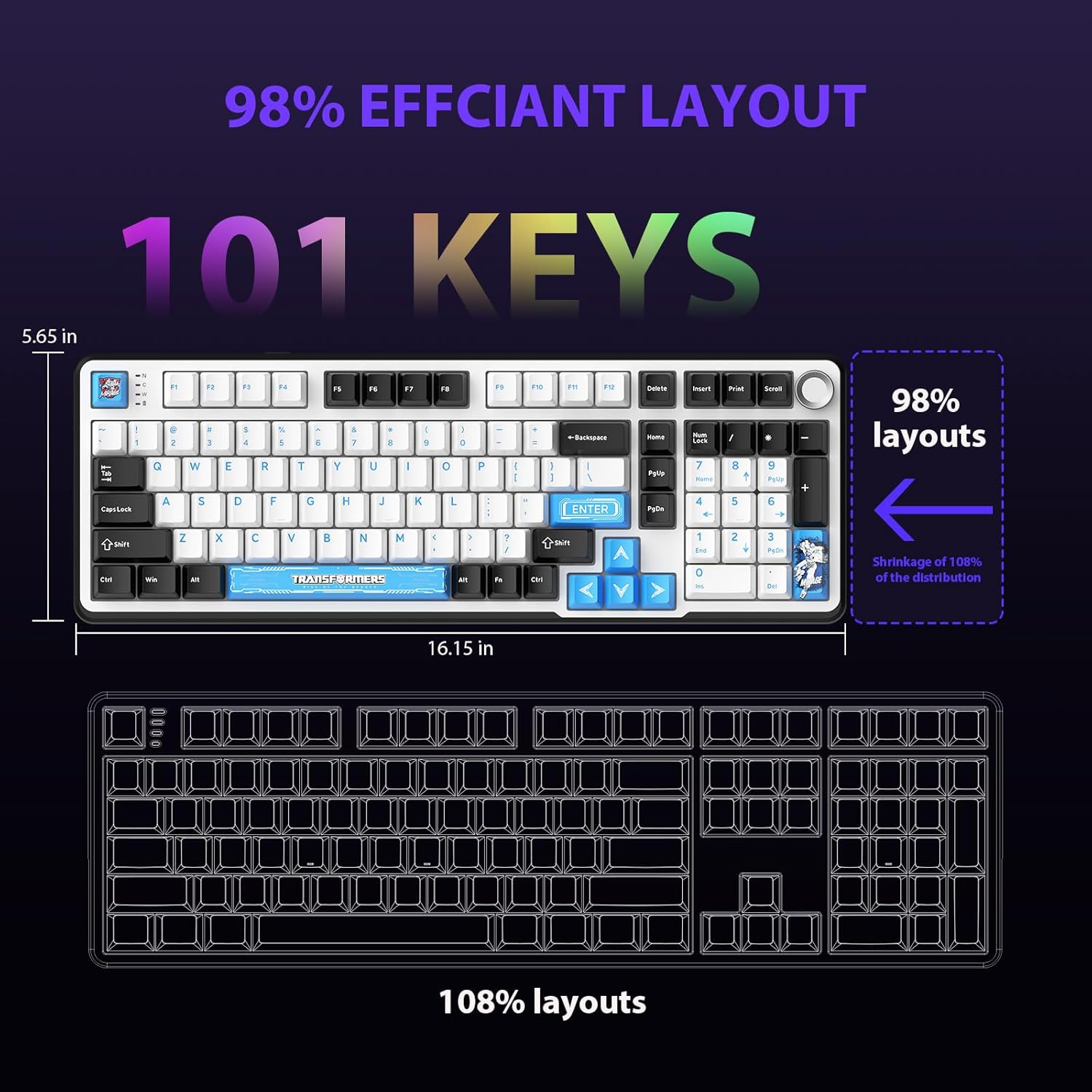
Figure 4.1: 101-Key Layout.
4.2. Bouton Kontwòl Miltimedya
The dedicated knob located on the top right of the keyboard provides convenient multimedia control:
- Vire nan sens goch: Ogmante volim.
- Rotate Counter-Clockwise: Diminye volim.
- Peze desann: Aktive/dezaktive odyo a.
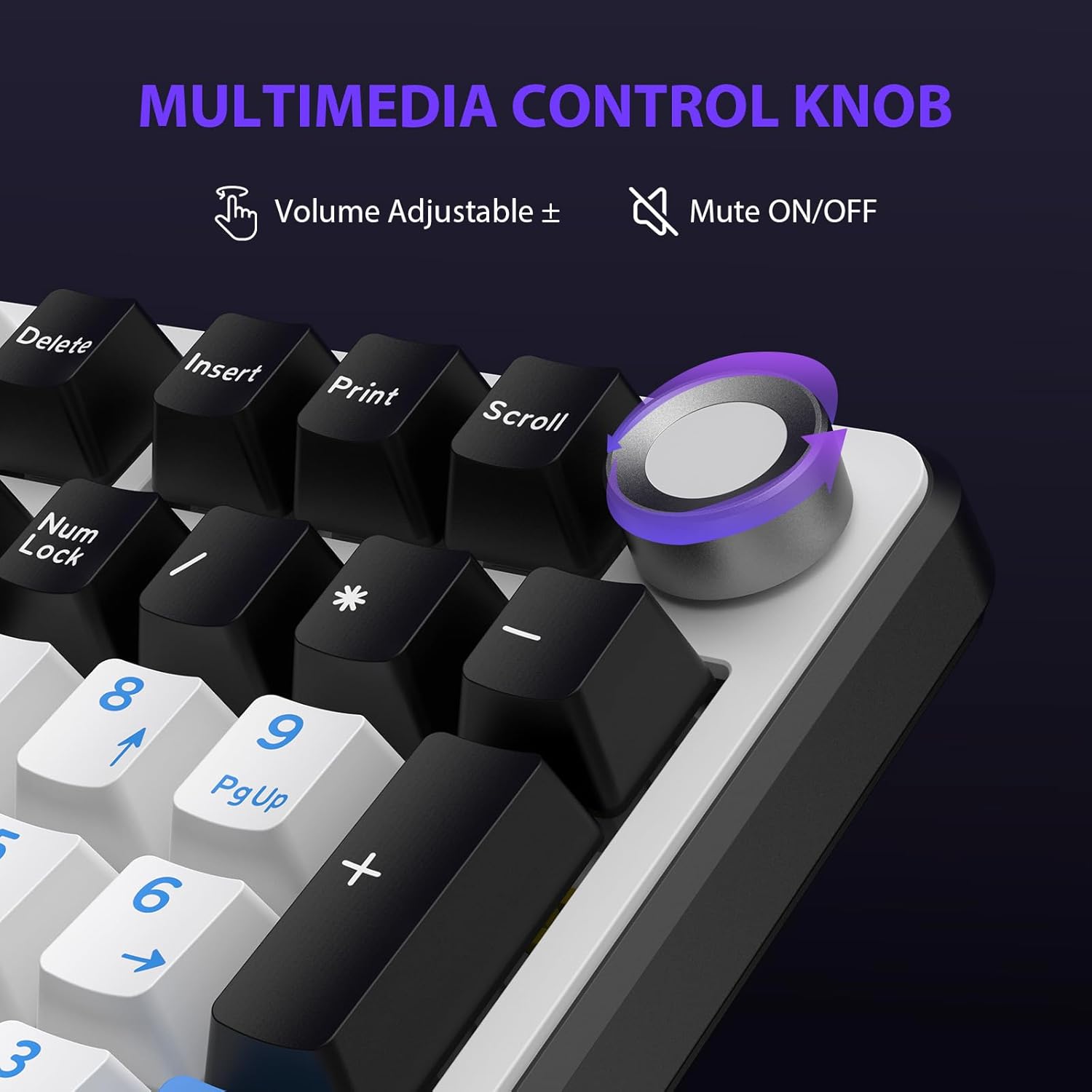
Figure 4.2: Multimedia Control Knob.
4.3. Kontwòl ekleraj dèyè RGB
The GK01 keyboard features 16.8 million color RGB backlighting with various effects.
- Fn + [Right Arrow]: Adjust 5 brightness levels.
- Fn + [Left Arrow]: Adjust 5 speed levels for dynamic effects.
- Fn + [Mete]: Switch between 20 different backlight modes.
- Fn + [Antre]: Switch color order within certain modes.
- Fn + [X]: Turn off light / activate power-saving mode.
- Fn + [Retounen]: Switch color order within certain modes.

Figure 4.3: RGB Backlight Controls.
5. Karakteristik avanse
5.1. Switch ki ka ranplase a cho
The GK01 keyboard is equipped with pre-lubricated Cybertron linear switches and supports solder-free hot-swapping. This allows you to easily replace switches with compatible 3-pin or 5-pin mechanical switches without soldering.
Pou ranplase yon switch:
- Using the provided 2-in-1 keycap and switch puller, gently remove the keycap from the desired switch.
- Insert the switch puller onto the switch, ensuring it grips the top and bottom clips of the switch.
- Rale switch la dousman anlè pou retire li nan PCB a.
- Aliyen broch nouvo switch la ak twou ki sou PCB a. Asire w broch yo dwat pou evite yo pliye.
- Peze nouvo switch la byen fèm nan plas li jiskaske li fè yon klik.
- Retache kouvèti kle a.

Figure 5.1: Hot-Swappable Switch Replacement.
5.2. Lojisyèl Pwogramasyon
The GK01 supports custom software for advanced customization, including key remapping, macro creation, and detailed RGB lighting effects.
- The software is compatible only with the Windows operating system.
- The keyboard must be connected via USB-C wired mode to use the software.
- For driver download, please visit the official Transformers Keyboard website or refer to the link provided in the product packaging.
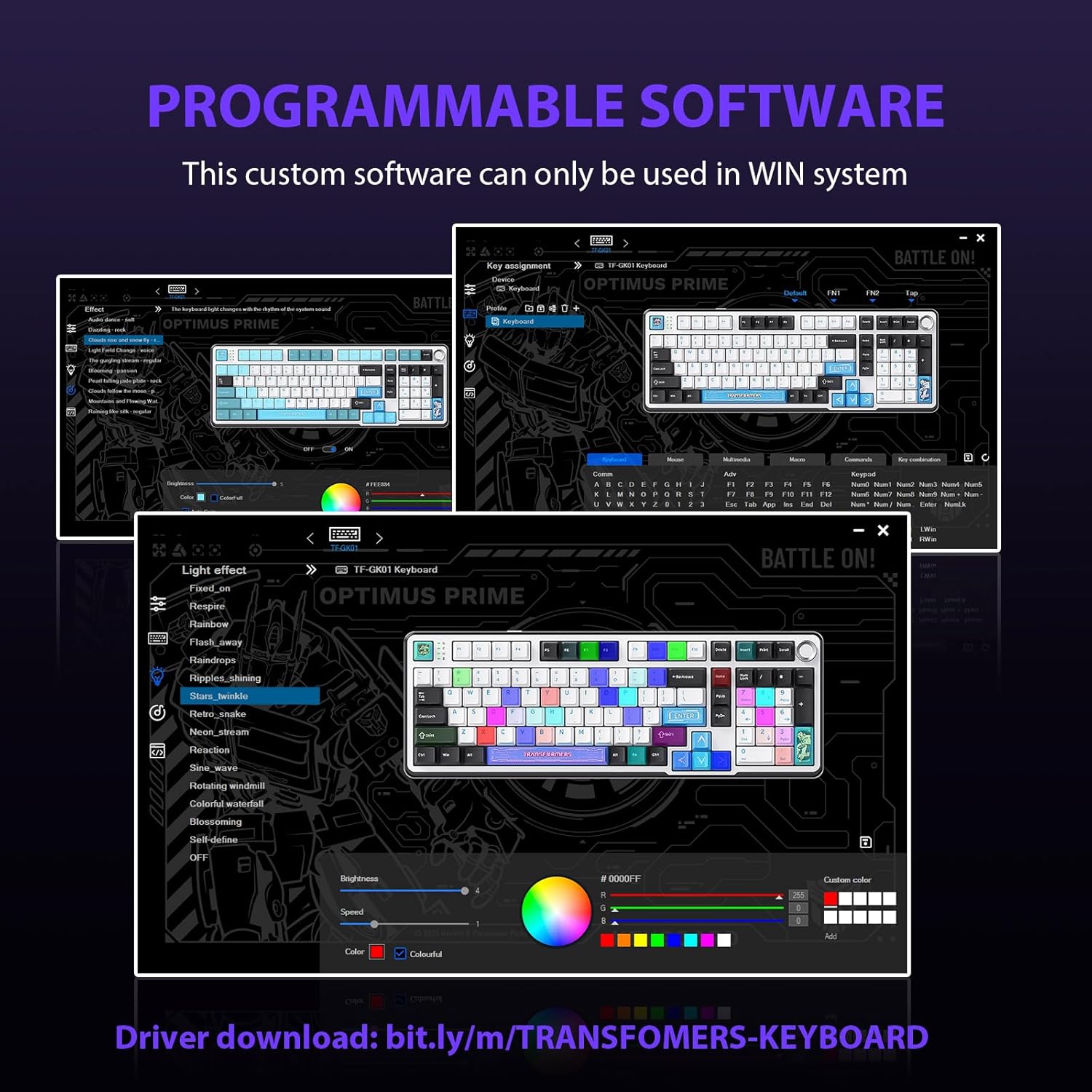
Figure 5.2: Programmable Software Interface.
5.3. Gasket Mounted Structure
The keyboard features a five-layer sound-absorbing and shock-absorbing gasket mounted structure. This design effectively reduces hollow noise and provides a softer, more consistent typing feel by isolating the plate from the case.
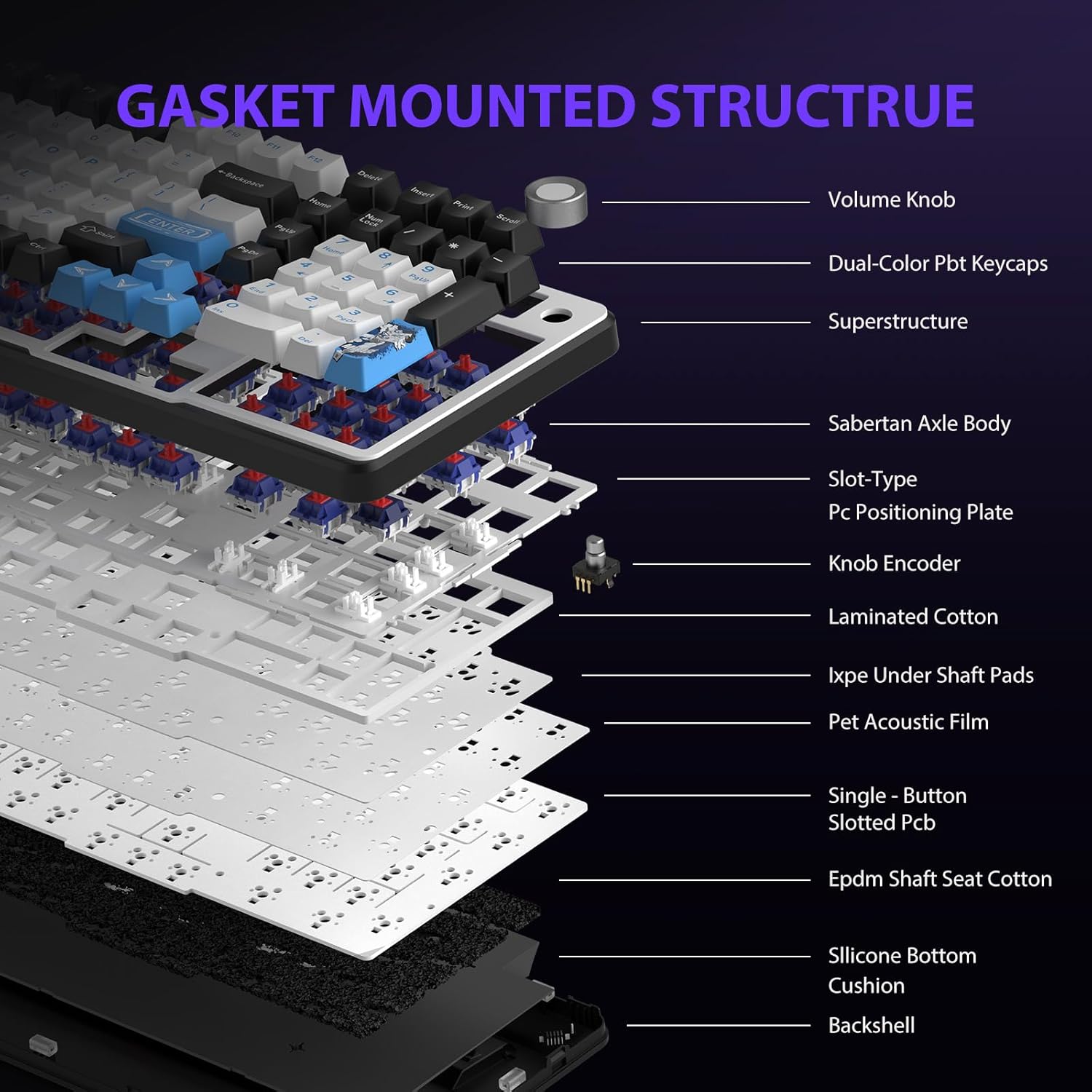
Figure 5.3: Gasket Mounted Structure Components.
6. Jesyon batri
The GK01 keyboard is equipped with a 4000mAh rechargeable battery.
- Chaje: Connect the keyboard to a USB power source using the provided USB-C cable. The indicator light will show charging status.
- Lavi batri: A fully charged battery provides extended usage time. Actual battery life may vary based on usage patterns and RGB lighting intensity.
- Ekonomize pouvwa: The keyboard will enter a power-saving sleep mode after a period of inactivity to conserve battery. Press any key to wake it up.
7. Antretyen
7.1. Netwaye klavye a
- Dekonekte klavye a nan tout sous kouran anvan ou netwaye li.
- Sèvi ak yon ti moso twal mou, ki san pèl dampRense avèk dlo oswa yon solisyon netwayaj dou pou siye bouchon kle yo ak chasi a.
- Pou pousyè ak debri ant bouchon kle yo, sèvi ak lè konprese oswa yon ti bwòs.
- Evite itilize pwodwi chimik piman bouk oswa materyèl abrazif.
7.2. Keycap and Switch Care
- The PBT keycaps are designed for durability and fade resistance.
- Refer to Section 5.1 for instructions on safely removing and replacing keycaps and switches.
- Ensure the keyboard feet are clean and free of debris for stable placement.

Figure 7.1: Adjustable Keyboard Feet.
NAN. Depanaj
| Pwoblèm | Kòz posib | Solisyon |
|---|---|---|
| Klavye a pa reponn nan mòd san fil. | Low battery, incorrect mode selected, dongle not connected, Bluetooth not paired. | Charge the keyboard. Ensure the mode switch is set correctly (2.4GHz or BT). Re-insert the 2.4GHz dongle. Re-pair Bluetooth connection. Try wired mode to confirm keyboard functionality. |
| Kle yo pa anrejistre oswa yo tape de fwa. | Loose switch, software issue, debris under keycap. | Ensure switches are fully seated. Clean under keycaps. If using programmable software, ensure it's updated or try resetting keyboard settings. |
| Limyè dèyè RGB a pa fonksyone oswa li bloke. | Limyè dèyè a etenn, gen konfli lojisyèl. | Peze Fn + X to toggle backlight. Check programmable software settings. |
| Pa ka konekte via Bluetooth. | Keyboard not in pairing mode, device Bluetooth off, interference. | Ensure keyboard is in Bluetooth pairing mode (Fn + Q/W/E long press). Ensure device Bluetooth is on and discoverable. Move closer to the device. |
9. Espesifikasyon
| Karakteristik | Detay |
|---|---|
| Nimewo Modèl | TF-GK01 |
| Koneksyon | Bluetooth 5.0, 2.4GHz san fil, USB-C ak fil |
| Kalite klavye | Mekanik |
| Layout | 101 Keys (Full-size) |
| Chanjman | Pre-lubed Cybertron Linear Switches, Hot-Swappable (3-pin/5-pin compatible) |
| Keycaps | Heat-sublimated PBT |
| Ekleraj | RGB (16.8 Million Colors, 20 modes, music rhythm effects via driver) |
| Kapasite batri | 4000mAh |
| Dimansyon pwodwi | 16.15 x 5.65 x 1.63 pous (41.02 x 14.35 x 4.14 cm) |
| Pwa atik | 2.24 liv (1.02 kg) |
| Aparèy konpatib | Laptop, PC, Telefòn entelijan, Tablèt |
| Karakteristik espesyal | Anti-Ghosting (all keys), Multimedia Control Knob, Programmable Keys (via software), Rechargeable |
10. Garanti ak sipò
For information regarding warranty coverage, technical support, or service inquiries, please refer to the warranty card included with your product or visit the official Transformers Keyboard websit.
Manifakti: Transformateur