
1. Entwodiksyon
The Insta360 Flow 2 Plus AI Tracker Bundle is an all-in-one smartphone gimbal designed to enhance your mobile videography and photography. It features advanced AI tracking, a built-in tripod and selfie stick, remote control capabilities, and AI-powered editing tools to help you capture smooth, professional-quality content with ease.
2. Ki sa ki nan bwat la
- 1x Insta360 Flow 2 Gimbal
- 1x AI Tracker
- 1x Klè Telefòn Mayetikamp
- 1x Kab Chaje USB-C pou USB-A
- 1x Sak Pwoteksyon

Image: Insta360 Flow 2 Pro/Flow 2 Carry Case with contents including gimbal, AI tracker, magnetic clamp, cable, and pouch.
3. Enstalasyon
3.1. Installation and Storage
The Insta360 Flow 2 is designed for quick setup and portability. It features a foldable design and a magnetic phone clamp for easy attachment.
- Tache Magnétique Telefòn Clamp: Ensure the camera icon on the magnetic phone clamp faces the direction of your phone's camera. Attach the magnetic clip to the center of your phone. Align the notch on the clip with the connector on the gimbal. Press the phone and clip down firmly onto the gimbal until the red indicator dot on the head disappears. This indicates a secure connection.
- Depliye Gimbal la: Hold the gimbal grip with your right hand. Use your left hand to pull the arm in the direction of the arrow to fully unfold the gimbal in one motion. The status light will stay white when ready to shoot. If the gimbal fails to unfold or the red light stays on, check that the magnetic mount is secured properly.
- Store the Gimbal: To store, press and hold the power button. With your left hand, hold the phone, and with your right hand, gently fold the gimbal head back into place. Align the positioning pin on the head with the groove in the handle until it snaps into place.

Image: Insta360 Flow 2 gimbal in its folded, portable state with a smartphone attached.

Image: Insta360 Flow 2 gimbal unfolded with a smartphone mounted, showing the extended selfie stick and deployed tripod.
3.2. Activating and Connecting
Before first use, activate and connect your Insta360 Flow 2 to the Insta360 app.
- Prepare your Phone: Ensure your phone is connected to Wi-Fi and Bluetooth is turned on.
- Telechaje App a: Download the latest version of the Insta360 app from your phone's app store.
- Connect and Activate: Open the Insta360 app and grant all necessary permissions. The app will automatically detect the gimbal. Tap to confirm and follow the on-screen instructions to complete activation.
Video: Insta360 Flow 2 First Use Tutorial. This video demonstrates the initial setup, including installation, activation, and connection procedures.
4. Operating the Insta360 Flow 2
4.1. Basic Operation (Shooting and Playback)
Once connected, the Insta360 Flow 2 is ready for use. The gimbal's controls are intuitive for capturing photos and videos.
- Bouton vole: Press the shutter button on the gimbal to start or stop recording video, or to take a photo.
- Mode Wheel: Use the smart wheel control to switch between different shooting modes (e.g., Photo, Video, Timelapse).
- Bouton deklanche: Press the trigger button to enable Deep Track 4.0 subject tracking.
4.2. AI Tracking Features
The Insta360 Flow 2 excels in intelligent tracking, ensuring your subject remains in focus and perfectly framed.
- AI Tracker: The included AI Tracker provides precise tracking compatible with various apps and devices. It also features a built-in spotlight for optimal lighting in low-light conditions.
- Active Zoom Tracking: For iPhone 12-16 Pro & Pro Max models, the gimbal can track fast movements with up to 15x zoom, ideal for sports or performances.
- Multi-Person Tracking: This feature allows the gimbal to track and frame multiple subjects simultaneously, perfect for group shots.
- Suivi Animal: The AI tracking extends to pets, capturing their movements with precision.
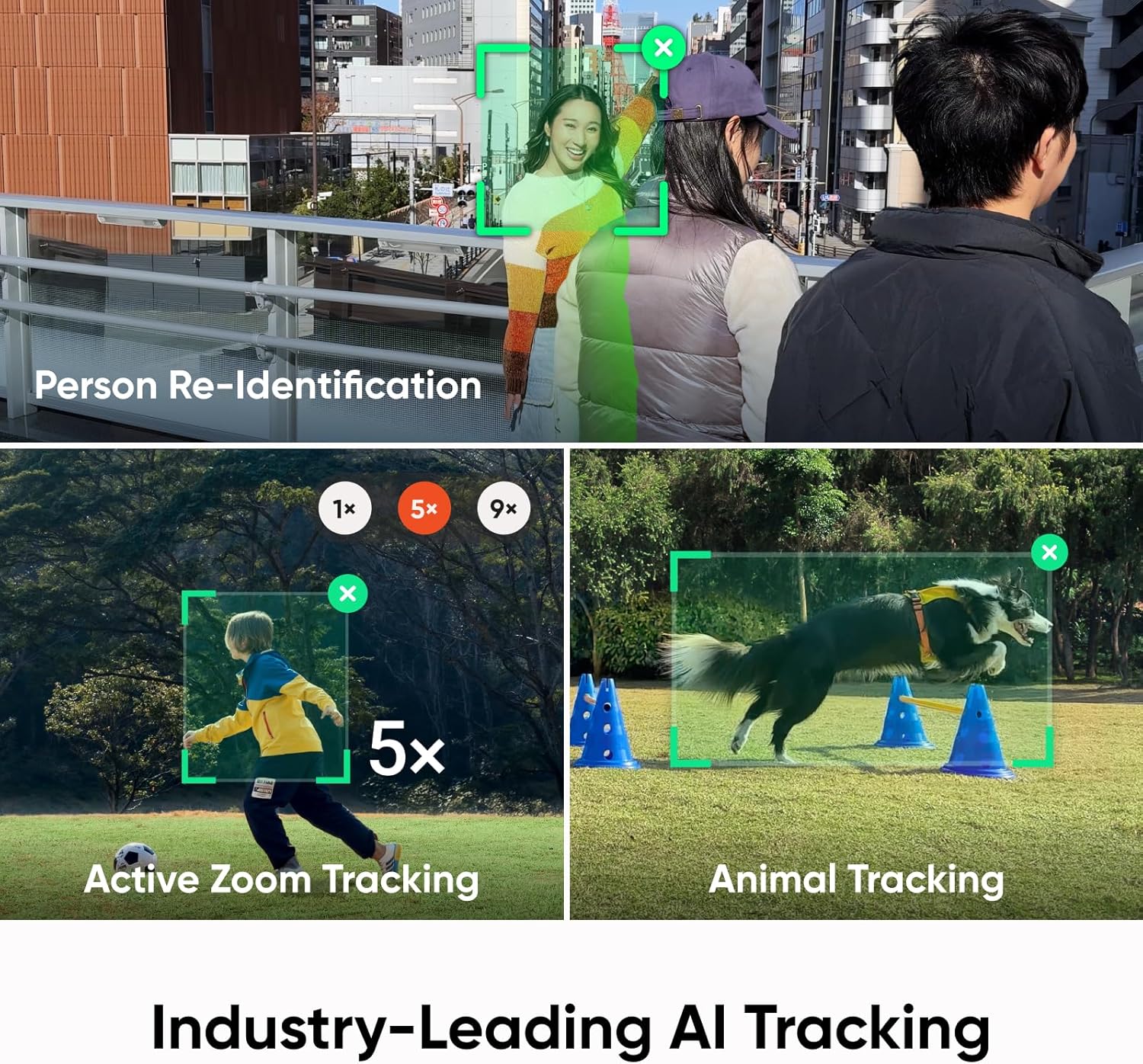
Image: Insta360 Flow 2 gimbal with a smartphone actively tracking a skateboarder, demonstrating precision tracking.

Image: Insta360 Flow 2 gimbal with a smartphone tracking multiple individuals in a group setting, highlighting multi-person tracking.

Image: Insta360 Flow 2 gimbal with a smartphone tracking a dog running through an obstacle course, showcasing animal tracking.
4.3. Built-in Versatility
The Flow 2 integrates several tools for a comprehensive content creation experience.
- Built-in Tripod: Extend the legs from the handle to use the gimbal as a stable tripod for hands-free shooting.
- Built-in Selfie Stick: The extendable arm functions as a selfie stick, allowing for wider shots and varied angles.
- Estabilizasyon 3-Aks: Ensures every shot is smooth and stable, minimizing camera shake.
- Perfect Framing: Utilize the 9 golden ratio grid points in the Flow 2 series for naturally composed shots.
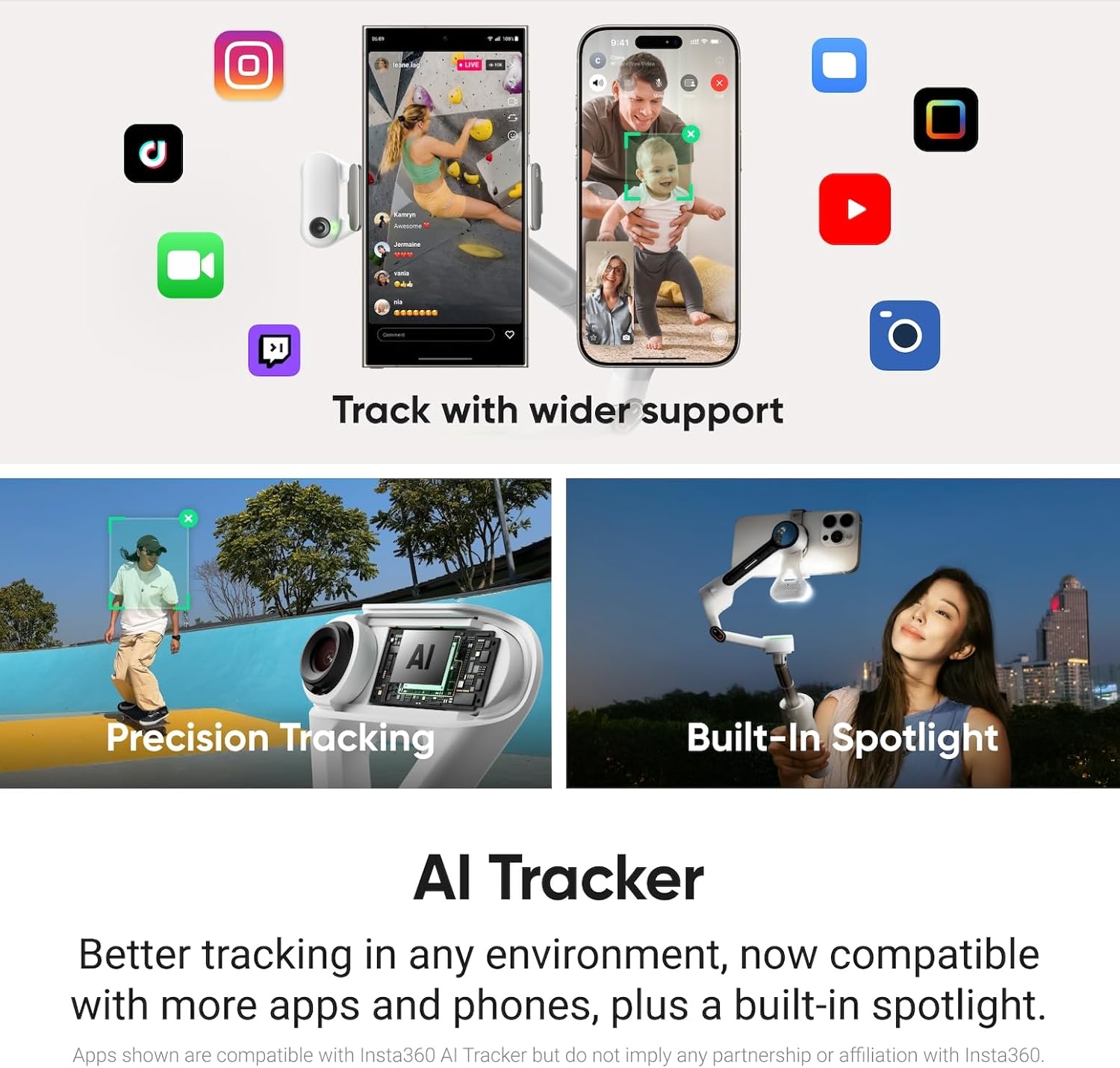
Image: Insta360 Flow 2 gimbal with a smartphone extended on its built-in selfie stick, held by a user.
4.4. Opsyon Kontwòl Remote
Control your gimbal and phone remotely for flexible shooting scenarios.
- Kontwòl jès: Use hand gestures to start and stop tracking or recording.
- Smartphone Remote Control: Use a second smartphone as a remote to preview and control your shots.
- Apple Watch Control: For Apple Watch users, full control is available from your wrist.

Image: Insta360 Flow 2 gimbal with a smartphone, illustrating gesture control for hands-free operation.
4.5. Koreksyon ak Entèlijans Atifisyèl
The Insta360 app provides powerful AI editing tools to refine your content.
- FlashCut: This feature automatically edits your clips, telling a story with highlights synchronized to music.
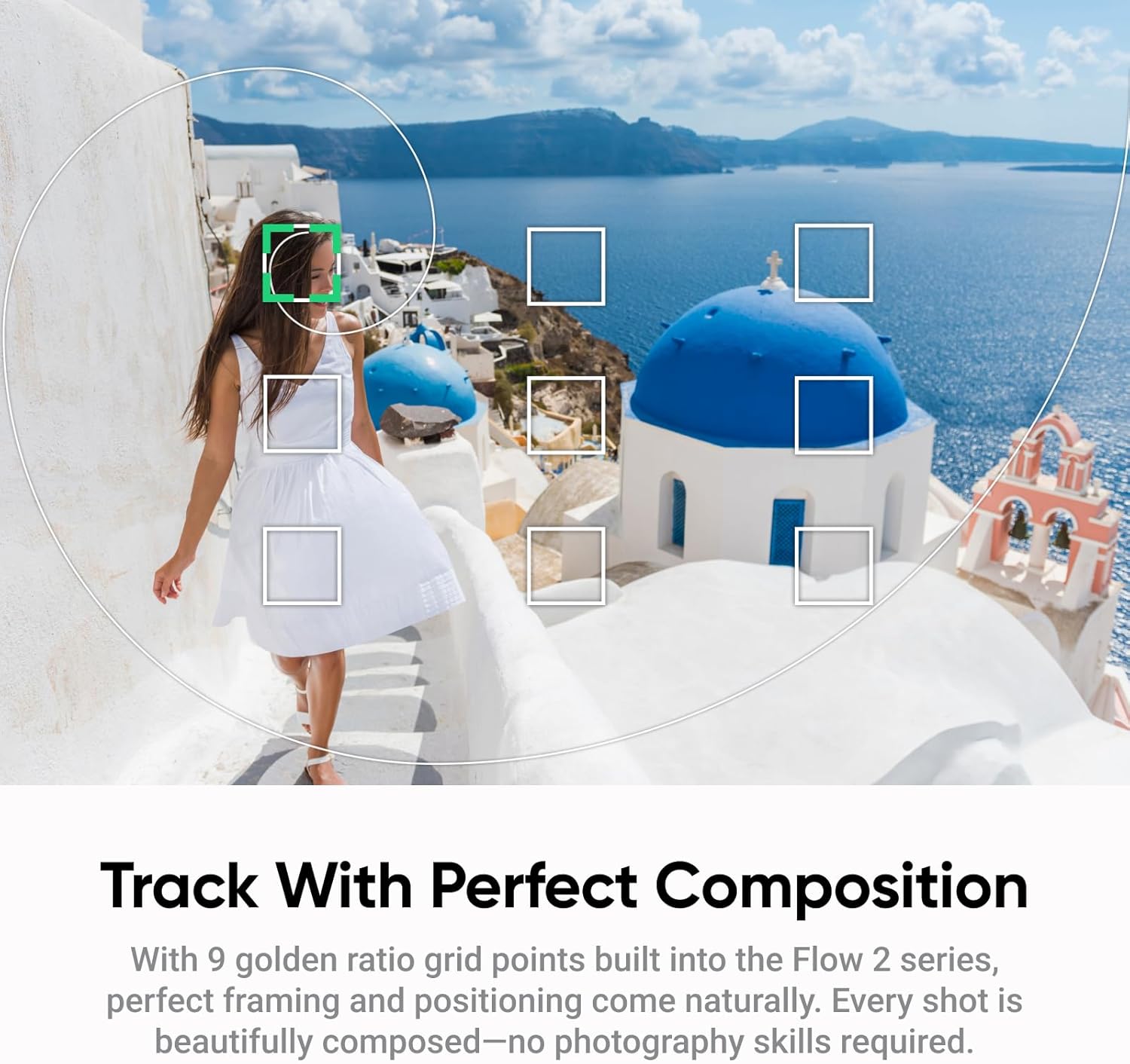
Image: The Insta360 app interface displaying various AI editing options and templates for video creation.
5. Chaje ak Dechaje
The Insta360 Flow 2 features a long-lasting battery and can also act as a power bank.
- Charging the Gimbal: The Flow 2 has two USB-C ports, labeled 'IN' and 'OUT'. Use the 'IN' port to charge the gimbal. While charging, the indicator lights will blink in sequence. Once fully charged, all lights will stay solid.
- Power Bank Function (Reverse Charging): The 'OUT' port allows you to use the gimbal as a power bank to charge external devices, such as your smartphone. To use this feature, connect your device to the gimbal via the USB-C 'OUT' port and press the M button to enable power output.
Video: Insta360 Flow 2 First Use Tutorial. This video includes instructions on charging and using the power bank function.
6. Espesifikasyon
| Dimansyon pwodwi | 3.82 x 1.42 x 7.01 pous |
| Pwa atik | 13.2 ons (375 gram) |
| Nimewo Modèl Atik | CINSABQA |
| Batri | 1 pil C obligatwa (enkli) |
| Gwosè ki plwaye | 97.9x178.4x36.7mm |
| Aparèy konpatib | iPhone, Telefòn selilè |
| UPC | 842126113048 |
NAN. Depanaj
- Gimbal not unfolding/red light stays on: Ensure the magnetic phone clamp is securely attached and fully pressed into place.
- Pwoblèm koneksyon: Verify Bluetooth is enabled on your smartphone and the Insta360 app is updated to the latest version. Restart both the gimbal and your phone if problems persist.
- Suivi pèfòmans: Ensure the AI Tracker is clean and unobstructed. For optimal performance, ensure good lighting conditions.
- Pwoblèm sou lavi batri a: Fully charge the gimbal before use. Utilize the power bank function if your phone battery is low during extended shooting sessions.
8. Antretyen
- Netwayaj: Use a soft, dry cloth to clean the gimbal and AI Tracker. Avoid using harsh chemicals or abrasive materials.
- Depo: Store the gimbal in its protective pouch when not in use to prevent dust and scratches. Keep it in a cool, dry place away from direct sunlight.
- Mizajou mikrolojisyèl: Regularly check the Insta360 app for firmware updates to ensure optimal performance and access to new features.
9. Garanti ak sipò
For detailed warranty information, technical support, or to access additional resources, please visit the official Insta360 websit la oubyen kontakte sèvis kliyan yo dirèkteman. Kenbe prèv acha ou pou reklamasyon garanti.


