
1. Entwodiksyon
This manual provides essential information for the safe and efficient use of your BOOX Go 7 ePaper Tablet. Please read it thoroughly before operating the device and retain it for future reference.

Figure 1.1: BOOX Go 7 ePaper Tablet
2. Enfòmasyon sou Sekirite
- Pa ekspoze aparèy la nan tanperati ekstrèm, limyè solèy dirèk, oswa imidite ki wo.
- Evite jete oswa sibi aparèy la nan gwo enpak.
- Sèvi ak sèlman kab USB yo bay la pou chaje.
- Keep the device away from water and liquids, despite its water-repellent features.
- Pa eseye demonte oswa repare aparèy la tèt ou. Kontakte pèsonèl sèvis otorize.
3. Pake kontni
Verifye ke tout atik yo prezan nan pakè a:
- BOOX Go 7 ePaper Tablet
- USB kab
- Gid demaraj rapid (ka varye selon rejyon an)

Figure 3.1: BOOX Go 7 Package Contents
4. Aparèy souview
4.1 Konpozan fizik yo
Familiarize yourself with the main components of your BOOX Go 7 tablet:
- E Ink Screen: 7-inch monochrome display with 300 ppi resolution.
- Limyè devan: Adjustable illumination for reading in various lighting conditions.
- Page-Turn Buttons: Ergonomically designed buttons for easy navigation.
- USB-C pò: Pou chaje ak transfè done.
- Bouton pouvwa: Sitiye sou kwen anwo a.
- Mikwofòn entegre: Pou opinyon odyo.
- Doub Oratè Entegre: Pou pwodiksyon odyo.

Figure 4.1: Page-Turn Buttons and Water-Repellent Protection
5. Enstalasyon
5.1 Premye chaj
Before first use, fully charge your BOOX Go 7 tablet. Connect the provided USB-C cable to the device and a compatible power adapter (not included) or a computer's USB port. The charging indicator will show the charging status.
5.2 Power On/Off
- Pou limen: Press and hold the Power button until the BOOX logo appears.
- Pou etenn: Peze epi kenbe bouton Power la, answit chwazi "Power Off" nan opsyon ki sou ekran an.
- Pou dòmi/reveye: Yon ti tan peze bouton pouvwa a.
5.3 Koneksyon Rezo (Wi-Fi)
- Sou ekran prensipal la, glise anba soti anwo pou jwenn aksè nan panèl Paramèt rapid yo.
- Tape ikòn Wi-Fi a pou aktive Wi-Fi a.
- Tape epi kenbe ikòn Wi-Fi a pou ouvri paramèt Wi-Fi yo.
- Chwazi rezo ou vle a nan lis la epi antre modpas la si yo mande w.
- Once connected, the Wi-Fi icon will indicate a successful connection.
6. Operasyon Enstriksyon
6.1 Navigasyon debaz
- Ekran tactile: Tap, swipe, and pinch to navigate menus, open applications, and interact with content.
- Page-Turn Buttons: Use the physical buttons on the side to turn pages in documents and books.
6.2 Reading Documents and Books
The BOOX Go 7 supports various document formats. Open your desired file from the library. Use the page-turn buttons or swipe gestures to navigate through pages. Adjust font size, contrast, and frontlight settings for optimal reading comfort.
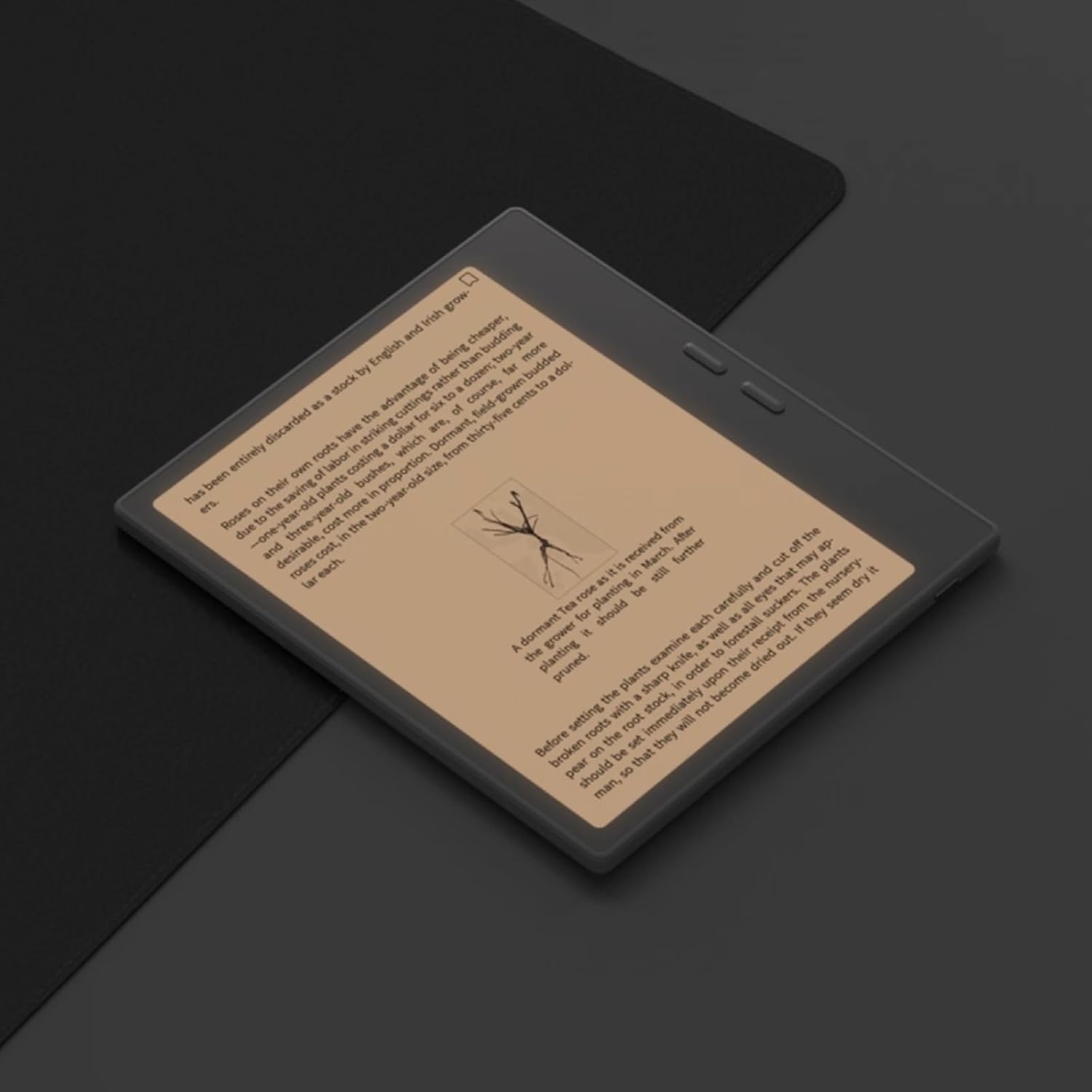
Figure 6.1: Reading with Frontlight
6.3 Using Android Applications
As an Android 13 device, the BOOX Go 7 allows installation of various applications from the Google Play Store. Navigate to the App Store, search for your desired application, and install it. Note that some applications may not be fully optimized for ePaper displays.

Figure 6.2: Various Android Applications on BOOX Go 7
6.4 Pran Nòt ak Desen
Utilize the stylus (if included or purchased separately) for note-taking, sketching, and annotating documents. The device offers various templates and tools for creative and organizational tasks.

Figure 6.3: Stylus Use for Note-Taking

Figure 6.4: Handwriting to Text Conversion
7. Antretyen
7.1 Netwaye Aparèy la
Use a soft, lint-free cloth to gently wipe the screen and body of the device. Do not use harsh chemicals, abrasive cleaners, or excessive moisture.
7.2 Mizajou lojisyèl
Regularly check for and install software updates to ensure optimal performance and access to new features. Connect to Wi-Fi and navigate to Anviwònman> Sistèm> Sistèm Mizajou pou tcheke si gen mizajou ki disponib.
NAN. Depanaj
- Aparèy pa limen: Asire w aparèy la chaje. Konekte l nan yon sous kouran epi eseye ankò.
- Ekran an pa reponn: Perform a soft reset by holding the Power button for 10-15 seconds.
- Pwoblèm koneksyon Wi-Fi: Verify your Wi-Fi password and router settings. Try restarting your router and the device.
- Aplikasyon k ap kraze: Ensure applications are updated to their latest versions. Clear the app's cache or reinstall if issues persist.
9. Espesifikasyon
| Mak | BOOX |
| Non modèl | Ale 7 |
| Kapasite Depo | 64 GB |
| Gwosè ekran | 7 pous |
| Rezolisyon maksimòm ekspozisyon | 300 Pixels per inch |
| Sistèm operasyon | Android 13 |
| Koulè | Nwa (Nwa) |
| Gwosè RAM enstale a | 4 GB |
| Karakteristik espesyal | USB OTG support, Expandable storage, Stylus support |
| Ane ki gen konpòtman egzanplè | 2025 |
| Kalite batri | Lityòm-ion |
| Kontni enèji batri a | 8.8 Watt-èdtan |
| Mak processeur | Qualcomm |
| Deskripsyon processeur | Qualcomm Snapdragon |
| Kamera | Pa gen kamera |
| Kalite Capteur | Jiroskop |
| Item Dimensions (LxWxT) | 15.6L x 0.6W x 13.7T centimeters |
| Metòd Antre | Touchscreen with stylus |
| Deskripsyon kat grafik | Entegre |
| Aparèy konpatib | Stylus |
| Kalite ekspozisyon | Lank elektwonik |
| Rezolisyon ekran | 1280 x 800 piksèl |
| Aspè rapò | 16:10 |
| Koneksyon Materyèl | USB |
| Teknoloji san fil | Bluetooth, Wi-Fi (802.11ax) |
| Total pò USB | 1 |

Figure 9.1: BOOX Go 7 Energy Label (Lyen EPREL)
10. Enfòmasyon sou Garanti
The BOOX Go 7 ePaper Tablet comes with a 2-ane garanti limite. This warranty covers manufacturing defects under normal use. For specific terms and conditions, please refer to the warranty card included in your package or contact customer support.
The standard return policy allows for returns within 30 days of purchase for refund or replacement.
11. Sipò
For technical assistance, troubleshooting, or warranty claims, please contact BOOX customer service. You can find support resources and submit inquiries through the official BOOX help center.
- Mizajou mikrolojisyèl: BOOX commits to at least 3 years of firmware updates for each product.
- Depo nwaj: 10 GB of free cloud storage is provided for each user.
- Tan repons: Customer inquiries are typically responded to within 24 hours.
Pou plis enfòmasyon, vizite a BOOX Brand Store on Amazon.