
1. Entwodiksyon
Thank you for choosing the Crelander HY310PRO Mini Projector. This portable smart projector is designed to deliver a high-quality viewing experience with native 1080P support, auto-focus, and advanced connectivity options like Wi-Fi and Bluetooth. This manual provides essential information for setting up, operating, and maintaining your projector to ensure optimal performance and longevity.

Image 1.1: The Crelander HY310PRO Mini Projector and its remote control, showcasing konsepsyon kontra enfòmèl ant li yo ak koòdone itilizatè li yo.

Imaj 1.2: Plis paseview of key features including 0.8:1 ultra short throw, auto focus, dual band Wi-Fi 6 & BT5.4, native 1080P, 260 ANSI lumens, and 180° free projection.
2. Pake kontni
Tanpri verifye pakè a ak anpil atansyon pou asire w tout atik yo la epi yo an bon kondisyon. Si gen nenpòt atik ki manke oswa ki domaje, tanpri kontakte sèvis kliyan.

Image 2.1: Illustration of the items included in the product package: the projector unit, remote control, user manual, and power cord with adapter.
- Crelander HY310PRO Mini Projector
- Remote Control (Pil pa enkli)
- Kòd pouvwa ak adaptè
- Manyèl itilizatè (dokiman sa a)
Nòt: For transport safety reasons, batteries are not included in the remote control package. Please insert two AAA batteries (not supplied) before use.
3. Enstalasyon
- Koneksyon pouvwa: Connect the power adapter to the projector's power input port and then plug it into a power outlet.
- Plasman: Place the projector on a stable, flat surface. Ensure there are no obstructions in front of the lens. The projector supports 180° free projection, allowing it to project onto walls, ceilings, or floors.
- Premye pouvwa sou: Peze bouton pouvwa a sou pwojektè a oswa kontwòl remote la pou limen aparèy la.
- Enstalasyon kontwòl remote: Insert two AAA batteries into the remote control. The remote combines traditional remote functions with a mouse pointer for easier navigation.
4. Operasyon Enstriksyon
4.1. Auto Focus and Keystone Correction
The HY310PRO projector features automatic focus and keystone correction to ensure a clear and properly shaped image without manual adjustments.
- Konsantre Auto: The projector automatically adjusts the lens to achieve a sharp image. You do not need to manually adjust the focus.
- Auto Horizontal Keystone Correction: The projector automatically corrects horizontal image distortion.
- Koreksyon kat pwen: For more precise adjustments, the projector offers four-point correction to fine-tune the image shape.
- Electronic Upper and Lower Trapezoid Correction: This feature allows for electronic adjustment of vertical image distortion.

Image 4.1: Visual representation of the auto horizontal keystone correction and four-point correction capabilities, demonstrating how the projector adjusts the image to a perfect rectangle.

Image 4.2: Diagram illustrating the electronic upper and lower trapezoid correction feature, which helps in rectifying vertical image distortions.
4.2. Koneksyon
The projector supports both Wi-Fi and Bluetooth for versatile connectivity.
- Wi-Fi: Connect to your home network to access built-in streaming applications and online content. Navigate to the settings menu to configure Wi-Fi.
- Bluetooth: Pair with external Bluetooth speakers or headphones for enhanced audio. Access Bluetooth settings through the main menu.
4.3. Projection and Screen Size
The HY310PRO offers flexible projection options for various environments.
- Rapò pwojeksyon: Features a 0.8:1 ultra short throw ratio.
- Gwosè pwojeksyon: Supports screen sizes from 40 to 260 inches.
- Distans pwojeksyon: Optimal projection distances range from 2 feet to 8.2 feet.
- 180° Free Projection: The projector's design allows for projection at various angles, including ceilings and floors, providing flexibility in placement.

Image 4.3: Chart illustrating the relationship between projection distance and screen size, showing examples for 40, 85, and 130-inch screens.

Image 4.4: Visual demonstration of the projector's 180-degree free projection feature, allowing it to project images onto various surfaces and angles.

Image 4.5: The projector positioned to project images onto a wall and a ceiling, highlighting its versatility in different room setups.
4.4. Built-in Applications
The projector comes with multiple built-in applications, providing seamless access to a wide range of video content. Ensure your software is up-to-date for the best experience.
- Mizajou lojisyèl: Si ou viewing software is outdated, visit the product's inbuilt software store to upgrade to the latest firmware.
5. Antretyen
- Netwaye lantiy la: Use a soft, lint-free cloth specifically designed for optical lenses. Do not use abrasive cleaners or harsh chemicals.
- Netwaye eksteryè a: Siye deyò pwojektè a avèk yon twal mou epi sèk. Evite sèvi ak pwodui netwayaj likid dirèkteman sou aparèy la.
- Vantilasyon: Ensure the projector's ventilation ports are clear of dust and obstructions to prevent overheating.
- Depo: Lè w pa itilize pwojektè a pou yon bon bout tan, sere l nan yon kote ki fre epi sèk, lwen limyè solèy dirèk ak tanperati ekstrèm.
NAN. Depanaj
| Pwoblèm | Kòz posib | Solisyon |
|---|---|---|
| Pa gen imaj projeté | Power not connected, projector off, input source not selected. | Check power connection, turn on projector, select correct input source. |
| Imaj la twoub | Auto-focus issue, projector too close/far from screen. | Ensure projector is on a stable surface. If issue persists, restart the projector. |
| Imaj la defòme (fòm trapèz) | Pwojektè a pa pèpandikilè ak ekran an. | The projector has auto keystone correction. If manual adjustment is needed, check settings for four-point or electronic trapezoid correction. |
| Pa gen son | Volume too low, external audio device not connected, Bluetooth not paired. | Increase volume, check audio cable connections, ensure Bluetooth device is paired and connected. |
| Remote kontwòl pa travay | Batteries dead or incorrectly inserted. | Replace batteries (AAA), ensure correct polarity. |
| Pa ka konekte ak Wi-Fi | Incorrect password, router issue, out of range. | Verify Wi-Fi password, restart router, move projector closer to router. |
If you encounter issues not listed here or if the problem persists, please contact our Customer Support Centre for assistance.
7. Espesifikasyon
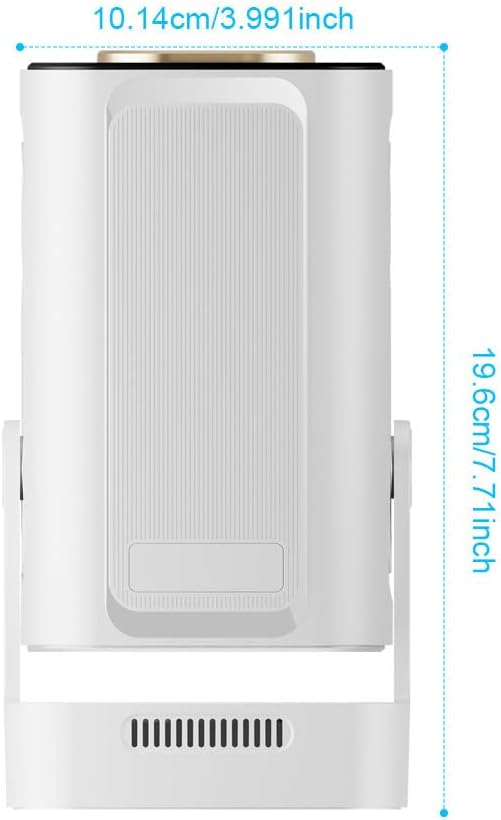
Image 7.1: Diagram showing the physical dimensions of the Crelander HY310PRO Mini Projector: approximately 10.14 cm (3.991 inches) in width and 19.6 cm (7.71 inches) in height.
| Karakteristik | Detay |
|---|---|
| Mak | Krelandè |
| Modèl | HY310PRO |
| Itilizasyon Rekòmande | Home Cinema |
| Karakteristik espesyal | Konsantre oto |
| Koneksyon Teknoloji | Bluetooth, Wi-Fi (Dual Band Wi-Fi 6 & BT5.4) |
| Rezolisyon ekspozisyon | Natif natal 1920 x 1080 (1080P) |
| Klète | 260 ANSI lumèn |
| Pwopòsyon kontras | 10,000:1 |
| Pwojeksyon rapò | 0.8:1 Ultra Short Throw |
| Gwosè pwojeksyon | 40 a 260 pous |
| Distans pwojeksyon | 2 pye a 8.2 pye |
| Odyo | Upgraded 5W Speakers |
| Koreksyon Keystone | Auto Horizontal, Four-Point, Electronic Upper/Lower Trapezoid |
| Ang pwojeksyon | 180° Free Projection |
8. Garanti ak sipò
For any questions, technical assistance, or warranty inquiries, please do not hesitate to contact our Customer Support Centre. Refer to your purchase documentation for specific warranty terms and contact details.
We recommend checking the version of your viewing software regularly. If the version is outdated, please visit the product's inbuilt software store to upgrade to the latest firmware for the best vieweksperyans nan.