
1. Entwodiksyon
This manual provides essential information for the safe and effective operation of your GROVIEW Native 1080P Bluetooth Projector. Please read it thoroughly before use and retain it for future reference. This projector is designed to deliver a high-quality visual experience for home theater, gaming, and presentations.
2. Enfòmasyon sou Sekirite
- Pwovizyon pou pouvwa: Sèvi ak adaptè kouran espesifye a sèlman. Asire w ke vòl latage matche ak ekipman pou kouran lokal ou a.
- Vantilasyon: Pa bloke ouvèti vantilasyon yo. Asire w ke gen ase sikilasyon lè toutotou pwojektè a pou anpeche li chofe twòp.
- Chalè: Pwojektè a lamp generates heat. Avoid touching the lens or vents during operation.
- Imidite: Do not expose the projector to rain, moisture, or immerse it in water.
- Netwayaj: Dekonekte kouran an anvan ou netwaye. Sèvi ak yon twal mou epi sèk. Pa sèvi ak pwodui netwayaj likid oswa ayewosòl.
- Plasman: Mete pwojektè a sou yon sifas ki plat e ki estab. Evite mete l anba limyè solèy dirèk oswa toupre sous chalè.
- Pwoteksyon je: Pa gade dirèkteman nan lantiy pwojektè a lè l ap limen.amp limen, paske limyè klere a ka fatige oswa domaje je yo.
3. Pake kontni
Verifye ke tout atik yo prezan nan pakè ou a:
- GROVIEW Mini pwojektè
- Manyèl itilizatè
- Kontwòl Remote
- HDMI kab
- Twous netwayaj
4. Pwodwi souview
4.1 Konpozan Pwojektè yo
Familiarize yourself with the main parts of your projector.

4.2 Pò Antre / Sòti
The projector features various ports for connecting external devices.

- HDMI Port: Connects to devices such as laptops, gaming consoles (PS5, Xbox), TV sticks, and Blu-ray players.
- USB Ports (USB1, USB2): Pou konekte kle USB pou jwe medya files.
- Sòti Odyo (3.5mm): Konekte ak oratè ekstèn oswa kas ekoutè.
- Antre pouvwa: Konekte adaptè pouvwa a.
5. Enstalasyon
5.1 Plasman Inisyal
Place the projector on a stable surface. Ensure the projector lens is facing the projection surface (wall or screen). For optimal image quality, position the projector perpendicular to the screen.
5.2 Koneksyon pouvwa
- Konekte adaptè kouran an nan pò antre kouran pwojektè a.
- Ploge adaptè pouvwa a nan yon priz kouran.
- Limyè endikatè pouvwa a sou pwojektè a ap limen.
6. Operasyon Enstriksyon
6.1 Power On/Off
- Pouvwa sou: Press the power button on the projector or the remote control. The projector will start up, and the lamp pral limen.
- Pouvwa Off: Press the power button again. Confirm shutdown if prompted. Allow the fan to run briefly to cool down the lamp before completely disconnecting power.
6.2 Navigasyon meni
Use the arrow buttons on the projector or remote control to navigate through the on-screen menu. The 'OK' or 'Enter' button confirms selections, and the 'Back' or 'Exit' button returns to the previous menu.
7. Koneksyon
7.1 Koneksyon HDMI
Connect your HDMI-enabled device (e.g., laptop, game console, streaming stick) to the projector's HDMI port using the provided HDMI cable. Select the corresponding HDMI input source from the projector's input menu.
7.2 Lekti Medya USB
Insert a USB flash drive into one of the projector's USB ports. Navigate to the media player function in the projector's menu to browse and play supported video, audio, or image files.
7.3 Bluetooth Connection (Audio)
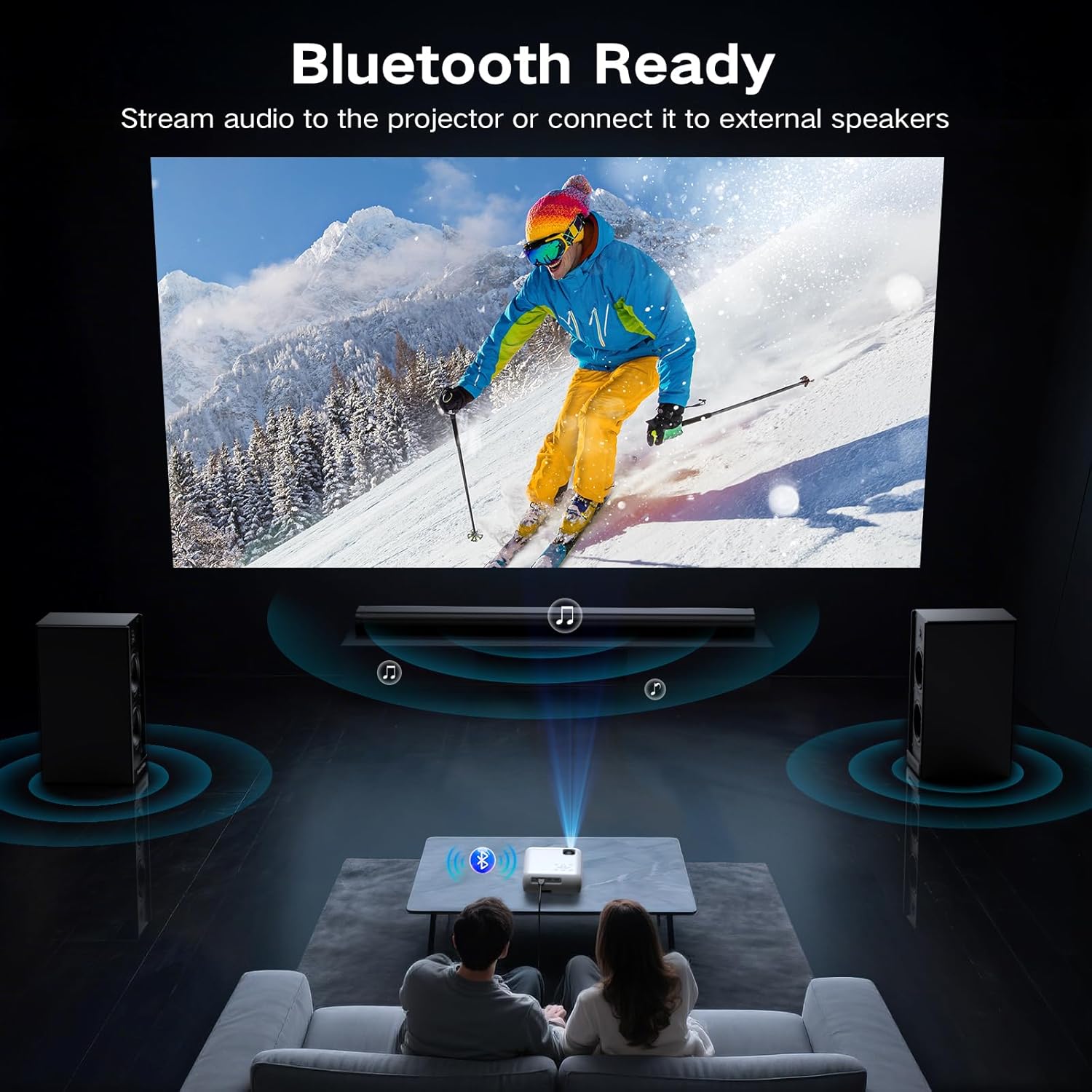
The projector supports Bluetooth 5.0 for connecting to external Bluetooth speakers or headphones. This allows for enhanced audio output.

- Enable Bluetooth on your external audio device and set it to pairing mode.
- Sou pwojektè a, ale nan meni paramèt Bluetooth la.
- Chwazi aparèy odyo ou a nan lis aparèy ki disponib pou konekte.
7.4 Smartphone Connection
To connect a smartphone, an additional adapter (not included) is required:
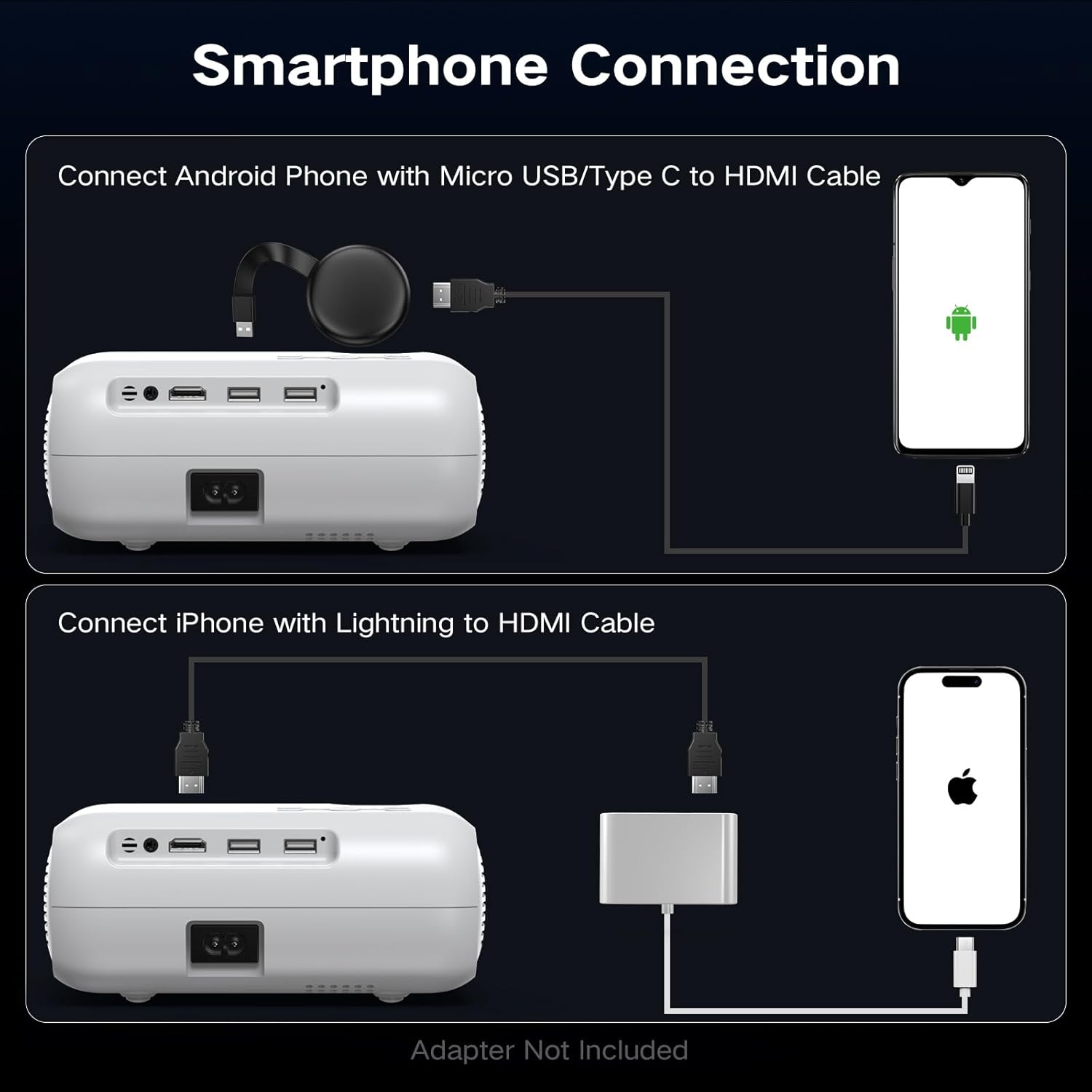
- Pou telefòn android: Use a Micro USB/Type C to HDMI cable.
- Pou iPhones: Use a Lightning to HDMI cable.
Connect the adapter to your phone and then to the projector's HDMI port. Select the HDMI input source.
8. Ajisteman Imaj
8.1 Ajisteman Konsantre
Rotate the focus ring on the projector lens until the projected image appears sharp and clear. This is a manual adjustment.
8.2 Digital Vertical Keystone Correction
The projector features digital vertical keystone correction to adjust image distortion when the projector is not perfectly perpendicular to the screen. This helps achieve a rectangular image.
Access the keystone settings in the projector's menu and use the arrow buttons to adjust the vertical angle until the image is properly aligned.
8.3 Fonksyon Zoom
The projector includes a digital zoom function, allowing you to reduce the size of the projected image without moving the projector. Access this feature in the display settings menu.
9. Anviwònman Audio
The projector has built-in HiFi stereo speakers for direct audio output. You can adjust the volume using the remote control or the projector's control panel. For a more immersive experience, connect external speakers via the 3.5mm audio out port or Bluetooth (see Section 7.3).

10. Antretyen
10.1 Netwaye Lantiy la
Use a soft, lint-free cloth specifically designed for optical lenses. Gently wipe the lens in a circular motion. Avoid using abrasive materials or harsh chemicals.
10.2 Netwayaj kò pwojektè a
Siye deyò pwojektè a avèk yon twal mou epi sèk. Pou mak ki difisil pou retire, yon ti twal mouye.amp cloth can be used, followed by a dry cloth. Ensure no liquid enters the ventilation openings.
10.3 Air Filter Cleaning (if applicable)
Refer to the specific model's design for air filter maintenance. If an accessible air filter is present, clean it regularly to ensure proper ventilation and prevent dust buildup.
10.4 Depo
When not in use for extended periods, store the projector in a cool, dry, dust-free environment. Use the original packaging or a protective case to prevent damage.
NAN. Depanaj
| Pwoblèm | Kòz posib | Solisyon |
|---|---|---|
| Pa gen imaj projeté | Power not connected; Incorrect input source; Device not connected properly | Check power cable; Select correct HDMI/USB input; Ensure source device is on and connected. |
| Imaj la twoub | Focus not adjusted; Projector too far/close; Lens dirty | Adjust the focus ring; Reposition projector; Clean the lens. |
| Imaj la defòme (fòm trapèz) | Projector not perpendicular to screen; Keystone not adjusted | Adjust Digital Vertical Keystone Correction in settings. Try to position the projector as straight as possible. |
| Pa gen son | Volume too low; Muted; Incorrect audio output selected; Bluetooth not paired | Increase volume; Unmute; Check audio settings; Re-pair Bluetooth device. |
| Bri fanatik la fò | Normal operation; Blocked vents | Ensure proper ventilation; Fan noise is typical for projectors. |
| Remote kontwòl pa travay | Batteries low/dead; Obstruction between remote and projector | Ranplase pil yo; Asire w ke liy vizyon an klè ak reseptè IR la. |
12. Espesifikasyon
| Karakteristik | Spesifikasyon |
|---|---|
| Mak | Groview |
| Modèl | Pwojektè Bluetooth natif natal 1080P |
| Rezolisyon ekspozisyon | 1920 x 1080 (Natif 1080P) |
| Klète | 400 ANSI lumèn |
| Koneksyon Teknoloji | HDMI, USB, Bluetooth 5.0 |
| Karakteristik espesyal | Digital Keystone Correction, Two-way Bluetooth, Zoom |
| Itilizasyon Rekòmande | Home Cinema, Gaming, Business, Education |
| Dimansyon pwodwi | 7.13 x 6.33 x 3.15 pous |
| Pwa atik | 1.9 liv |
| Oratè entegre | Yes (HiFi Stereo) |
| Max Display Size | Jiska 200 pous |
13. Garanti ak sipò
The GROVIEW Native 1080P Bluetooth Projector comes with a 2-year customer service and replacement policy. For any technical assistance, warranty claims, or support inquiries, please contact GROVIEW customer service through the retailer where the product was purchased or visit the official GROVIEW websit pou enfòmasyon kontak.
Tanpri konsève prèv acha ou a pou validasyon garanti a.