
DEERC D65
Manyèl Itilizatè Dròn Kamera GPS DEERC D65 4K
Modèl: D65
1. Entwodiksyon
This manual provides essential instructions for the safe operation and maintenance of your DEERC D65 4K GPS Camera Drone. Please read this manual thoroughly before operating the drone to ensure proper usage and to prevent damage or injury. The DEERC D65 is an ultra-lightweight, foldable drone equipped with a 4K EIS camera and a 2-axis gimbal, designed for stable aerial photography and intelligent flight.
2. Sa ki enkli
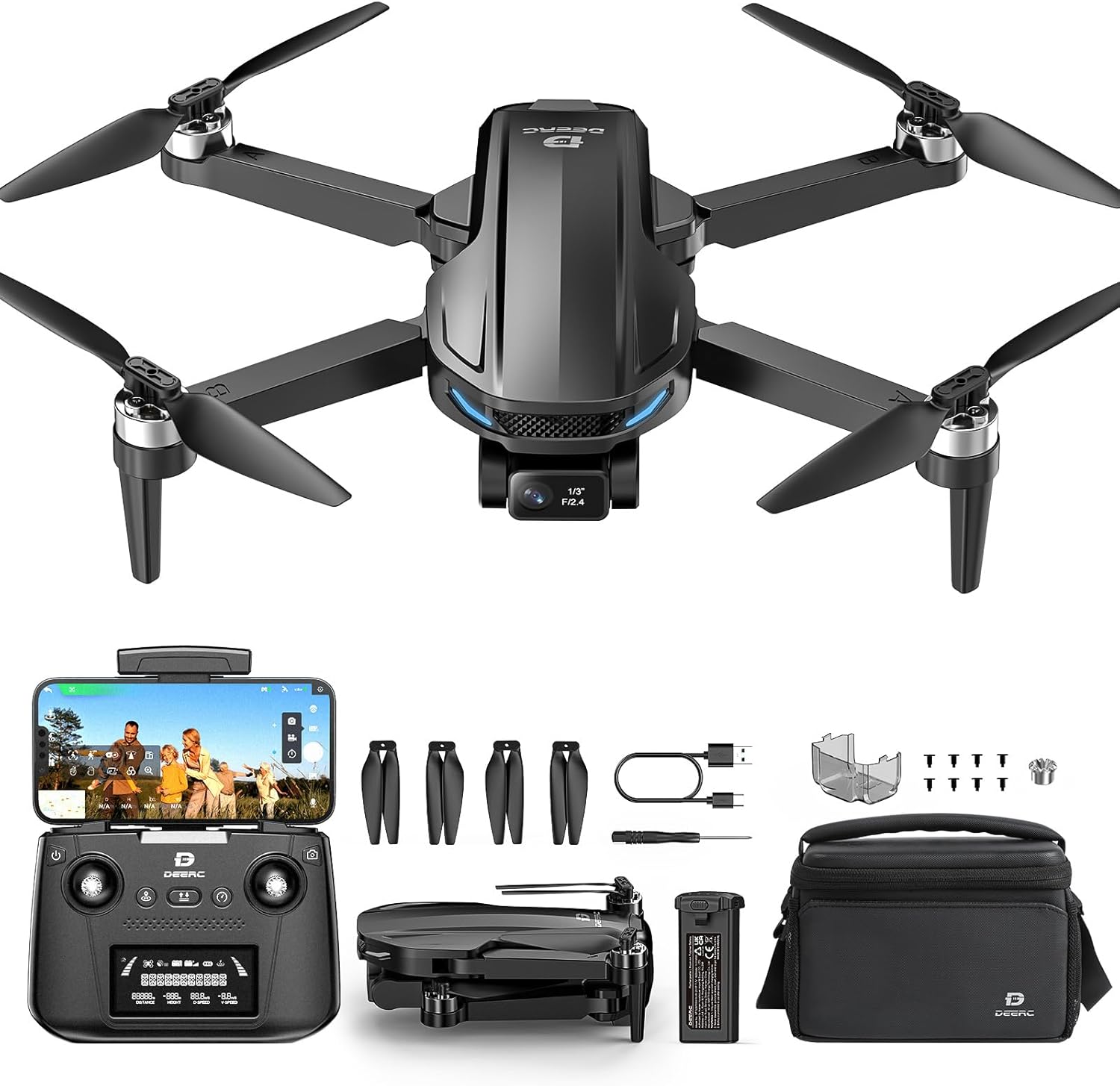
Image: DEERC D65 drone, remote controller, batteries, charging cables, spare propellers, and carrying bag.
- Dròn DEERC D65
- Remote Controller
- Pil pou vòl (2 enkli)
- USB Charging Cables (for drone battery and remote controller)
- Elis rezèv
- Tournvis
- Manyèl Itilizatè (dokiman sa a)
- Pote sak
3. Enstalasyon
3.1 Chaje batri yo
Ensure both the drone flight battery and the remote controller are fully charged before first use. Use the provided USB charging cables. The drone battery charger will show a solid red light while charging and flash green when fully charged. The remote controller is rechargeable via USB.

Image: Illustration of drone battery charging status indicators.
3.2 Depliye Dròn nan
Carefully unfold the drone arms until they click into place. Ensure all propellers are free from obstruction.

Image: The DEERC D65 drone shown in its compact, folded state and fully unfolded, ready for flight.
3.3 Enstale Batri Dròn nan
Insert the fully charged battery into the drone's battery compartment until it clicks securely. Ensure the battery is properly seated to prevent power loss during flight.
3.4 Installing the TF Card (Optional)
For storing photos and videos directly on the drone, insert a TF (MicroSD) card (not included) into the designated slot before powering on the drone.
3.5 Limen/Etenyen
- Drone: Long press the power button on the drone until the indicator lights turn on.
- Kontwolè Remote: Short press the power button on the remote controller. It will beep once, indicating successful pairing with the drone.
- Pouvwa Off: Long press the power button on both the drone and remote controller until they power off.
3.6 Telechaje Aplikasyon an ak Koneksyon
Download the "HolyStone-FPV" app from your device's app store. Connect your mobile device to the drone's Wi-Fi network (usually named "HolyStoneGPS-XXXXXX"). Open the app and select the GPS Model (HS440D is a GPS model) to enter the flight interface.
Video: This video demonstrates the initial setup process, including app download, connection, and basic drone preparation for flight.
3.7 Kalibrasyon konpa
Before the first flight, a mandatory compass calibration is required. Follow the on-screen prompts in the app:
- Push both the right and left joysticks simultaneously to the bottom right corner.
- Keep the drone parallel to the floor and rotate it about 3 times.
- Point the head of the drone upward and rotate it about 3 times.
- The transmitter will long beep once, indicating successful compass calibration.
3.8 GPS Signal Search
Place the drone on a flat surface after calibration. The drone will automatically search for GPS signals. The status LED will turn solid green once the search is finished (approximately 1 minute).
3.9 Gyro Calibration
Push the two joysticks to the bottom left corner to calibrate the gyro.
4. Itilizasyon Dròn nan
4.1 Dekolaj ak Aterisaj
- Debloke: Short press the unlock button on the remote controller.
- Dekolaj: Short press the takeoff button to initiate automatic takeoff.
- Aterisaj: Short press the landing button to initiate automatic landing.
4.2 Nivo vitès
The drone offers two speed levels (High/Low). Push the speed button on the remote controller to switch between them.
4.3 Operasyon Kamera
The DEERC D65 features a 4K EIS camera with a 2-axis gimbal for stable and clear footage. The camera angle can be adjusted using the scroll wheel on the remote controller.

Imaj: Gwo plan view of the DEERC D65's 4K EIS camera with 100-degree FOV and 70-degree rudder adjustment.

Image: The DEERC D65 drone highlighting its 2-axis mechanical stabilization gimbal for stable image capture.
- Pran foto: Short press the photo button on the remote controller or tap the camera icon in the app.
- Anrejistre videyo: Long press the video button on the remote controller or tap the video icon in the app to start/stop recording.
- Anviwònman kamera: Access camera settings in the app to choose between 2.5K and 4K resolutions.
- Zoom: Use the zoom slider in the app to zoom in and out.
4.4 Mòd vòl entèlijan
The DEERC D65 offers several intelligent flight modes for enhanced creativity and ease of use:
- Swiv mwen: The drone will track your movement by following the GPS signal from your mobile phone. Ensure the drone's flight range is within 16-98 ft (5-30m).
- Vòl an òbit: The drone will record its current position as the circle's center, then fly away from it to a set radius distance (default 15 ft / 5m) and begin to circle clockwise.
- Vòl pwen de vi: Tap the icon on the app interface, then tap a few points on the screen to create a flight path. Submit the path, and the drone will fly along the path created by connecting the points you tapped in order.
- Mòd san tèt: In Headless Mode, the pilot should stay facing the same direction that the drone's head points to when it takes off. This simplifies control by eliminating the need to orient the drone.
- Return to Home (RTH): Tap the RTH button on the remote controller or in the app to activate. The drone will automatically fly back to its takeoff point. This function is also triggered if the signal drops or the battery runs low.

Image: Visual representation of GPS Follow, Circle Fly, Image Follow, Time-lapse, and Zoom in/out intelligent flight modes.
5. Antretyen
- Netwayaj: Use a soft, dry cloth to clean the drone and remote controller. Avoid using solvents or harsh chemicals.
- Ranplasman elis: If propellers are damaged, replace them immediately using the provided screwdriver and spare propellers. Ensure correct propeller orientation (A and B types).
- Swen batri:
- Sere pil yo nan yon kote ki fre, sèk.
- Pa chaje twòp oswa twòp dechaj pil yo.
- Si w ap sere l pou yon bon bout tan, chaje pil yo apeprè 50-60%.
- Depo: Fold the drone arms and store all components in the carrying bag to protect them from dust and damage.
NAN. Depanaj
| Pwoblèm | Solisyon |
|---|---|
| Dròn nan pa limen. | Ensure the battery is fully charged and correctly inserted. Long press the power button. |
| Pa ka konekte ak Wi-Fi. | Ensure the drone is powered on. Restart your phone's Wi-Fi and search for the drone's network. |
| Dron an ap derive pandan vòl la. | Perform Gyro Calibration and Compass Calibration as described in the Setup section. Ensure flight in an open area with strong GPS signal. |
| Poor camera quality. | Ensure the camera lens is clean. Check camera settings in the app for resolution (4K recommended). Fly in stable conditions. |
| Remote controller not responding. | Ensure the remote controller is charged and paired with the drone. Re-pair if necessary. |
| Drone does not return to home. | Ensure GPS signal is strong (solid green LED). RTH function relies on accurate GPS positioning. |
7. Espesifikasyon
| Karakteristik | Detay |
|---|---|
| Mak | DEERC |
| Non modèl | RM (D65) |
| Koulè | Nwa |
| Rezolisyon Capture Videyo | 4K |
| Rezolisyon toujou efikas | 8 MP |
| Koneksyon Teknoloji | Radyo Frekans |
| Fòma Capture Videyo | MP4 |
| Kalite kontwòl | Kontwòl Remote |
| Teknoloji kominikasyon san fil | Radyo Frekans |
| Konpozisyon selil batri | Lityòm Polymère |
| Èske pil yo enkli | Yes (2 Nonstandard Battery batteries required) |
| Sipò pou Fòma Imaj | MP4, JPEG |
| Rezolisyon Sòti Videyo | 3840 piksèl |
| Kontwòl Remote enkli? | Wi |
| Teknoloji detèktè optik | CMOS |
| Batri rechargeable enkli | Wi |
| Dimansyon pwodwi | 11.5"L x 8"L x 2"H |
| Pwa atik | 2.55 pounds (Note: Drone itself is under 249g, package weight is 2.55 lbs) |
8. Garanti ak sipò
For warranty information and customer support, please refer to the documentation included in your product packaging or visit the official DEERC website. Contact customer service for any technical assistance or inquiries.
Ask a question about this manual
Ask about setup, troubleshooting, compatibility, parts, safety, or missing instructions. Manuals+ will review the question and use this page’s manual context to help answer it.