
1. Entwodiksyon
This manual provides detailed instructions for the safe and efficient use of your Techkey MFi Certified 3-in-1 USB 3.0 Flash Drive. Please read this manual thoroughly before using the device to ensure optimal performance and to prevent damage.
The Techkey flash drive is designed for convenient data transfer and storage across various devices, including iPhones, iPads, Android phones, and personal computers. Its multi-interface design and MFi certification ensure broad compatibility and reliable performance.
2. Pwodwi Features
- MFi sètifye: Ensures compatibility and reliable performance with Apple devices.
- 3-in-1 Interface Design: Equipped with USB, Lightning, and Type-C connectors for universal compatibility.
- USB 3.0 gwo vitès: Offers fast read and write speeds for efficient data transfer.
- 256GB Storage Capacity: Bay ample space for photos, videos, documents, and other files.
- Done chifreman: Supports Touch ID/Passcode encryption for enhanced data security.
- Konstriksyon dirab: Made from high-quality metal with dustproof, drop-proof, and anti-magnetic properties.
- Kontra enfòmèl ant ak pòtab: Lightweight design with a keychain for easy carrying.
- Depo Otomatik: In-app camera captures automatically save to the drive.
- On-the-Go Playback: Directly play stored movies and music from the drive.
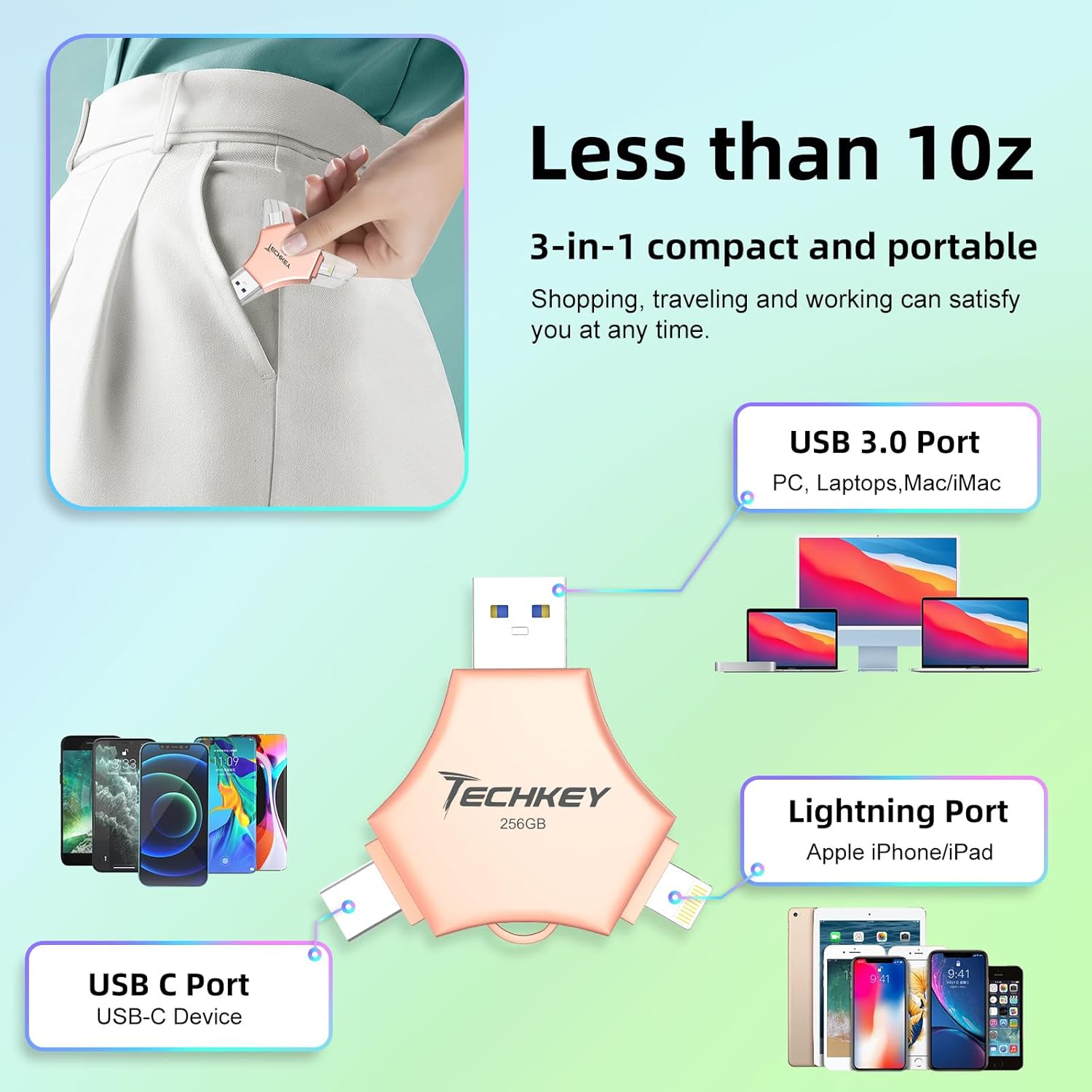
Image: The Techkey 3-in-1 USB Flash Drive showing its USB 3.0, Lightning, and USB-C ports, highlighting its compact and portable design.

Image: A diagram illustrating the three distinct connectors: Lightning for iPhone/iPad, Type-C for iPhone/iPad/Android, and USB for PC.

Image: An illustration of a high-tech chip, symbolizing the advanced technology and MFi certification integrated into the flash drive.

Image: Certificates of authority, indicating the product's compliance with industry standards and quality assurance.
3. Pake kontni
Verifye ke tout atik yo prezan nan pakè ou a:
- Techkey MFi Certified 3-in-1 USB 3.0 Flash Drive (256GB)
- Protective Caps (may include extra)
- Keychain/Lanyard
- Manyèl Itilizatè (dokiman sa a)
4. Enstalasyon
4.1. Koneksyon Inisyal
The Techkey flash drive features three types of connectors: USB, Lightning, and Type-C. Select the appropriate connector for your device.
- Pou Aparèy iOS (iPhone/iPad): Insert the Lightning connector into your device's Lightning port.
- Pou Aparèy Android: Insert the Type-C connector into your device's USB-C port. Ensure your Android device supports OTG (On-The-Go) functionality.
- Pou PC/Mac: Insert the USB connector into an available USB port on your computer.
4.2. App Installation (iOS Devices Only)
For iOS devices (iPhone/iPad), the "U-Disk" application is required for full functionality. When you connect the flash drive to an iOS device for the first time, a prompt to download the "U-Disk" app from the App Store should appear. Follow the on-screen instructions to install it.
- If the prompt does not appear, manually search for "U-Disk" in the Apple App Store and install it.
- Android and PC devices do not require a dedicated app for basic file jesyon.
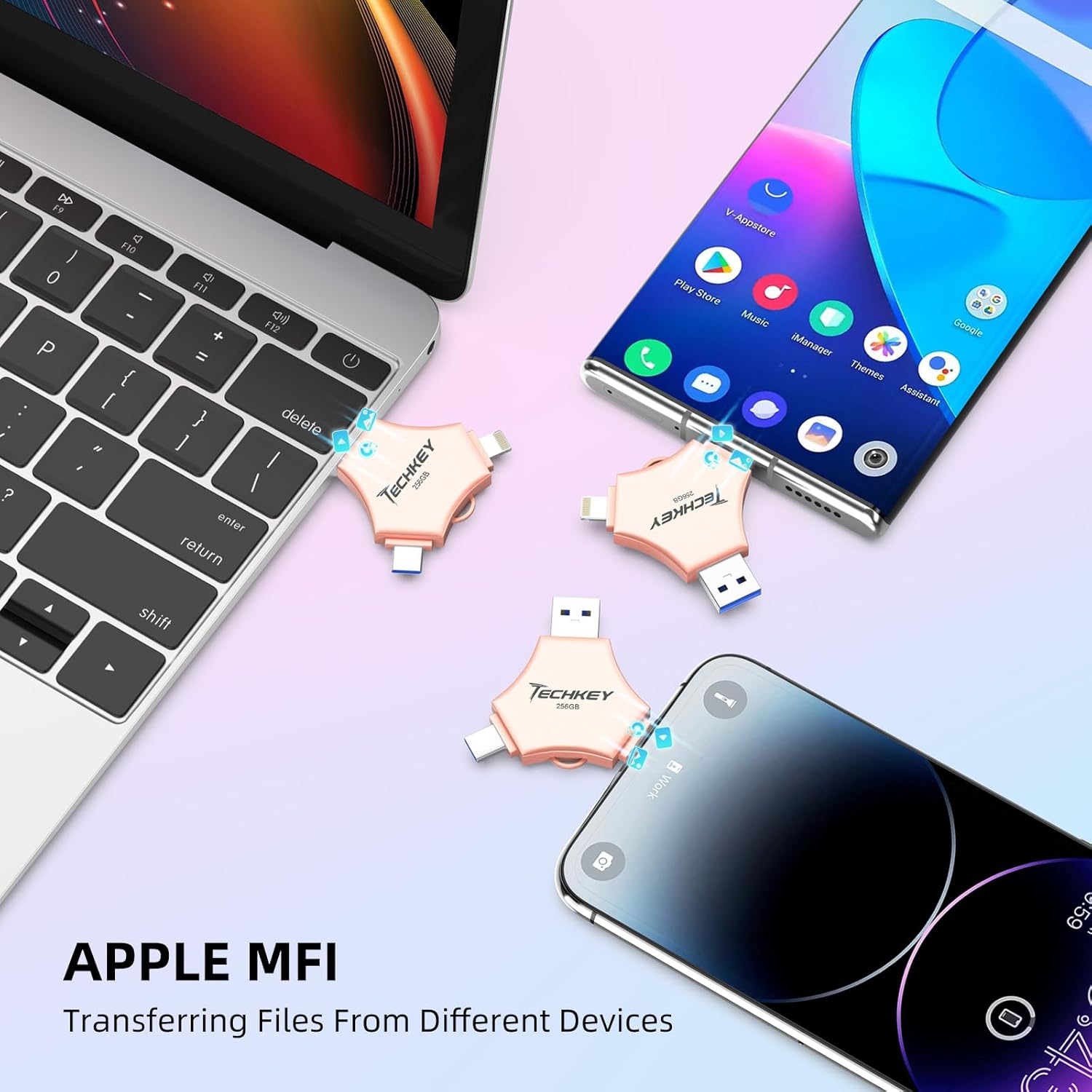
Image: The Techkey flash drive connected to an iPhone and iPad, illustrating its MFi compatibility and ease of use with Apple devices.
5. Operasyon Enstriksyon
5.1. Transfè Done
The flash drive supports high-speed data transfer. Actual speeds may vary based on device, file size, and system conditions.
- For iOS Devices (via U-Disk App):
- Connect the flash drive to your iPhone/iPad.
- Open the "U-Disk" app.
- Navige nan vle a files on your device or within the app.
- Chwazi files and use the app's functions to copy or move them to the flash drive.
- To transfer from the flash drive to your device, select files on the drive and use the app's functions to copy them to your device.
- Pou Aparèy Android:
- Connect the flash drive to your Android device.
- Access the flash drive through your device's file manager (e.g., "Files," "My Files").
- Kopi oswa deplase files between your device's internal storage/SD card and the flash drive.
- Pou PC/Mac:
- Connect the flash drive to your computer's USB port.
- The drive will appear as a removable storage device (e.g., "USB Drive," "NO NAME").
- Trennen epi gout files between your computer and the flash drive, or use copy/paste functions.
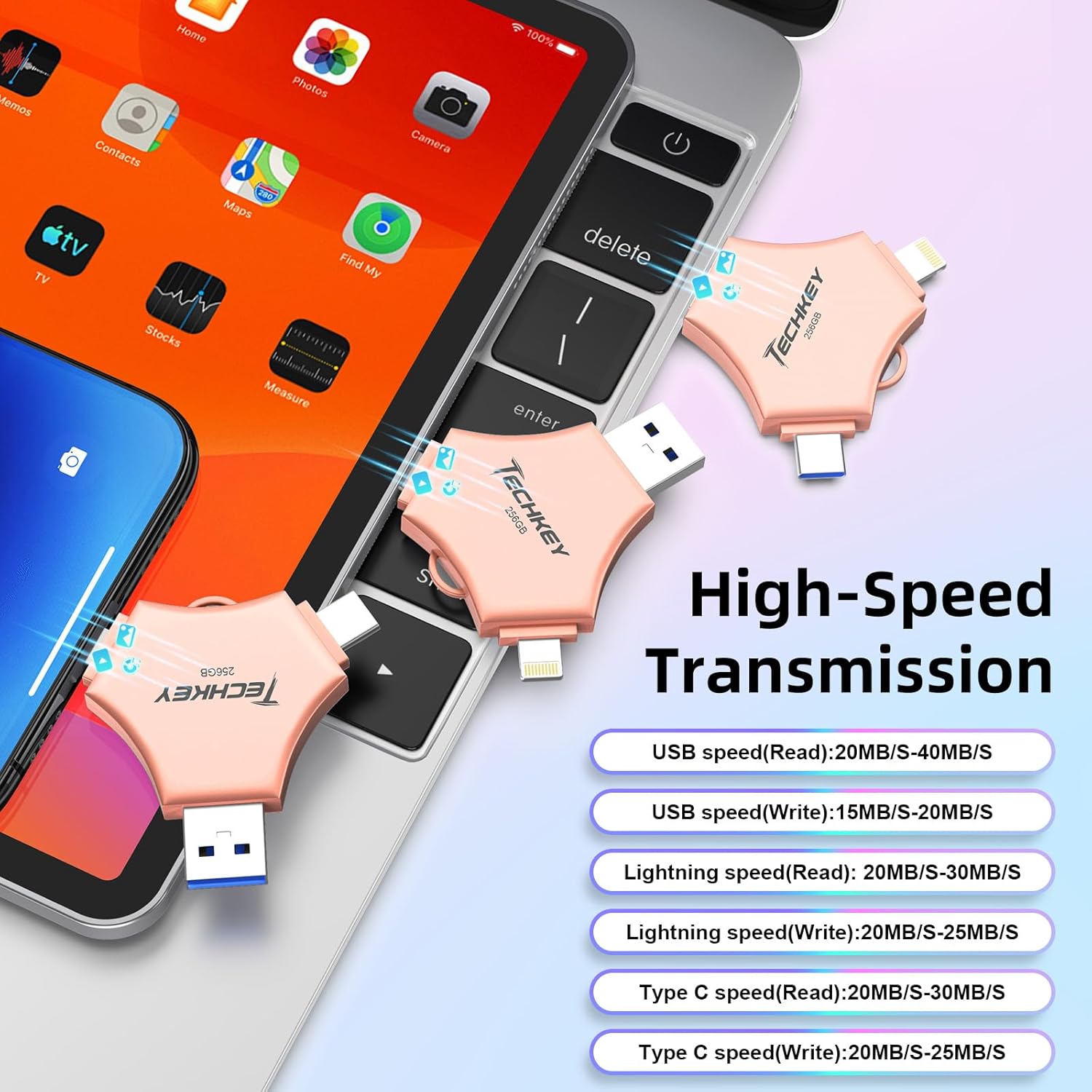
Image: A graphic detailing the high-speed transmission rates for the USB (Read: 20-40MB/s, Write: 15-20MB/s), Lightning (Read: 20-30MB/s, Write: 20-25MB/s), and Type-C (Read: 20-30MB/s, Write: 20-25MB/s) interfaces.
5.2. One-Click Backup (iOS Devices Only)
The "U-Disk" app allows for one-click backup of photos, videos, and contacts from your iOS device to the flash drive.
- Connect the flash drive and open the "U-Disk" app.
- Locate the "One-Click Backup" or similar function within the app.
- Follow the prompts to back up your selected data. This process copies files to the drive, freeing up space on your device. Remember to manually delete files from your device after confirming they are safely backed up on the flash drive.
5.3. Data Encryption
To protect your sensitive data, the "U-Disk" app (for iOS) offers encryption features.
- Open the "U-Disk" app with the flash drive connected.
- Navigate to the security or settings section within the app.
- You can choose to enable Touch ID/Passcode to encrypt the entire flash drive or select specific files for encryption.
- Follow the on-screen instructions to set up and manage your encryption preferences.
5.4. On-the-Go Playback
You can directly play media files stored on the flash drive without transferring them to your device's internal storage.
- Store your favorite movies, music, or documents on the flash drive.
- Connect the drive to your device (using the "U-Disk" app for iOS).
- Browse la files on the flash drive through the app or file manadjè.
- Chwazi yon medya file to play it directly.

Image: A visual representation of the flash drive supporting various file formats, including MP4, MOV, RM, RMVB for videos; MP3, AIF, WAV, WMA, AAC for music; BMP, JPG, GIF, ICO, TIFF, PNG for pictures; and PDF, WORD, EXCEL, PPT, HTML, TXT for office documents.
6. Antretyen
- Bon manyen: Always hold the flash drive by its body, not by the connectors.
- Pwoteje konektè yo: Use the provided protective caps to cover the connectors when not in use to prevent dust and damage.
- Retire san danje: Always safely eject the flash drive from your computer (PC/Mac) before physically removing it to prevent data corruption. For mobile devices, ensure no data transfer is active before disconnecting.
- Netwayaj: Use a soft, dry cloth to clean the exterior of the drive. Avoid liquid cleaners or abrasive materials.
- Depo: Store the flash drive in a cool, dry place away from extreme temperatures, direct sunlight, and strong magnetic fields.
NAN. Depanaj
7.1. Aparèy la pa rekonèt
- Tcheke Koneksyon: Ensure the flash drive is fully and correctly inserted into the port.
- Eseye yon lòt pò/aparèy: Test the flash drive on a different USB port, or a different compatible device (e.g., another computer, phone) to determine if the issue is with the drive or the port.
- Rekòmanse aparèy: Sometimes, restarting your phone or computer can resolve connection issues.
- Aplikasyon iOS: For iOS devices, confirm the "U-Disk" app is installed and updated.
- Android OTG: For Android, verify your device supports OTG and that OTG functionality is enabled in settings if required.
7.2. Vitès transfè ki ba
- USB Port Kalite: Ensure you are using a USB 3.0 port on your computer for optimal speeds. Connecting to a USB 2.0 port will result in slower transfer rates.
- File Gwosè / Kalite: Transfè anpil ti files ka pi dousman pase transfere yon sèl gwo file nan menm gwosè total la.
- Pèfòmans Aparèy: The speed of your host device (phone, computer) can affect transfer rates.
- Pwosesis background: Close unnecessary applications on your device during transfer.
7.3. Data Corruption/Loss
- Ejeksyon an sekirite: Always safely eject the drive from computers. Avoid disconnecting during active data transfer.
- Fluktiyasyon pouvwa: Ensure stable power supply to your computer during transfers.
- Domaj Fizik: Inspect the drive for any visible physical damage.
7.4. App Issues (U-Disk)
- Mizajou aplikasyon an: Ensure the "U-Disk" app is updated to the latest version.
- Réinstaller App: If issues persist, try uninstalling and reinstalling the app.
- iOS vèsyon: Asire w ke aparèy iOS ou a ap fonksyone ak iOS 12.1 oswa yon vèsyon pi resan.
8. Espesifikasyon
| Mak | Techkey |
| Nimewo Modèl | 641837950528 |
| Kapasite Depo memwa | 256 GB |
| Koneksyon Teknoloji | USB, Lightning, USB Type C |
| Li vitès | Jiska 40 MB/s |
| Vitès ekri | Jiska 80 MB/s |
| Dimansyon pwodwi (LxWxH) | 5.43 x 3.94 x 0.04 pous |
| Pwa atik | 2.39 ons |
| Karakteristik espesyal | Wear Resistant, MFi Certified, Data Encryption |
| Sistèm operasyon konpatib | iOS 12.1 and above, OTG Android, Windows 7 and above, macOS 10.6 and above |
9. Garanti ak sipò
This Techkey product comes with a standard manufacturer's warranty. Please refer to the packaging or the official Techkey websit la pou wè tèm ak kondisyon garanti espesifik yo.
For technical support, troubleshooting assistance, or warranty claims, please contact Techkey customer service through their official channels. Contact information can typically be found on the product packaging or the manufacturer's websit.
Nòt: Kenbe resi acha ou a kòm prèv acha pou rezon garanti.