
1. Entwodiksyon
Thank you for choosing the Upperizon G-14Q Portable Monitor. This manual provides essential information for setting up, operating, and maintaining your new monitor. Please read it thoroughly before use to ensure optimal performance and longevity of your device.
The Upperizon G-14Q is a 14-inch portable display featuring 2.5K (2520x1680) resolution, 100% sRGB color gamut, 450 nits brightness, and HDR support. It offers versatile connectivity via USB-C and HDMI, making it ideal for laptops, MacBooks, PCs, gaming consoles (PS5, Xbox), and other devices. Its lightweight design, integrated kickstand, and VESA compatibility enhance its portability and usability.

Image: The Upperizon G-14Q monitor highlighting its key display features: 2.5K resolution (2520x1680), 100% sRGB color accuracy, and 450 Nits brightness for a vivid visual experience.
2. Enfòmasyon sou Sekirite
- Pa ekspoze monitè a anba lapli, imidite, oswa tanperati ekstrèm.
- Evite mete monitè a toupre sous chalè oswa anba limyè solèy dirèk.
- Use only the power adapter and cables provided or recommended by Upperizon.
- Pa eseye demonte oswa modifye monitè a. Konfye tout antretyen bay pèsonèl kalifye.
- Kenbe monitè a lwen chan mayetik fò.
- Netwaye ekran an avèk yon twal mou ki pa gen pousyè. Evite itilize pwodui chimik ki agresif.
3. Pake kontni
Tanpri tcheke pake a pou atik sa yo:
- Upperizon G-14Q Portable Monitor
- USB-C to USB-C Cable (for power and video)
- Mini HDMI to HDMI Cable (for video)
- USB-A to USB-C Cable (for power)
- Adaptè pouvwa
- Manyèl Itilizatè (dokiman sa a)
4. Pwodwi souview
Familiarize yourself with the monitor's features and ports.

Image: Detailed diagram showing the various ports and controls on the Upperizon G-14Q portable monitor. This includes two Type-C ports, a Mini HDMI port, a power button, a menu button, a headphone jack, VESA mounting holes, and integrated speakers.
Port and Button Functions:
- Mini HDMI Port: Connects to devices for video input.
- Pò USB Kalite-C (x2):
- One port for power supply and video/audio signal transmission (full-featured USB-C).
- Another port primarily for power supply or additional data (depending on device compatibility).
- Bouton pouvwa: Press and hold to turn the monitor on/off. Short press to access/exit the OSD menu.
- Menu Button/Scroll Wheel: Used to navigate and select options within the On-Screen Display (OSD) menu.
- Kas ekoutè Jack: Pou konekte aparèy odyo ekstèn.
- Oratè entegre: Bay pwodiksyon odyo.
- Twou VESA: 75mm x 75mm mounting holes for VESA-compatible stands or wall mounts (M4x6 screws).
- Kickstand: Integrated adjustable kickstand for flexible viewang ing.
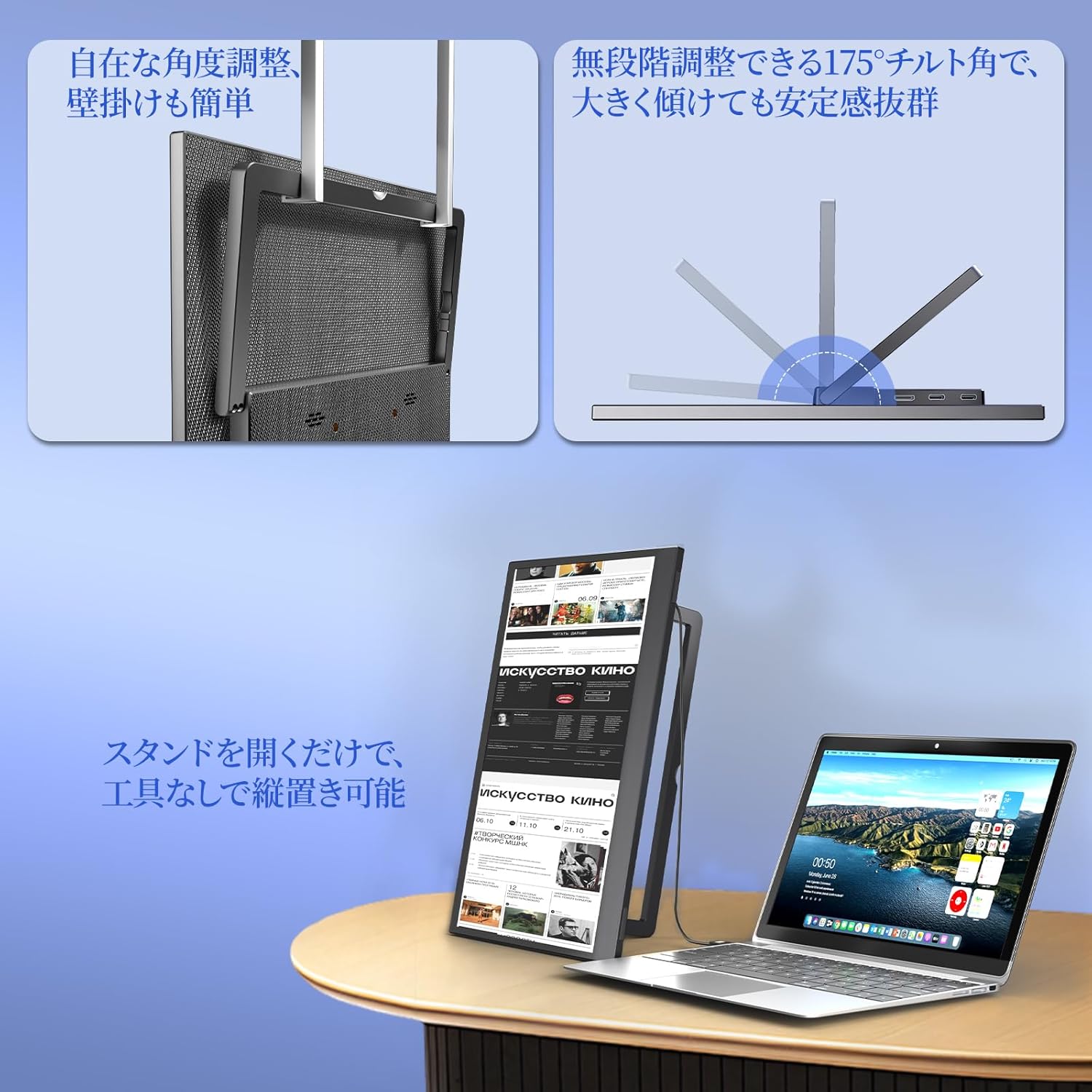
Image: The Upperizon G-14Q monitor demonstrating its flexible kickstand for various viewing angles and its VESA compatibility for alternative mounting solutions.

Image: Visual representation of the monitor's physical attributes, including its slim profile (8mm to 16mm), narrow 4mm bezels, light weight of approximately 570g, and a durable, fingerprint-resistant carbon-fiber-like back finish.
5. Enstalasyon
5.1 Alimente monitè a
The monitor can be powered via a USB-C connection. Connect the provided USB-C to USB-C cable or USB-A to USB-C cable to a power source (e.g., wall adapter, laptop USB port, power bank).
5.2 Konekte ak Aparèy
The Upperizon G-14Q supports both USB-C and Mini HDMI connections for video input.
- USB-C Connection (Full-featured):
If your device (laptop, smartphone, tablet) has a full-featured USB-C port that supports DisplayPort Alternate Mode (DP Alt Mode) and power delivery, you can connect the monitor using a single USB-C to USB-C cable. This cable will transmit video, audio, and power simultaneously.
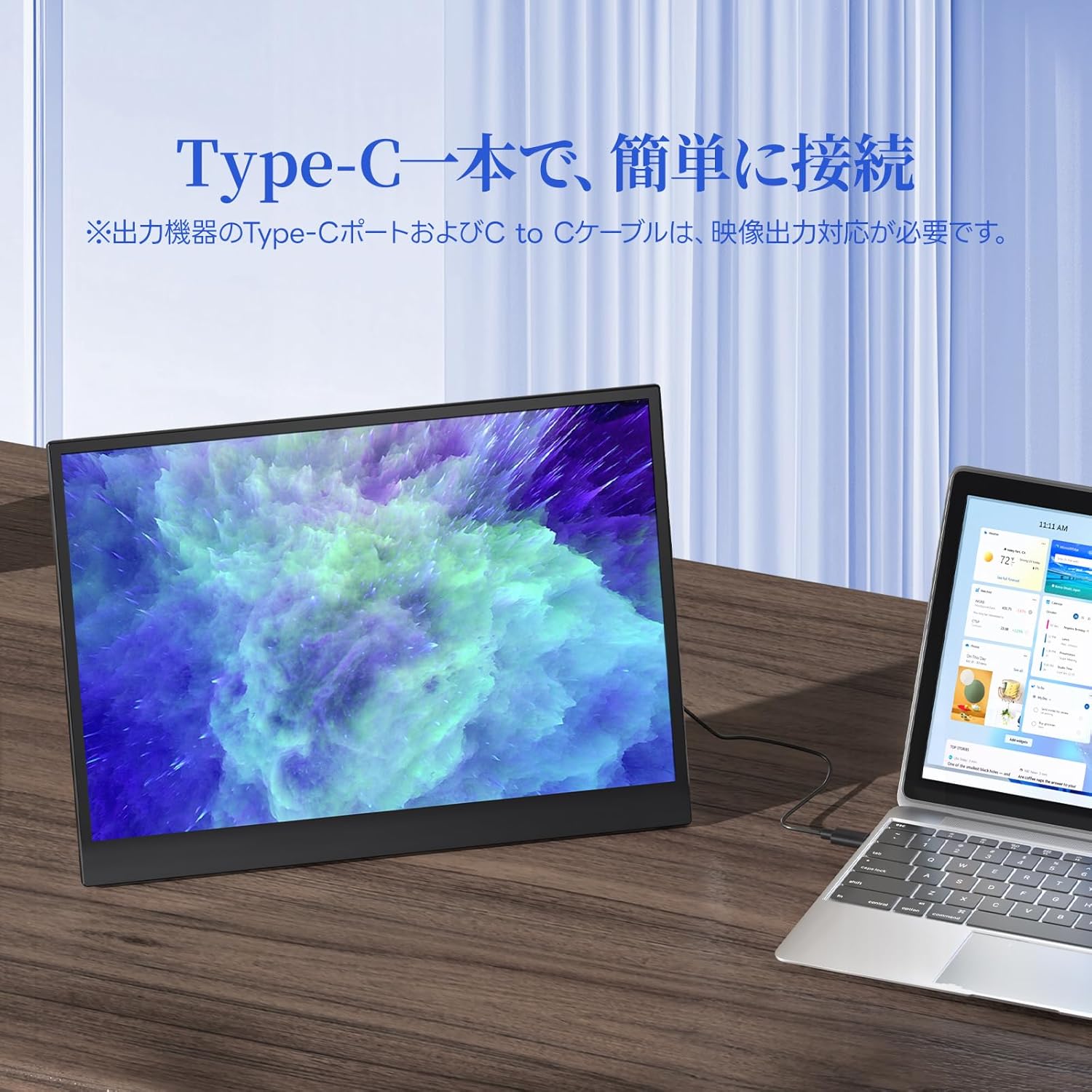
Image: The Upperizon G-14Q portable monitor seamlessly connected to a laptop using a single USB Type-C cable, demonstrating simplified connectivity for both power and display.
- Koneksyon HDMI:
For devices with an HDMI output (e.g., desktop PC, gaming console, older laptops), use the provided Mini HDMI to HDMI cable. You will also need to power the monitor separately using a USB-C to USB-A cable connected to a power adapter or a powered USB port.
5.3 VESA Mounting
The monitor features 75mm x 75mm VESA mounting holes, allowing it to be attached to compatible monitor arms or wall mounts. Use M4x6 screws for secure installation.

Image: A multi-monitor setup featuring the Upperizon G-14Q mounted on a VESA arm, demonstrating its flexibility for various workspace configurations and space-saving benefits.
6. Opere ki monitè kè bebe a
6.1 Meni OSD (On-Screen Display).
Press the Power button briefly to access the OSD menu. Use the Menu button/scroll wheel to navigate through options and adjust settings such as brightness, contrast, color temperature, input source, and more.
6.2 Montre mòd
When connected to a computer, you can configure the display mode:
- Mòd ekstansyon: Li pwolonje biwo ou sou tou de ekran yo, sa ki bay plis espas travay.
- Mòd kopi: Li reflete ekran prensipal ou a, li montre menm kontni an sou tou de ekran yo.
- Vertical Display: Allows you to rotate the monitor for a portrait orientation, useful for coding or document viewing.
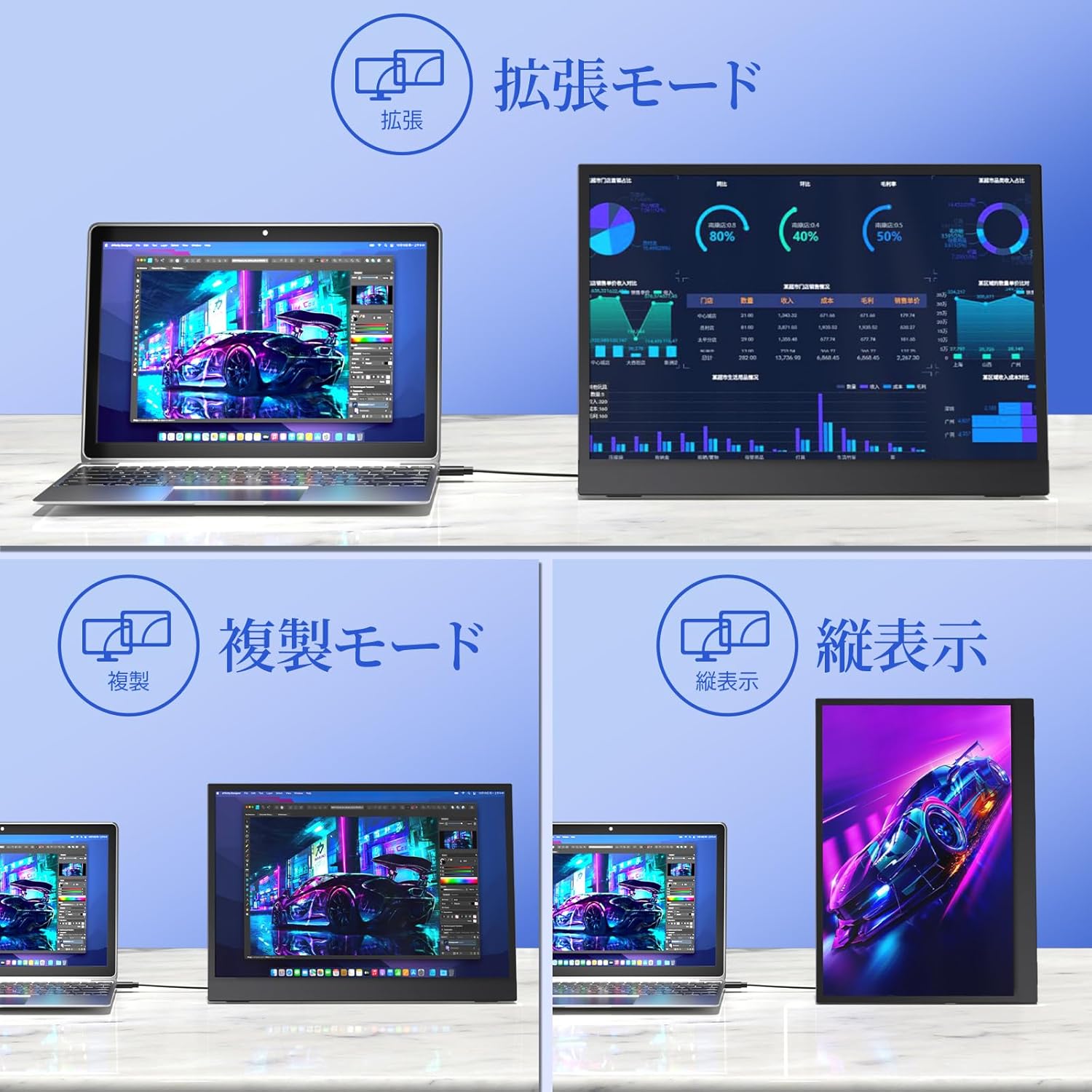
Image: Illustrations of the Upperizon G-14Q monitor in various display configurations: Extension Mode for expanded workspace, Duplicate Mode for mirrored content, and Vertical Display for portrait orientation.
6.3 Aspè rapò
The G-14Q features a 3:2 aspect ratio, which is ideal for productivity tasks like document editing and web browsing, offering more vertical screen space. Ensure your device's display settings are configured to output the correct aspect ratio for optimal viewing.

Image: A visual comparison demonstrating the correct display of content with a 3:2 aspect ratio on the Upperizon G-14Q monitor versus an example where an incorrect aspect ratio leads to distorted images.
7. Antretyen
- Netwaye ekran an: Siye ekran an dousman avèk yon twal mou ki pa gen pousyè. Pou mak ki difisil pou retire, siye l yon ti kras.ampRense twal la avèk dlo oswa yon solisyon pou netwaye ekran. Pa flite likid la dirèkteman sou ekran an.
- Netwayaj C aasing: Sèvi ak yon twal mou epi sèk pou netwaye monitè a.asing.
- Depo: Lè w pa itilize monitè a pou yon bon bout tan, sere l nan yon kote ki fre epi sèk, de preferans nan anbalaj orijinal li oswa nan yon manch pwoteksyon.
- Evite enpak: Protect the monitor from drops and impacts, especially the screen.
NAN. Depanaj
| Pwoblèm | Kòz posib | Solisyon |
|---|---|---|
| Pa gen ekspozisyon/Pa gen siyal |
|
|
| Ekran k ap flache |
|
|
| Pa gen son |
|
|
| Image distortion/Incorrect aspect ratio |
|
|
9. Espesifikasyon
| Karakteristik | Detay |
|---|---|
| Mak | Upperizon |
| Nimewo Modèl | G-14Q |
| Gwosè ekran | 14 pous |
| Rezolisyon | 2520x1680 piksèl (2.5K) |
| Aspè rapò | 3:2 |
| Rafrechisman pousantaj | 60 Hz |
| Teknoloji ekspozisyon | LCD, IPS Panel |
| Sifas ekran | Mat |
| Viewing Ang | 178 Degre |
| Tan repons | 5 Milisegond |
| Koneksyon Materyèl | Thunderbolt, USB 3.1 Type C (x2), Mini HDMI (x1) |
| Adaptive Sync | FreeSync |
| Koulè | Nwa |
| Dimansyon atik (D x W x H) | 0.62"D x 8.74"W x 12.2"H |
| Pwa | Apeprè 570 g |
| Klète | 450 Nit |
| Gamut koulè | 100% sRGB |
| VESA konpatibilite | 75mm x 75mm |
10. Garanti ak sipò
The Upperizon G-14Q Portable Monitor comes with a 2-ane garanti from the date of purchase, as specified by the manufacturer. Please retain your proof of purchase for warranty claims.
For technical support, troubleshooting assistance, or warranty inquiries, please contact Upperizon customer service through the retailer's platform or visit the official Upperizon websit pou enfòmasyon kontak.
Sipò sou entènèt: Visit the Upperizon Store on Amazon