
1. Entwodiksyon
This manual provides detailed instructions for the setup, operation, maintenance, and troubleshooting of your SGIN 17.3 Inch Laptop Computer (Model M17S). Please read this manual thoroughly before using your laptop to ensure proper functionality and to maximize its lifespan. Keep this manual for future reference.

Figure 1.1: SGIN 17.3 Inch Laptop Computer Overview
The SGIN M17S laptop is designed for a wide range of applications, including study, work, entertainment, and internet browsing, offering a balance of performance and portability.
2. Pake kontni
Verify that all items listed below are included in your package. If any items are missing or damaged, please contact SGIN customer support.
- SGIN 17.3 Inch Laptop Computer (M17S) x 1
- Power Adapter/Charger x 1
- Manyèl itilizatè x 1
3. Product Features Overview
3.1 Montre
The laptop features a 17.3-inch Full HD (1920x1080) IPS screen. This display technology provides sharp, clear text and vivid colors, along with wide viewang ing.

Figure 3.1: High-Definition IPS Display
3.2 processeur
Equipped with an Intel Core i3-5005U processor, operating at 2.4GHz Turbo Boost. This dual-core, four-thread processor is designed for efficient multitasking and handling various workloads.

Figure 3.2: Intel Core i3-5005U Processor
3.3 Memwa ak Depo
The laptop comes with 4GB DDR4 RAM and a 128GB SSD for fast boot times and application loading. Storage can be expanded with an additional SSD (up to 1TB) and a MicroSD card (up to 512GB).

Figure 3.3: Memory and Storage Configuration
3.4 Batri
A 8000 mWh (60Wh) lithium-ion battery provides extended usage time, with an estimated 8 hours of typical use on a single charge.

Figure 3.4: Long-Lasting Battery
3.5 Pò ak Konektivite
The laptop offers a variety of ports for versatile connectivity:
- Pò USB 3.2 (x2)
- HDMI Port (for external monitors/projectors)
- Kalite-C Port
- Jack kas ekoutè 3.5mm
- MicroSD Kat plas
- DC pouvwa Antre
Wireless connectivity includes 5G Wi-Fi (802.11ac) and Bluetooth 4.2.

Figure 3.5: Available Ports
3.6 Odyo ak Webkam
The laptop includes stereo speakers and a digital microphone for audio input and output. A 0.3MP webcam is integrated for video calls and conferencing.

Figure 3.6: Audio and Webkarakteristik Cam
4. Getting Started (Setup Guide)
4.1 Debake
Carefully remove the laptop and all accessories from the packaging. Retain the packaging materials for future transport or storage.
4.2 Chaje batri a
Before first use, fully charge the laptop battery. Connect the power adapter to the DC-in port on the laptop and then plug the adapter into a power outlet. The charging indicator light will illuminate.
4.3 First Power On and Initial Setup
Press the power button to turn on the laptop. The system will guide you through the initial Windows 11 setup process. This includes selecting your region, language, connecting to a Wi-Fi network, and setting up your user account.
5. Operasyon debaz
5.1 Power On/Off/Sleep
- Pouvwa sou: Peze bouton pouvwa a ki sitiye sou platfòm klavye a.
- Pouvwa Off: Klike sou bouton Start la, answit sou Power, epi chwazi 'Shut down'.
- Mòd dòmi: Click the Start button, then Power, and select 'Sleep', or close the laptop lid.
5.2 Itilizasyon klavye a ak touchpad la
The laptop features a full-size keyboard with a numeric keypad and a multi-touch touchpad. Refer to Windows 11 settings for customizing touchpad gestures and keyboard shortcuts.
5.3 Konekte ak Wi-Fi
Pou konekte ak yon rezo san fil:
- Klike sou ikòn Wi-Fi a nan plato sistèm lan (kwen anba dwat ekran an).
- Chwazi rezo ou vle a nan lis la.
- Enter the network password if prompted, then click 'Connect'.
5.4 Konekte Aparèy Bluetooth
Pou marye yon aparèy Bluetooth:
- Go to 'Settings' > 'Bluetooth & devices'.
- Asire w ke Bluetooth la limen ('On').
- Click 'Add device' and select 'Bluetooth'.
- Choose your device from the list and follow the on-screen pairing instructions.
5.5 Itilizasyon Ekran Ekstèn (HDMI)
Connect an external monitor or projector to the laptop's HDMI port. Press Kle Windows + P to select display mode (e.g., Duplicate, Extend, Second screen only).
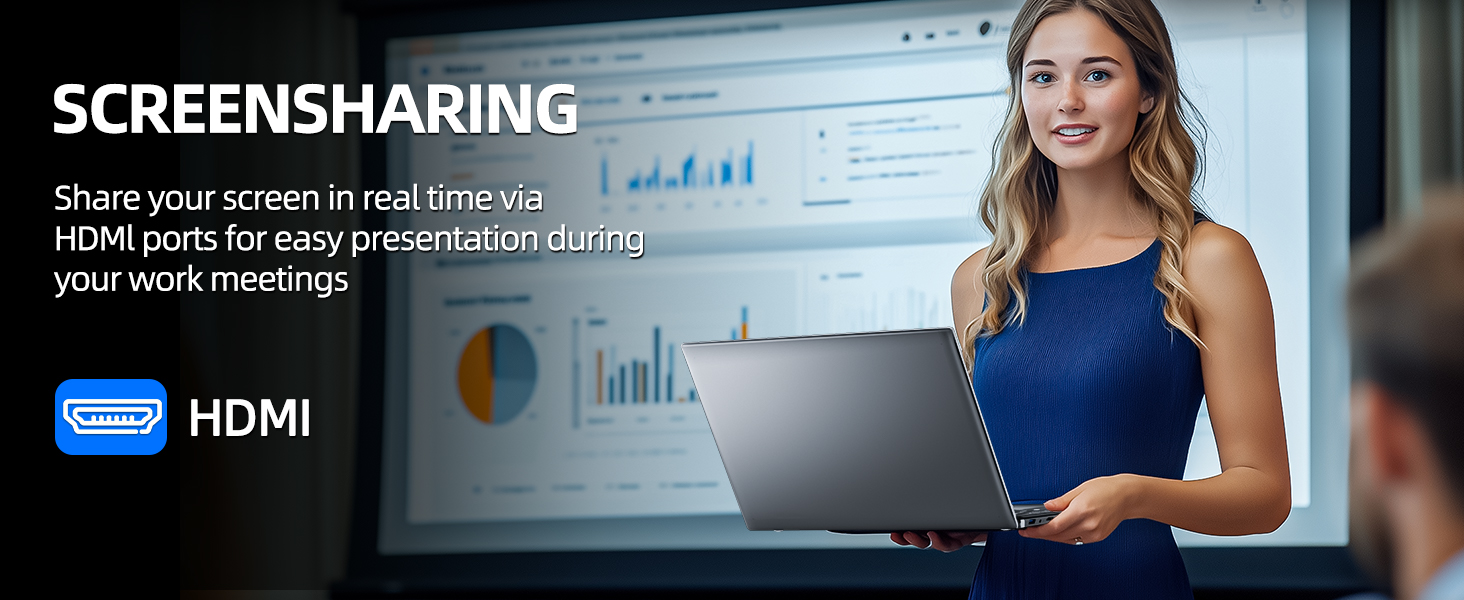
Figure 5.1: Screen Sharing via HDMI
5.6 Itilizasyon Aparèy USB
Connect USB devices such as external hard drives, keyboards, or mice to the available USB 3.2 ports. The laptop will automatically detect and install necessary drivers.
6. Storage and Memory Management
6.1 Ogmante Depo
Your SGIN laptop supports storage expansion:
- Additional SSD: An extra slot is available for installing an M.2 SSD, supporting up to 1TB. Consult a qualified technician for installation.
- Kat MicroSD: Insert a MicroSD card into the dedicated slot for up to 512GB of additional storage.
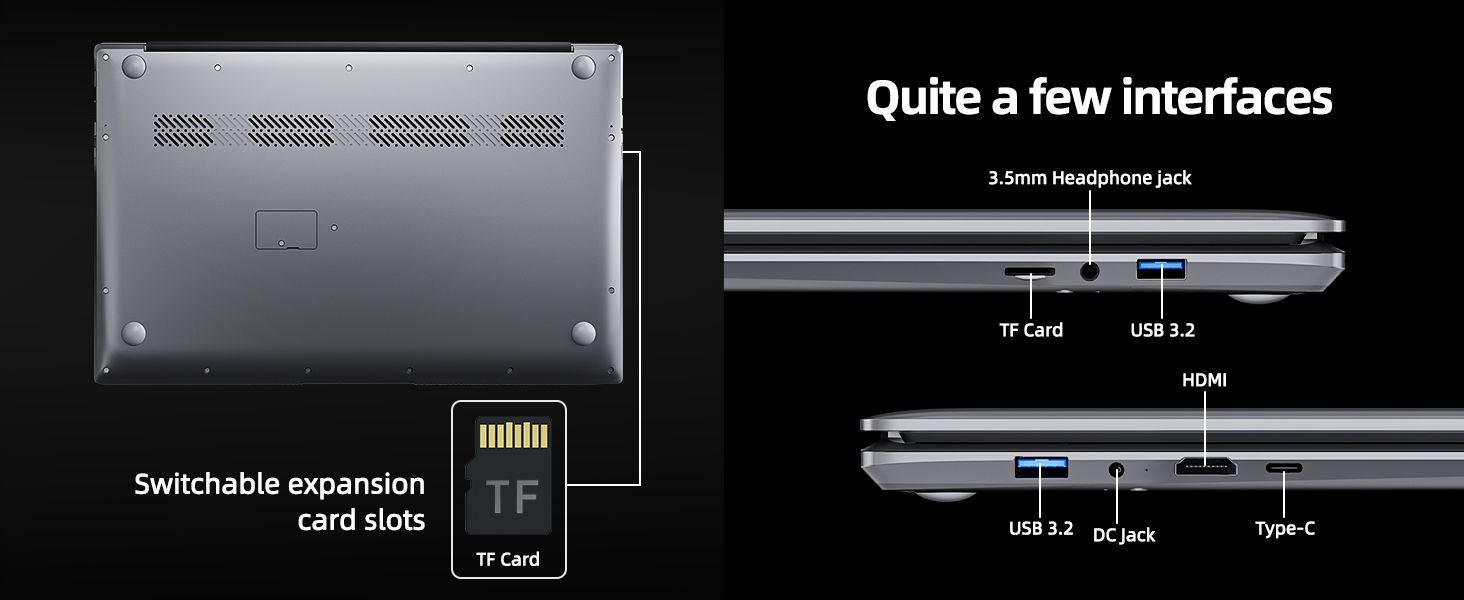
Figure 6.1: Expansion Card Slots
7. Swen batri
7.1 Gid pou chaje
Always use the original SGIN power adapter provided with your laptop. Avoid using third-party chargers that may not meet the required specifications.
7.2 Optimize lavi batri
Pou pwolonje lavi batri a:
- Adjust screen brightness to a comfortable but lower level.
- Close unused applications and browser tabs.
- Dekonekte periferik ekstèn yo lè w pa ap itilize yo.
- Enable Windows Battery Saver mode.
- Evite tanperati ekstrèm.
8. Antretyen ak Swen
8.1 Netwaye òdinatè pòtab la
Sèvi ak yon ti moso twal mou, ki san pèl dampLave avèk dlo oswa yon pwodui netwayaj ekran pou netwaye ekran an. Pou klavye a ak chasi a, sèvi ak yon twal mou epi sèk. Evite pwodui chimik ki agresif oswa materyèl abrazif.
8.2 Mizajou lojisyèl
Regularly check for and install Windows updates to ensure system stability, security, and optimal performance. Go to 'Settings' > 'Windows Update'.
8.3 Manyen Jeneral
Handle your laptop with care. Avoid dropping it or exposing it to liquids, extreme temperatures, or direct sunlight. Do not place heavy objects on the laptop.
NAN. Depanaj
This section addresses common issues you might encounter with your SGIN laptop.
| Pwoblèm | Kòz posib | Solisyon |
|---|---|---|
| Laptop won't turn on | Batri fèb; Pwoblèm adaptè kouran; Pwoblèm pyès ki nan konpitè a | Ensure battery is charged. Check power adapter connection. Try a different outlet. If problem persists, contact support. |
| Wi-Fi pa konekte | Wi-Fi disabled; Incorrect password; Router issue | Ensure Wi-Fi is enabled in settings. Verify password. Restart router and laptop. |
| Pèfòmans dousman | Too many applications running; Low storage space; Malware | Close unnecessary programs. Free up disk space. Run a virus scan. Consider adding more RAM or upgrading SSD if frequently slow. |
| Pa gen son | Volume muted; Incorrect audio output; Driver issue | Check volume levels and mute status. Ensure correct output device is selected. Update audio drivers. |
| Webkamera a pa fonksyone | Privacy settings; Driver issue; Application access | Check Windows privacy settings for camera access. Update webcam drivers. Ensure the application has permission to use the camera. |
10. Espesifikasyon teknik
Detailed specifications for the SGIN M17S Laptop Computer:
| Karakteristik | Spesifikasyon |
|---|---|
| Non modèl | M17S |
| Kanpe Screen Display Size | 17.3 pous |
| Rezolisyon ekran | 1920 x 1080 piksèl (Full HD IPS) |
| Processeur | Intel Core i3-5005U (2.4 GHz, 2 Cores, 4 Threads) |
| RAM | 4 GB DDR4 |
| Disk Drive | 128 GB SSD |
| Koprosesè grafik | Entegre |
| Kalite san fil | 802.11ac (5G WiFi) |
| Bluetooth | Bluetooth 4.2 |
| Sistèm operasyon | Windows 11 Kay |
| Pwa atik | 5.89 liv |
| Dimansyon pwodwi | 17.3 x 10 x 0.6 pous |
| Batri | 8000 mWh Lithium Ion (60Wh) |
| Koulè | Nwa |
| Karakteristik espesyal | Memory Card Slot (MicroSD) |
11. Garanti ak sipò
Your SGIN laptop includes a 1-year comprehensive after-sales warranty covering essential components. For technical assistance, warranty claims, or any product-related inquiries, please contact SGIN customer service. Our professional customer service team aims to respond within 12 hours.
For more information and support, please visit the official SGIN websit la oubyen gade enfòmasyon kontak ki vini ak anbalaj pwodwi a.