
1. Entwodiksyon
The MEETION DirectorD-KB is a wireless ergonomic keyboard designed for comfortable and natural typing. It features a scientific wave key design and a built-in firm wrist rest to support your hands during extended use. This keyboard offers broad compatibility with Windows and macOS devices through a 2.4GHz wireless connection.

Image: The MEETION DirectorD-KB Wireless Ergonomic Keyboard positioned on a wooden desk, showcasing its wave-curved design and integrated wrist rest.
2. Pake kontni
Asire w tout atik yo prezan nan pakè a:
- 1 x MEETION DirectorD-KB Wireless Ergonomic Keyboard
- 1 x manyèl itilizatè
- 1 x USB-A 2.4GHz Wireless Receiver
- 1 x USB-C adaptè
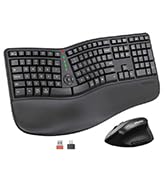
Image: Contents of the MEETION DirectorD-KB package, including the keyboard, user manual, USB-A receiver, and USB-C adapter.
3. Enstriksyon Enstalasyon
3.1. Enstalasyon batri
- Jwenn konpatiman batri a anba klavye a.
- Louvri kouvèti lòj batri a.
- Mete de pil AAA (pa enkli) nan konpatiman an, asire polarite ki kòrèk la.
- Fèmen kouvèti lòj batri a byen.

Image: The underside of the keyboard showing the battery compartment for two AAA batteries and details on power saving features.
3.2. Konekte Reseptè a
- Locate the USB-A 2.4GHz wireless receiver, typically found in the slot inside the keyboard's battery compartment or in the accessory pouch.
- For devices with a USB-A port: Plug the USB-A receiver directly into an available USB-A port on your computer.
- For devices with a USB-C port: Attach the provided USB-C adapter to the USB-A receiver, then plug the combined unit into an available USB-C port on your computer.
- The keyboard is plug-and-play and should connect automatically.
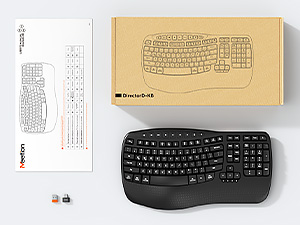
Image: Step-by-step guide on connecting the USB-A receiver with the USB-C adapter to a computer's USB-C port.
3.3. Limen
After installing batteries and connecting the receiver, slide the power switch on the keyboard to the 'ON' position. The keyboard is now ready for use.
4. Operasyon Enstriksyon
4.1. Ergonomic Design and Wrist Rest
The keyboard features a wave-shaped key layout and a firm, integrated wrist rest. This design guides your hands and wrists into a natural, relaxed typing position, reducing strain during long typing sessions.

Image: A user's hands resting comfortably on the integrated wrist rest while typing on the ergonomic keyboard.
4.2. Adjustable Tilt
Utilize the adjustable tilt legs on the underside of the keyboard to find your preferred typing angle. Different angles can further enhance comfort and reduce wrist fatigue.

Imaj: Side profiles of the keyboard demonstrating three different adjustable tilt angles for personalized comfort.
4.3. Dual System Layout (Windows/macOS)
The keyboard supports both Windows and macOS layouts. To switch between operating systems:
- Peze FN+Q pou Layout Windows.
- Peze FN + W pou layout macOS.
4.4. Kle Miltimedya yo
The keyboard includes dedicated and combined multimedia keys for quick access to functions like volume control, media playback, and more.
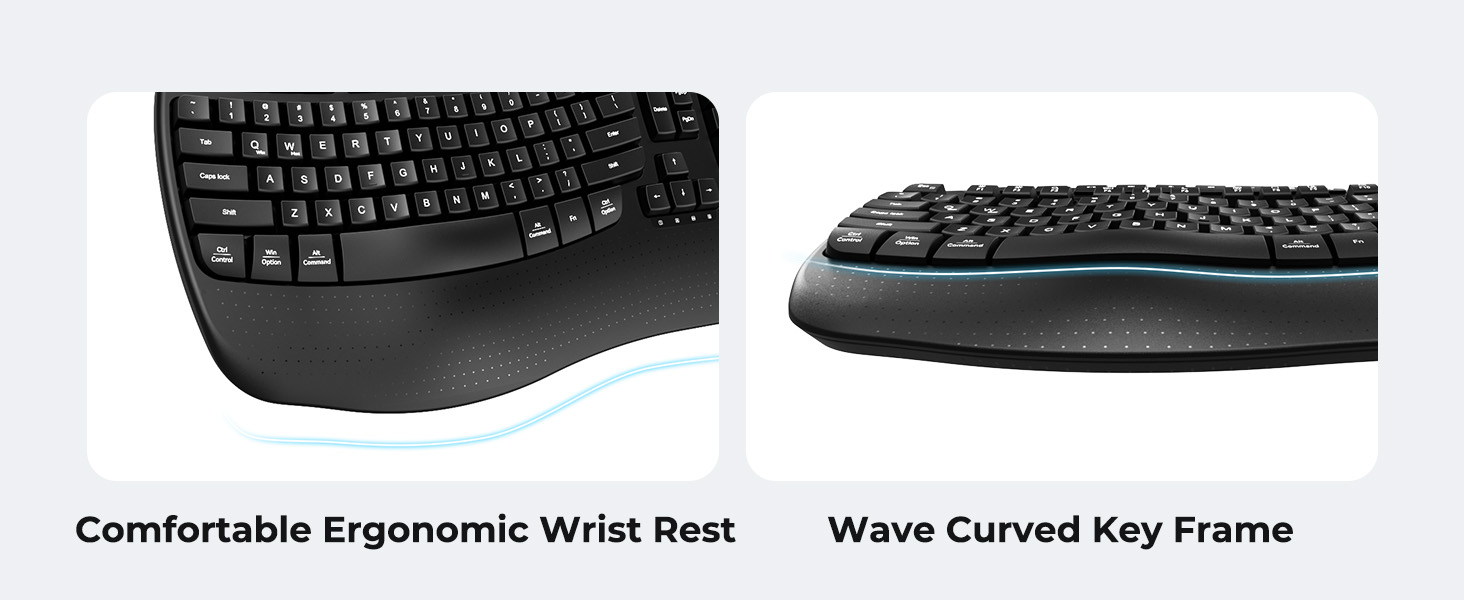
Image: A visual representation of the independent and combined multimedia keys available on the keyboard.
4.5. Intelligent Power Saving
The keyboard features an auto-sleep mode to conserve battery life. After 20 minutes of inactivity, it will enter hibernation. To wake it up, simply press any key.

Image: Close-up of the keyboard's indicator lights, showing status for Num Lock, Caps Lock, FN Lock, and low battery warning.
5. Antretyen
Pou asire lonjevite ak pèfòmans optimal klavye ou a, swiv gid antretyen sa yo:
- Netwayaj: Use a soft, dry cloth to wipe the surface of the keyboard. For deeper cleaning, a slightly damp cloth with mild soap can be used, ensuring no liquid enters the keycaps or internal components.
- Evite likid: Do not expose the keyboard to excessive moisture or spill liquids on it.
- Depo: Sere klavye a nan yon kote ki fre epi sèk, lwen limyè solèy dirèk ak tanperati ekstrèm.
- Ranplasman batri: Replace batteries promptly when the low battery indicator appears to maintain consistent performance.
NAN. Depanaj
If you encounter issues with your MEETION DirectorD-KB keyboard, refer to the following common solutions:
- Klavye a pa reponn:
- Check if the keyboard is powered on.
- Ensure the batteries are correctly installed and not depleted. Replace if necessary.
- Verify that the USB receiver is securely plugged into your computer's USB port (or via the USB-C adapter).
- Eseye branche reseptè a nan yon lòt pò USB.
- Rekòmanse òdinatè w lan.
- Koneksyon ki ralanti oswa ki pa mache byen:
- Ensure the keyboard is within the effective range of the receiver (typically up to 10 meters).
- Minimize interference from other wireless devices by moving them further away.
- Avoid placing the receiver near large metal objects.
- Kle yo pa fonksyone byen:
- Tcheke pou nenpòt obstak fizik anba bouchon kle yo.
- Ensure the correct operating system layout (Windows/macOS) is selected using FN+Q or FN+W.
7. Espesifikasyon
| Karakteristik | Detay |
|---|---|
| Mak | RENYON |
| Nimewo Modèl | DirectorD-KB |
| Koneksyon Teknoloji | 2.4G Wireless (USB-A, USB-C Adapter) |
| Aparèy konpatib | Laptop, PC (Windows XP/7/8/10/11 & macOS X 10.6 or later) |
| Layout klavye | QWERTY |
| Kantite kle | 113 |
| Karakteristik espesyal | Ergonomic, Hotkeys and Media Keys, Integrated Stand, Wave Keys, Wrist Rest |
| Dimansyon pwodwi (L x W x H) | 17.39" x 9.43" x 1.81" |
| Materyèl | Plastik |
| Sous pouvwa | Mache ak pil (2 x AAA, pa enkli) |
8. Videyo pwodwi ofisyèl la
Videyo: Yon prezantasyon videyo pwodwi ofisyèlasing the features and ergonomic design of the MEETION DirectorD-KB Wave Ergonomic Wireless Keyboard. (Duration: 0:39)
9. Garanti ak sipò
This MEETION DirectorD-KB Wireless Ergonomic Keyboard comes with a 1-year manufacturer's warranty.
For further assistance, troubleshooting, or warranty claims, please visit the official MEETION store or contact customer support.
Official MEETION Store: MEETION Store on Amazon